Key takeaways
- Ramp writes its coding on a QuickBooks Online bill's Category details lines. Procore's QuickBooks Online connector only retrieves job costs from lines coded to the project service items it created, so the cost is in QuickBooks and missing from the Procore budget.
- Check four settings before building anything: Ramp Bill Pay item lines, two-tier cost codes with synced budgets, the budget's direct costs column, and where AP enters the cost code in Ramp.
- The fix rewrites each line from Category details to Item details on the matching service item, such as 2401-03-300.M, in place and at the same amount. It never changes amounts, vendors, payment links, closed periods or items.
- Prove it by re-coding three paid bills by hand and running a Procore job cost sync. If the full amounts don't land with payments still linked, stop and re-diagnose.
- Roll out in gated stages: access, mapping, tie-out, then preview only, a shadow week, a sandbox test and live with the owner's sign-off on a small batch first.
- The same connections power a role-based operating system: approvals, projects with OneDrive folders and Convert to won, month-end forecasts, dashboards, project grades, compliance, alerts and owner reports.
- AI vendors connect through an iframe, a read-only agent API or an MCP server, with revocable keys and no write access without the owner's written approval.
31 seconds · From a Build Flows walkthrough
From a fix to an operating system: 25 workflows
Once you are connected to QuickBooks, Procore and Ramp, the same plumbing can feed dashboards, analytics and automations for the whole company.
Read the clip transcript
costs to update the job cost reports. So the proof of concept here there are 25 workflows that are developed within this app that is the operating system we decided to expand it to develop deeper insights since we're already integrating into QuickBooks and Procore and their their ramp solution we're essentially developing a deeper operating system that has different dashboards analytics and automations for this user to be able to interact with and so I'll be sharing this here today.
Captions adapted from the source video; proper names may reflect automatic transcription. Original segment: 10:05–10:36. Watch at the source.
22 seconds · From a Build Flows walkthrough
Want something like this?
If you are looking to build something similar, reach out.
Read the clip transcript
it as well. So it's quite robust, fully functional and developed. And so, of course, if there's any questions, I'm happy to collaborate around this. Of course, if you're looking to build something similar to this, more than happy to partner. So feel free to reach out anytime, happy to collaborate. And so I wish you all the best. Thanks for staying in tune and in touch and stay well. Thanks, bye.
Captions adapted from the source video; proper names may reflect automatic transcription. Original segment: 29:20–29:42. Watch at the source.
Ramp bills land in QuickBooks Online on the right job, and Procore still shows $0 for them. This guide is the written version of a 30-minute walkthrough: the fix we designed, the rollout plan from proof of concept to live, and the project operating system we built around it. It follows the video tab by tab and points you to a deeper guide for every topic.
The client is Cattlemen Construction Services, a general contractor in Fort Worth, Texas, and Ryan Blankers, Cattlemen's co-founder, agreed to let us share the work. Everything in the app runs on sample data: the projects, people and dollar amounts are made up, with the same structure as the real thing. You can watch the walkthrough or read it here.
 Fix, roll out, then run the business from it
The short version
| Question | Answer |
|---|---|
| Why do Ramp bills show $0 in Procore? | Ramp writes its coding on the bill's Category details lines (a GL account). Procore's QuickBooks Online connector only retrieves job costs from lines coded to the project service items it created, which live in Item details. |
| Is the money missing? | No. The bill is in QuickBooks, on the right job, at the right amount. Procore never reads that part of the bill. |
| What's the fix? | Check four settings first. If they don't close the gap, rewrite each Ramp line from Category details to Item details on the matching Procore service item, in place, at the same amount. Prove it on three bills by hand, then automate it. |
| What does the automation never touch? | Amounts, vendors, payment links, closed periods, and the item list itself. |
| How does it go live? | In stages with gates: preview only, a shadow week, a sandbox test, then live with the owner's sign-off on a small batch first. |
| What else got built? | A role-based operating system on the same connections: approvals, projects, month-end, dashboards, grades, reports, an admin console and read-only AI access. |
| Where do I start? | Open one Ramp bill in QuickBooks and look at which section is filled in. Or run the free Procore job cost leak check. |
How the video is laid out
The walkthrough is three browser tabs, and this guide has the same three parts, each with a hub guide.
| Tab | Time | What it covers | Hub guide |
|---|---|---|---|
| 1. Fixing job-cost flow | 00:00–07:49 | The cause, two automations, translation table, settings, guardrails, three-bill proof | Ramp bills show $0 in Procore: the fix |
| 2. The OS roadmap | 07:49–12:37 | The fix in one expense, the proof of concept, stages and gates, access, data protection | Rollout roadmap, proof of concept to live |
| 3. The operating system | 12:37–29:42 | A live tour of the app on sample data, screen by screen | Construction project operating system tour |
 Every guide in this release, by tab
Part 1: The job-cost flow fix (Tab 1, 00:00–07:49)
The first tab is the plan we wrote for Ryan. Its headline is the whole diagnosis: "Your costs aren't missing. They're just in the wrong pipe."
Two systems reading two parts of the same bill
A QuickBooks Online bill has two sections for lines. Category details lines point at a GL account, such as Job Materials. Item details lines point at a product or service item, with a quantity and rate. Ramp writes to Category details. Procore's QuickBooks Online connector looks in Item details, and only at lines coded to the project-specific service items it created.
Charley says it in the first minute of the video: "since Procore is only reading from the item details, it's not even reading that the QuickBooks bill has any type of cost associated to it."
The plan's illustrative bill is #10482 for $7,150: two Job Materials lines on project 2401, and $0 on the Procore budget.
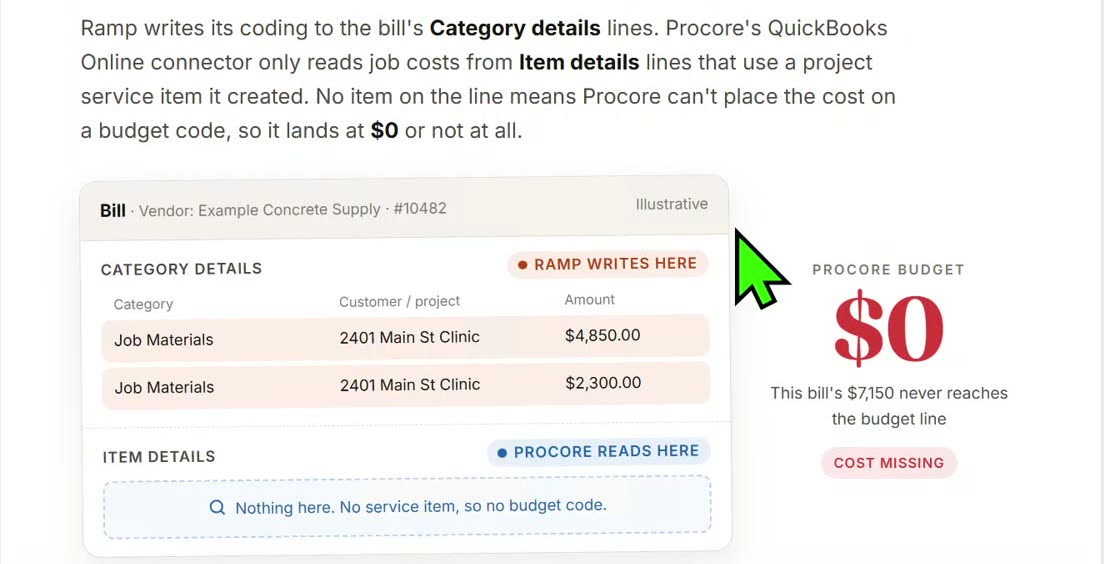 Tab 1, the plan page. Illustrative data.
"$0" is our shorthand. Procore's documentation says lines coded to GL accounts or unsynced items can't be retrieved, and describes a yellow banner on the budget tool when it detects mis-coded QuickBooks job costs. The two line types are explained in QuickBooks Category details vs Item details. The full diagnosis and the order to fix it in is the Tab 1 hub, Ramp bills show $0 in Procore: the fix.
A note on Ramp, because it keeps adding features. Card transactions sync as expenses with no item field. Bill Pay can carry item lines in some setups, but we haven't confirmed it can target Procore's service items. Whatever your setup, the test is the same: does the line end up on a Procore-created service item?
What a Procore service item looks like
Procore creates one QuickBooks service item for every budget code on a synced project, named [project number]-[cost code].[cost type]. On sample project 2401, cost code 03-300 with cost type M becomes 2401-03-300.M. In the sample setup the cost types are M materials, L labor, S subcontract, E equipment and O other, but the letters come from your own Procore cost type list. Never create these items by hand in QuickBooks. The details are in Procore service items in QuickBooks: naming and cost codes.
Two code lists that have to meet
At 01:19 the video gets to the harder part. People in the field pick a QuickBooks accounting code in Ramp, and Procore's budget codes are more specific. "If something is purchased as materials for a project, well then what is the type of material then we're recording in Procore?"
The translation table turns "Ramp project 2401, cost code 03-300" into "service item 2401-03-300.M". Most rows build themselves from the items Procore already synced. The cost type never fills itself: AP picks it in Ramp, or it defaults from the GL category (Materials becomes M). See The Ramp to QuickBooks to Procore translation table. Start from the translation table template (CSV). If your problem is GL accounts that cover many cost codes, map QuickBooks GL accounts to Procore cost codes covers that side.
Check the settings before building anything
The plan's rule is cheapest fix first. A settings change costs nothing, so four checks come before any code:
| # | Who | Check |
|---|---|---|
| 01 | Ramp support | Can Bill Pay lines sync to Item details using Procore's service items? If yes, most of the build goes away. |
| 02 | Procore admin | Do cost codes use 2 or more tiers, and is every active project's budget synced so the items exist? |
| 03 | Procore admin | Does the budget view show the ERP direct costs or job-to-date costs column? |
| 04 | AP | Where does the cost code live in Ramp: a line-level field, Class, or a transaction-level custom field? |
There's a fifth option that's a decision for the owner: enter vendor invoices in Procore first and pay them in Ramp. That fixes coding at the source, at the cost of a bigger process change. The less obvious checks (QuickBooks plan level, closing dates, sub-jobs, projects that existed before the connector was turned on) are in Ramp, QuickBooks and Procore settings to check before an integration, with a printable pre-integration settings checklist.
Automation 1: the bill line rewriter
From 02:58 to 05:26 the video covers the first automation. It works like a sorting machine for bills.
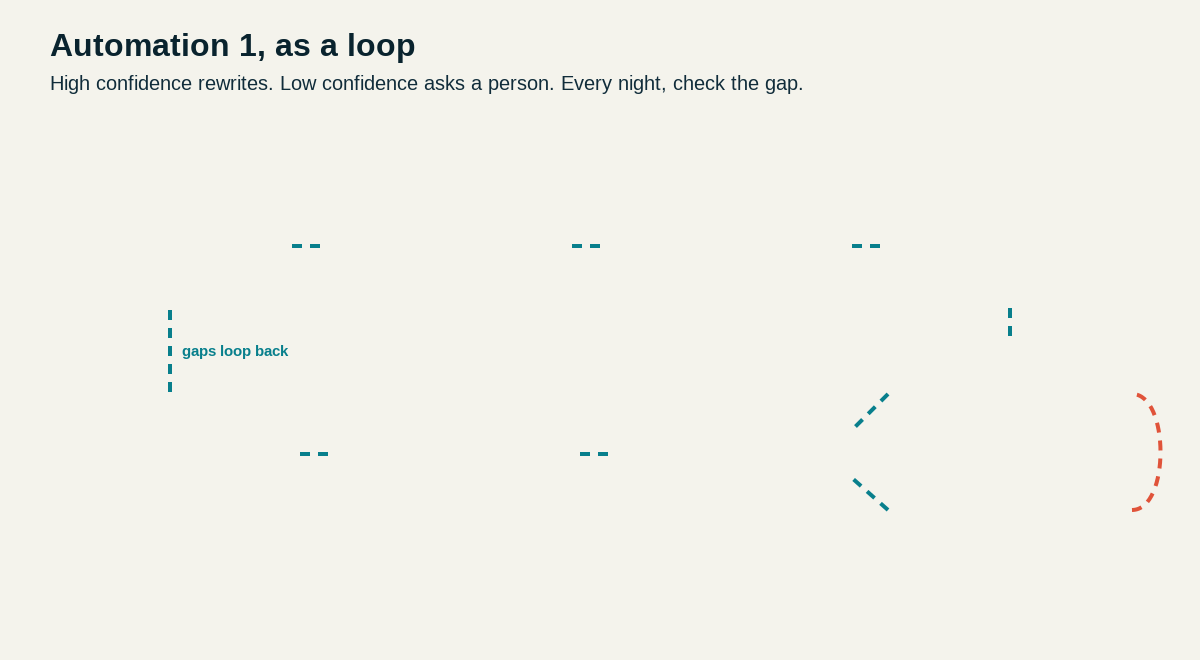 Detect, read, translate, score, rewrite or queue, log, then check nightly
- Detect: a QuickBooks webhook on every new or changed bill, plus a 15-minute sweep for anything it missed.
- Read AP's project and cost code for each line from Ramp, where AP coded it.
- Translate it to a service item using the translation table.
- Score it. High confidence is one exact item match on an active project. Low is a missing item, an ambiguous code or a closed period.
- Rewrite high-confidence lines in place at the same amount. Queue low-confidence bills with a suggested code for one-click approval.
- Log a private note on the bill and a before and after record.
Here is what one line looks like before and after. Vendor, date, bill number, AP account and total don't move.
 Only the line type and the item change
Automation 2: the nightly safety net
The second automation is a check. Every night it compares QuickBooks and Procore per budget code and sends an exceptions list with links to both records. It never types costs into Procore next to imported ones, which would double-count once the import catches up. Procore's own job cost import runs once a day, with an on-demand sync available.
Ten ways we look, two ways we touch
At 06:03 the video shows the endpoint map. Ten calls read from QuickBooks, Ramp and Procore. Two write: the QuickBooks bill update, and a Procore direct cost edit that applies only to costs entered by hand in Procore, after approval. Each system connects through a dedicated integration user, so every change traces back to it.
The plan also lists what the automation never does: change amounts, change vendors, break payment links, touch closed periods, or create items. A missing item means the budget code hasn't synced from Procore yet, so it goes to the project manager. The rest of the guardrails (SyncToken checks, idempotent re-runs, shadow mode first) are in Safe QuickBooks write automation: guardrails. The governance side, for when an AI agent is the one writing, is in the AI agent write governance ladder.
Prove it on three bills, then build
The last section of Tab 1 (07:03) is "Start small. Prove it. Then build." Before anyone writes code, re-code three paid Ramp bills by hand in QuickBooks Online, run a job cost sync in Procore, and check that the full amounts land on the right budget codes with the payment still linked. The plan calls this Gate B, and it's the real test. If hand-coded bills don't show up at full value, you stop and re-diagnose.
| Gate | What has to be true |
|---|---|
| A | The settings checks alone don't close the gap. |
| B | Re-coded bills land on the right budget code at full amount, payment still linked. |
| C | 20 shadow-mode proposals in a row approved with no corrections. |
| D | One month-end close with no unexplained gaps. |
The hand test also shows whether Procore updates an existing direct cost when a bill is edited in place. The step-by-step is Prove a job-cost fix: re-code three bills by hand, with a printable three-bill proof test. For a broader version of the same idea, see the five-record acceptance test.
Tab 1 ends with four calls only the owner can make: who picks the cost type (AP in Ramp, or a default from the GL category), who reviews low-confidence bills and where (email or Teams), how far back to re-code history, and whether Ramp stays the place costs are entered long term.
Part 2: The rollout roadmap (Tab 2, 07:49–12:37)
The second tab is the roadmap: how we get from a tested proof of concept to a system the whole company uses. It starts by retelling the fix with one real-looking expense.
The fix in one expense
The roadmap follows one sample charge, Ramp #2346 at Home Depot for $1,284.37. Today Procore can't read it, so the job shows $0. With the fix, the expense gets a recommended Procore cost code, the user confirms or changes it, it's approved, and the line is rewritten so Procore picks up $1,284. Charley at 09:42: "we'll give some recommendations on what it should be or what it could be and we'll give the users the options to be able to select it."
That recommend, select, approve step is the approvals queue you'll see in Tab 3. The design is in The bill and card coding approvals queue.
The proof of concept is live and tested
At 10:05 the roadmap shows where things stand. The proof of concept grew from one fix into an operating system "since we're already integrating into QuickBooks and Procore and their Ramp solution."
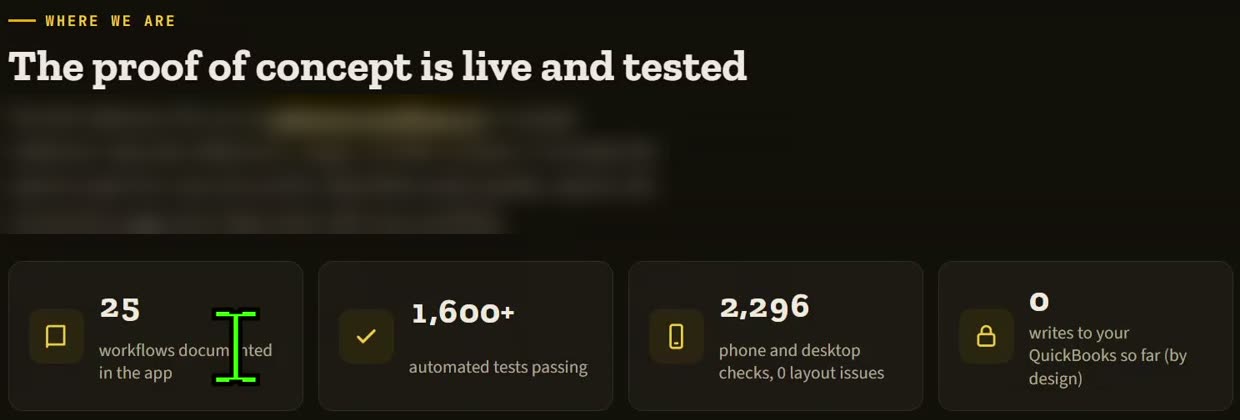 Tab 2, the roadmap. Part of the text is blurred.
| Number | What it means |
|---|---|
| 25 | Workflows documented in the app's help center |
| 1,600+ | Automated tests passing |
| 2,296 | Phone and desktop layout checks, 0 issues |
| 0 | Writes to the client's QuickBooks so far, by design |
The zero matters most. Nothing touches the real books until the stages below have passed.
Stages and gates
Each stage ends at a gate, and nothing moves on until the gate passes. Stages overlap where they can.
| Stage | Gate to pass |
|---|---|
| 00 Proof of concept | Done, on sample data |
| 01 Agree and sign | Signed agreement. No live system is touched before this. |
| 02 Access and secure setup | Every connection green and passing its self-test |
| 03 Live data and cost code mapping | Projects and cost codes match Procore; data health clean |
| 04 Tie out the numbers | The owner agrees 2 to 3 known jobs match within a set tolerance |
| 05 Approver go-live | 20+ live expenses on the right cost code, totals and vendors unchanged, every write logged |
| 06 Tailor and roll out | Supers code without help; the owner runs the weekly review from the dashboard |
| 07 Folders and Convert to won | Proven on three real projects |
| 08 Connect the AI vendor | No write access without the owner's written approval |
| 09 Run and improve | Ongoing |
The stage-by-stage plan, who does what and how gates work is in Construction software rollout roadmap: proof of concept to live, and the rollout gates checklist is a printable version.
Preview, shadow week, sandbox, live
Stage 05 is the one that touches QuickBooks, so it climbs four steps. In preview, live data comes in and the app shows the exact line it would write, and QuickBooks doesn't change. In the shadow week, supers code, the owner approves, and accounting compares the result with what they'd have done by hand. The sandbox test runs the full write path against a test company. Live comes last, with the owner's sign-off in the app, a small batch first, a check in Procore, then the rest. The detail, including what to compare in the shadow week and how to roll back, is in Shadow week, sandbox and go-live gates.
What we need from the client
At 12:11 the roadmap lists what the contractor provides: a QuickBooks, Procore and Ramp admin for about 15 minutes each to click Connect, the user list with roles, the category and cost code lists, which PMs run which jobs, how far back to re-code, 2 to 3 jobs to tie out, and an introduction to the AI vendor. It also says plainly: please don't email passwords or keys. The full list, with why each item matters, is in What contractors provide for an integration: access checklist, and there's a printable integration access checklist. If you're the one setting up the keys, API credential setup and troubleshooting walks through each system.
How your data is protected
The last block of Tab 2 is six promises: your own login, see only your part, approve don't share, QuickBooks guarded, everything logged, and hosted by BuildFlows. Field users see their expenses, PMs their projects, executives everything. Live QuickBooks writes need the owner's sign-off. Each promise is explained in plain terms in Contractor app data security: how your data is protected. The engineering pattern behind "see only your part" is in multi-tenant RBAC with a single authorization chokepoint.
Part 3: The project operating system (Tab 3, 12:37–29:42)
The third tab is the app itself, on sample data. It runs on the same connections the fix needs, so the rest is screens on top of data that's already there.
 One core, many screens
The hub for this part, with every screen in order, is The construction project operating system tour.
Sign-in and roles
Everyone signs in with their own account and sees what their role allows. Charley signs in as the super admin, so he sees everything. Executives get their reports and admin panels; a field user doing expenses sees the approval screens.
Home
The home screen leads with what needs action: 5 charges waiting for approval, 2 forecasts waiting for review and 4 critical alerts. Under that are the numbers that matter, all sample data:
| Tile | Sample value |
|---|---|
| Cash | $2.71M, with $1.15M owed to us and $290K over 60 days |
| Backlog | $5.88M on 5 active jobs |
| Gross margin YTD | 15.3% on $21.5M revenue |
| Underbilled | $210K earned, not billed yet |
| Uncoded card spend | $14K, 25 charges not in Procore |
| Pipeline | $4.40M weighted, 3 bids due this week, 60% win rate |
| November close | 1 of 6 jobs signed off |
Approvals: coding one bill
At 14:08 Charley opens the approvals queue: every expense that still needs a Procore cost code, filterable by person and project, with a "select ready to approve" button. Field users see their own; admins see everyone's. He opens a sample $455.00 light tower rental, Ramp #2331, on job 25-014 Panther Creek Retail Shell, coded in Ramp to GL 5030 Equipment rental. The page shows exactly what will happen in QuickBooks before anyone presses Approve.
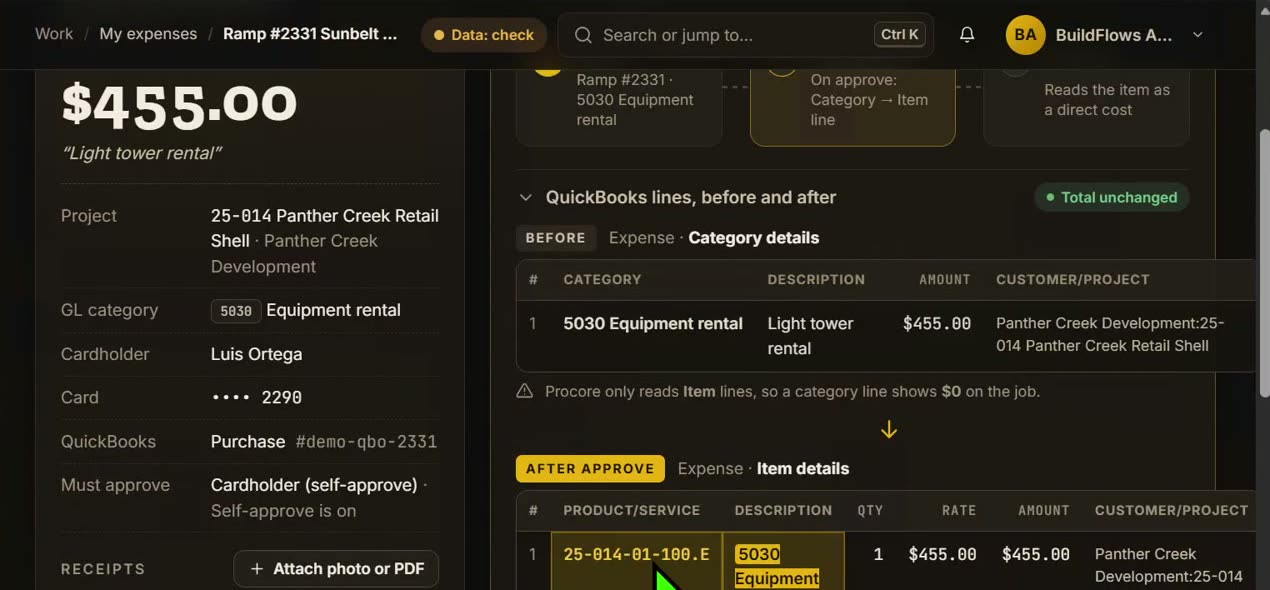 Tab 3, one expense before and after approval. Sample data.
After approval the $455.00 sits on service item 25-014-01-100.E, with "5030 Equipment rental" kept in the description so accounting still sees its GL. The cost code arrives as a suggestion the user can accept or change (15:24), and bulk approval works on the ones marked ready.
The queue design, statuses and the "what happens in QuickBooks" panel are in The bill and card coding approvals queue. The original portal design from the discovery call is in Construction expense coding portal: approval workflow.
Projects, folders and Convert to won
From 16:19 the video moves to projects. "Create project" builds the project's OneDrive folder set from a standard template. When the job is won, "Convert to won" creates the Procore project with the same name and number, so the two never drift.
The Files tab is the OneDrive folder. "If you're interacting with a file here in the operating system, it's the same as interacting with the file as you are in OneDrive." Folder template and metadata design are in SharePoint and OneDrive project folder structure.
Month-end close
At 18:51 comes month-end close. Each PM forecasts what's left to spend per cost code, and an executive reviews before the month is locked. Sample job 26-004 Clearfork Medical Office TI:
| Field | Sample value |
|---|---|
| Contract | $1.28M, billed $640K |
| Forecast EAC | $1.10M, down $87K (7.3%) from last month |
| Projected margin | 13.9%, $178K |
| % complete (cost to cost) | 55.5%, earned $710K |
| Over/under billed | $70K under |
The workflow is in Month-end cost-to-complete and EAC review workflow. For the accounting checklist around it, see the construction month-end close checklist.
The company dashboard
The company panel (19:16) is the executive view, with month to date, quarter, year and trailing 12 months, filterable by client.
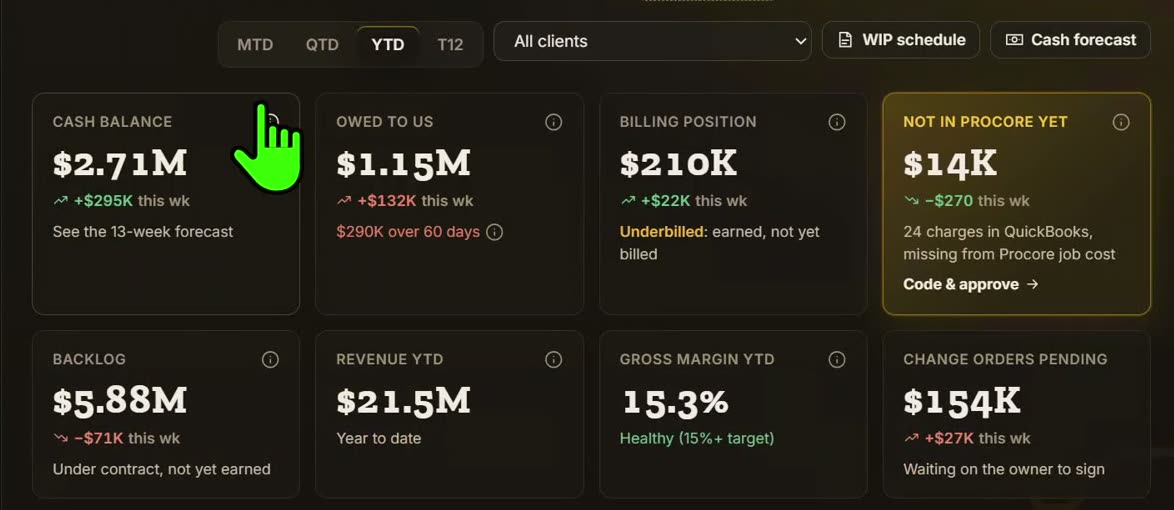 Tab 3, the company dashboard. Sample data.
The tile that ties back to Tab 1 is "Not in Procore yet": $14K across 24 charges, with a link to code and approve them. If the fix is working, it trends toward zero. If you're choosing which numbers belong on a dashboard like this, start with the construction KPI scorecard starter set.
Project grades
At 19:55 each project gets a grade from 0 to 100 across weighted pillars: schedule, financials, safety and quality. In the sample, the portfolio average is 83 across 6 graded projects, with 2 on track, 3 to monitor and 1 needing attention. Job 25-014 Panther Creek Retail Shell grades 87 on a $3.32M contract, 83% complete at a 12.6% projected margin, and its weakest pillar is financials. The owner sets the weights. See Construction project grade: a weighted scorecard.
Subs, insurance and lien waivers
Each project's Subs tab lists the subcontractors being paid, their certificates of insurance with expiry dates, and lien waivers. See Subcontractor compliance tracking: COIs and lien waivers.
Alerts
Alerts (21:15) can be assigned to a person, noted, snoozed or acknowledged, and each one opens to show where its numbers came from. In the sample there are 4 critical and 19 warnings, such as a job underbilled $428K and a client with $170K more than 90 days past due. What to alert on is in construction early warning indicators, and delivery by email, push or text is in construction alerts and notifications.
Reports
From 21:54 to 24:43 the video walks the reports:
| Report | Sample headline |
|---|---|
| WIP schedule | $210K underbilled net: $262K overbilled on some jobs, $473K underbilled on others |
| Cash position and 13-week forecast | $2.71M today, lowest point $727K in the week of Feb 8 |
| Job cost | Cost to complete and margin trend by project |
| Profitability and portfolio | Projected margin, EAC and earned vs billed by project and client |
| Contracts, commitments and buyout | The commitment log by project, drillable to each commitment |
| Vendor spend and uncoded aging | $14K uncoded, aged, with spend by cost code and by GL account |
| Card spend coding | 17 to code, 19 synced to Procore, $14K not in Procore across 24 items on 6 projects |
| Exceptions | QuickBooks vs Procore gaps and what needs reconciling |
Every report and its source fields are in Construction owner reports: WIP, cash, profitability and buyout. If you'd rather build these in Power BI, see construction WIP reporting in Power BI and the construction cash flow forecast in Power BI. Over and under billing itself is explained in over/under billing on the WIP schedule.
Platform console and view-as
At 24:43 the admin console shows system health, connectors, database tables and errors. The users screen lets an admin "view as" someone else. Viewing as a field user (25:13) shows only his expenses: 8 to do, one with a suggested code. View-as is read-mostly: QuickBooks writes, password changes and user changes are blocked, and it ends in 30 minutes. "I can't approve since I'm viewing as him, I'm not him."
The console also has the session log, feature flags, and data tools for exporting everything and switching from sample to live data. Roles, view-as and the console are covered in Roles and view-as: access control in a contractor app.
Help center
At 26:47 there's a help center: walkthroughs, guides for all 25 workflows, data sources, a glossary, access rings from field to super admin, and a developer section. How we write help content for people and AI agents is in product help docs as an agent knowledge base.
The AI link: iframe, read-only API and MCP
The video ends (27:48 to 29:20) on the page built for the client's separate AI platform. There are three ways in: embed the whole app in an iframe with sign-in kept, call the read-only agent API with a bearer key, or connect an agent to the MCP server over streamable HTTP. Agents can read outstanding bills, alerts, projects and progress. Keys can be revoked, and write tools such as approvals stay off unless the owner approves them in writing.
The handoff for an AI vendor is in Give your AI vendor read-only API and MCP access to construction data. The choice between iframe, API and MCP is in Embed a construction dashboard in an AI assistant, and production hardening is in Hardening MCP servers for production.
Chapter index
| Time | Topic | Read more |
|---|---|---|
| 00:00 | The problem: Ramp bills show $0 in Procore | The $0 fix |
| 01:19 | Ramp's QuickBooks codes vs Procore's budget codes | Translation table |
| 02:58 | The fix: read the bill, translate, rewrite the line | The $0 fix |
| 03:45 | Detect, translate, score, queue, and what it never touches | Write guardrails |
| 05:26 | Budget codes and cost types: M, L, S, E, O | Service items |
| 06:03 | Endpoints: one webhook, reads, and a single write | Settings to check |
| 07:03 | Prove it on real bills, then build | Three-bill proof |
| 07:49 | Tab 2: the roadmap and the fix in one expense | Category vs Item details |
| 08:59 | Recommend, select, approve, rewrite | Approvals queue |
| 10:05 | Proof of concept: 25 workflows, one operating system | Rollout roadmap |
| 10:37 | Rollout stages: access, mapping, validation, go-live | Go-live gates |
| 11:17 | Project folders, Convert to won, and the AI platform | Rollout roadmap |
| 12:11 | What we need, and how your data is protected | Data protection |
| 12:37 | Tab 3: signing in to the operating system | Roles and view-as |
| 13:16 | Home dashboard | OS tour |
| 14:08 | Approving a bill's cost code | Approvals queue |
| 15:24 | Suggested cost codes | Coding portal workflow |
| 16:19 | Create project and Convert to won | OS tour |
| 17:43 | Project files live-synced with OneDrive | Folder structure |
| 18:51 | Month-end close forecasts | Cost to complete review |
| 19:16 | Executive company panel | KPI starter set |
| 19:55 | Project grades and scorecards | Project grade |
| 20:53 | Job cost, expenses and subcontractor insurance | Sub compliance |
| 21:15 | Alerts | Early warning indicators |
| 21:54 | Reports: WIP and cash | Owner reports |
| 22:34 | Profitability, EAC and commitments | Owner reports |
| 23:30 | Vendor spend, uncoded aging, QuickBooks vs Procore gap | GL to cost code mapping |
| 24:43 | Platform console | Roles and view-as |
| 25:13 | View as a field user | Roles and view-as |
| 26:13 | Sessions, feature flags and data tools | Roles and view-as |
| 26:47 | Help center | Help docs as a knowledge base |
| 27:48 | API docs, iframe embed, read-only agent API and MCP | AI vendor access |
| 29:20 | Build something similar | Tell us what you're building |
Free tool and downloads
- Procore job cost leak check: see where a dollar stops between Ramp, QuickBooks and Procore.
- Translation table template (CSV)
- Pre-integration settings checklist
- Three-bill proof test
- Rollout gates checklist
- Integration access checklist
- Owner report pack guide
What to do this week
- Open one Ramp-paid bill in QuickBooks Online on a job where Procore looks short. If Category details is filled and Item details is empty, you have this gap.
- Search QuickBooks Products and Services for the project number. Confirm the service items (like
2401-03-300.M) exist. - Run the four settings checks: Ramp Bill Pay item lines, two-tier cost codes, the budget's direct costs column, and where AP enters the cost code in Ramp.
- Export your Procore cost code list and your QuickBooks service items, and start the translation table.
- Re-code three paid bills by hand, run a job cost sync in Procore, and check the full amounts land with payments still linked.
- Decide the four owner calls: cost type rule, who reviews exceptions, how far back to re-code, and where costs get entered long term.
Questions people ask
Why are my QuickBooks Online bills not showing in Procore direct costs?
Procore's QuickBooks Online connector only retrieves job costs from bills, expenses and vendor credits whose lines use the project service items it created. Category lines, other items and journal entries aren't retrieved.
Can a setting in Ramp fix it?
Possibly, for bills. Ramp Bill Pay supports item lines when items are synced from your accounting system, and that's the first thing to ask Ramp support. Card transactions sync as expenses with category lines and no item field, so card spend needs a rewrite or a coding step either way.
Is rewriting a QuickBooks bill safe?
It can be, with rules: update in place (Procore doesn't detect deletions), never change amounts, vendors or the AP account, queue anything in a closed period, and log every change. Prove it on three bills by hand, then run a shadow period before any automatic writes.
How often does Procore pick up the change?
Procore documents its QuickBooks Online job cost import as a background job that runs once a day, with an on-demand sync you can trigger. Budget codes export to QuickBooks as service items more often, about every five minutes.
Do I need the whole operating system to fix the $0 problem?
No. The fix is the translation table, the rewrite and the nightly check. The operating system grew out of it because the same connections already had the data. Many companies stop at the fix.
Are there other ways to get card spend into Procore?
Yes. Some card programs push transactions straight into Procore, and some third-party Procore and QuickBooks connectors can map category lines through a chart of accounts mapping. It depends on where you want costs coded.
Need a hand?
If your Ramp spend reaches QuickBooks and stops there, or you want one place to run approvals, month-end and owner reports across Procore and QuickBooks, we do this work every week. Email charley@buildflows.ai or tell us what you're building.
References
- Procore Support: QuickBooks Online integration, things to know
- Procore Support: QuickBooks Online detailed data mapping
- Procore Support: Sync cost codes from Procore to QuickBooks Online
- Ramp Help: QuickBooks Online overview
- Ramp Help: Invoice line items, expense vs item
- Intuit: Change the closing date and password
Frequently asked questions
Why do Ramp bills show $0 in Procore?
Ramp syncs its coding to the Category details lines of a QuickBooks Online bill, which point at a GL account. Procore's QuickBooks Online connector only retrieves job costs from lines coded to the project-specific service items it created, which sit in Item details. The bill is in QuickBooks on the right job, but Procore never reads the part of the bill where the cost is.
Can a Ramp setting fix the Category details problem?
Possibly for bills. Ramp Bill Pay supports item lines when items are synced from the accounting system, so ask Ramp support whether Bill Pay lines can use Procore's QuickBooks service items in your setup. Card transactions sync as expenses with no item field, so card spend still needs a rewrite or a coding step.
What does a Procore service item in QuickBooks look like?
Procore names each service item [project number]-[cost code].[cost type]. On a sample project 2401, cost code 03-300 with cost type M for materials becomes 2401-03-300.M. Procore creates one for every budget code on a synced project budget, and cost codes need at least two tiers.
Is it safe to automate rewriting QuickBooks bills?
It can be with strict rules: update bills in place instead of deleting and recreating them, never change amounts, vendors, payment links or the AP account, send anything in a closed period to a review queue, use the current SyncToken on each write, and log every change. Prove it on three bills by hand and run a shadow period before any automatic writes.
How do you roll out a fix like this without risking the books?
In stages that each end at a gate: signed agreement, secure access with every connection passing a self-test, a read-only sync and cost code mapping, tying out two or three known jobs, then preview only, a shadow week, a sandbox test and live with the owner's sign-off on a small batch first.
What is in the construction project operating system shown in the video?
An approvals queue for coding bills and card spend, a home and company dashboard, projects with OneDrive folders and a Convert to won step that creates the Procore project, month-end cost-to-complete forecasts, weighted project grades, subcontractor insurance and lien waiver tracking, alerts, owner reports such as WIP and a 13-week cash forecast, an admin console with view-as, a help center and AI access.
How often does Procore import job costs from QuickBooks Online?
Procore documents its QuickBooks Online job cost import as a background job that runs once a day, with an on-demand sync available. Budget codes export from Procore to QuickBooks as service items on a much shorter cycle, about every five minutes.
Can an AI agent read Procore and QuickBooks data from the operating system?
Yes. The app can be embedded in an AI platform through an iframe with sign-in kept, and agents can read data through a read-only agent API with bearer keys or an MCP server. Keys can be revoked, every call is logged, and write tools stay off without the owner's written approval.
Next step
Need this connection in your environment?
Scope one integration: the records, direction, timing, and business rules behind the connection.
Prefer email? charley@buildflows.ai
Keep learning
Integrations · November 19, 2026
Why Ramp Bills Show $0 in Procore, and How to Fix It
The section hub for the Ramp to QuickBooks to Procore job-cost fix, built from the plan we wrote for Cattlemen Construction Services. Ramp writes its coding to the Category details lines of a QuickBooks Online bill. Procore's QuickBooks Online connector only retrieves job costs from lines coded to the project-specific service items it created, which live in Item details, so the cost never reaches the Procore budget. The guide shows how to confirm the gap in five minutes, then the cheapest order to fix it: check four settings, build a translation table, re-code three bills by hand to prove it, then automate with a bill line rewriter and a nightly reconciliation, with guardrails and a phased rollout.
Playbooks · November 19, 2026
Construction Software Rollout Roadmap: From Proof of Concept to Live, Gate by Gate
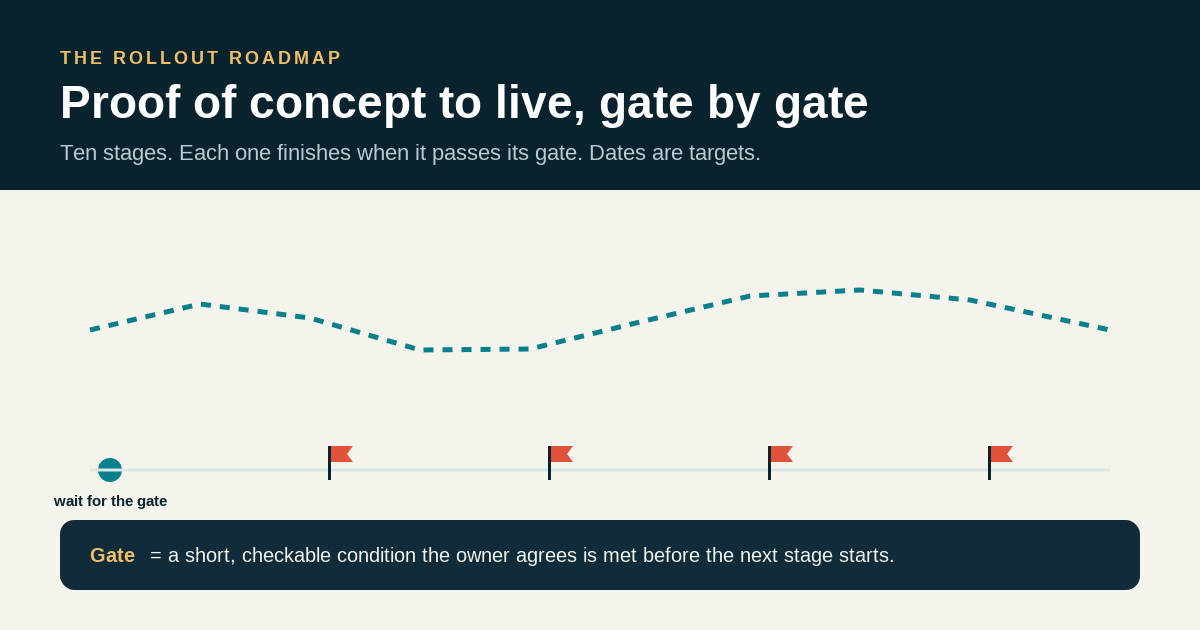
The rollout roadmap we walked Cattlemen Construction Services through after building a proof of concept on sample data: proof of concept, agree and sign, access and secure setup, live data and cost-code mapping, tie out the numbers, expense approver go-live (preview, shadow week, sandbox, live), tailor and roll out, SharePoint folders and Convert to won, connecting an AI vendor, and run and improve. For each stage: what happens, what the contractor provides, what the builder does, the gate that ends it and how long it usually takes. About six weeks from signature to fully live, with dates as targets and gates as the real finish line.
Custom applications · November 19, 2026
A Contractor's Project Operating System, Screen by Screen: What Each Role Sees and Why
A screen-by-screen tour of the Cattlemen OS proof of concept built for Cattlemen Construction Services in Fort Worth, Texas, on sample data over QuickBooks Online, Procore, Ramp and Microsoft 365. Covers sign-in and Home, My expenses and the approvals queue that gets card spend onto Procore cost codes, the Projects list with convert to won and SharePoint folders, the project page tabs (overview, grade, job cost, expenses, subs, files), the weighted project grade, the month-end cost-to-complete close, the company dashboard, alerts, reports, the platform console with read-only view as, the help center and the AI brain connection through iframe, read-only API and MCP. For each screen: what it shows, which role sees it and why, with sample numbers and timestamps from the walkthrough video.