Key takeaways
- Owning the Azure subscription does not let you add secrets. Assign Key Vault Secrets Officer on the vault and allow up to 10 minutes for it to apply.
- Procore production credentials appear only after you configure every component and promote a version to production.
- Empty Procore results usually mean the service account is not on the projects. Add permitted projects in App Management.
- HubSpot 401 means the key value is wrong. HubSpot 403 means the service key is missing a read scope.
- Most QuickBooks invalid_grant errors come from an old refresh token. Save every new refresh token back to the vault.
- Fabric reads the vault as a specific identity. That identity needs a data-plane role and must sign in to the vault's tenant.
You followed the setup steps. You created the Procore app, the HubSpot key and the Intuit app, built a Key Vault and typed in the secrets. Then something said no: a "not authorized" banner in the Azure portal, a Procore screen that will not save, a HubSpot 403, or a QuickBooks invalid_grant on the first scheduled run.
Each of these errors points to one link in a chain: the source app, its scopes, the vault, the identity that reads the vault, and the pipeline run. Find the first link that fails and fix it there. This guide is organized by symptom, then cause, then fix, so you can jump to the message on your screen. Every product fact below was checked against the vendor's current documentation in November 2026, and the references are at the end.
If you have not started the setup yet, begin with the pillar guide to secure API credential setup. It covers the full four-step process: Fabric access, read-only API access, Key Vault, then go live. This page is for when one of those steps goes wrong.
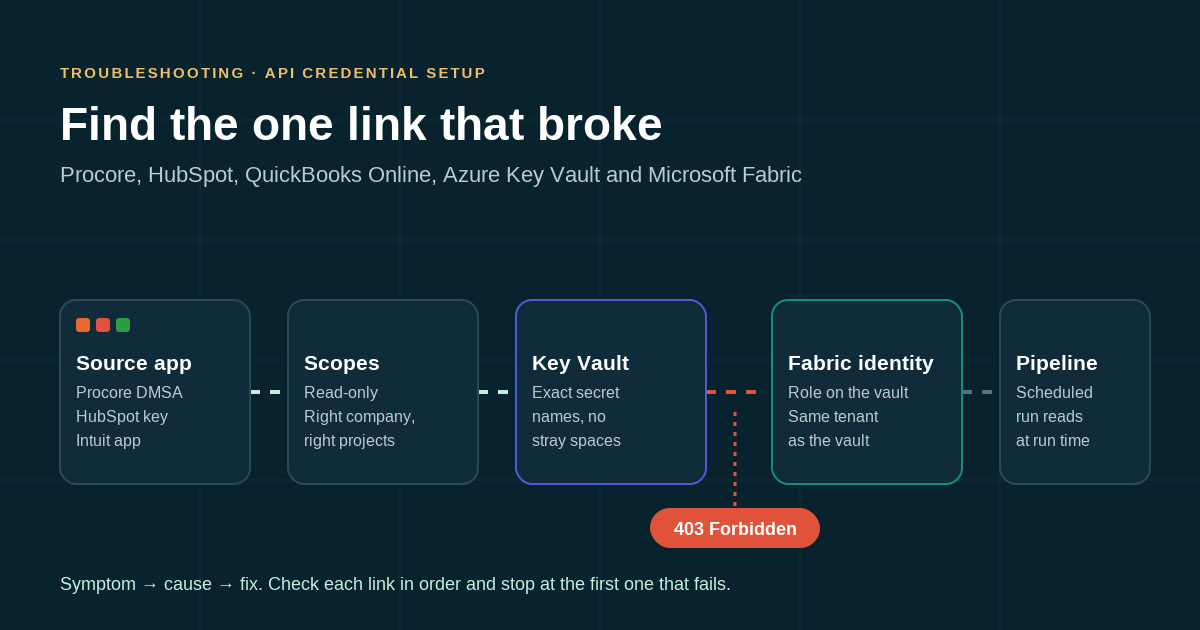 Troubleshooting is finding the one link that failed.
Start with the decision tree
Find the row for where you saw the error, then read across. The sections below explain each fix in more detail.
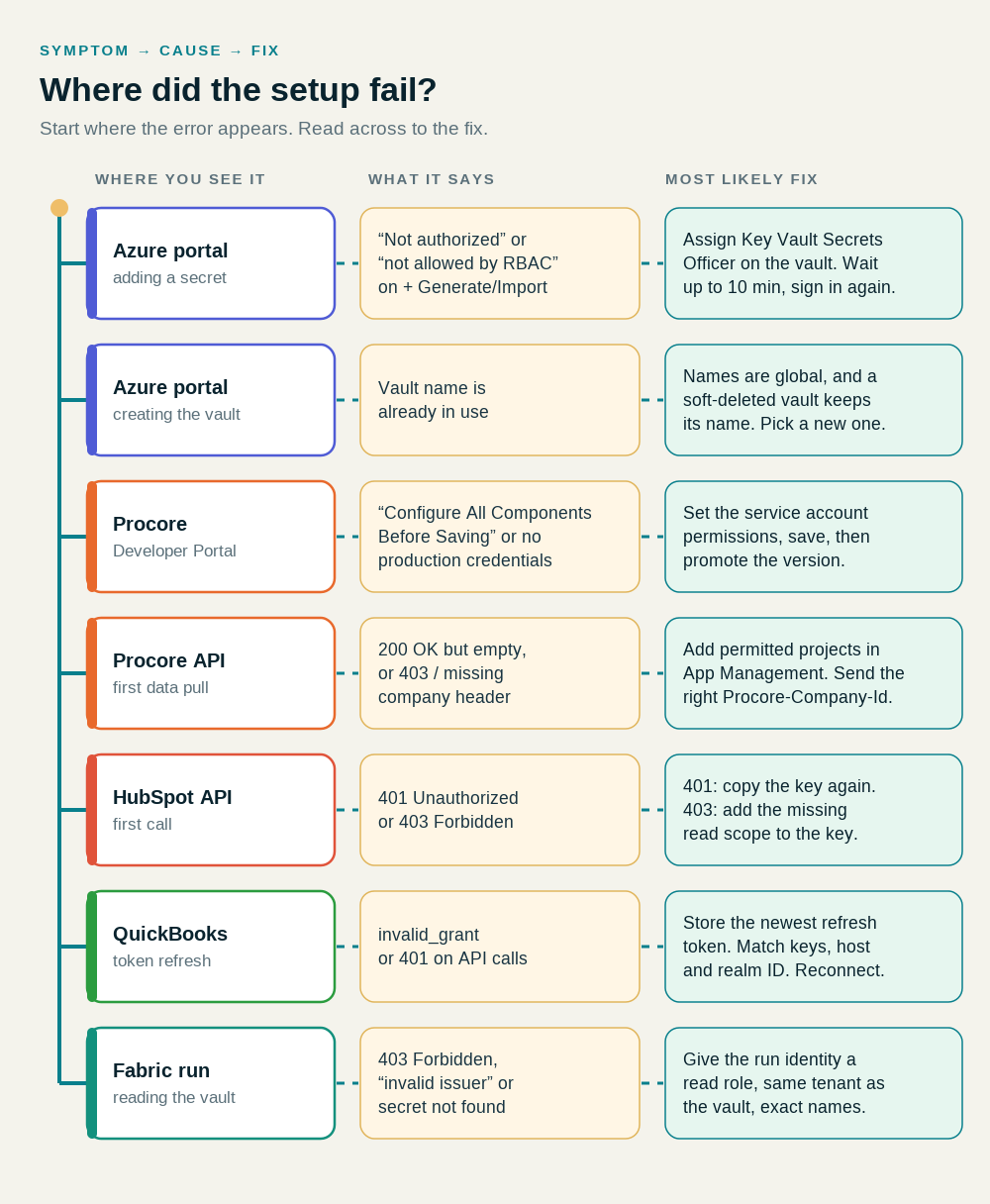 Start where the error appears and read across to the most likely fix.
| Where you see it | Symptom | Most likely cause | See section |
|---|---|---|---|
| Azure portal, Secrets | "Not authorized" or "not allowed by RBAC" when adding a secret | No data-plane role yet, or it has not taken effect | Key Vault: not authorized |
| Azure portal, Create a key vault | Name already in use, or name rejected | Global name taken, soft-deleted vault, or more than 24 characters | Vault name problems |
| Procore Developer Portal, Add Components | "User Level Authentication Required" | Service Account Authentication added on its own | Procore portal errors |
| Procore Developer Portal, Create Version | "Fix Post-Installation Instructions" | Only some of the setup guide fields filled in | Procore portal errors |
| Procore Developer Portal, Create Version | "Configure All Components Before Saving" | Service account permissions not set | Procore portal errors |
| Procore Developer Portal, Credentials | "Credentials Not Available Yet" under Production OAuth Credentials | No version promoted to production | Procore portal errors |
| Procore company, App Management | Custom app missing or install fails | Wrong key, wrong environment, or missing admin rights | Procore install |
| Procore API | 200 OK with empty lists | Service account not on the projects | Procore empty data |
| HubSpot API | 401 Unauthorized | Key copied wrong, rotated or malformed header | HubSpot 401 and 403 |
| HubSpot API | 403 Forbidden | Missing read scope on the key | HubSpot 401 and 403 |
| QuickBooks token endpoint | invalid_grant | Old, expired or revoked refresh token | QuickBooks invalid_grant |
| QuickBooks API | 401 or 403 with fresh tokens | Sandbox and production mixed, or wrong realm ID | Sandbox, production and realm ID |
| Fabric notebook or connection | 403, "invalid issuer", or the reference is offline | Run identity lacks a role, wrong tenant, or the vault is unreachable | Fabric cannot read the vault |
| Fabric run | Secret not found, or auth fails with a stored value | Typo in a name, or stray spaces or quotes in a value | Secret names and values |
Key Vault: "not authorized" when you add a secret
Symptom. You open the vault, go to Objects → Secrets → + Generate/Import, and the portal says you are not authorized. Or the secrets list itself says you cannot view its contents. You created the vault a minute ago, so this feels wrong.
Cause. A vault has two separate permission layers. The control plane covers creating and configuring the vault. The data plane covers the secrets inside it. Microsoft's RBAC guide is explicit that the two "work independently." Being the subscription Owner, or holding Key Vault Contributor, lets you manage the vault but gives you no secret access at all. Microsoft notes that Key Vault Contributor "does not allow access to keys, secrets and certificates."
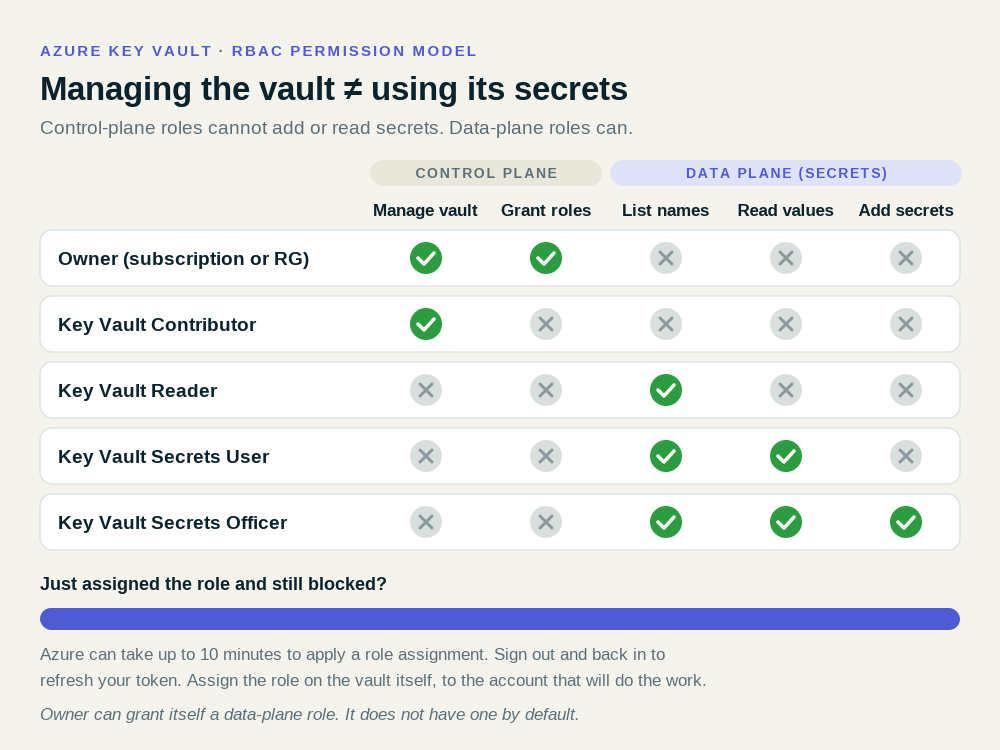 On an RBAC vault, only data-plane roles touch secrets.
Fix.
- In the vault, open Access control (IAM) → Add → Add role assignment.
- On the Role tab, search for and select Key Vault Secrets Officer. This role can "perform any action on the secrets of a key vault, except manage permissions."
- On the Members tab, choose User, group, or service principal, click + Select members, and add yourself plus the account that will run the integration.
- Click Review + assign.
- Wait, then sign out of the portal and back in. Microsoft's RBAC troubleshooting page says role changes "can take up to 10 minutes" to take effect, and that signing out and in forces a refresh.
Check three more things if it still fails:
- Scope. Assign the role on the vault itself, not the subscription. A subscription-level assignment works, but it grants the same access to every vault in that subscription. Microsoft recommends assigning roles at the vault scope. It is also easier to review and revoke.
- The Add button is greyed out. You need permission to assign roles at that scope, such as Owner, User Access Administrator or Role Based Access Control Administrator. Ask whoever owns the subscription.
- The permission model. The steps above assume the vault uses Azure role-based access control, which is the default for new vaults. If someone chose Vault access policy at creation, RBAC data roles do nothing. Check Settings → Access configuration. Read Microsoft's warning before switching an existing vault, because the change invalidates every access policy.
For the full create-and-assign walkthrough, see Azure Key Vault setup for data integrations.
Key Vault: the vault name is already in use or rejected
Symptom. On Create a key vault, the name field turns red, or deployment fails on the name.
Cause. Vault names are global, because each name becomes a DNS address (https://<vault-name>.vault.azure.net). Microsoft's rules: 3 to 24 characters, using only letters, digits and hyphens, with no consecutive hyphens. Three common reasons for a rejected name:
- Someone else in Azure already uses it.
kv-reportingis almost certainly taken. - Your own deleted vault still holds it. Soft-delete is on by default. A deleted vault is kept for 7 to 90 days (90 by default), and Microsoft states "You can't reuse the name of a key vault that was soft-deleted, until the retention period expires."
- It is too long. In the recorded walkthrough,
kv-plus a company name plus-analytics-testwent past 24 characters and had to be shortened.
Fix.
- Add something specific to your company and environment, for example
kv-reporting-analyticswith a short company code in front. Stay within 24 characters. - If you deleted a vault with the name you want, open Key vaults → Manage deleted vaults. From there you can Recover it, or Purge it if purge protection is off. Recovering a vault does not bring back its role assignments. You need to re-create those.
- If purge protection is on, the name stays locked until the retention period ends. Pick a different name.
Procore: the Developer Portal will not save or shows no production credentials
These steps belong to the Procore Developer Managed Service Account setup. The messages quoted below are the ones the Developer Portal showed in the November 2026 walkthrough. Procore can reword them, so match on the meaning if yours differ slightly.
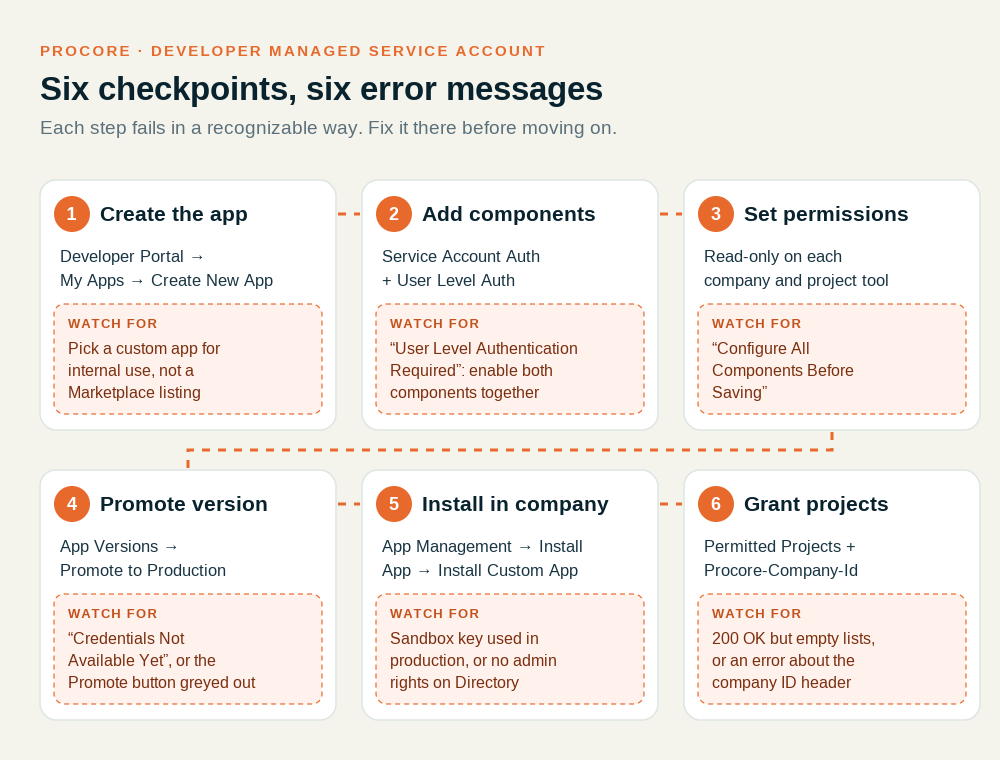 Each Procore step fails with a recognizable message.
"User Level Authentication Required"
Symptom. In the Add Components dialog you tick Service Account Authentication and a yellow banner says it "can't be selected on its own" and requires User Level Authentication to also be enabled.
Cause. The portal requires both components on the version. That is why the walkthrough adds User Level Authentication next to Service Account Authentication, even though the integration only uses the service account.
Fix. Click Enable User Level Auth in the banner, or tick User Level Authentication yourself, then add the components. User Level Authentication shows "No Config. Needed", so there is nothing more to set on it.
"Fix Post-Installation Instructions"
Cause. The Post-Installation Instructions fields work as a set. The portal asks for the setup guide URL, its label and the notes together, or none of them, and the URL must start with http:// or https://. Typing only a note (the walkthrough typed "Have Fun!") blocks the save.
Fix. Fill in all three fields with a full https:// address, or clear all three.
"Configure All Components Before Saving"
Cause. The portal's full message is "All components must be configured before saving this version." Adding the Service Account Authentication component is not enough. Its status stays Not Configured until you open it and set its tool permissions.
Fix.
- Click Manage next to Service Account Authentication to open Configure Service Account Authentication.
- On the Company Level and Project Level tabs, set each tool the reports need to Read-only. Leave everything else at None. The panel will not save until at least one tool is above None. The read-only scopes reference lists the usual reporting tools.
- Save the component, then save the version.
"Credentials Not Available Yet" under Production OAuth Credentials
Cause. The Credentials tab shows Developer Sandbox credentials right away. Production credentials do not exist until you promote a version. In the portal's words: "When you promote a version that includes a Data Connector component, Procore automatically generates its production OAuth credentials." The walkthrough hits this exact message.
Fix.
- On App Details & Versions, find the saved sandbox version under App Versions and choose Promote to Production.
- If Promote to Production is greyed out, finish the Verify Developer Account step at the top of the app page first, then promote.
- Return to Credentials. Copy the production Client ID and Client Secret straight into Key Vault as
procore-client-idandprocore-client-secret.
Procore's developer docs say production credentials also work in a company's Monthly and On-Demand sandboxes. Developer Sandbox credentials only work against the Developer Sandbox.
Procore: the custom app will not install or is not visible
Symptom. In your company, App Management → Install App → Install Custom App rejects the key. Or the install appears to work, but the app is nowhere to be found.
Causes and fixes.
- Wrong version for the environment. Each app version has its own Installation Key (the App Version ID), shown under App Versions in the Developer Portal. A sandbox version installs in the Developer Sandbox. Your live company needs the key of a version you have promoted to production. Copy the key with the Copy button rather than retyping it.
- Wrong company. If you belong to more than one Procore company, check the company name in the header before you install.
- Not enough rights. Procore's install guide requires "Admin" level permission on the company's Directory tool. Project-level admin rights are not enough.
- The Add Permitted Projects prompt. You may see this during install. You can skip it and manage projects later. Just remember to come back, because of the next section.
Procore: the API returns empty data or the wrong company
Symptom. Authentication works. Calls return 200 OK, but project lists or budgets come back empty. Or a call fails with a message about a missing Procore-Company-Id header.
Cause 1: the app is not on the projects. Installing the app adds an app user to the company, but the app only works in permitted projects. Procore's guide puts it this way: "The App is only allowed to run in permitted projects using the permissions defined in the DMSA."
Fix. You need "Admin" on the Company Admin tool for these steps.
- Open the Company Admin tool and select App Management under Company Settings.
- Click View next to your app and open the Permissions tab.
- Pick the active projects in the permitted projects drop-down and click Add.
- In the app user's settings, tick Add [app user] to all new projects, so next month's jobs are not missing.
Cause 2: the wrong company ID, or none at all. Procore asks apps to send a Procore-Company-Id header with API calls so each request is routed to the right company. A missing or wrong ID returns an error or someone else's empty results.
Fix. Open Procore in the browser and read the company ID from the address bar. It is the number in a URL like app.procore.com/1234567/company/home. Store only the digits in procore-company-id, with no slashes, spaces or quotes. Make sure procore-base-url matches the credentials: https://api.procore.com for production credentials, the sandbox host for Developer Sandbox credentials.
HubSpot: 401 Unauthorized or 403 Forbidden
First, a change since many setup guides were written. HubSpot now issues service keys for data-only integrations like reporting. Its legacy private apps page states that "As of October 26, 2026, legacy private apps can no longer be created." The walkthrough video shows the same thing: private apps are gone, and the screen offers Create service key instead. See HubSpot service keys for read-only CRM access for the setup.
HubSpot's error docs separate the two codes: 401 means "the authentication provided is invalid," and 403 means it "does not have the proper permissions to access the specific URL."
401: the key was copied wrong
Causes.
- Service keys are partly hidden by default. If you copy before clicking Show, you get a masked or partial value.
- A space, line break or pair of quotes came along with the paste.
- Someone clicked Rotate and expire now, so the stored value no longer works. Rotate and expire later gives a 7-day grace period instead.
- The pipeline sends the key without the
Bearerprefix. HubSpot expectsAuthorization: Bearer <key>.
Fix.
- Go to Development → Keys → Service keys (some accounts show Settings → Integrations → Service Keys) and click the key's name.
- Click Show, then Copy.
- In Key Vault, open the HubSpot secret (for example
hubspot-service-key) and choose + New Version. Paste the value with nothing before or after it.
403: the key is missing a scope
Cause. Each service key only gets the scopes you ticked. A key with only crm.objects.contacts.read gets a 403 on deals. In the walkthrough, one scope was added "just for this example." A real reporting key needs every object the dashboard reads.
Fix. Open the key, click Edit in the top right, and add the missing read scopes. Common ones are crm.objects.deals.read, crm.objects.companies.read, crm.objects.contacts.read, crm.objects.line_items.read and crm.objects.owners.read. HubSpot describes rotation, not scope edits, as the step that issues a new key value, so the stored secret should not need to change. Run the call again to confirm. HubSpot's changelog adds one catch: "A key can only be granted scopes the creating user already has." If a scope does not appear, the person creating the key may lack access to that object. Ask a Super Admin to create the key. Only Super Admins and users with the Developer tools access permission can create service keys.
QuickBooks Online: invalid_grant on token refresh
Symptom. The pipeline worked on the day you connected. Days or weeks later the token call fails with invalid_grant.
Cause. QuickBooks uses two tokens with two clocks. The access token lasts about an hour. The refresh token gets new access tokens, and Intuit can return a new refresh token value when you use it. Intuit's docs say the value changes about every 24 hours, and the older value stops working once a new one is issued. If the pipeline does not save the newest value back to the vault, the next refresh sends a stale token and gets invalid_grant.
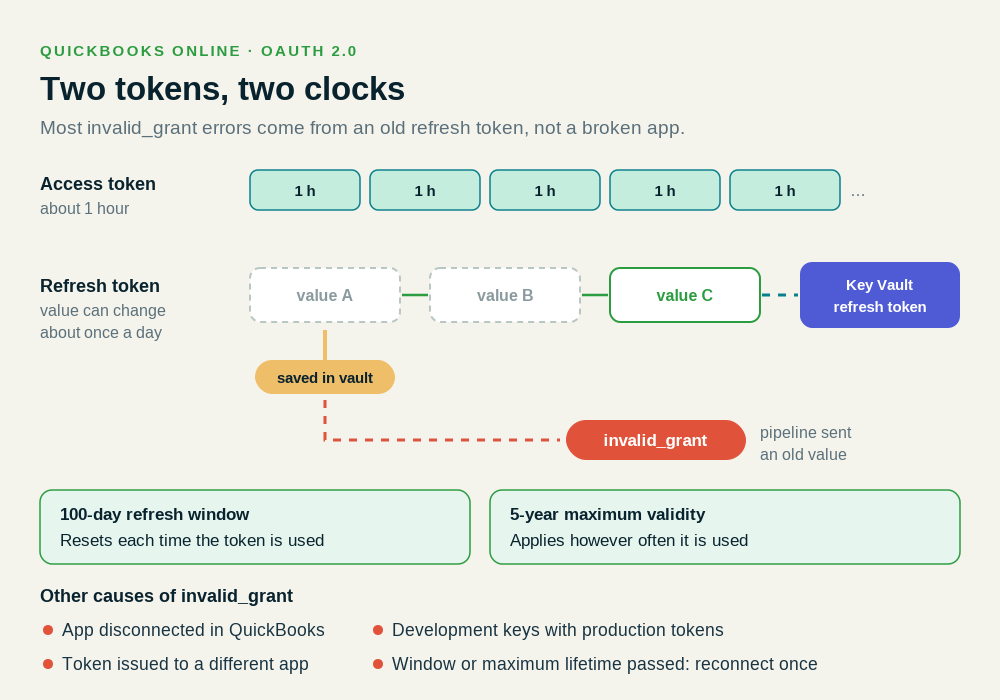 Store the newest refresh token every time.
Other causes of invalid_grant:
- The refresh window passed. The refresh token must be used within 100 days, and the window resets each time it is used. A paused pipeline can miss it.
- The maximum lifetime. Under Intuit's current policy, refresh tokens have a maximum validity of five years, however often they are used. A long-running pipeline will eventually need one reconnect.
- The app was disconnected in QuickBooks, which revokes the token.
- The client ID and secret do not match the app that issued the token, for example development keys with a token from the production connection.
Fix.
- Make sure the pipeline writes the refresh token from every token response back to
quickbooks-refresh-tokenas a new secret version. This is why the integration account needs Key Vault Secrets Officer and not just read access. In a Fabric Python notebook,notebookutils.credentials.putSecretdoes the write. Microsoft notes it does not run in Spark notebooks. - Check that
quickbooks-client-idandquickbooks-client-secretare the Production keys and thatquickbooks-environmentsaysproduction. - If the token really has expired or been revoked, a QuickBooks admin must connect once more. That issues a fresh refresh token. Nothing else in the vault changes.
QuickBooks Online: sandbox and production mixed up, or the wrong realm ID
Symptom. Tokens refresh fine, but API calls return 401 or 403, or they return data from a sandbox company.
Causes and fixes.
- Keys and host do not match. Development keys only work with sandbox companies at
sandbox-quickbooks.api.intuit.com. Production keys work with real companies atquickbooks.api.intuit.com. Copy the keys from the Production section of Keys & credentials on developer.intuit.com. That section unlocks after you complete Intuit's production questionnaire, which is covered in the QuickBooks Online credentials guide. - Wrong realm ID. The realm ID is the QuickBooks company ID. A token is tied to the company that authorized it, so calls to another realm fail. QuickBooks sends the realm ID back as
realmIdwhen the admin connects. You can also find it as Company ID under ⚙ (Settings) → Account and settings → Billing & subscription. If your accountant pays for the subscription and that tab is hidden, press Ctrl + Alt + ? (Control + Option + ? on a Mac) inside QuickBooks to show it. Store only the digits inquickbooks-realm-id. - The wrong scope. For accounting reports the app needs
com.intuit.quickbooks.accounting. Payments and payroll scopes are not needed.
Fabric cannot read the vault
Symptom. A Fabric notebook fails with 403 Forbidden when it reads a secret. Or the error mentions an invalid issuer or the wrong tenant. Or an Azure Key Vault reference under Manage Connections and Gateways will not come online.
Fabric reads the vault in two common ways, covered in Microsoft Fabric + Key Vault. Notebooks call notebookutils.credentials.getSecret(vaultUri, secretName). Microsoft documents that this call "uses your current user credentials." Fabric connections can also use a Key Vault reference, which records "the vault URI, secret name ... and user auth or OAuth2.0 credential," and needs Get and List on secrets.
Cause 1: the identity doing the run has no data-plane role. The person who set up the vault can read it, but the account that runs the notebook may not.
Fix. Give that exact account a data-plane role on the vault: Key Vault Secrets User to read, or Key Vault Secrets Officer if it also writes the QuickBooks refresh token. Microsoft advises testing "in both interactive and pipeline contexts," because the identity can differ between a run you start yourself and a scheduled run.
Cause 2: the tenant does not match. A vault only accepts tokens from its own Microsoft Entra tenant. If the consultant opens Fabric in their home tenant and points at your company's vault, Key Vault rejects the token. The Azure SDK's troubleshooting guide documents this as AKV10032: Invalid issuer.
Fix. Run the workspace in the same tenant as the vault, and sign in with an account that belongs to that tenant. That can be a guest invited into your tenant or, more simply, an account on your own domain. Compare the Directory (tenant) ID on the vault's overview with the tenant the Fabric session is signed into.
Cause 3: the wrong address, or the vault cannot be reached. getSecret needs the full Vault URI, https://<vault-name>.vault.azure.net/, not the display name. Key Vault references also require the vault to be reachable from the public network, or through an on-premises data gateway that can see its private endpoint.
Fix. Copy the Vault URI from the vault's Overview page. If you turned off public access, either allow it (Azure sign-in still protects every secret) or plan a gateway route with your IT team.
Secret names and values: typos, spaces and deleted secrets
Symptom. One system fails while the others work. The error says a secret was not found, or the stored credential is rejected.
What Key Vault allows. Secret names can be 1 to 127 characters, using only letters, digits and hyphens. The portal rejects spaces and underscores. Key Vault also compares object identifiers without regard to case, so Procore-Client-Id and procore-client-id are the same secret to the vault. Your pipeline may still compare names as exact strings, though, so keep everything lowercase.
Common problems.
- Near-miss names.
procore-clientid,procore-client-idsandquickbooks-realmidall fail a lookup for the expected name. Compare against the list your integration expects, or generate the names with the API credential setup checklist. - Stray characters in values. A space, line break or pair of quotes pasted with a value makes Procore, HubSpot or QuickBooks reject it as an invalid credential. Paste the value only, and leave Content type and the dates empty.
- Recreating a deleted secret. A deleted secret is soft-deleted and still holds its name, so creating a new secret with that name fails. Go to Objects → Secrets → Manage deleted secrets and recover it, or add a new version of the existing secret instead of deleting and recreating it.
- A disabled secret. If Enabled was set to No on a secret or its current version, reads fail. Open the secret, check the current version, and set it back to enabled.
To fix a value, open the secret, choose + New Version, and paste the right value. Integrations that read the latest version pick it up on the next run. Fabric Key Vault references "always get the current (latest) version of a secret."
Common mistakes
| Mistake | What it causes | Do this instead |
|---|---|---|
| Assuming the subscription Owner can add secrets | "Not authorized" on Generate/Import | Assign Key Vault Secrets Officer on the vault |
| Retrying right after the role assignment | The same error for up to 10 minutes | Wait, then sign out and back in |
| Saving Procore permissions without promoting a version | No production credentials | Promote the version, then copy the production keys |
| Skipping permitted projects at install and forgetting them | Empty Procore data | Add active projects and turn on adding the app user to new projects |
| Creating a HubSpot key with one scope "to test" | 403 on the objects you skipped | Add every read scope the reports need |
| Reading the QuickBooks refresh token but never writing it back | invalid_grant days later | Save each new refresh token as a new secret version |
| Mixing development and production keys | 401 or sandbox data | Production keys, production host, production environment value |
| Testing Fabric only interactively | Scheduled runs fail with 403 | Test the identity the scheduled run uses |
| Emailing a key "just to get unblocked" | A credential in mailboxes and backups | Use the vault handoff in Never email an API key |
Checklist
- The vault name is 3 to 24 characters, unique, and not held by a soft-deleted vault
- The vault uses the Azure role-based access control permission model
- Key Vault Secrets Officer is assigned on the vault to you and to the integration account
- You waited for the role to apply and signed out and back in
- The Procore version has Service Account Authentication and User Level Authentication, and the service account shows read-only tool permissions
- The Procore version is promoted, and the production Client ID and Secret are in the vault
- The custom app is installed in the live company with the production key
- Permitted projects include every active job, and new projects are added automatically
-
procore-company-idholds digits only and matches the company in the address bar - The HubSpot service key has every read scope the reports need, and the value was copied with Show → Copy
- The QuickBooks keys, host and
quickbooks-environmentall say production -
quickbooks-realm-idmatches the company that authorized the connection - The pipeline writes each new QuickBooks refresh token back to the vault
- The Fabric run identity has a data-plane role and signs in to the vault's tenant
- Every secret name matches the expected list exactly, and no value has stray spaces or quotes
- No credential value was sent by email, chat or ticket
When to get help
Most of these fixes take minutes once you know which link failed. If you would rather not work through them alone, Build Flows can do the setup with you on a screen-share. Your admins stay in control, the values go straight into your vault, and nobody emails a key. Email charley@buildflows.ai or start at buildflows.ai. You can also send a short brief describing which step is failing. Our security page explains how we handle access, and the Procore, QuickBooks and HubSpot to Fabric demo shows what a finished pipeline looks like.
Related reading: connector framework and Procore OAuth, building construction reporting in Microsoft Fabric, and the integration mapping template.
References
- Microsoft Learn: Grant permission to applications to access an Azure key vault using Azure RBAC
- Microsoft Learn: Troubleshoot Azure RBAC
- Microsoft Learn: Azure Key Vault keys, secrets, and certificates overview
- Microsoft Learn: Azure Key Vault soft-delete
- Microsoft Learn: Configure Azure Key Vault references in Microsoft Fabric
- Microsoft Learn: NotebookUtils credentials utilities for Fabric
- Azure SDK for Python: Key Vault troubleshooting guide (AKV10032 invalid issuer)
- Procore Developers: Developer Managed Service Accounts
- Procore Developers: Development environments and sandboxes
- Procore Developers: Request header requirements for multiple Procore regions
- Procore Support: Add a permitted project to a data connection app
- Procore Support: ERP DMSA app installation guide (Install Custom App steps)
- HubSpot Developers: Make API requests using a service key
- HubSpot Developers: Service keys changelog
- HubSpot Developers: Legacy private apps overview
- HubSpot Developers: API error handling
- Intuit Developer: Set up OAuth 2.0 for QuickBooks Online
- Intuit Developer: Authorization FAQ
- Intuit Developer: Fix OAuth 2.0 errors and connection issues
- Intuit Developer Blog: Important changes to refresh token policy
- QuickBooks Help: Find your QuickBooks Online company ID
Frequently asked questions
Why can't I add secrets to a Key Vault I just created?
Creating or owning the vault gives you control-plane access, not access to its secrets. On a vault that uses Azure role-based access control, assign Key Vault Secrets Officer on the vault through Access control (IAM). Microsoft says role changes can take up to 10 minutes, so wait and sign out and back in before retrying.
Why does Procore say production OAuth credentials are not available yet?
Procore only generates production credentials when you promote a version that includes the service account component. Configure the component's read-only tool permissions, save the version, then choose Promote to Production under App Versions. If the button is greyed out, finish the Verify Developer Account step on the app page first.
My Procore API calls succeed but return no projects. What is wrong?
The app only runs in permitted projects. In Company Admin, open App Management, click View next to the app, open the Permissions tab, and add your active projects. Also tick the setting that adds the app user to all new projects, and check that the Procore-Company-Id header matches your company.
What is the difference between a HubSpot 401 and 403?
A 401 means HubSpot did not accept the key, usually because it was copied while masked, pasted with extra characters, or rotated. A 403 means the key is valid but lacks the scope for that object, such as crm.objects.deals.read. Re-copy the key for a 401 and edit the key's scopes for a 403.
Can I still create a HubSpot private app for reporting?
HubSpot's documentation says legacy private apps can no longer be created as of October 26, 2026. Existing ones keep working. For data-only reporting integrations, HubSpot now offers service keys, which use the same Bearer header and object-level read scopes.
How do I fix QuickBooks invalid_grant?
First make sure the pipeline saves each new refresh token Intuit returns, because older values stop working. Then confirm the production client ID, secret and API host all match the connection. If the token expired or the app was disconnected, a QuickBooks admin connects once more to issue a fresh refresh token.
Why does my Fabric notebook get a 403 reading Key Vault when I can see the secrets?
notebookutils.credentials.getSecret uses the credentials of the identity running the notebook, which may not be you, especially for scheduled runs. Give that identity Key Vault Secrets User or Secrets Officer on the vault, use the full Vault URI, and make sure it signs in to the same Microsoft Entra tenant as the vault.
Next step
Need this connection in your environment?
Scope one integration: the records, direction, timing, and business rules behind the connection.
Prefer email? charley@buildflows.ai
Keep learning
Integrations · November 14, 2026
Secure API Credential Setup for Procore, HubSpot and QuickBooks with Azure Key Vault and Microsoft Fabric
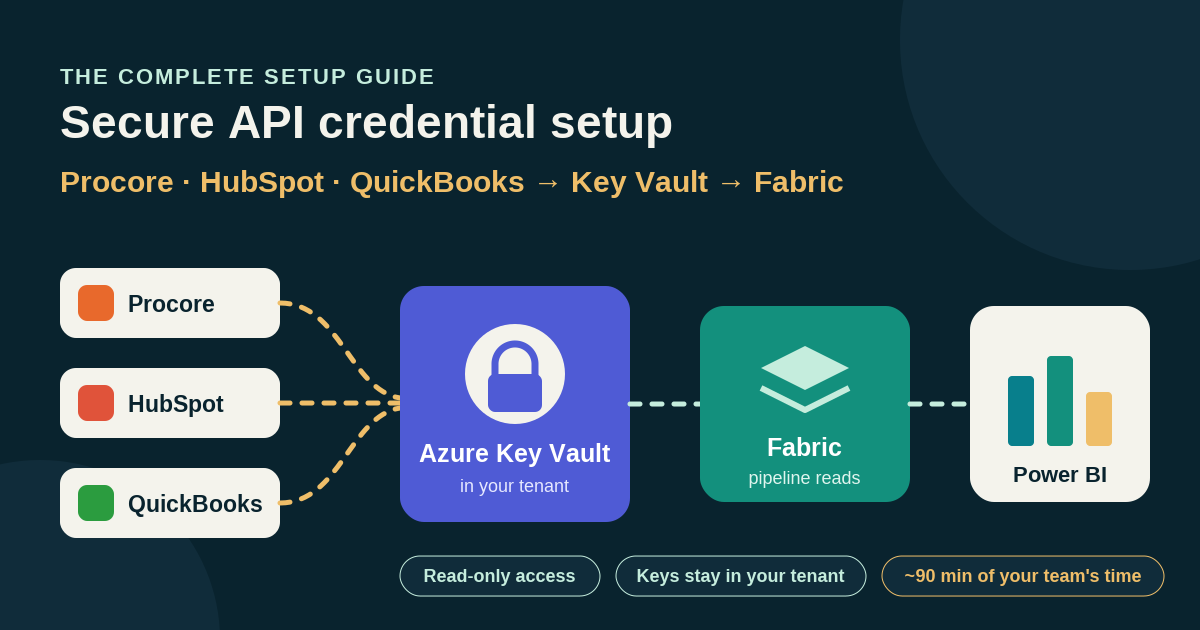
The end-to-end guide to connecting Procore, HubSpot and QuickBooks Online to Microsoft Fabric and Power BI without handing over credentials: who owns each step and how long it takes, the architecture from sources through Azure Key Vault to Fabric, the four steps (Fabric access, read-only API access in three systems, Key Vault with the Secrets Officer role, connect and go live), the exact secret names, what to send back, how to revoke access, common mistakes and a checklist.
Integrations · November 14, 2026
Azure Key Vault Setup for Data Integrations: Create the Vault, Set RBAC and Assign Secrets Officer
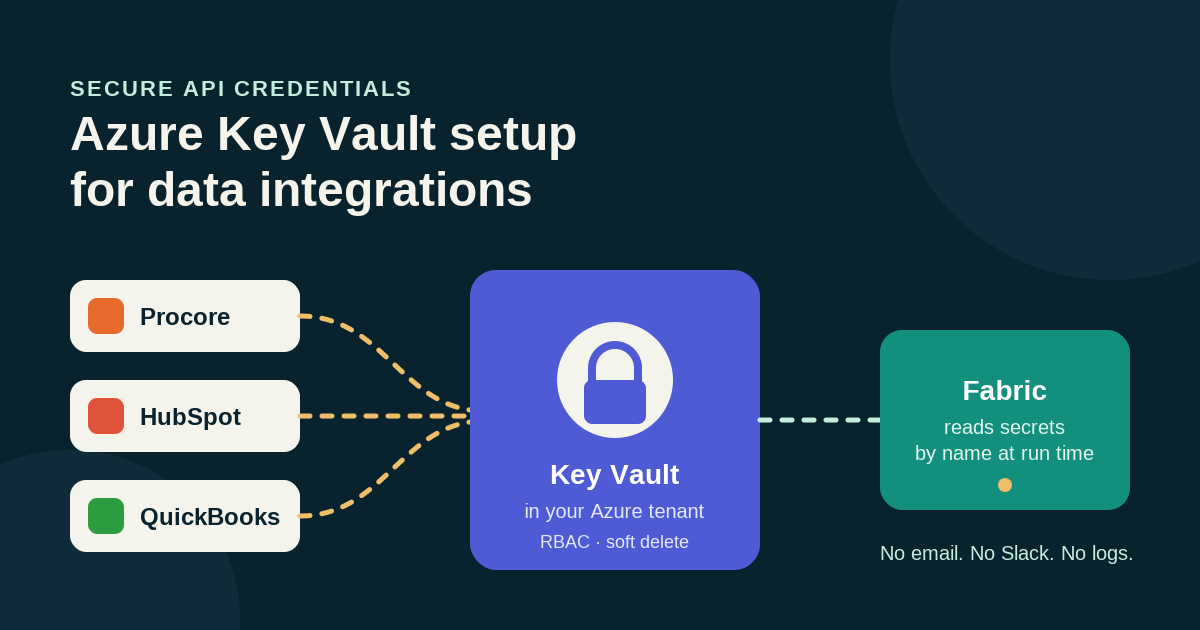
A step-by-step guide to creating an Azure Key Vault for integration secrets: resource group and globally unique name, matching the Fabric region, Standard tier, soft delete and the purge protection trade-off, the RBAC permission model, networking, the Key Vault Secrets Officer role assignment, why 'not authorized' appears right after setup, and what it really costs.
Integrations · November 14, 2026
Procore Developer Managed Service Account (DMSA) Setup for Read-Only Reporting
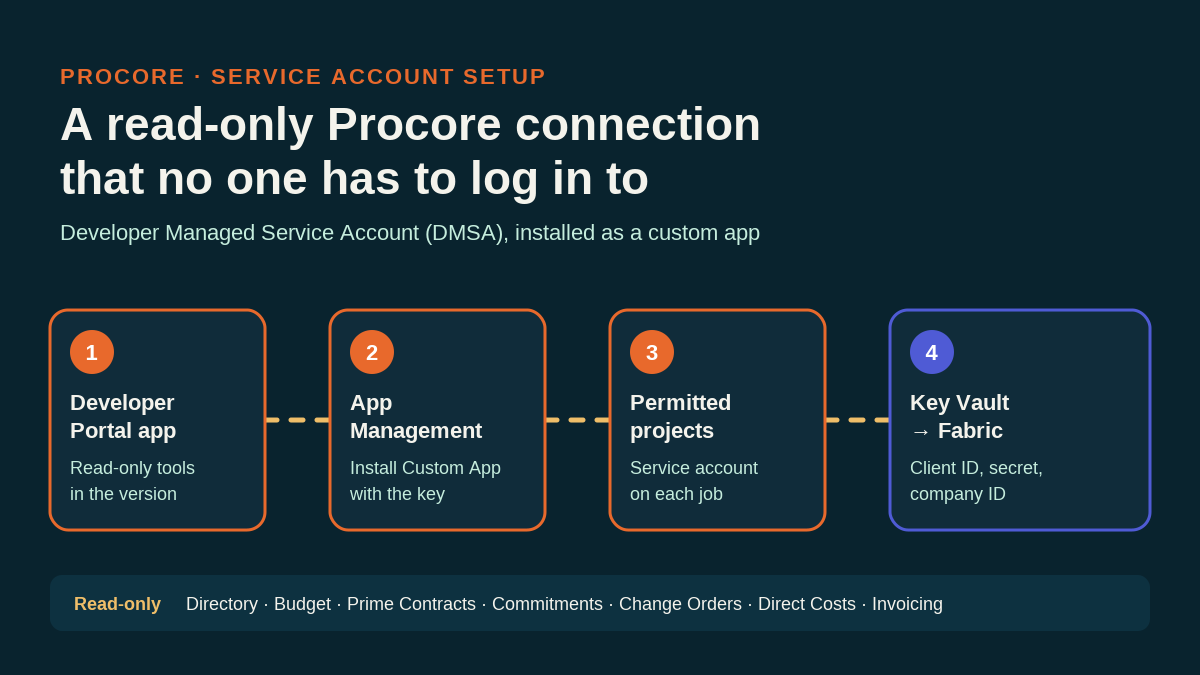
A step-by-step guide to giving a reporting integration read-only Procore access through a Developer Managed Service Account: developer account, app and components, read-only tool permissions, sandbox versus production keys, installing the custom app in App Management, permitted projects, the company ID, and storing the credentials in Azure Key Vault.