Key takeaways
- Five nested roles cover a small contractor: field, project manager, executive, admin and an operator-level super admin.
- Field users see only their own card expenses and a bare project list for coding; the project page and company financials are not available to them.
- Checking capabilities instead of role names makes new roles cheap and keeps documentation in sync with the code.
- View-as lets a super admin see exactly what a user sees, refuses every write that matters, logs each request under both identities and ends after 30 minutes by default.
- The audit log records sign-ins, expense actions, QuickBooks write attempts with before and after payloads, role and key changes, and every view-as session.
- Two-step sign-in is required for admins and super admins; single sign-on through Microsoft Entra ID is the next step for a Microsoft 365 company.
- Offboarding is four steps: deactivate, reassign open expenses, reconnect any integration they owned, and revoke their API keys.
40 seconds · From a Build Flows walkthrough
One sign-in, different views by role
Executives see reports, admin panels and settings. A field user only sees the expenses they need to code and approve.
Read the clip transcript
secure so I will then now dive into the operating system that we've developed here and so this is the Cattlemen operating system and I'll log in here and welcome so since I'm the super admin I see everything here and we've segmented some users to be able to only see certain things that they have access to so the executives will have access to their executive reports and admin panels and configurations and things like that whereas maybe a field user that is just doing their expenses would ultimately then need to just go through and all have access to their approval system to go through and review all of those and assign them to the
Captions adapted from the source video; proper names may reflect automatic transcription. Original segment: 12:36–13:16. Watch at the source.
29 seconds · From a Build Flows walkthrough
The platform console: health, connectors and data tables
One place for the admin to see system health, connector status, database tables and any errors.
Read the clip transcript
we do have an admin portal here so within this admin portal this user sees the entire health of the platform how it's progressing the systems that are operational how the connectors are functioning and all the other systems that are connected here and then we have all of our data tables that are being mapped within the database and all of the rows that are there and so we can see as it's expanding and any errors if there are any
Captions adapted from the source video; proper names may reflect automatic transcription. Original segment: 24:43–25:13. Watch at the source.
60 seconds · From a Build Flows walkthrough
View as a field user
Admins can view the app as any user to see exactly what they see. Approvals stay with that user, so the admin cannot approve on their behalf.
Read the clip transcript
we manage our users so we'll go through and invite any type of user here we can view them and change their roles as well so we can view as them so we can see what they see so [name] being a field user let's go through and start viewing as him we'll now see that that he just has access to what he has to code and what he needs to approve. Looks like he has eight here to do and it shows just one right here and it has a suggested. All he would do is just come in here and press approve. And so I can't approve since I'm viewing as him, I'm not him, so he has to go through and approve it. But in a sense, it'd be as simple as him going through and if he needs to readjust it or reallocate it, he can do that as well. He gets to see all of his expenses that he has there that he needs to assign and then any type of help, documentation and resources. And so here's all of the workflows, guides, glossaries and access to everything. So I'll return back to my account here.
Captions adapted from the source video; proper names may reflect automatic transcription. Original segment: 25:13–26:13. Watch at the source.
The first access question a contractor asks about a new app is usually "can a superintendent see company margins?" The second, a few weeks after go-live, is "why can't the new superintendent see his expenses?" Both come down to the same design: who belongs to which role, what each role can see and do, and how the person supporting the app can check a problem without logging in as someone else. This guide covers the access model in the Cattlemen OS proof of concept we built for Cattlemen Construction Services in Fort Worth, Texas: five roles nested like rings, a "view as" mode with read-mostly guardrails and a 30-minute expiry, an audit log, two-step sign-in for admins, and the platform console that holds it together.
The app runs on sample data. People shown in screenshots are sample users, and the real field user's name is blurred. To see it working, watch the walkthrough; the platform console starts at about 24:43 and the view-as demo at about 25:13.
 Each ring sees everything inside it
The five roles
Cattlemen's team is small, so four client roles cover everyone. A fifth, super admin, is for us as the operator.
| Role | Who it's for | What they see |
|---|---|---|
| Field / superintendent | Anyone with a Ramp card who codes their own charges | Their own expenses. For coding, a project list with only id, number, name, client and status, plus that project's cost codes. No contract, cost, margin, billing, EAC, grade or uncoded totals. The project page itself returns 403. |
| Project manager | PMs who approve their team's coding and run jobs | Own and team expenses. The projects they're assigned to, with full financials. Reports for those projects. Compliance alerts that name only their projects. |
| Executive | Owners and partners | All projects, all expenses, the company dashboard, every report, the audit log. A read-only view of connections. |
| Admin | The person who runs the app inside the company | Everything an executive sees, plus users, connections, settings (including QuickBooks write mode) and API keys |
| Super admin | BuildFlows, as the operator | Everything an admin sees, plus the platform console: health, sessions, feature flags, data tools and view-as. Not a Cattlemen account. |
On the help center's access page the app draws these as rings with the line "Each ring sees everything inside it." That's mostly true and easy to remember. The one wrinkle is the PM ring: a PM sees full financials, but only for assigned projects, while an executive sees every project.
Capabilities, not role names
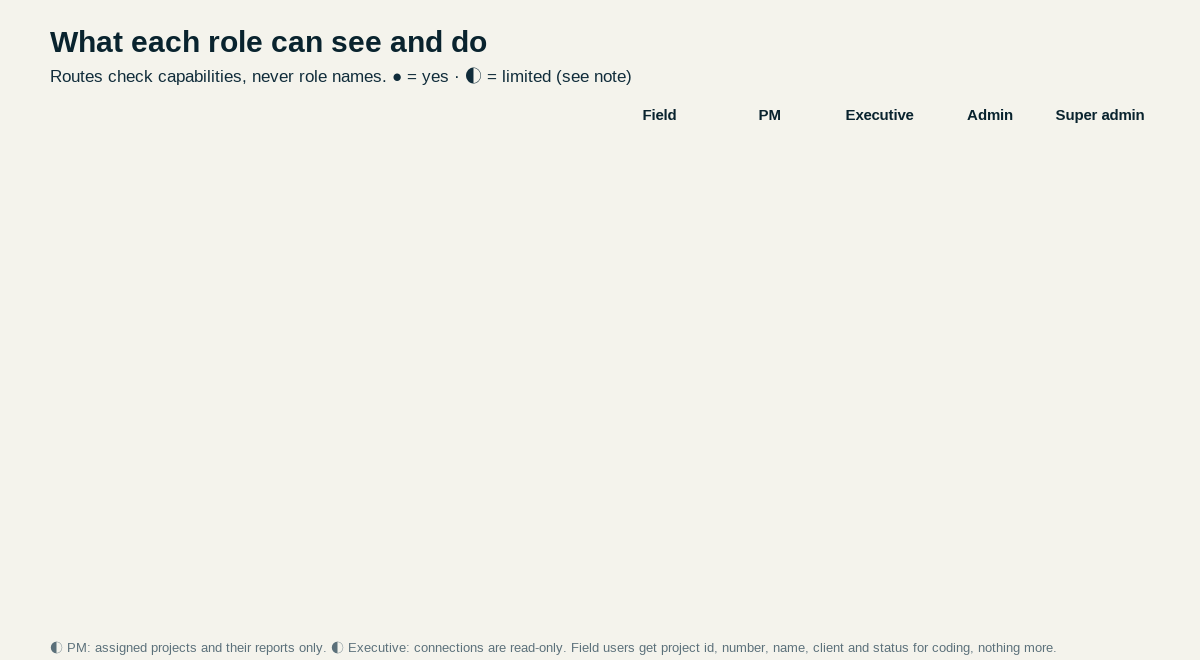
Under the hood the app never checks "is this person an executive?" Each route checks a capability, such as expenses.approve, financials.view or apikeys.manage, and each role holds a set of them.
 What each role can see and do
This sounds like an implementation detail. It changes three things for the business:
- Adding a role is cheap. If Cattlemen later wants an "estimator" or an "accounting clerk," that's a new set of existing capabilities. No route has to change.
- The super admin can't drift out of date. Super admin holds every client capability, computed live, so a capability added next year flows through without anyone remembering to grant it.
- The rules are checkable. The help center's access page reads its matrix live from the permission list, so the documentation can't disagree with the code.
The other half is that lists are filtered on the server. A field user's browser never receives the company margin and hides it; the API simply doesn't send it. We wrote about the general pattern, one place where every request is authorized, in multi-tenant RBAC with a single authorization chokepoint.
You can download the full role access matrix (CSV), with every screen and action against the five roles, and adapt it for your own app or for an access review of a tool you already use.
Who can change roles
| Action | Who can do it |
|---|---|
| Assign the four client roles (field, PM, executive, admin) | A client admin |
| Grant or remove super admin | Only a BuildFlows super admin |
| Edit, deactivate or reset a super admin | Nobody on the client side |
| Invite a new user | An admin, with a one-time setup link valid 7 days |
| Reset a password | An admin sends a new setup link; the admin never sees the password |
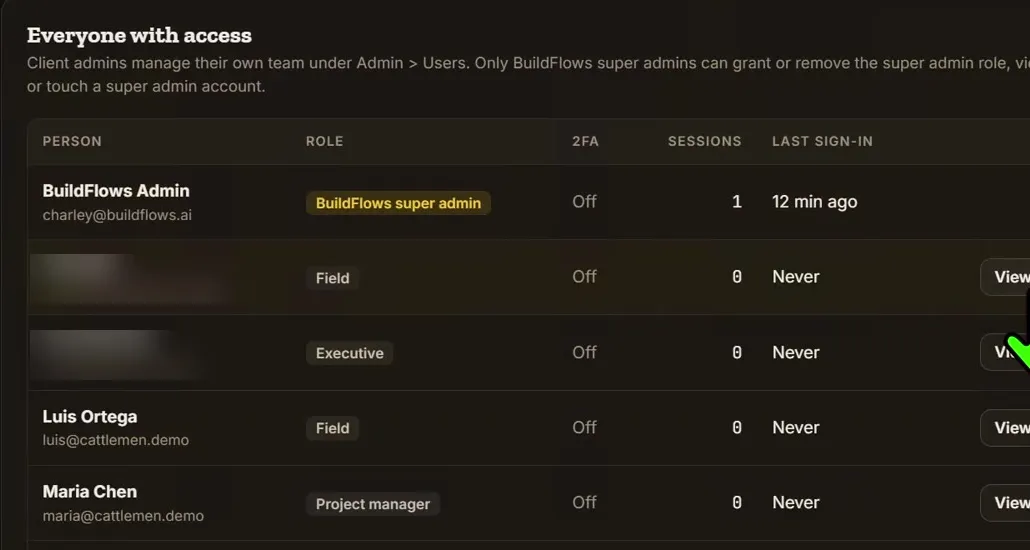 Everyone with access, with their role and 2FA status (sample data, names blurred)
Setup links are stored hashed, used once, revocable, and replaced by the next one. Accepting a link sets the password and ends the user's other sessions. If the account has two-step sign-in turned on, accepting the link doesn't sign them in; they still have to enter the 6-digit code. A setup link can't be used to skip two-step.
View-as: see what they see
Support questions in a role-based app are mostly "I can't see X." The fastest way to answer is to look at the app exactly as that person does. The risky way is to borrow their password. View-as gives the first without the second.
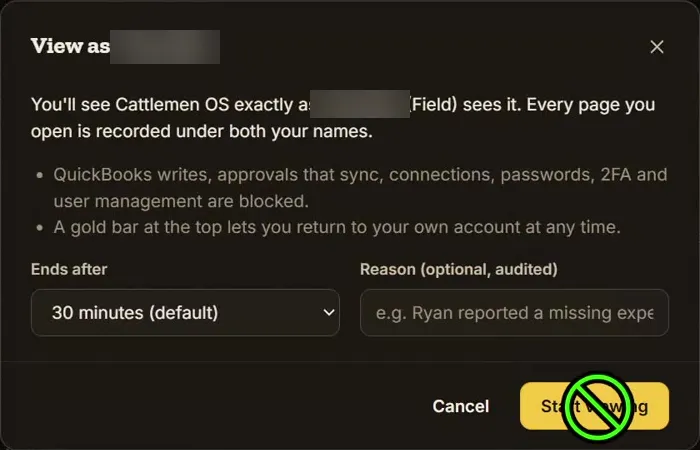 Starting a view-as session (sample data, name blurred)
The rules in the proof of concept:
- Super admin only. It needs the
users.impersonatecapability, which no client role holds. You can't view as yourself or as another super admin. - Time-boxed. 30 minutes by default, set anywhere from 5 to 240 minutes. The default lives in Flags & security.
- A reason. Optional, and audited when given. "Field user reported a missing expense" is enough.
- Read-mostly. Any request that would change something that matters is refused with a 403.
- Logged under both names. The start, every request and the stop are written to the audit log with both identities, and every other audit row written during the session is tagged with the super admin's email.
- Your own session waits. It's kept aside and restored when you click "Return to your account," or when the time runs out.
 The banner that stays on screen for the whole session (name blurred)
What "read-mostly" blocks
 See what they see, change nothing that matters
While viewing as someone, the app refuses any non-read request that would:
- change an expense in any way: code, approve, bulk approve, exclude, reassign, split, send back, resubmit, comment, upload or remove a receipt, revert or retry
- write to QuickBooks, or change the write mode
- act through a one-click approval link, or create one
- change a password, two-step sign-in or sessions
- manage users, invites or API keys
- change connections to QuickBooks, Procore, Ramp or Microsoft 365
- call any platform or super admin route
Approval and send-back also refuse it a second time in the service layer, so a new route added later can't bypass the rule by accident.
In the walkthrough, Charley opens a field user's home screen ("8 card charges to code," with a suggested cost code on the first one) and explains why he doesn't press Approve: "I can't approve since I'm viewing as him, I'm not him, so he has to go through and approve it." That's the point of the design. The approval in the audit log should always belong to the person whose card it was, or to their approver.
When to use it
- A user says something is missing. Check what they actually see before changing any setting.
- Before rollout to a new role. Walk the field or PM experience end to end on real permissions.
- After changing a role or a project assignment. Confirm the change did what you meant.
When not to use it: to do someone's work for them. If an expense needs coding and the cardholder is out, an admin or PM reassigns it in the normal way, under their own name.
The audit log
Every action that matters is written down with time, user, action, the record it touched, a summary, detail and IP address. Executives and admins can read it.
| Recorded | Examples |
|---|---|
| Sign-ins | Successful and failed sign-ins, lockouts |
| Expense actions | Code, approve, reassign, exclude, bulk actions, with "via email" when a one-click link was used |
| QuickBooks writes | Every attempt, with the before and after payload and QuickBooks' response |
| Connections | Connect, disconnect, sync |
| Settings | Write-mode changes, grade-weight changes, feature flags |
| People | User and role changes, invites, two-step resets |
| Keys | API key create and revoke, MCP policy changes |
| View-as | Start, each request, stop, with both identities |
Two practical notes. The log is only useful if someone looks at it, so put "skim the audit log for role changes and key creation" on a monthly checklist. And keep it for as long as the financial records it explains; the plan for Cattlemen is the life of the contract, and seven years for financial changes unless the owner says otherwise.
Sign-in, two-step and sessions
- Own login for everyone. Email and password per person. No shared logins, ever.
- Passwords are hashed with scrypt and checked against a 12-character minimum and a common-password list.
- Throttling. 10 failures per IP in 15 minutes, a 15-minute account lock after 10 failures, and a global cap against password spraying.
- Sessions are server-side, 12 hours, stored hashed. Logging out or deactivating a user ends them immediately. An optional idle timeout can sign people out after inactivity.
- Two-step sign-in uses an authenticator app (TOTP, 6-digit codes). It's optional for most users and required for admins and super admins after a deadline. Until then, admins see a banner ("Turn on two-step sign-in by Wed, Nov 25") and after it they can't use the app until they do.
The next step on the roadmap is Microsoft Entra ID single sign-on, since Cattlemen is on Microsoft 365. Then MFA and offboarding come from Entra, and password sign-in can be turned off except for one break-glass admin.
The platform console
The super admin's tools live in one place, the platform console. Every action in it is recorded in the audit log.
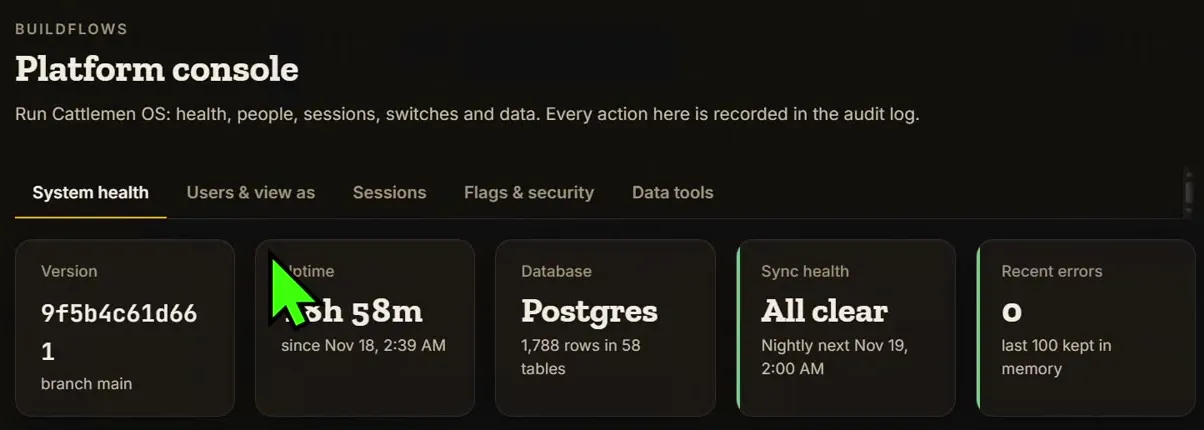 Platform console: health, people, sessions, switches and data (sample data)
| Tab | What it's for |
|---|---|
| System health | Deployed version, uptime, database size, sync health, recent errors, integration status, configuration (values are never shown, only whether they're set) |
| Users and view-as | Everyone with access, their role, two-step status, sessions and last sign-in. Change role, view as. |
| Sessions | Every active session with IP and browser. Revoke one, sign out everyone, unlock an account. |
| Flags and security | Feature flags (for example "split an expense across cost codes," "send back to cardholder," email notifications), idle timeout, default view-as length, required two-step for admins |
| Data tools | Export everything (CSV plus a database dump), reset sample data, and the checklist to set the data mode to live |
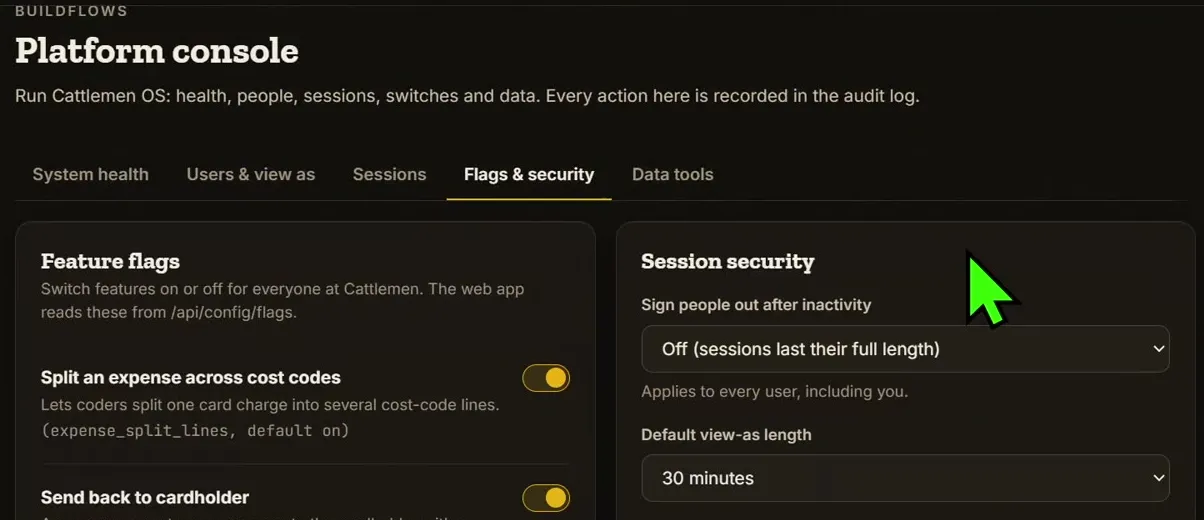 Feature flags and session security (sample data)
Switching from sample data to live data is deliberately hard to do by accident. It refuses until the go-live checklist is ready (QuickBooks, Procore and Ramp connected, chart of accounts and cost codes imported, category-to-cost-code mappings set, users invited, sample projects cleared), and purging sample data needs a typed confirmation. The gates around that switch are covered in the shadow week, sandbox and go-live gates guide.
Offboarding
When someone leaves:
- An admin sets the user inactive. Their sessions end immediately.
- Reassign their open expenses to someone else.
- If they connected an integration, reconnect it under another admin.
- Revoke any API keys they created.
With Entra single sign-on in place, disabling the account in Entra blocks sign-in as well.
How this connects to the rest of the system
Roles decide who sees the reports and who can approve in the coding approvals queue. The same rule (agents get read-only keys, writes go through people) applies when an outside AI tool connects, which is covered in giving an AI vendor read-only API and MCP access. For the owner-facing summary of all of this, see how your data is protected.
Next step
Download the role access matrix and fill in the "your app" column for a tool you already run, whether that's Procore permissions, QuickBooks user roles or a custom portal. Anywhere a field user can see company financials, or anyone can act as someone else without it being logged, is the first thing to fix.
If you want a role-based app built around your Procore, QuickBooks and card data, email charley@buildflows.ai or tell us what you're building.
Frequently asked questions
What user roles does a construction operations app need?
A small general contractor can usually work with four client roles, field or superintendent, project manager, executive and admin, plus an operator role for the vendor running the system. Each role should be a set of capabilities so a new role can be added without changing code.
Should field users see job cost and margin?
Usually not. A field user who codes card charges needs the project number, name, client and the project's cost codes. Contract value, cost, margin, billing and grades can stay with project managers and executives, and the server should refuse those requests outright instead of hiding them in the screen.
What is view-as or user impersonation?
View-as lets a support person or operator see the app exactly as another user does, to check a problem without asking for that person's password. Done safely, it is limited to the operator role, time-boxed, read-mostly, shown with a visible banner and logged under both identities.
What should be blocked during a view-as session?
Anything that changes something that matters: coding, approving or editing expenses, any accounting write, one-click approval links, passwords and two-step settings, sessions, users, invites, API keys, connections and platform settings. Read requests can go through so the operator sees the real screens.
What should an audit log record in a financial app?
Sign-ins and failures, every expense action, every write attempt to the accounting system with the before and after payload and the response, connection changes, settings changes, user and role changes, API key creation and revocation, and impersonation sessions. Each entry needs a time, user, action, record, summary and IP address.
Should two-step sign-in be required?
For admins and anyone who can change users, connections or settings, yes. An authenticator app works today; single sign-on through the company's identity provider, such as Microsoft Entra ID, is better once available because MFA and offboarding then come from one place.
Next step
Need something built around how your team works?
Describe the users, the workflow, and the systems it touches. We'll tell you whether a custom application makes sense and how we'd build it.
Prefer email? charley@buildflows.ai
Keep learning
Custom applications · November 19, 2026
A Contractor's Project Operating System, Screen by Screen: What Each Role Sees and Why
A screen-by-screen tour of the Cattlemen OS proof of concept built for Cattlemen Construction Services in Fort Worth, Texas, on sample data over QuickBooks Online, Procore, Ramp and Microsoft 365. Covers sign-in and Home, My expenses and the approvals queue that gets card spend onto Procore cost codes, the Projects list with convert to won and SharePoint folders, the project page tabs (overview, grade, job cost, expenses, subs, files), the weighted project grade, the month-end cost-to-complete close, the company dashboard, alerts, reports, the platform console with read-only view as, the help center and the AI brain connection through iframe, read-only API and MCP. For each screen: what it shows, which role sees it and why, with sample numbers and timestamps from the walkthrough video.
Custom applications · October 9, 2026
Multi-Tenant RBAC With a Single Authorization Chokepoint
A walkthrough of Connect's role-based access control: workspaces as tenants, an admin flag instead of an admin role, feature packages, one authorization function, and a route manifest that tests keep honest.
Custom applications · November 19, 2026
How Your Data Is Protected: Six Security Controls for a Contractor App, for Owners and IT
The six protections on the Cattlemen OS roadmap, each explained in plain words for the owner and in detail for their IT person: your own login (per-user sign-in, two-step for admins, session timeouts), see only your part (role capabilities and server-side scoping from field to super admin, a read-only view-as), approve don't share (OAuth connections, encrypted revocable tokens), QuickBooks guarded (three-lock write mode and write invariants), everything logged (150+ audit actions), and hosting with HTTPS, backups and an exit. Also covers read-only access for an AI vendor and a list of security questions to ask any vendor.