Key takeaways
- Build the proof of concept on sample data before anything is signed, so the owner judges the real app with their own login.
- Every stage ends at a gate: a short condition written before the stage starts, checked with evidence and signed off by the owner.
- No live system is touched before the agreement is signed, and nothing writes to QuickBooks before the numbers tie out on 2 to 3 known jobs.
- Access takes about an hour of the contractor's admin time: a QuickBooks admin, a Procore company admin and a Ramp admin each click Connect. Nobody shares a password.
- The write stage climbs four steps: preview only, shadow week, sandbox test and live with sign-off, gated on 20+ live expenses with totals, vendors and payment accounts unchanged.
- Rollout ends on behavior: field users code without help and the owner runs the weekly review from the dashboard.
- For Cattlemen the plan ran about six weeks from signature to fully live, with the last week held as buffer.
55 seconds · From a Build Flows walkthrough
Project folders, Convert to won, and the AI platform
New projects get a templated OneDrive folder, Convert to won creates the Procore project, and the OS embeds in the client's AI platform with MCP access for agents.
Read the clip transcript
leverage it and then we can fine tune and roll out any type of different pages or additions and any changes and then of course there is the additional integration that they're wanting to leverage where they have provisioned projects in OneDrive and they're wanting to segment them by project folders and then any time a new project is created that then that is generating a new folder structure in OneDrive that then has their specified structure that they need and then it's being converted into generating a new Procore project once it's converted to won and then they're going to be embedding this into their agentic AI platform we've provisioned some MCPs for the agents to be able to get access to this data as well as then they can embed this as a tab within their system where then it's just that one user interaction that they can interact with and then it will be full live and run and then essentially here's some additional needs that we'll need to get started here
Captions adapted from the source video; proper names may reflect automatic transcription. Original segment: 11:17–12:11. Watch at the source.
A proof of concept on sample data is the easy part. The hard part is getting from there to a system your team runs every week on real QuickBooks, Procore and Ramp data, without anyone losing sleep over what it might do to the books. This guide is the rollout roadmap we use for that, stage by stage: what happens, who does what, the gate each stage has to pass, and how long it usually takes.
It comes from a real plan. Cattlemen Construction Services, a general contractor and design-build firm in Fort Worth, Texas, asked us to fix card spend that showed $0 in Procore and to build an operating system around it. We built the proof of concept first, then walked co-founder Ryan Blankers through this roadmap. You can watch the walkthrough (the roadmap section starts at about 7:49) or read it here. The app in the video runs on sample data.
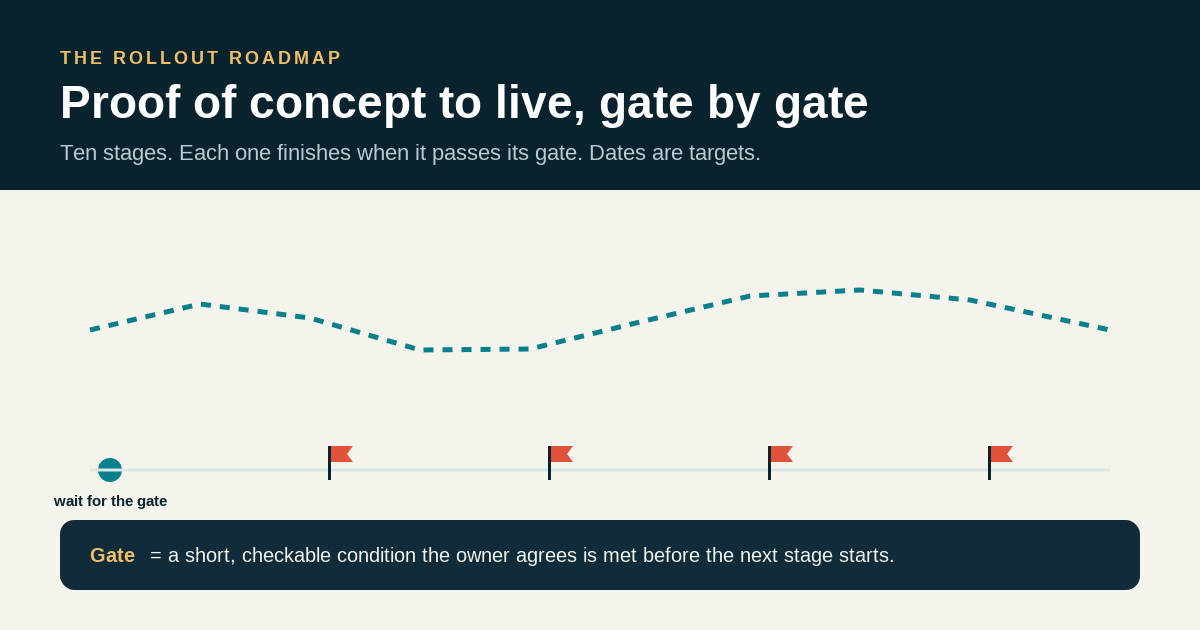 Ten stages, each ending at a gate
The short version
| Stage | What happens | Gate to pass | Typical time |
|---|---|---|---|
| 00 Proof of concept | Full app on sample data, every role, every screen | None. It's there to be judged | 2–4 days |
| 01 Agree and sign | Owner clicks through with their own login, then signs | Signed agreement. No live system touched before this | About a week |
| 02 Access and secure setup | Admins click Connect in each system, real users created | Every connection shows green and passes its self-test | 2–3 days |
| 03 Live data and mapping | First read-only sync, cost-code mapping workshop | Projects and cost codes match Procore; data health clean | About a week |
| 04 Tie out the numbers | Compare 2–3 known jobs line by line | Owner agrees the numbers match within an agreed tolerance | About a week, overlapping 03 |
| 05 Approver go-live | Preview, shadow week, sandbox test, live | 20+ live expenses on the right cost code; totals, vendors and payment accounts never change | 1.5–2 weeks |
| 06 Tailor and roll out | Real users walk each page; training | Field users code without help; owner runs the weekly review from the dashboard | About 2 weeks |
| 07 Folders and Convert to won | SharePoint project folders, Procore project creation | Proven on three real projects | 1.5 weeks |
| 08 Connect the AI vendor | Embed with sign-in kept; read-only keys or MCP | Vendor reads data with a revocable, read-only key; no write tools | 1.5 weeks |
| 09 Run and improve | Hosting, monitoring, backups, support | Ongoing | Ongoing |
For Cattlemen that worked out to about six weeks from signature to fully live, with the last week held as buffer. The dates in the plan are targets. Each stage finishes when it passes its gate.
Why gates and not dates
Most software rollouts at contractors fail quietly. The demo goes well, someone sets a go-live date, the date arrives, and the system goes live whether the numbers tie out or not. Three months later the project managers have gone back to their spreadsheets.
A gate fixes that. It is a short condition, written down before the stage starts, that the owner can check in a few minutes with real evidence. "Every connection shows green and passes its self-test" is a gate. "Setup complete" isn't, because nobody can check it.
 What happens at every gate
Three rules we hold to:
- Write the gate first. Before a stage starts, the owner and the builder agree on the sentence that ends it.
- Attach evidence. A self-test result, a tie-out sheet, an audit log entry or a screenshot of Procore. Something the owner can look at.
- Move the date, never the gate. If tie-out takes four extra days because a job's budget was wrong in Procore, the date moves.
The roadmap page we showed Ryan puts it simply: "Dates are targets. Stages overlap where they can, and each one finishes when it passes its gate."
The timeline
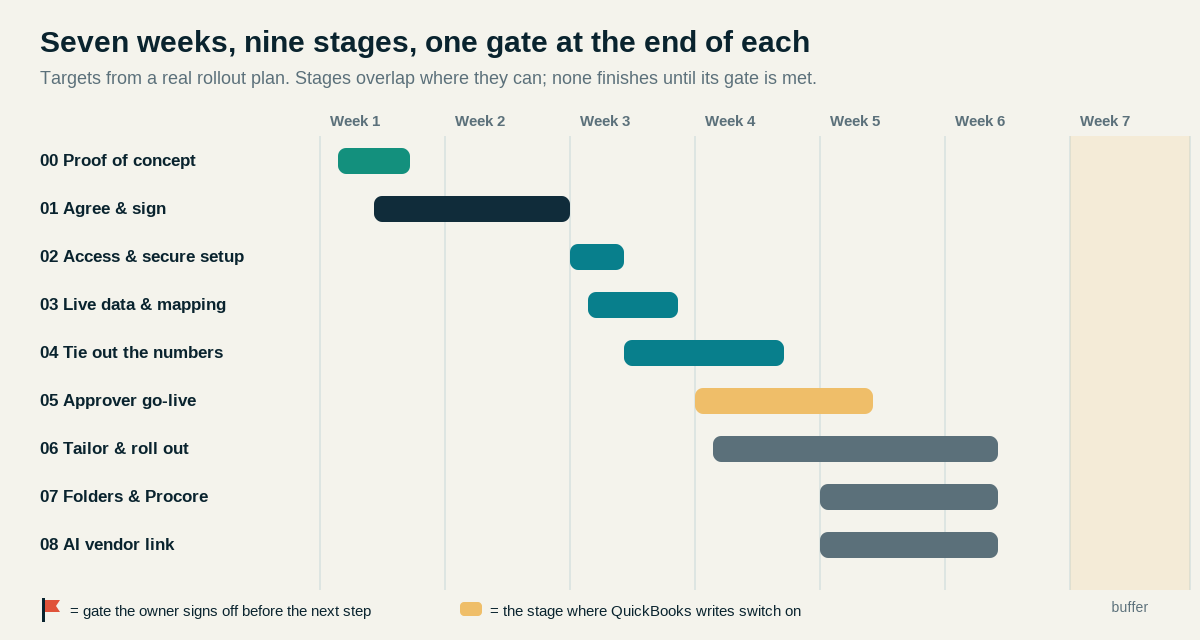 Seven weeks, with a gate at the end of every bar
Stages overlap where the work allows it. Tie-out can start as soon as the first sync lands, and page tailoring can start while the approver is still in shadow mode. What never overlaps is a stage and the gate before it. Nobody connects a live system before the agreement is signed, and nothing writes to QuickBooks before the numbers tie out.
Here is the same timeline as it appeared on Cattlemen's roadmap page, with the proof of concept done and the agreement stage in progress:
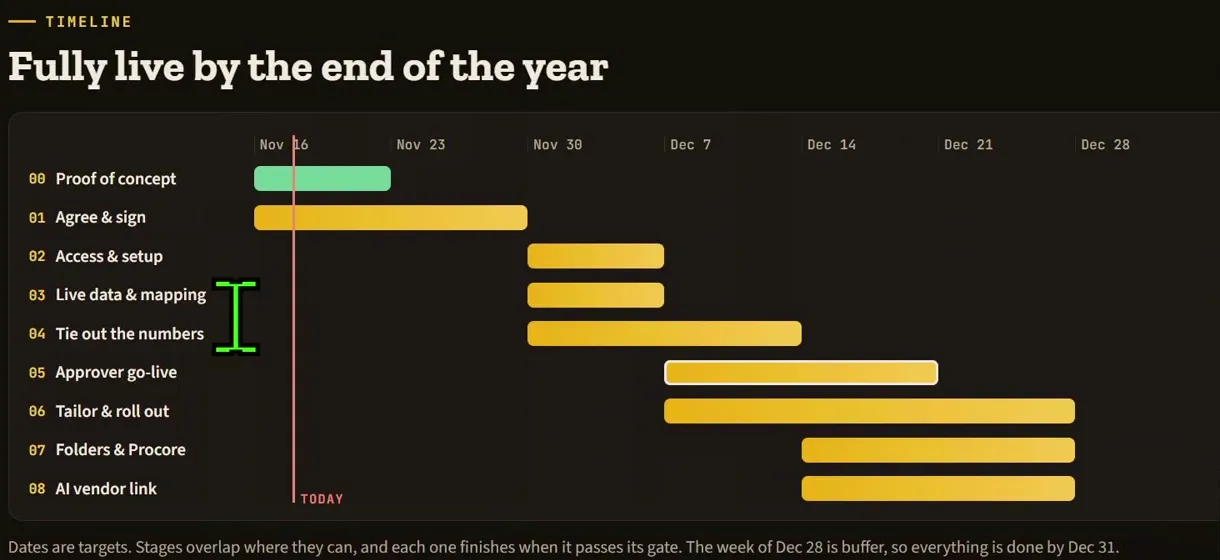 The timeline as shown in the walkthrough
Stage by stage
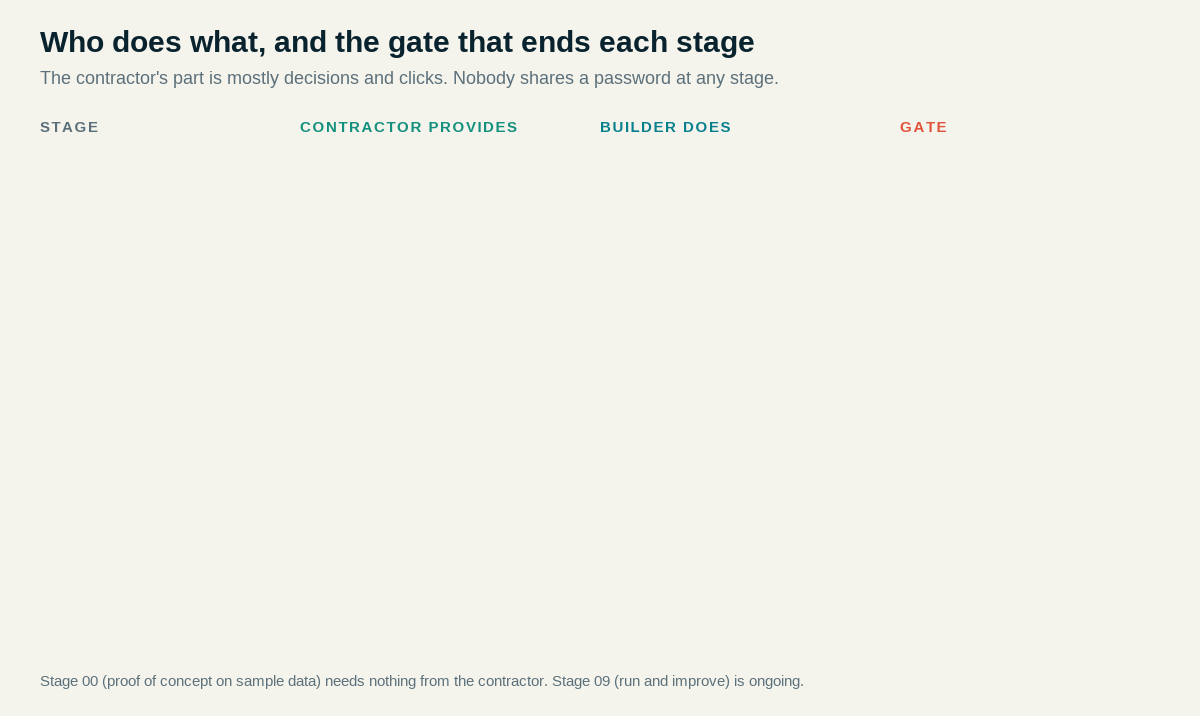 Who does what, and the gate that ends each stage
00 Proof of concept
What happens. We build the whole thing on sample data and host it at a real address. For Cattlemen that meant sign-in by role (admin, executive, PM, field), expense coding and approvals, executive dashboards, reports, an audit log, a help center and a Connections page. Sample job numbers in the same format as theirs, sample vendors, sample card charges.
Who does what. The builder does everything. The contractor does nothing except look at it.
The gate. There isn't one in the usual sense. The proof of concept exists so the owner can judge the real thing with their own login before signing anything. On the Cattlemen page it carried four numbers: 25 workflows documented in the app, more than 1,600 automated tests passing, 2,296 phone and desktop layout checks with no issues, and 0 writes to QuickBooks so far, by design.
How long. Two to four days for us, because we work from a library of patterns we've built before. It's a fair question to ask any builder how long theirs took and what it runs on.
Why build it before the agreement? Because it changes the conversation. An owner who has approved a sample expense on their phone asks better questions than one looking at a slide.
01 Agree and sign
What happens. The owner and anyone else who will sign off clicks through the app with their own login. We offer an optional 20-minute walkthrough. Then the agreement is signed and a kickoff date set.
Who does what. Builder: the agreement and the walkthrough. Contractor: review and sign.
The gate. A signed agreement. The roadmap states it plainly: "No live system is touched before this." No credentials, no connections, no real data.
How long. About a week, more if it crosses a holiday. Cattlemen's ran across Thanksgiving week, which is why the access stage starts a week after the agreement window.
02 Access and secure setup
What happens. The builder registers its own app with QuickBooks, Procore, Ramp and Microsoft, and puts those app keys in the encrypted hosting vault. Then the contractor's admins click Connect for each system and approve it on the vendor's own screen. Real users and roles are created and everyone sets their own password. Admins turn on two-step sign-in. Sample data comes out.
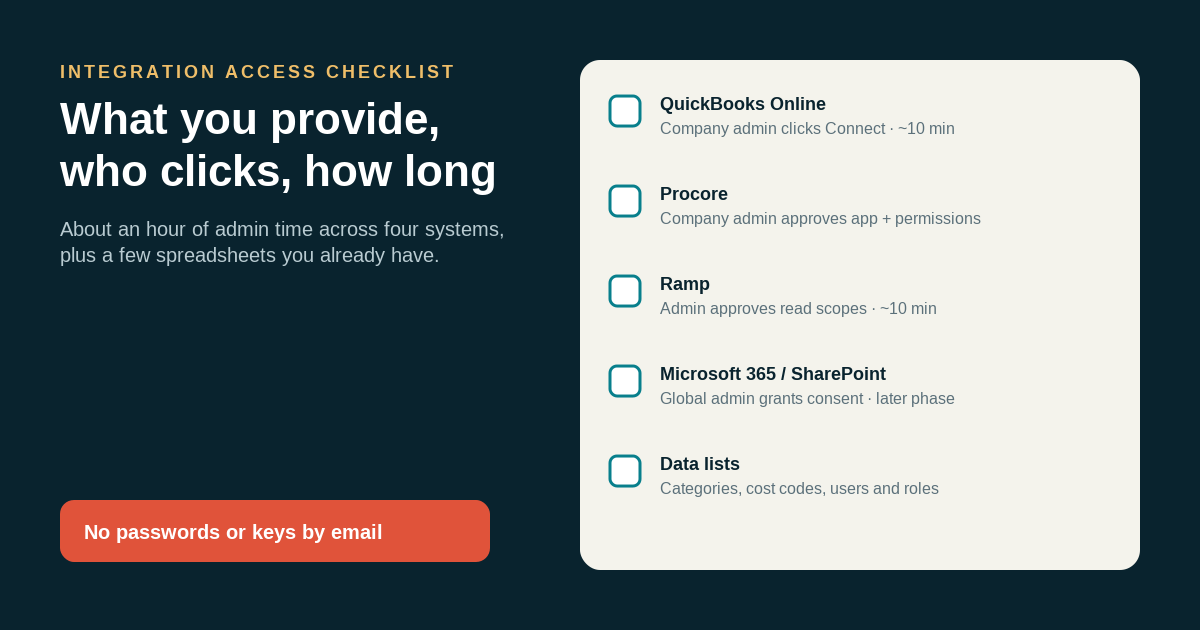
Who does what. Contractor: a QuickBooks admin, a Procore company admin and a Ramp admin, about 15 minutes each, plus the user list. Builder: app registrations, users, self-tests.
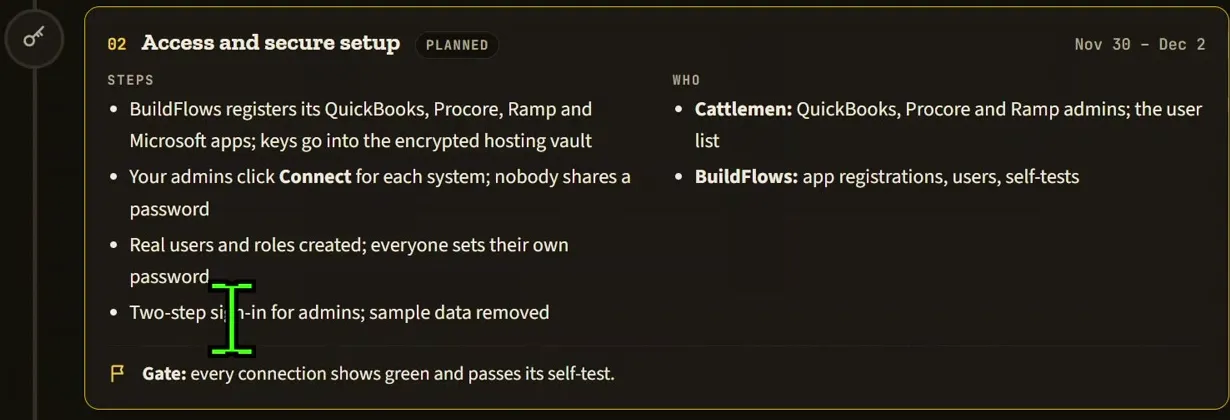 Stage 02 on the roadmap: nobody shares a password
The gate. Every connection shows green and passes its self-test.
How long. Two to three days of calendar time for perhaps an hour of the contractor's time. Procore is usually the slow one, because the app approval and its permissions sit with a company admin who may be on a jobsite. The full list of what to grant, per system, is in what contractors provide for an integration.
03 Live data and the cost-code mapping
What happens. The first sync runs, read only: projects, cost codes, budgets, commitments, change orders, P&L, receivables and payables, and card spend. Customers, cardholders and projects get matched across the three systems. Then we run a 60 to 90 minute mapping workshop that takes the 5000-series cost-of-services categories and maps each one to the Procore cost codes it can belong to. The team agrees how far back to re-code older card expenses, and scheduled syncs and data health checks go on.
Who does what. Contractor: the category list, the cost-code list, which PMs run which projects, whose card is whose, and the workshop time. Builder: sync, matching, the workshop, data health.
The gate. Projects and cost codes in the app match Procore, and data health is clean.
How long. About a week. The mapping itself is covered in GL to Procore cost code mapping and the Section 1 guide on why Ramp bills show $0 in Procore.
04 Tie out the numbers
What happens. We pick two or three jobs the owner knows well and compare them line by line: contract, billed, cost to date, committed and margin. WIP and over/under billing get tied to the last month-end. Cash, receivables aging and the 13-week forecast get checked. Every mismatch gets fixed at its source (usually in Procore or QuickBooks, sometimes in our mapping) and logged.
Who does what. Contractor: the owner and whoever closes the books. Builder: reconciliation, fixes, a sign-off sheet.
The gate. The owner agrees the numbers match within an agreed tolerance. Agree the tolerance before you start. "Within $500 or 1% per job, whichever is larger" is a reasonable opening position.
How long. About a week, overlapping the mapping stage. The five-record acceptance test is a good way to pick which records to trace.
This stage matters more than it looks. If the dashboard says a job is at 18% margin and the owner's gut says 12%, nobody will trust the dashboard again, even after it's fixed. Tie-out is where trust gets built, one job at a time.
05 Expense approver go-live
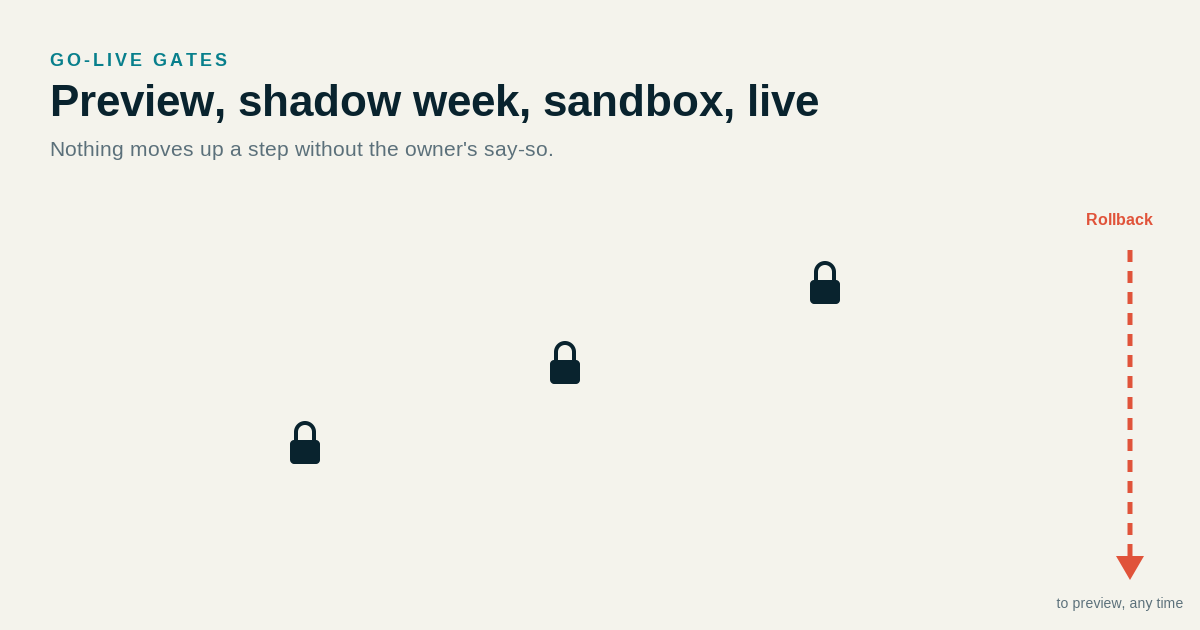
This is the stage where writes to QuickBooks switch on, so it gets its own four steps, and nothing moves up a step without the owner's say-so:
- Preview only. Live data in. The app shows the exact line it would write. QuickBooks doesn't change.
- Shadow week. Field users code, the owner approves, and accounting compares each proposed line with what they would have done by hand.
- Sandbox test. The full write path runs against a test company.
- Live, with sign-off. The owner signs off in the app. A small batch first, check Procore, then open it up.
The gate. 20 or more live expenses land on the right cost code; totals, vendors and payment accounts never change; every write is in the audit log.
How long. One and a half to two weeks. The details (what to compare in shadow week, the pass and fail criteria, and the rollback plan) are in shadow week, sandbox and go-live gates.
06 Tailor the pages and roll out
What happens. The owner sets project grade weights and KPI tolerances. We walk each page with its real users and decide what to keep, cut or change, using the contractor's own terms. The weekly digest, scheduled reports and approval emails go on. Field users get 15 minutes of training and a one-page field guide.
Who does what. Contractor: feedback from executives, PMs and field users. Builder: page changes, training, guides.
The gate. Field users code without help, and the owner runs the weekly review from the dashboard.
How long. About two weeks, starting while the approver is still in shadow mode.
That gate is behavioral on purpose. A page nobody opens has failed, however good it looks. If the owner is still asking accounting for a spreadsheet on Monday morning, the rollout isn't done.
07 Project folders and Convert to won
What happens. "Create new project" builds the standard project folder set in SharePoint from the contractor's template, numbered in their format (26-NNN for Cattlemen). "Convert to won" creates the Procore project from the same record, so names and numbers match. This needs a Microsoft 365 admin to grant consent.
The gate. Proven on three real projects.
How long. About a week and a half. The folder design is in SharePoint and OneDrive project folder structure.
08 Connect the AI vendor
What happens. Cattlemen is building an AI platform with a separate vendor. The operating system embeds in it with sign-in kept, and the vendor's agents read data through revocable, read-only keys or an MCP server. As I put it in the walkthrough, "we've provisioned some MCPs for the agents to be able to get access to this data," and the vendor can "embed this as a tab within their system."
The gate. The vendor reads data with a scoped, revocable, read-only key. No write access without the owner's written approval.
How long. About a week and a half, running alongside folders. See give an AI vendor read-only API and MCP access.
09 Run and improve
After go-live the builder hosts, monitors, backs up and supports the app. New reports, integrations and automations get scoped as they come up, each with its own small gate.
What the contractor provides
Most of the contractor's work is decisions and a few clicks. From the Cattlemen roadmap, in order:
- Sign the agreement and pick a kickoff date
- A QuickBooks admin, a Procore company admin and a Ramp admin, 15 minutes each to click Connect
- Portal users: name, email and role, plus who approves
- The 5000-series category list and the Procore cost-code list (a spreadsheet is fine)
- Which PMs run which projects, and whose card is whose
- How far back to re-code older card expenses
- 2–3 jobs to tie out, with the latest month-end WIP
- An intro to the AI vendor team
- Later: Microsoft 365 admin consent and the template folder path
The page said it in a bold line under that list: "Please don't email passwords or keys." Each system connects by an admin approving inside the app. Why that matters, and what each grant covers, is in the access checklist guide.
How the data is protected along the way
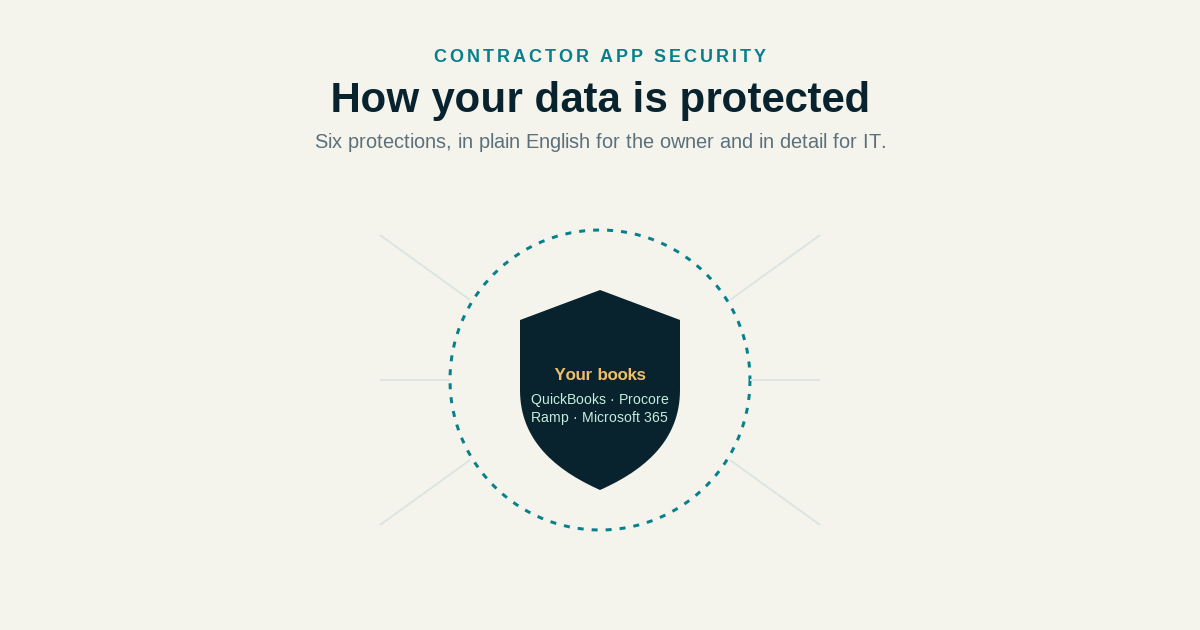
Security isn't a stage of its own. It runs through all of them. The roadmap summed it up in six protections: your own login, see only your part, approve and don't share, QuickBooks guarded, everything logged, and hosted with monitoring and backups. In the walkthrough I described it as making sure "all of your APIs and automations are properly logged in and able to be tracked and managed to revert anything."
Each one is explained for the owner and for their IT person in how your data is protected, with a list of questions to ask any vendor.
Common ways this goes wrong
- Connecting live systems before the agreement. It feels faster. It also means a vendor holds access to your books with nothing on paper about what they can do with it.
- Skipping tie-out because the sync "worked." A sync can succeed and still put the wrong number on the wrong job. Tie out two or three jobs before anyone relies on the dashboard.
- Going straight from preview to live. Shadow week is where you find the mapping default that's too broad, or the cost code with no QuickBooks item yet. Finding those on live books is a lot more work.
- Gates nobody can check. "Users trained" can't be verified. "Field users code five expenses each without help" can.
- Letting the AI vendor in early with write access. Read-only first, scoped keys, one per vendor, and writes only with the owner's written approval per tool.
Your next step
Write down your own stages and, for each one, the sentence that ends it. If you can't write the gate, you're not ready to start the stage. The printable rollout gates checklist gives you a sign-off line for every gate, and the integration access checklist covers what each system needs.
The rest of this release goes deeper on each piece: Section 1 on the job-cost fix itself (why Ramp bills show $0 in Procore and how to fix it) and Section 3 on the app (a tour of the construction project operating system).
Need a hand?
If you want a rollout like this for your own QuickBooks, Procore and card spend, with a proof of concept before you sign anything, email charley@buildflows.ai or tell us what you're building.
Frequently asked questions
What are the stages of a construction software rollout?
In the plan described here: proof of concept on sample data, agree and sign, access and secure setup, live data and cost-code mapping, tie out the numbers, a gated go-live for anything that writes to accounting, tailor and roll out to real users, follow-on automations such as project folders, connecting any AI vendor, and then run and improve. Each stage ends when it passes a written gate.
What is a go-live gate?
A go-live gate is a short, checkable condition that must be true before the next stage starts, such as every connection passing its self-test or 20 live expenses landing on the right cost code with no change to totals. It is written before the stage begins, backed by evidence and signed off by the owner.
How long does it take to roll out a QuickBooks, Procore and Ramp integration?
For the contractor in this example, about six weeks from signed agreement to fully live, including a buffer week. The contractor's hands-on time was small: roughly an hour of admin clicks to connect systems, a 60 to 90 minute mapping workshop, tie-out on two or three jobs and a shadow week of normal coding.
Why build a proof of concept before signing?
An owner who has signed in and approved a sample expense on their phone can judge the real thing instead of a slide. It also shows the builder can deliver before any credentials or live data are shared. The proof of concept in this example ran on sample data and made zero writes to QuickBooks.
What does the contractor need to provide during rollout?
A signed agreement, a QuickBooks admin, Procore company admin and Ramp admin for about 15 minutes each, a user list with roles and approvers, the cost-of-services category list and Procore cost-code list, PM and card assignments, a re-code cut-off date, 2 to 3 jobs to tie out, and later Microsoft 365 admin consent. No passwords or keys by email.
What happens if a rollout stage misses its date?
The date moves and the gate stays. Dates in the plan are targets, stages overlap where the work allows, and a stage is finished only when its gate passes with evidence the owner has seen.
Next step
Want help running this playbook?
Bring the report or workflow. We'll help map the work behind it.
Prefer email? charley@buildflows.ai
Keep learning
Integrations · November 19, 2026
Shadow Week, Sandbox, Live: Go-Live Gates for a QuickBooks Write Integration
How to switch on writes to QuickBooks Online safely, using the expense approver built for Cattlemen Construction Services as the example. Four steps, each needing the owner's say-so: preview only (the app shows the exact line it would write), shadow week (field users code, the owner approves, accounting compares with its own by-hand coding), a sandbox test against a test company, and live with a recorded sign-off, starting with one expense and a small batch. Covers the three locks on write mode, the five checks before every write, a line-by-line comparison table, pass and fail criteria for each step, and a five-step rollback plan.
Integrations · November 19, 2026
What Contractors Provide for an Integration: The QuickBooks, Procore, Ramp and Microsoft 365 Access Checklist
The precise list of what a contractor provides for an integration across QuickBooks Online, Procore, Ramp and Microsoft 365 (SharePoint), from a real rollout for Cattlemen Construction Services. For each system: which admin must do it, the steps, what access it grants, hands-on and calendar time, and how to revoke it later. Explains why passwords and keys should never be emailed, the two safe patterns (a hosted app with Connect buttons, or credentials in a vault you own), the non-secret data lists, how to shorten the wait, and common mistakes.
Custom applications · November 19, 2026
How Your Data Is Protected: Six Security Controls for a Contractor App, for Owners and IT
The six protections on the Cattlemen OS roadmap, each explained in plain words for the owner and in detail for their IT person: your own login (per-user sign-in, two-step for admins, session timeouts), see only your part (role capabilities and server-side scoping from field to super admin, a read-only view-as), approve don't share (OAuth connections, encrypted revocable tokens), QuickBooks guarded (three-lock write mode and write invariants), everything logged (150+ audit actions), and hosting with HTTPS, backups and an exit. Also covers read-only access for an AI vendor and a list of security questions to ask any vendor.