Key takeaways
- Re-coding three paid Ramp bills by hand in QuickBooks Online proves the job-cost fix on your own data before anyone pays for an automation.
- Pick bills on projects created after Procore's QuickBooks Online connector was connected, in an open period, with three different cost types and at least one multi-line bill.
- Move each Category details line to an Item details line on the Procore-created service item, such as 2401-03-300.M, with the same amount and description. Vendor, date, bill number, AP account and total don't change.
- Edit the bill in place. Procore's connector doesn't detect deletions, and voided transactions import as $0.
- Check the bill is still Paid with its Ramp payment linked, and check the service item's expense account with your bookkeeper, because Item lines post to the item's account.
- Run Procore's on-demand job cost sync (or wait for the daily import) and confirm the full amount on the right budget code. All three bills must pass Gate B.
- If a second direct cost appears for an edited bill, record it. It answers whether Procore updates or duplicates, and sets the cleanup rule for older bills.
46 seconds · From a Build Flows walkthrough
Prove it on real bills, then build
Start with a short list of paid bills, recode them, check Procore, and line up the guardrails for what could go wrong before building the automation.
Read the clip transcript
And then what we'll do is then take some list to get started. So then we'll show some examples of those invoices being paid. We'll have some examples and exports, and then we'll share the data with Procore and then get those things in here, access and have that written off. We have a roadmap to go through to make this deliverable. I'll show you what we've developed here on their roadmap further. And then there are some things that could go wrong. We could identify these ahead of time just to make sure that we're aligning the guard rails to make sure that it's a successful delivery. And the end goal is then to prove this, then build it. And so make sure that we have all the costing that we're displaying all of this and assign it to Procore. it to the correct fields and that it flows properly and so we'll develop and build this so the roadmap here that we'll dive into essentially
Captions adapted from the source video; proper names may reflect automatic transcription. Original segment: 7:03–7:49. Watch at the source.
Before anyone builds an automation that rewrites QuickBooks bills so Procore can read them, prove the fix by hand. Pick three paid Ramp bills, re-code them yourself in QuickBooks Online from Category details to the Procore-created service items, run a job cost sync in Procore, and check that the full amounts land on the right budget codes with the Ramp payments still attached. It costs nothing to build and takes an afternoon. If it works, you have evidence for the build. If it doesn't, you've avoided paying for an automation that rests on a wrong diagnosis.
This is the walkthrough we give controllers. It comes from the job-cost flow plan we wrote for Cattlemen Construction Services, a general contractor in Fort Worth, Texas, where we called this step Gate B: "nothing writes until a hand test proves it." The example data below is made up, using sample projects 2401 Sample Clinic TI and 2403 Sample Shop Remodel. If you want the background on why Ramp bills show $0 in Procore in the first place, start with the section hub.
 Three bills, re-coded by hand, landing at full value
Why test by hand first
The plan for fixing Ramp-to-Procore job costs has two automations. The first rewrites each Ramp bill in QuickBooks so its lines use the Procore-created service item. The second runs a nightly reconciliation between QuickBooks and Procore. Both depend on one assumption: if a bill's lines are moved onto the right service item, Procore's QuickBooks Online connector will import the cost at full value.
Procore's documentation supports that assumption. Its QuickBooks Online pages say job costs entered in QuickBooks must be coded to project-specific Service items created by the integration to be retrieved, and that costs coded straight to GL accounts can't be. What the docs don't spell out is how the connector treats a bill that was first synced at $0 (or not at all) and then edited in place. That's an open question in our research, and the hand test answers it on your own data.
There's a second reason. The automation's rules are guardrails: never change amounts, vendors or payment links, never touch closed periods, never create items. When you re-code by hand you find out whether those rules hold in your file. A paid bill whose lines change type but whose total stays the same should keep its payment, but we treat that as something to check rather than assume.
As Charley says in the video, "these bills are going to be recoded to prove that they work." You can watch the walkthrough of the full plan.
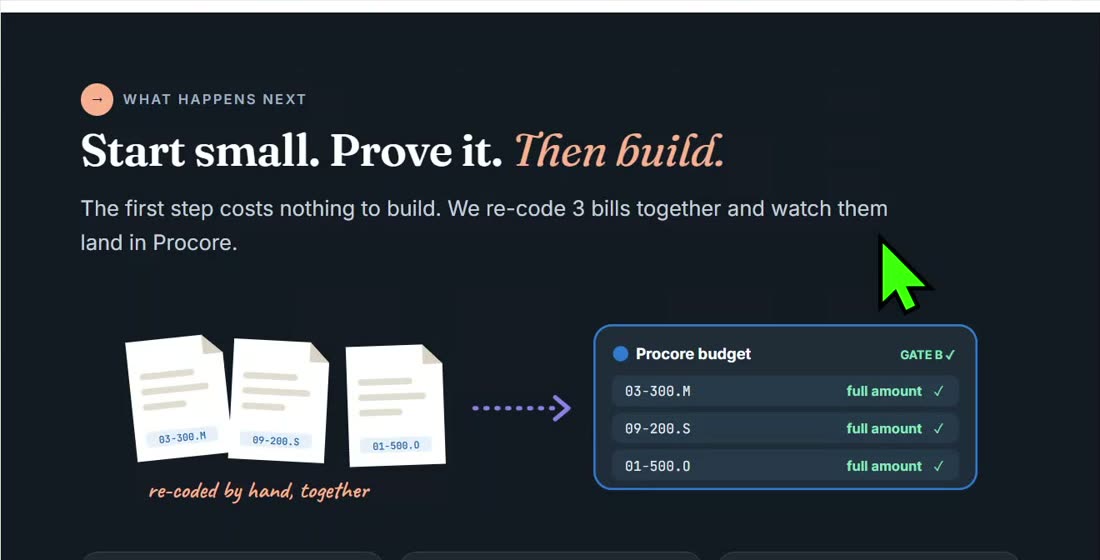 From the plan shown in the video. Illustrative data.
What you need before you start
- QuickBooks Online access that lets you edit bills. QuickBooks Online Plus or Advanced, since Procore's connector relies on QuickBooks Projects.
- Procore access to the project budget and Direct Costs on the projects you'll test, plus someone who can run an on-demand job cost sync (usually a Procore admin).
- Ramp read access so you can see how AP coded each bill.
- Your bookkeeper or controller in the room. You're editing paid bills. Someone who owns the books should agree to the three you pick.
- The worksheet. Print the three-bill proof test worksheet and fill it in as you go.
Two things to confirm first, because they cause false failures:
- The project syncs at all. Procore's connector only syncs projects created after the integration was connected, and it doesn't support QuickBooks sub-customers. If a project predates the connector, it's the wrong project for this test.
- The service items exist. Procore creates one QuickBooks Service item per budgeted cost code and cost type, named
[project number]-[cost code].[cost type], for example2401-03-300.M. Cost codes have to use two or more tiers. If you can't find the item in QuickBooks Products and Services, the budget code hasn't been synced, and that's a settings problem to fix first. The pre-integration settings checks cover this, and there's a printable settings checklist.
Step 1: Pick three bills
Choose three bills that will tell you something:
| Pick | Why | Sample |
|---|---|---|
| Paid through Ramp | Tests that the payment link survives the edit | All three |
| On an active project that syncs to Procore | Otherwise nothing can import | 2401 Sample Clinic TI, 2403 Sample Shop Remodel |
| Three different cost types | Proves the item naming works across types | .M Materials, .S Subcontract, .O Other |
| One bill with two or more lines | Tests a multi-line rewrite | Bill #10482, two lines |
| In an open accounting period | Writes on or before the closing date are blocked | Dated this month or last |
| Not edited in Ramp since it synced | A Ramp-side edit can re-sync the bill | Leave them alone in Ramp during the test |
Our sample set:
| Bill | Vendor | Project | Ramp coding | Lines | Total | Target service item |
|---|---|---|---|---|---|---|
| #10482 | Example Concrete Supply | 2401 Sample Clinic TI | 03-300 Cast-in-place concrete | $4,850.00 + $2,300.00 | $7,150.00 | 2401-03-300.M |
| #D-2291 | Example Drywall Partners | 2401 Sample Clinic TI | 09-200 Gypsum board | $12,640.00 | $12,640.00 | 2401-09-200.S |
| #7731 | Example Site Services | 2403 Sample Shop Remodel | 01-500 Temporary facilities | $865.00 | $865.00 | 2403-01-500.O |
The cost type is the part people forget. Ramp may carry the project and cost code but not a cost type, so you decide it here, the same way the automation will. If your rule is "materials account means M," write that down. The translation table guide covers how to set that rule, and the translation table template (CSV) has sample rows.
Step 2: Capture the "before" in all three systems
For each bill, take screenshots and note values before you touch anything. This is your audit trail and your undo button.
- Ramp. The bill, its line coding (project and cost code per line), and the payment.
- QuickBooks Online. The bill view showing Category details and Item details. Note the vendor, bill date, bill number, the AP account, each line's category, customer/project, description and amount, the total, and the payment status. Open the payment and note which bills it applies to.
- Procore. The project budget for the target budget code, specifically the ERP direct costs or job-to-date costs column, and the Direct Costs list filtered to the vendor. If Procore detected mis-coded job costs you may also see a yellow notification banner on the budget tool. Screenshot that too.
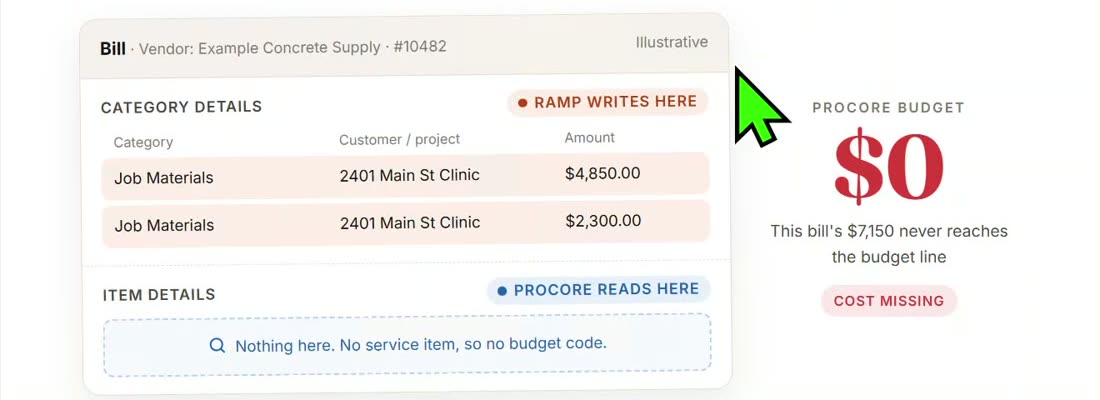 The before state: coding on category lines, $0 on the budget. From the plan in the video, illustrative data.
Two more checks before you edit:
- Closing date. In QuickBooks Online, check whether your books have a closing date set (in the advanced accounting settings). If the bill is dated on or before it, QuickBooks will warn or block the edit, and the automation will treat it as a review-queue item. Pick a different bill rather than overriding the close.
- The item's expense account. Open the target service item in Products and Services and note which expense account it posts to. A Category line posts to the category you chose. An Item line posts to the item's expense account. If Procore's items all point at one cost-of-goods account and your Ramp bills were coded to "Job Materials," the GL can move when you re-code. Your bookkeeper should agree with where it lands, or fix the item's account first. Our Category vs Item details guide explains the difference.
Step 3: Re-code the bill in QuickBooks Online
Open the bill in QuickBooks Online. The exact screen layout changes from time to time, so these steps describe what to do rather than every button.
- In Item details, add one line per category line. For bill #10482 that's two lines.
- For each new line, choose the Product/Service that Procore created, for example
2401-03-300.M. Pick the item for this project; items for other projects will have a different number at the front. - Set the amount to the same amount as the category line it replaces. If the line uses quantity and rate, use quantity 1 and rate equal to the amount.
- Copy the description from the category line, so nobody loses what was bought.
- Keep the customer/project the same as it was on the category line. Procore's docs identify the project through the service item, so this isn't documented as required, but leaving it in place does no harm and keeps your QuickBooks project reports right.
- Delete the matching Category details lines. Only the lines you moved. If a line is sales tax, freight or anything that isn't job cost, leave it as a category line and note it.
- Before saving, check the total. It must match the "before" total to the cent. Vendor, bill date, bill number and AP account must not change.
- Add a note in the bill's memo or attachment notes, for example: "Re-coded by hand from Ramp line coding, three-bill test, [date], [initials]." The automation would write the same kind of note.
- Save.
 Move the lines. Leave everything else.
Two things not to do, even if they look quicker:
- Don't delete the bill and enter a new one. Procore's connector doesn't detect deletions, so a deleted bill can leave a stale direct cost in Procore. Edit in place.
- Don't void it. Voided transactions update to $0.00 in Procore, which is the opposite of what you're testing.
Step 4: Check the payment is still linked
Right after saving, reopen the bill:
- It should still show as Paid.
- The bill payment should still list this bill, for the same amount.
- The vendor balance shouldn't have changed.
If the payment came unlinked, stop. Restore the lines from your "before" screenshot and talk to your bookkeeper before trying the next bill. In the plan, an unlinked payment is one of the named risks, and the build doesn't go ahead until it's understood. In our experience, keeping the total and vendor identical is what keeps the link, but this is exactly the kind of thing the test exists to confirm on your file.
Also leave the bill alone in Ramp until the test is over. Ramp re-syncs a bill to QuickBooks when it's edited in Ramp, and we haven't confirmed how a re-sync treats lines changed in QuickBooks. That matters for the automation design, and the guardrails guide covers it.
Step 5: Sync Procore and read the budget
Procore's connector imports job costs on a background job once a day, and it also offers an on-demand job cost sync. Ask your Procore admin to run the on-demand sync for the project, or wait for the next daily import.
Then check, for each bill:
- The budget code. In the project budget, the ERP direct costs (or job-to-date costs) column for
03-300.Mshould now include $7,150.00. Same for09-200.Sat $12,640.00 and01-500.Oat $865.00 on project 2403. - Direct Costs. The bill should appear as a direct cost (Procore maps a QuickBooks vendor bill to an Invoice type), with lines on the right budget code. Imported direct costs arrive as Approved and can't be edited in Procore. That's expected: QuickBooks controls them.
- The yellow banner. If it was showing for these costs before, note whether it cleared.
- Duplicates. Look for a second direct cost for the same bill. If the bill had already imported at $0 and Procore created a new record instead of updating the old one, you'll see two. Write it down. That one observation sets the cleanup rule for older bills.
Step 6: Decide pass or fail
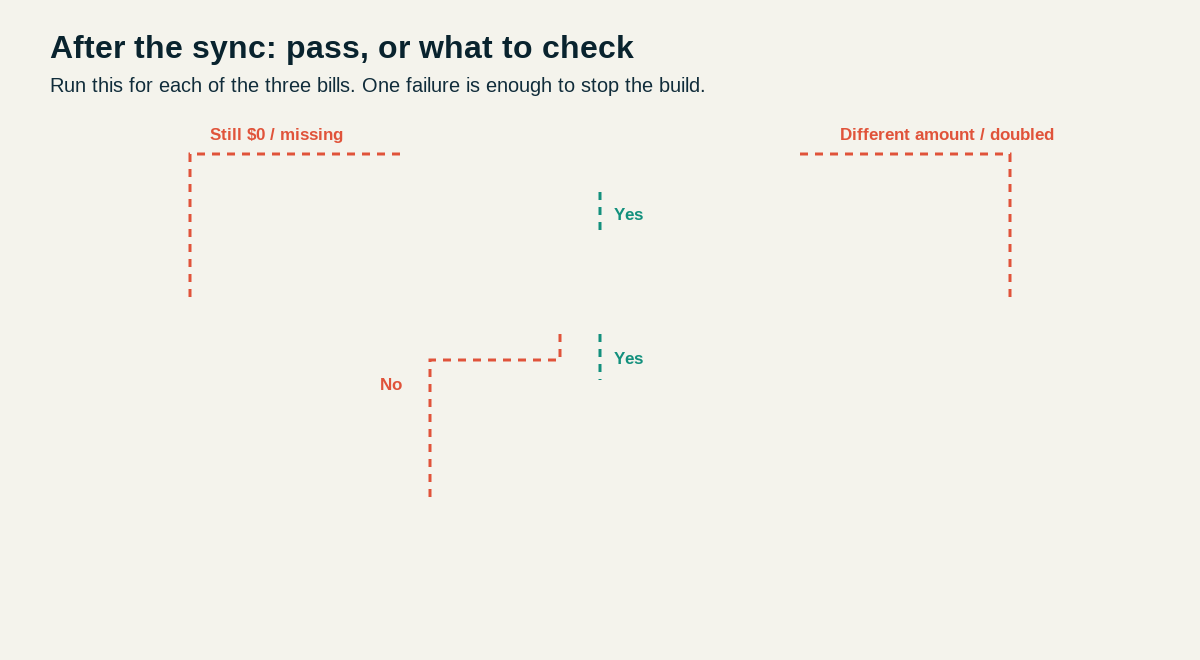
Gate B in the plan is short: amounts land on the right budget code, and payment is still linked. All three bills have to pass.
 Read each bill the same way
| What you see | What it means | What to do |
|---|---|---|
| Full amount on the right code, payment linked | Pass | Record it on the worksheet |
| Still $0 or nothing | The connector didn't pick up the edited bill, or the item, project or budget code isn't right | Check the item belongs to this project, the project post-dates the connector, the budget code is synced and cost codes have 2+ tiers. Sync again. If it still fails, the diagnosis needs another look before any build |
| A different amount | A line was left on Category details, or an amount was changed | Compare line by line. Tax and freight on category lines won't import |
| Two direct costs for one bill | Procore created a new record for the edited bill | Note it. The cleanup rule for old $0 bills depends on it |
| Payment unlinked | The edit changed something it shouldn't have | Restore the bill. Don't continue until it's understood |
If any bill fails, stop and re-diagnose. That's the point of the gate. It's much cheaper to find out now than after an automation has rewritten three hundred bills.
What happens after it passes
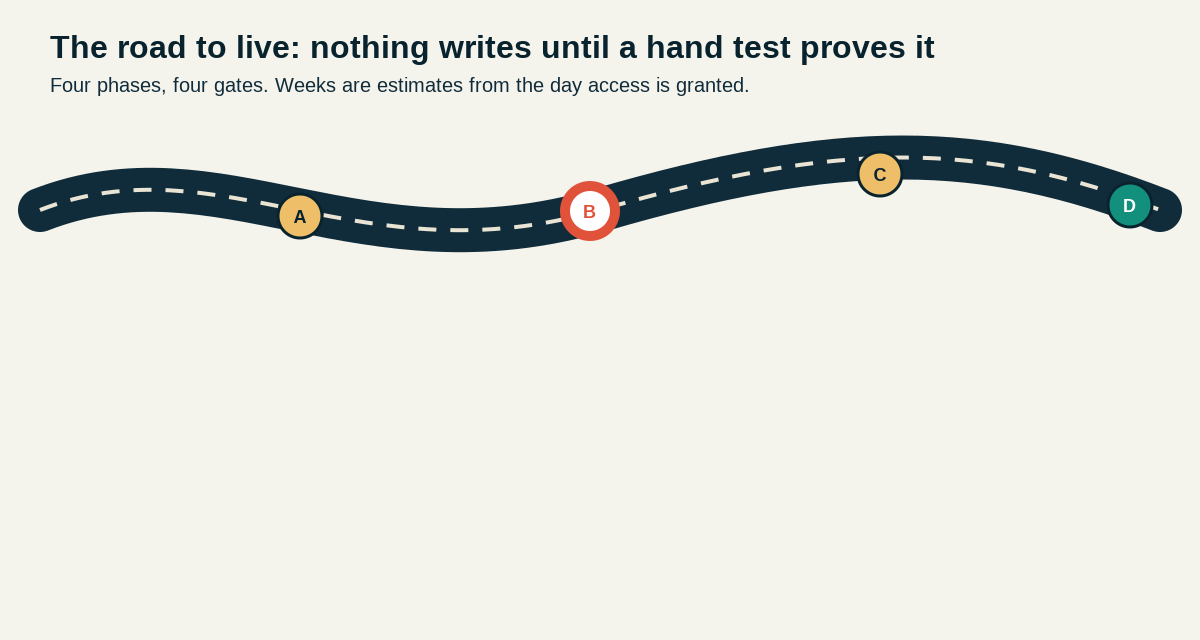
Passing Gate B means the diagnosis is proven on your data. The rest of the plan follows a set of gates, each with its own evidence:
 Four phases, four gates
| Phase | Weeks (estimate) | Gate | Evidence |
|---|---|---|---|
| Discover | 1 | A | Settings alone don't close the gap (Ramp support answer, Procore settings checked) |
| Prove by hand | 1 to 2 | B | Three bills at full value on the right codes, payments linked |
| Shadow mode | 2 to 4 | C | 20 proposals in a row approved with no corrections. The automation proposes, nothing is written |
| Go live | 4 to 6 | D | One month-end close with no unexplained gaps between QuickBooks and Procore |
The week counts are estimates from the day access is granted, and phases overlap a little: shadow mode starts as soon as Gate B passes. Going live means high-confidence bills are rewritten automatically and low-confidence ones go to a review queue. Then history gets backfilled to a date the owner picks, such as the start of the fiscal year or open projects only.
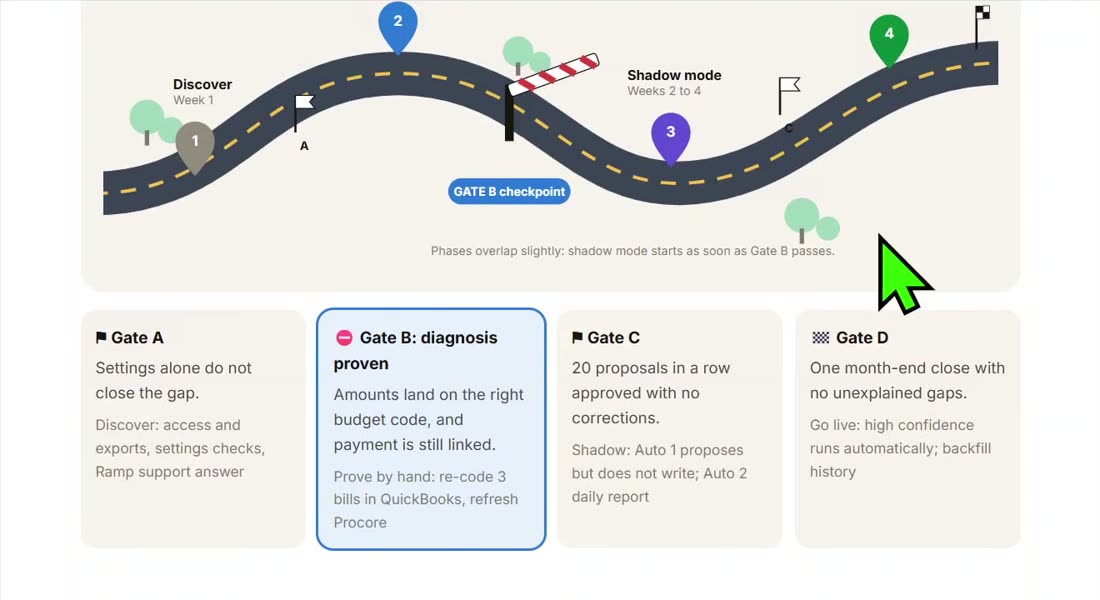 Gates as shown in the plan in the video
Gate D ties into your close. If you already run a month-end close checklist, add a line for "QuickBooks job cost by project and code equals Procore direct costs, or every difference is explained." For a broader acceptance pattern you can reuse on any integration, see the five-record acceptance test.
What to send if you want help with it
If you'd like us to run the test with you, this is the short list we ask for. Access is read-only first. Write access only comes after sign-off.
Samples
- 3 to 5 recent Ramp-paid invoices, with screenshots of each in Ramp, in QuickBooks (bill view) and in Procore (direct cost and budget line)
- One example where Procore shows $0, with the matching QuickBooks bill
Exports
- Procore company cost code list and cost types
- QuickBooks Products and Services, filtered to Service items
- Ramp accounting field list: where project and cost code are captured, and whether at line or transaction level
- Active projects with their Procore project numbers
Access
- QuickBooks Online: accountant or integration user
- Ramp: a developer API app created by an admin, and your plan tier
- Procore: a service account with access to Company Admin, Direct Costs and Budget on active projects
Common mistakes
- Testing on an old project. If the project was set up before the connector, it won't sync no matter how well you code the bill.
- Picking the wrong project's item.
2401-03-300.Mand2403-03-300.Mlook alike in a dropdown. Check the number at the front. - Rounding. A $0.01 difference on the total can mean the payment is no longer fully applied. Match to the cent.
- Testing during close. If the period is about to close, either finish first or pick bills in the next period.
- Editing in Ramp mid-test. It can re-sync the bill and undo your lines.
- Calling it after one bill. One success could be luck. Three bills with three cost types is the minimum.
Next step
Print the three-bill proof test worksheet, pick your bills with your bookkeeper, and block an afternoon. If all three land, you have the evidence to build Automation 1. If they don't, you've learned something important for the price of a few edits.
If you'd rather do it together, we'll walk through it on a call and set up the build once it passes. Email charley@buildflows.ai or tell us what you're working on.
References
- Procore Support: QuickBooks Online: Things to Know
- Procore Support: QuickBooks Online detailed data mapping
- Procore Support: Sync cost codes from Procore to QuickBooks Online
- Ramp Support: Bill Pay accounting
- Intuit: Change the closing date or password
Frequently asked questions
How do I prove a Ramp to Procore job-cost fix before building anything?
Pick three paid Ramp bills on projects that sync to Procore, re-code each one in QuickBooks Online from Category details lines to Item details lines that use the Procore-created service item, keep the amount and total identical, then run Procore's job cost sync. If all three show their full amount on the right budget code and the payments are still linked, the diagnosis is proven.
Which QuickBooks item should a bill line use so Procore imports it?
The project-specific Service item that Procore's QuickBooks Online connector created when the budget code was synced. It's named project number, cost code and cost type, for example 2401-03-300.M. Lines coded to other items or straight to a GL account aren't retrieved by the connector.
Will changing a paid bill from category lines to item lines unlink the payment in QuickBooks Online?
Keeping the vendor, AP account and total identical generally keeps the payment applied, but confirm it on your own file. After saving, reopen the bill, check it still shows Paid, and check the bill payment still lists it for the same amount. If the link breaks, restore the bill from your before screenshot.
How often does Procore import job costs from QuickBooks Online?
Procore's QuickBooks Online connector imports job costs on a background job once a day. An on-demand job cost sync is also available, which a Procore admin can run so you don't have to wait during a test.
Can I delete the Ramp bill in QuickBooks and re-enter it with item lines instead?
No. Procore's connector doesn't detect deleted transactions, so a deleted bill can leave a stale direct cost in Procore. Voiding sets it to $0. Edit the existing bill in place.
Why did my re-coded bill still show $0 in Procore?
Common causes are an item from the wrong project, a project created before the connector was connected, a budget code that was never synced, single-tier cost codes, or a line left on Category details. Fix the cause, run the job cost sync again, and if it still fails, stop and re-check the diagnosis before building automation.
What happens after the three-bill test passes?
The automation runs in shadow mode, proposing rewrites without writing, until 20 proposals in a row are approved with no corrections. Then high-confidence bills run automatically, low-confidence ones go to a review queue, and the gate to finish is one month-end close with no unexplained gaps.
Next step
Want help running this playbook?
Bring the report or workflow. We'll help map the work behind it.
Prefer email? charley@buildflows.ai
Keep learning
Integrations · November 19, 2026
Why Ramp Bills Show $0 in Procore, and How to Fix It
The section hub for the Ramp to QuickBooks to Procore job-cost fix, built from the plan we wrote for Cattlemen Construction Services. Ramp writes its coding to the Category details lines of a QuickBooks Online bill. Procore's QuickBooks Online connector only retrieves job costs from lines coded to the project-specific service items it created, which live in Item details, so the cost never reaches the Procore budget. The guide shows how to confirm the gap in five minutes, then the cheapest order to fix it: check four settings, build a translation table, re-code three bills by hand to prove it, then automate with a bill line rewriter and a nightly reconciliation, with guardrails and a phased rollout.
Integrations · November 19, 2026
Ramp, QuickBooks Online and Procore: The Settings to Check Before You Build an Integration
The step-zero checklist from a real job-cost plan for Cattlemen Construction Services. Before anyone builds an automation to get Ramp bills into Procore job costs, confirm the Procore QuickBooks Online connector's basics (QBO Plus or Advanced, Projects not sub-customers, projects created after connection), ask Ramp whether Bill Pay lines can use the Procore-created service items, confirm 2+ tier cost codes and synced budget codes, check the budget view shows direct costs, find where the cost code lives in Ramp, check each service item's expense account, the QuickBooks closing date and the daily sync timing, and settle the owner's decision on entering invoices in Procore first.
Workflow automation · November 19, 2026
Guardrails for an Automation That Writes to QuickBooks: Ten Reads, Two Writes
From a real job-cost plan for Cattlemen Construction Services: the rules for an automation that rewrites Ramp bills in QuickBooks Online so Procore's QuickBooks Online connector can read them. It covers the full endpoint map (ten reads and two fenced writes across QuickBooks, Ramp and Procore), dedicated integration users, the sparse update with SyncToken, the never list (amounts, vendors, payment links, closed periods, item creation), confidence scoring and a review queue, idempotent re-runs, logging, a nightly reconciliation that never types into Procore, shadow mode with a 20-in-a-row gate, and a risks and controls table.