Key takeaways
- Ramp syncs its coding to the Category details lines of a QuickBooks Online bill, and Procore's QuickBooks Online connector only retrieves job costs from lines coded to the project-specific service items it created, in Item details.
- The cost isn't missing. It's in QuickBooks on the right job, in the part of the bill Procore's connector never reads.
- Confirm it in five minutes: open one Ramp-paid bill, check which section the lines are in, and search Products and Services for the project's service items.
- Fix it in cost order: check four settings first, build a translation table, re-code three bills by hand to prove it, and only then automate.
- The fix moves each line to Item details on the matching service item, in place, with the same amount, vendor, total and payment link.
- Never delete and re-enter a synced bill, never create service items in QuickBooks, and never type costs into Procore next to imported ones.
- An Item details line posts to the item's expense account, so have your bookkeeper check where Procore's service items point before going live.
45 seconds · From a Build Flows walkthrough
Why Ramp bills show $0 in Procore
Ramp codes the bill on the Category details line. Procore's QuickBooks Online connector only reads Item details lines coded to its service items, so the cost is in QuickBooks and missing from the Procore job.
Read the clip transcript
into Procore. So the main thing that is happening here is currently Ramp is having all of the AP cost codes for the project and that's costing it to the line item as the contract item in the QuickBooks. So when that bill arrives it aligns on the category details line instead of the item details for each of the QuickBooks bills. And so because of that it's not pulling into Procore appropriately. And since Procore is only reading from the item details, it's not even reading that the QuickBooks bill has any type of cost associated to it or any assignment to any of the cost coding that Ramp is assigned.
Captions adapted from the source video; proper names may reflect automatic transcription. Original segment: 0:19–1:04. Watch at the source.
47 seconds · From a Build Flows walkthrough
The fix: read the new bill, translate, rewrite the line
When QuickBooks gets a new bill, an automation reads the Ramp coding, finds the matching Procore item and rewrites the line so Procore can pick up the cost.
Read the clip transcript
putting all this together. But some of the different details on the words I'll be using and essentially currently today, right now, it's going through AP codes, the bill while they're in the field and they're recording their receipts and everything, it flows into QuickBooks and then nothing's coded. So Procore doesn't even read anything. So what we need to do ultimately is then have an automation that reads whenever QuickBooks has a new bill that comes in and then it looks at the costing codes in Ramp, identifies what it is, it rewrites them to the specific items, and then it looks at what Procore has and then assigns it to whatever it needs to. And then it pulls it into Procore and then it pulls in the correct cost too, because it pulls it in from the line items from the adjusted contract to the line item that would be assigned.
Captions adapted from the source video; proper names may reflect automatic transcription. Original segment: 2:58–3:45. Watch at the source.
You pay a vendor bill through Ramp. AP codes it to the right project and cost code. It syncs to QuickBooks Online against the right job. Then the project manager opens the Procore budget and the cost isn't there: the line reads $0, or the direct cost never shows up at all. Nothing was lost. The cost is sitting in a part of the QuickBooks bill that Procore's QuickBooks Online connector doesn't read.
This guide explains exactly why that happens, how to confirm it on your own books in five minutes, and the cheapest order to fix it in. It's built from the job-cost flow plan we wrote for Ryan Blankers, Co-Founder of Cattlemen Construction Services in Fort Worth, Texas, and walked through on video. You can watch the walkthrough or read on. Every example below uses sample data.
 Same bill, same total, same payment. Only the line type changes.
The short answer
| Question | Answer |
|---|---|
| Why does a Ramp bill show $0 in Procore? | Ramp syncs its coding to the bill's Category details lines (a GL account). Procore's QuickBooks Online connector only retrieves job costs from lines coded to the project-specific service items it created, which live in Item details. |
| Is the money missing? | No. The bill is in QuickBooks, on the right job, at the right amount. Procore just never looks at that part of the bill. |
| Can a setting fix it? | Possibly. Check four settings first (below). Ramp Bill Pay can use item lines in some setups, but we haven't confirmed it can target Procore's service items. |
| If not, what's the fix? | Move each line from Category details to Item details on the matching Procore service item, in place, with the same amount. By hand to prove it, then with an automation. |
| What doesn't change? | Amounts, vendors, the bill total, the payment link, and how your team uses Ramp. |
What you actually see
The symptom shows up in Procore, so that's where most people start looking. On the project's budget, the direct costs or job-to-date column is short of what QuickBooks says the job has spent. Open the Direct Costs tool and the bill isn't there, or it's there with nothing useful on it. Procore's own documentation describes a yellow notification banner on the budget tool when it detects QuickBooks job costs that were coded the wrong way. If you've seen that banner, you're probably reading the right guide.
"$0" is our shorthand for it. What Procore documents is that transactions coded to unsynced items or directly to GL accounts can't be retrieved. In practice that means the cost never reaches the budget line.
Why it happens: two systems reading two parts of the same bill
A QuickBooks Online bill (and an expense) has two sections for lines:
- Category details: each line points at a GL account, such as Job Materials. This is where Ramp writes.
- Item details: each line points at a product or service item, with a quantity and rate. This is the only place Procore's connector looks.
Procore's QuickBooks Online connector creates one QuickBooks service item for every budget code on a synced project. Its documentation says job cost transactions entered in QuickBooks must be coded to those project-specific service items for the connector to retrieve them. Lines coded directly to a GL account, to an item Procore didn't create, or to any other item type (inventory, non-inventory) are skipped. Journal entries aren't retrieved either.
So a Ramp bill coded to Job Materials on a Category line, with the project filled in, does everything QuickBooks needs and nothing Procore needs. Charley put it plainly in the walkthrough: "since Procore is only reading from the item details, it's not even reading that the QuickBooks bill has any type of cost associated to it."
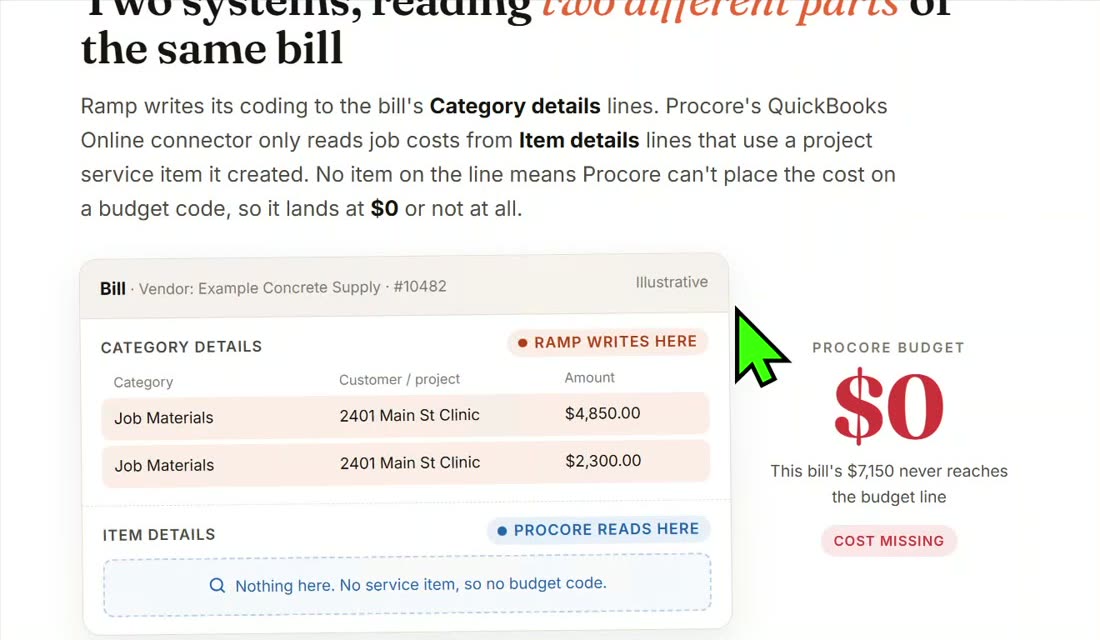 The plan page from the video. Illustrative data.
Think of it like mail
The plan uses one picture that tends to land with owners. Ramp delivers every bill to the right building, but drops it in the Category mailbox. Procore only ever checks the Item mailbox. Nothing is lost. It's sitting where Procore never looks.
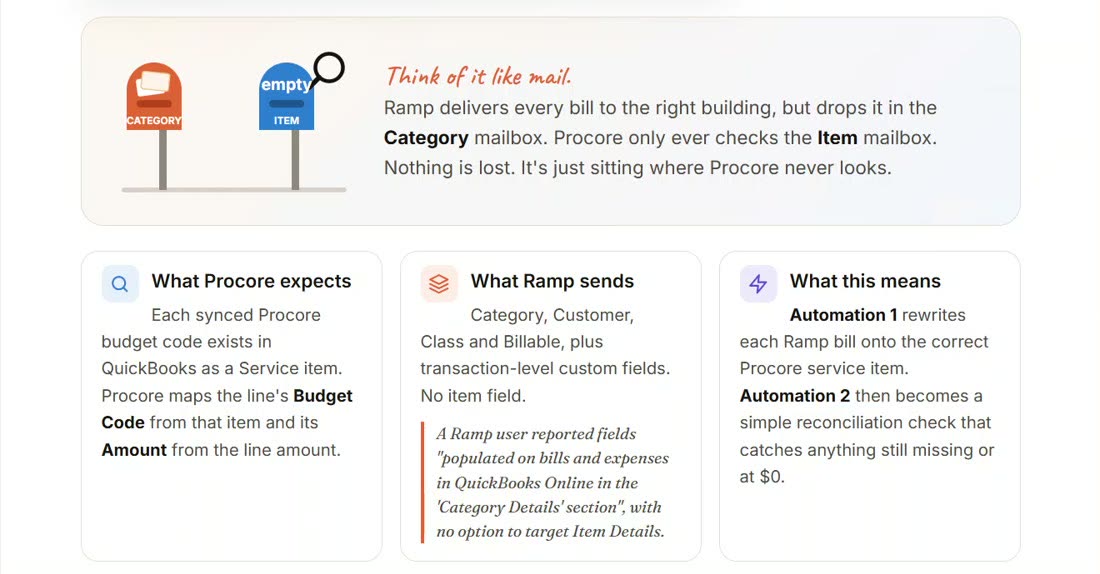 Think of it like mail. From the plan page in the video.
What a Procore service item looks like
Every service item Procore creates follows one naming pattern: [project number]-[cost code].[cost type]. On sample project 2401, cost code 03-300 (cast-in-place concrete) with cost type M (materials) becomes 2401-03-300.M. The project number tells QuickBooks which job, the cost code says what work, and the cost type says what kind of cost. The item is already project-specific, so the item itself is what places the cost on the right Procore budget line.
The full anatomy, including where the cost-type letter comes from and why you should never create these items by hand, is in Procore service items in QuickBooks: naming and cost codes.
Why Ramp lands on Category lines
This part needs care, because Ramp keeps adding accounting features and the answer differs by transaction type.
- Card transactions sync to QuickBooks Online as expenses. Ramp documents the accounting fields as Category (the GL account), Vendor, Location, Customer, Class and Billable. There's no item or product field for card spend, so card spend always arrives on Category lines.
- Bill Pay is different. Ramp's help center describes bill lines as either expense lines (GL account) or item lines (item, quantity, unit price), with item lines available when your accounting system syncs items to Ramp. Ramp's article talks about inventory items. Whether Ramp lets AP pick Procore's QuickBooks service items on a bill line is the thing to ask Ramp support. It's the first check in our plan, and if the answer is yes, most of the build goes away.
- Custom fields (on Ramp Plus) sync at the transaction level only, not per line. If your cost code lives in a custom field, a bill with lines on two cost codes can't carry both through that field.
A Ramp community post from October 2024 describes the same gap: fields "populated on bills and expenses in QuickBooks Online in the 'Category Details' section," with no option to target Item Details.
Ramp also launched Ramp for Construction in July 2026, which codes job, cost code and cost type at the card and supports QuickBooks Online. Ramp's documentation doesn't say how that coding lands in QuickBooks (item, customer, class or custom field), and Procore isn't listed. If you're on it, run the five-minute check below anyway. What matters is whether the line ends up on a Procore-created service item.
Confirm it on your own books in five minutes
- Pick one Ramp-paid bill on an active project where Procore looks short.
- Open it in QuickBooks Online. Look at both sections. If Category details has the lines and Item details is empty, that's the cause.
- Note the project and the cost code AP used in Ramp.
- In QuickBooks, search Products and Services for the project number. You should see service items like
2401-03-300.M. If you don't, the project's budget codes haven't synced from Procore yet, which is a separate problem to fix first. - In Procore, check that the project's budget view shows the ERP direct costs or job-to-date costs column. If it doesn't, imported costs can be arriving without anyone seeing them.
If step 2 matches, you have the same gap Cattlemen has.
The fix, in the order it costs you
The plan's rule is cheapest fix first. A settings change costs nothing, a hand test costs an afternoon, and an automation is a build. Do them in that order and stop as soon as the gap closes.
 Five guides, in the order you'd do the work
1. Check the settings before building anything
Four checks, each owned by a different person:
| # | Who | Check | If it works |
|---|---|---|---|
| 01 | Ramp support | Can Bill Pay lines sync to QuickBooks Products & Services (Item details) instead of Category details, using Procore's service items? | No build needed for the rewrite. AP codes lines straight to the service items. |
| 02 | Procore admin | Do cost codes use 2 or more tiers, and is each active project's budget synced so the service items exist in QuickBooks? | The items a fix writes to are guaranteed to exist. |
| 03 | Procore admin | Does the budget view include the ERP Direct Costs / Job to Date Costs columns? | Imported costs actually appear on the budget. |
| 04 | AP | Where does the cost code live in Ramp today: a line-level field, Class, or a transaction-level custom field? | Tells you whether each line can be coded separately or one code applies to the whole bill. |
There's also an optional alternative that's a decision for the owner, not a setting: enter subcontractor and vendor invoices in Procore first, then pay them in Ramp. That fixes the coding problem at the source, but it's a bigger process change.
The detail on each check, plus the less obvious ones (QuickBooks plan level, closing dates, sub-jobs, projects that existed before the connector) is in Ramp, QuickBooks and Procore settings to check before an integration. There's a printable pre-integration checklist too.
2. Build the translation table
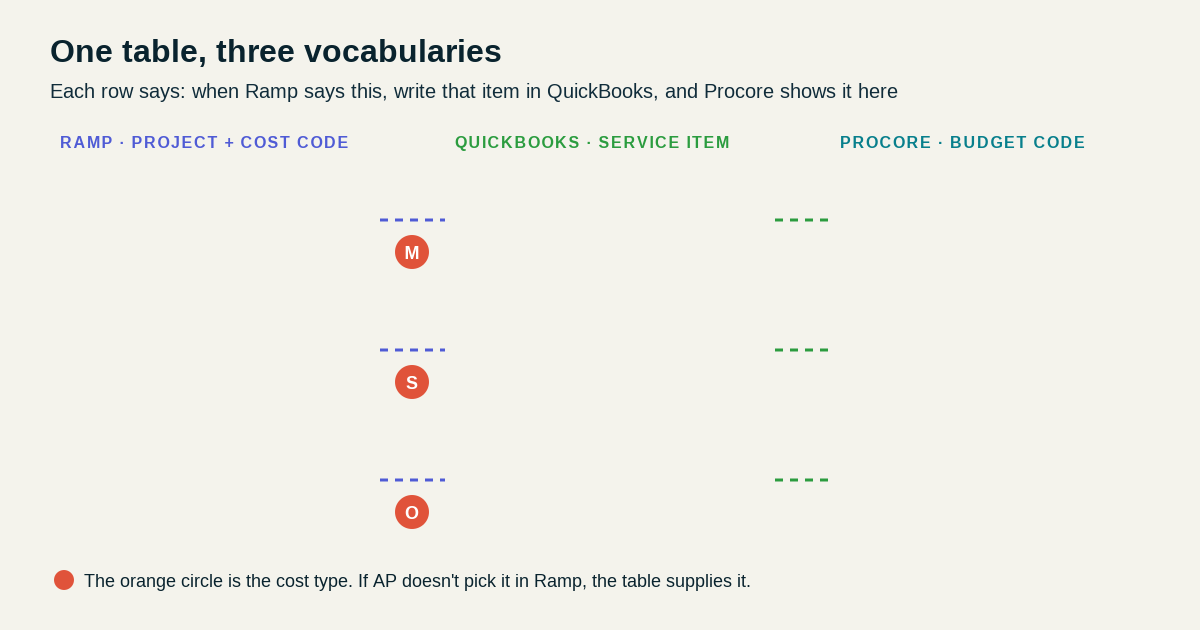
If the settings don't close the gap, something has to turn "Ramp project 2401, cost code 03-300" into "QuickBooks service item 2401-03-300.M" and "Procore budget code 03-300.M". That's the translation table (a crosswalk). Most of it builds itself from the service items Procore already synced. AP only confirms the exceptions. The one column that never fills itself is the cost type: either AP picks it in Ramp, or you default it from the GL category (Materials account becomes M).
The Ramp to QuickBooks to Procore translation table walks through every column and how each row gets a confidence score. Start from the translation table template (CSV).
3. Prove it by hand: re-code three bills
Before anyone writes code, re-code three paid Ramp bills by hand in QuickBooks Online, run a job cost sync in Procore, and confirm the full amounts land on the right budget codes with the payment still linked. The plan calls this Gate B, and it's the real test. If hand-coded bills don't show up in Procore at full value, you stop and re-diagnose. Nothing gets built on a theory.
It also answers the one question no documentation settles: when a bill that already imported (or didn't) is edited in place, does Procore update the existing direct cost or create a second one? The answer sets the cleanup rule for older bills.
Prove a job-cost fix: re-code three bills by hand is a step-by-step a controller can do this week, with a printable three-bill proof worksheet.
4. Automate it, with guardrails
Once Gate B passes, two automations take over.
Automation 1, the bill line rewriter. It watches for new and changed bills, reads the coding AP already did in Ramp, translates it, and rewrites each Category line as an Item line on the right service item. It works like a sorting machine:
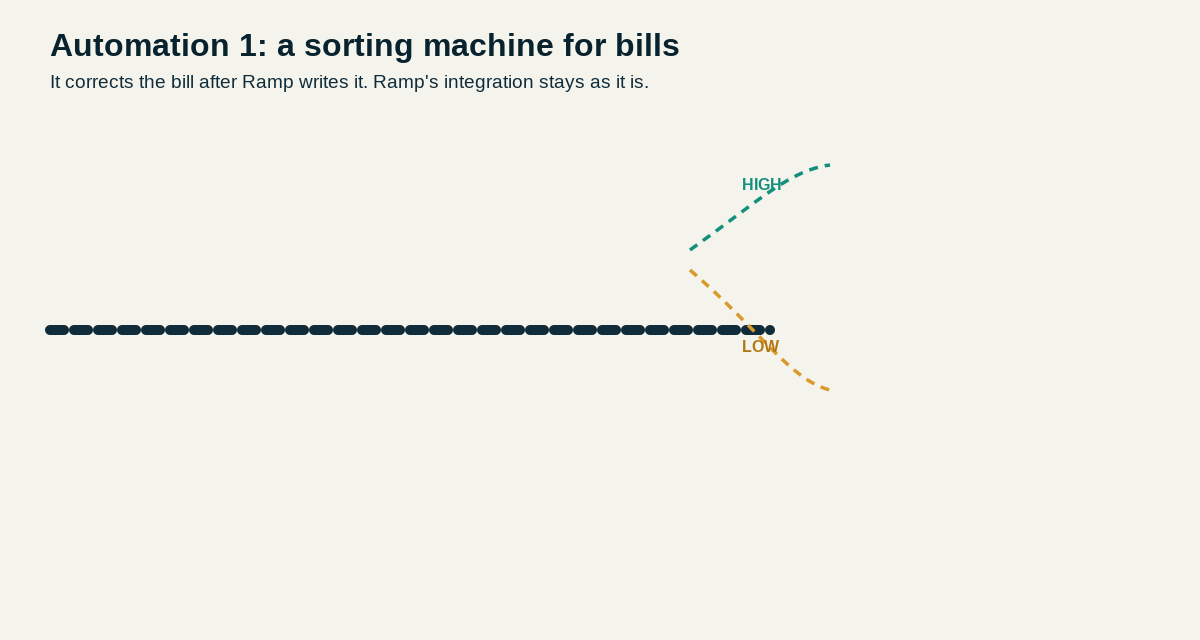 Automation 1: high confidence rewrites, low confidence asks a person
- Detect. Keep only bills Ramp created that still have Category lines on a job cost account.
- Read the coding from Ramp. Ramp is the source of truth, because that's where AP coded it. Match on vendor, invoice number, amount and date.
- Translate. Look up the service item in the translation table.
- Score confidence. High means one exact item match on an active project. Low means a missing item, an ambiguous code or a closed period.
- Rewrite (high confidence). Update the bill in place. Each Category line becomes an Item line with the same amount and original description. Vendor, AP account, date, bill number and total stay untouched, so Ramp's bill payment stays linked.
- Queue (low confidence). Send it to a review list with the suggested coding. One click approves it, and then step 5 runs.
- Log. Write a private note on the bill ("Re-coded by automation from Ramp line coding") and keep a before and after record.
Automation 2, the nightly safety net. Every night, and right after Automation 1 rewrites a bill, it compares what QuickBooks has against each project's budget codes with what Procore imported. It sorts every gap into one of four buckets: still Category-coded (send to Automation 1), already Item-coded but $0 in Procore (run a job cost sync, then flag it), amounts differ (flag both values), or in Procore but not in QuickBooks (possible manual entry or duplicate). The result is a daily exceptions list by project.
One rule runs through both: fix the source, never type into Procore. Procore imports direct costs from QuickBooks as approved records that can't be edited in Procore. A cost typed in by hand next to an imported one will double count once the import catches up.
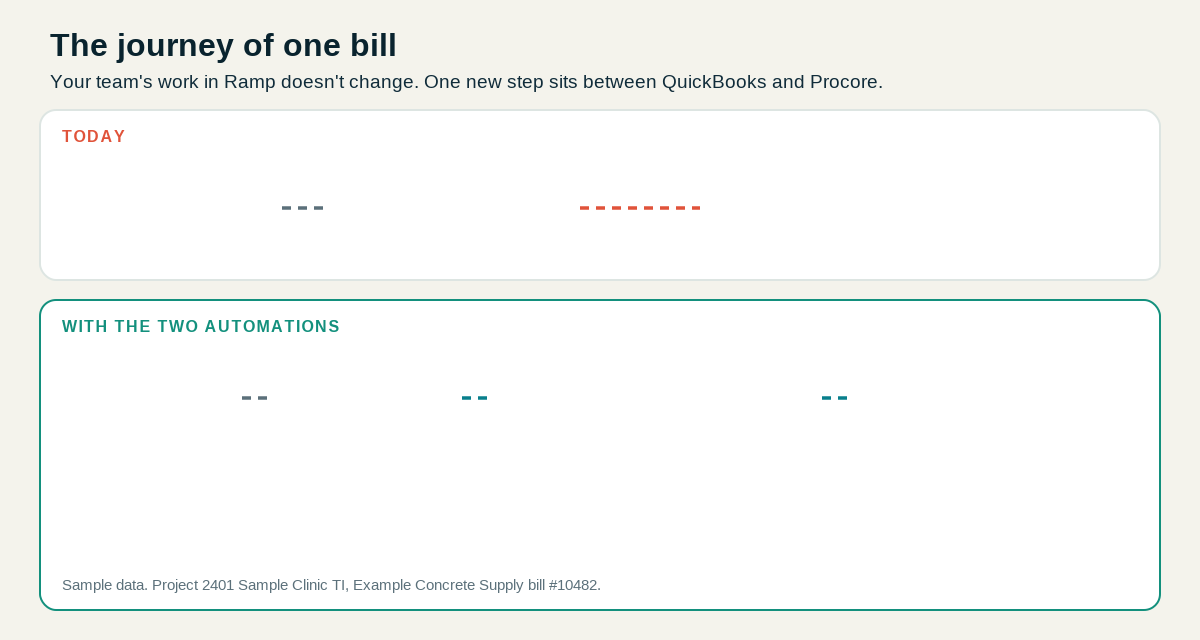 The only new step in the main flow is Automation 1
The full list of API calls (ten reads, two writes), the never-do list, and how each risk is handled is in Safe QuickBooks write automation: guardrails.
What changes, and what doesn't
| Stays the same | Changes |
|---|---|
| How AP and cardholders use Ramp | Where the coding sits on the QuickBooks bill: Item details instead of Category details |
| Vendor, date, bill number, AP account | Each line now references a Procore service item |
| Line amounts and bill total | Procore's next job cost sync can retrieve the cost |
| The bill payment and its link to the bill | A private note and an audit record on every re-coded bill |
| Procore's native import doing the posting | A daily exceptions list for anything still out of line |
One accounting effect to clear with your bookkeeper before go-live: an Item details line posts to the expense account set on the item, not the category the line used before. If Procore's service items point at a different expense account than Job Materials, re-coding moves the cost between GL accounts on your P&L. Check a few service items' expense accounts first. Our guide on Category vs Item details covers that in more depth.
Things that trip people up
These come from Procore's documentation and from the risks section of the plan.
- Don't delete and re-enter bills. Procore's connector doesn't detect deletions, so a deleted bill can leave a stale direct cost behind in Procore. Edit in place. A voided transaction updates to $0.
- Closed periods. QuickBooks blocks API writes dated on or before the books' closing date. Bills in a closed period go to the review queue, never an automatic write.
- Missing service items. If the item for a project and cost code doesn't exist, the budget code hasn't been synced in Procore. Escalate to the PM to add it to the budget. Don't create the item in QuickBooks; Procore won't treat it as one of its own.
- Single-tier cost codes. Procore's QuickBooks Online connector needs cost codes with two or more tiers.
- Sub-jobs. QuickBooks sub-customers aren't supported. Projects come from QuickBooks Projects, which needs QuickBooks Online Plus or Advanced.
- Old projects. Only projects created after the connector was connected can sync.
- Timing. Budget codes export to QuickBooks every few minutes, but job costs import once a day unless you run an on-demand sync. "Still $0" an hour after a fix is often just timing.
- Ramp re-syncs. A Ramp bill edited in Ramp re-syncs to QuickBooks. How that re-sync treats lines changed in QuickBooks is something we're testing, which is why the rewriter runs again on every bill update and is built so a second pass gives the same result.
- Tax, freight and non-job lines. Leave them as Category lines. The translation table lists which GL accounts are job cost.
Other ways people close this gap
There's more than one route, and the right one depends on how much you want to change.
- Code at the source. If Ramp support confirms Bill Pay can target Procore's service items, AP codes the item directly and the rewrite isn't needed.
- Enter invoices in Procore first, then pay in Ramp. Procore becomes the place costs are entered.
- A different connector or card. Some third-party Procore and QuickBooks connectors (SmoothX is one) can map Category lines to cost codes through a chart-of-accounts mapping. Some card programs push transactions straight into Procore. Both mean changing tools, which Cattlemen didn't want.
- A person re-codes by hand every week. It works at low volume and doesn't scale.
- A coding step with approvals. For card spend, where nobody picked a cost code at the swipe, a person has to choose it. That's the expense coding portal from our first call with Cattlemen. For bills, where AP already coded the line in Ramp, the rewriter reads that coding and only asks a person when it isn't sure.
How long it takes
The plan estimates about six weeks from the day access is granted, in four phases with a gate at the end of each:
| Phase | Weeks (estimate) | Gate to pass |
|---|---|---|
| Discover: access, exports, settings checks, Ramp support answer | 1 | A: settings alone don't close the gap |
| Prove by hand: re-code 3 bills, sync Procore | 1 to 2 | B: amounts land on the right budget code and the payment is still linked |
| Shadow: Automation 1 proposes but doesn't write; Automation 2 daily report | 2 to 4 | C: 20 proposals in a row approved with no corrections |
| Go live: high confidence runs automatically; backfill history | 4 to 6 | D: one month-end close with no unexplained gaps |
Phases overlap a little. Shadow mode starts as soon as Gate B passes.
The guides in this section
- Procore service items in QuickBooks: naming and cost codes: what
2401-03-300.Mmeans and where each part comes from. - The Ramp to QuickBooks to Procore translation table: one table that drives both automations, with a CSV template.
- Settings to check before the integration: the free checks, with a printable checklist.
- Safe QuickBooks write automation: guardrails: ten reads, two writes, and what it never does.
- Prove a job-cost fix: re-code three bills by hand: the afternoon test that decides whether to build.
Related guides from earlier work: the Cattlemen discovery call, Category vs Item details, mapping GL accounts to Procore cost codes, the five-record acceptance test and the month-end close checklist.
Your next step
Open one Ramp-paid bill on a job where Procore looks short and look at which section the lines are in. If it's Category details, send Ramp support the question in check 01 today, and pick the three bills you'd use for the hand test. That's the whole first week, and none of it costs anything.
If you'd rather we run it with you, we do this work every week. Email charley@buildflows.ai or tell us what you're building.
References
- Procore: QuickBooks Online connector, Things to Know
- Procore: QuickBooks Online detailed data mapping
- Procore: Sync cost codes from Procore to QuickBooks Online
- Ramp: QuickBooks Online overview
- Ramp: Invoice line items: expense vs item
- Ramp: Bill Pay accounting
- Ramp: QuickBooks Online custom fields
- Ramp Community: Mapping fields to QBO
Frequently asked questions
Why do Ramp bills show $0 in Procore when they're in QuickBooks?
Ramp writes its project and GL coding to the Category details lines of the QuickBooks Online bill. Procore's QuickBooks Online connector only retrieves job costs from lines coded to the project-specific service items Procore created, which sit in Item details. Lines coded to a GL account are skipped, so the cost never reaches the Procore budget.
Is there a setting in Ramp that fixes this?
Maybe. Ramp Bill Pay supports item lines when your accounting system syncs items to Ramp, but it isn't confirmed that AP can pick Procore's QuickBooks service items on a bill line. Ask Ramp support before building anything. Card transactions have no documented item field, so card spend still lands on Category lines.
What is a Procore service item in QuickBooks?
It's a QuickBooks Service item that Procore's QuickBooks Online connector creates for each budget code on a synced project. It's named project number, cost code and cost type, for example 2401-03-300.M. Job cost lines coded to these items are the ones Procore imports as direct costs.
Can I just delete the Ramp bill and enter it again with item lines?
No. Procore's connector doesn't detect deletions, so deleting a synced bill can leave a stale direct cost in Procore. Edit the existing bill in place, moving each line from Category details to Item details with the same amount.
Will re-coding the bill break the Ramp payment?
It shouldn't if the total, vendor and AP account stay the same, and only the line type and item change. Treat that as something to prove: the three-bill hand test checks that the bill still shows as paid and the payment is still linked after the edit.
How long until a corrected bill shows in Procore?
Procore imports job costs from QuickBooks Online once a day by default, and an on-demand job cost sync is available. If a fixed bill still shows nothing right after the edit, run the on-demand sync before assuming the fix failed.
Should we type the missing costs into Procore directly?
No. Imported direct costs come from QuickBooks and are controlled there. A cost typed into Procore next to an imported one double counts once the import catches up. Fix the QuickBooks bill and let Procore's import pull it.
Next step
Need this connection in your environment?
Scope one integration: the records, direction, timing, and business rules behind the connection.
Prefer email? charley@buildflows.ai
Keep learning
Integrations · November 19, 2026
Procore Service Items in QuickBooks Online: How 2401-03-300.M Is Built and Why It Matters
Procore's QuickBooks Online connector only retrieves job costs from lines coded to the project-specific Service items it creates, named [project number]-[cost code].[cost type]. This guide breaks down the name, shows the order that creates the items (2+ tier cost codes, project number set first, budget lines, a background export about every five minutes), explains why you never create or merge them by hand, warns that an Item details line posts to the item's expense account, and gives a five-minute audit of the item list. From the Ramp to QuickBooks to Procore job-cost plan for Cattlemen Construction Services.
Integrations · November 19, 2026
The Ramp to QuickBooks to Procore Translation Table: Columns, Cost Types and Confidence Rules
A guide to the translation table (crosswalk) that maps each Ramp project and cost code to the Procore-created QuickBooks service item and Procore budget code. It covers how it differs from a GL-to-cost-code mapping, the columns it needs, two rules for supplying the cost type, how most rows build from read-only calls to QuickBooks, Procore and Ramp, and how each row decides whether a bill line is rewritten, queued, escalated or left as a category line. Includes a 23-row CSV template with low-confidence and queue examples. From the job-cost plan for Cattlemen Construction Services.
Integrations · November 19, 2026
Ramp, QuickBooks Online and Procore: The Settings to Check Before You Build an Integration
The step-zero checklist from a real job-cost plan for Cattlemen Construction Services. Before anyone builds an automation to get Ramp bills into Procore job costs, confirm the Procore QuickBooks Online connector's basics (QBO Plus or Advanced, Projects not sub-customers, projects created after connection), ask Ramp whether Bill Pay lines can use the Procore-created service items, confirm 2+ tier cost codes and synced budget codes, check the budget view shows direct costs, find where the cost code lives in Ramp, check each service item's expense account, the QuickBooks closing date and the daily sync timing, and settle the owner's decision on entering invoices in Procore first.