Key takeaways
- Deep nesting (Documents > Active > Projects > Client > Project) makes paths long, breaks links when jobs move, and forces each job under one parent. Keep one folder per project, one level under the library root.
- Name project folders with a YY-NNN number and a short name, such as 26-014 Sample Store Remodel, and use the same number in SharePoint, the Projects list and Procore.
- Put the client in a column, not a folder. Column default values tag files automatically, and views let executives group by client while PMs and supers filter to won projects.
- Keep client-level material such as drone photos, qualifications and supplier documents in a Clients library, not copied into each project.
- Every RFP gets a folder with Status = Bid. Only won jobs get a Procore project, so lost bids never clutter Procore or the dashboards built on it.
- Two automations do most of the work: Create new project builds the folder template and list row, and Convert to won creates the Procore project through its API and saves the project ID.
- For OneDrive, shortcut or sync individual projects rather than whole libraries, don't do both for the same content, and keep paths well under Microsoft's 400-character limit.
44 seconds · From a Build Flows walkthrough
From "so many subfolders" to a flat SharePoint
Deep nesting under one site makes files hard to find and links easy to break. Flatten it and move client and status into metadata.
Read the clip transcript
currently we're using SharePoint very neanderthal way so and I and cut me off if I've already explained this to you but we have currently used SharePoint we've made one site that says Cattlemen and then from there we have an active folder and then from in that active folder we then roll down into like a bunch of heavily heavily nested sub folders and sub sub folders and sub sub folders and sub sub like so many sub folders um I hate it and I really want my SharePoint to be more flat so I'd rather it be like here's a projects site here's a hr site here's a whatever
Captions adapted from the source video; proper names may reflect automatic transcription. Original segment: 30:35–31:19. Watch at the source.
22 seconds · From a Build Flows walkthrough
Only won projects make it to Procore
Every bid gets a SharePoint folder and a project number. Procore only gets the project when it's won; lost bids never reach it.
Read the clip transcript
it only ever makes it to Procore when it becomes an actual project. So I might be, I might create it as a project number here in SharePoint when I'm estimating it. But if I lose it, if I don't win that project, it goes away. It never makes it to Procore. It only makes it to Procore when I win the project and I push it over to Procore and, you know, start it from there. Understood. Okay. So when you're
Captions adapted from the source video; proper names may reflect automatic transcription. Original segment: 35:25–35:47. Watch at the source.
65 seconds · From a Build Flows walkthrough
Two automations: Create project and Convert to won
Create project builds the templated folder set and lists it; Convert to won creates the Procore project with the same number and details.
Read the clip transcript
solution, if, if we're kind of still speaking the same thing or we might not even need to go in and like redesign this entire deal. No, it would be the exact same thing. We would create two automations. One is for create new project in that create new project would be a form that a user would come in. And so instead of creating that new project in, in SharePoint, they would create it in the operating system, let's call it. And it would say, all right, create new project, give it a name ID. And then when they press create, it creates that folder in this Cattlemen's project documents folder with the structure that you want. And then we would have a, projects page that would show all the projects folders, and you could drill down and view each one of those files that are in there. So then that would be a way to just like automatically generate a new project. And then when a user is ready to convert that project to a won project, they would press, Hey, convert to won. And then that would just automatically generate a Procore project and specify all of the details from there. And so basically two automations. One is to create new project that creates the OneDrive folder. And then the other one is to create new project for the Procore project. That then
Captions adapted from the source video; proper names may reflect automatic transcription. Original segment: 39:32–40:37. Watch at the source.
68 seconds · From a Build Flows walkthrough
Project files that are the OneDrive folder
The Files tab is a live, one-to-one view of the project's OneDrive folder, and the pipeline tracks bids, wins and close rates.
Read the clip transcript
everything that is necessary to it and all of the analytics and insights then are here to be reviewed and managed for and then as I shared when we initially started and created this project in the first place before it was initially one we created a folder structure for all of the files to be stored in OneDrive and so then here are all of the files here that are ultimately then developed or the folder structure for how it's all developed and then these are they're all linked then to a OneDrive folder structure. And so we have then a one-to-one integration with the OneDrive file system. So if you're interacting with a file here in the operating system, it's the same as interacting with the file as you are in OneDrive. And they're just updated and live synced in real time. So that is the project section to be able to manage their projects from being able to identify what projects are progressing along these sales cycle to what's been bid and ultimately won. And then starting off that, logging all of the information in the OneDrive files and then flowing that into a Procore won project, which then we can track the win rates and close percentages. And then ultimately that kicks off the project creation in Procore.
Captions adapted from the source video; proper names may reflect automatic transcription. Original segment: 17:43–18:51. Watch at the source.
Most contractors start their files the same way: one SharePoint site, a Documents library, and folders inside folders until a drawing lives seven clicks down. It works while one person built it and remembers where everything goes. Then the company grows, a superintendent syncs the whole thing to a laptop, a path gets too long to open, and nobody can say which jobs are bids and which are live.
This guide lays out a flatter structure for a growing general contractor: one folder per project named by project number, a Client column instead of a client folder layer, a standard project folder template, and a clean hand-off to Procore when a job is won. You can download the template as a CSV and adapt it.
It comes from a recorded discovery call with Ryan Blankers, Co-Founder of Cattlemen Construction Services, a design-build GC in Fort Worth, Texas. The folder structure came up near the end of a call that was mostly about getting Ramp card spend from QuickBooks into Procore job costs. The whole call is on the video page.
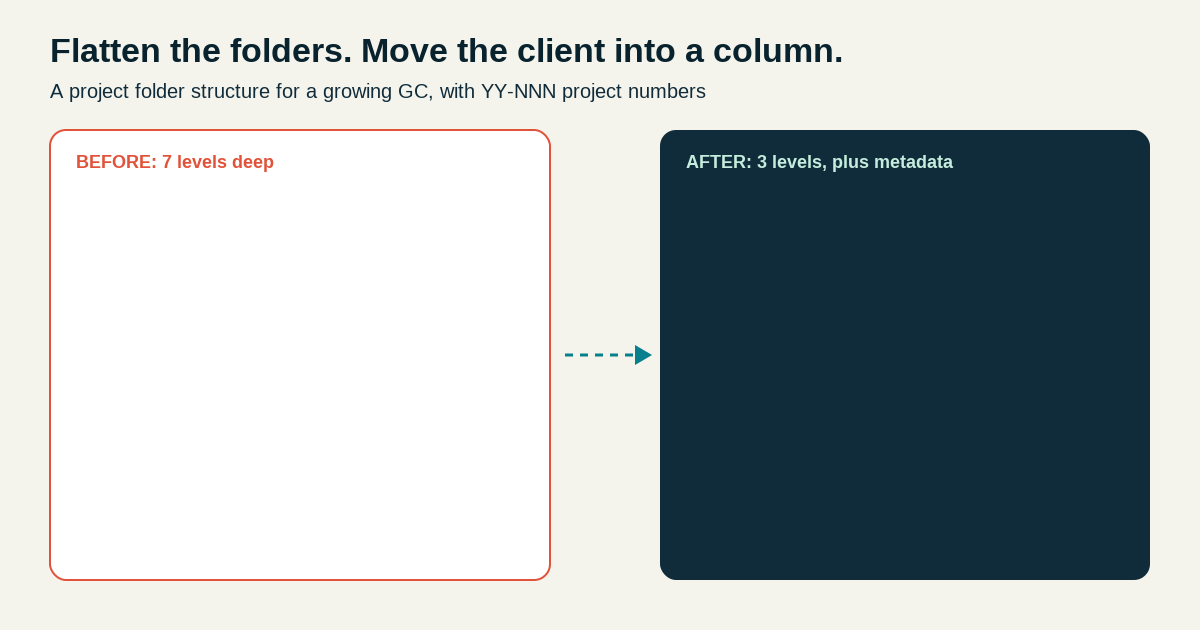 Flatten the folders and move the client into a column
Why deep nesting hurts
A typical tree we see looks like this: Documents > Active > Projects > Client > Project > Submittals > Trade. It feels organized, but every layer costs you something.
- Paths get long. SharePoint and OneDrive allow 400 characters for the full decoded path, including the file name. Deep folders plus long file names from architects get there faster than you'd think, and some desktop apps fail on long local paths well before that.
- Moving things breaks links. When a job moves from "Active" to "Complete", every link to every file in it changes. So does the path on every synced laptop.
- One file, one place. A folder can only sit under one parent. A job can't be under "Sample Grocers" and under "Remodels" and under "2026" at the same time. Metadata can do all three.
- Sync gets heavy. Syncing the top of a deep tree pulls down every client and every job.
Ryan works from OneDrive sync, and his ask was simple: flatter folders, project numbers, and a way for executives to see work by client while PMs and supers see it by project.
The structure
Keep it to one SharePoint site for operations, with a few document libraries and one list.
| Where | What lives there | Key columns |
|---|---|---|
| Projects list | One row per project or bid. The register everything else hangs off. | Project Number, Project Name, Client, Status, PM, Superintendent, Procore Project ID, Folder Link |
| Projects library | One folder per project, named 26-014 Sample Store Remodel, with the standard subfolders inside | Client, Project Number, Status |
| Clients library | One folder per client for material that isn't tied to one job: drone photos of their sites, qualifications, master agreements, supplier documents | Client |
| Company library | Templates, safety manual, insurance certificates, standard forms | Document Type |
| Archive library (optional) | Closed jobs and lost bids after a set period | Client, Project Number, Status, Closed Date |
The project folder sits one level under the library root. The client is a column, not a folder. A file in Submittals ends up at Projects/26-014 Sample Store Remodel/10 Submittals/, three levels deep instead of seven.
Project numbers: YY-NNN
Use a two-digit year and a three-digit sequence: 26-001, 26-002, and so on. Cattlemen already uses this format. It sorts correctly and it's short enough to say on the phone.
- Assign the number when the RFP arrives, not when the job is won. Bids need folders too.
- Never reuse a number, even for a lost bid.
- Folder name = number + space + short name:
26-014 Sample Store Remodel. Keep the name under about 40 characters. - The number in the folder, the Projects list and Procore must match exactly.
The Client column
Add Client as a column on the Projects library and the Projects list. A Lookup column pointing at a Clients list, or a Managed Metadata column, keeps spelling consistent. A plain Choice column is fine for a short client list.
Two SharePoint features do most of the work here:
- Column default values. In library settings you can set a default value for a column per folder, so every file dropped into
26-014 Sample Store Remodelis tagged with Client = Sample Grocers without anyone typing it. - Views. A view saves a filter, sort and grouping. Build one view grouped by Client for executives and another filtered by Status = Won for the field. People switch views from the library's view menu.
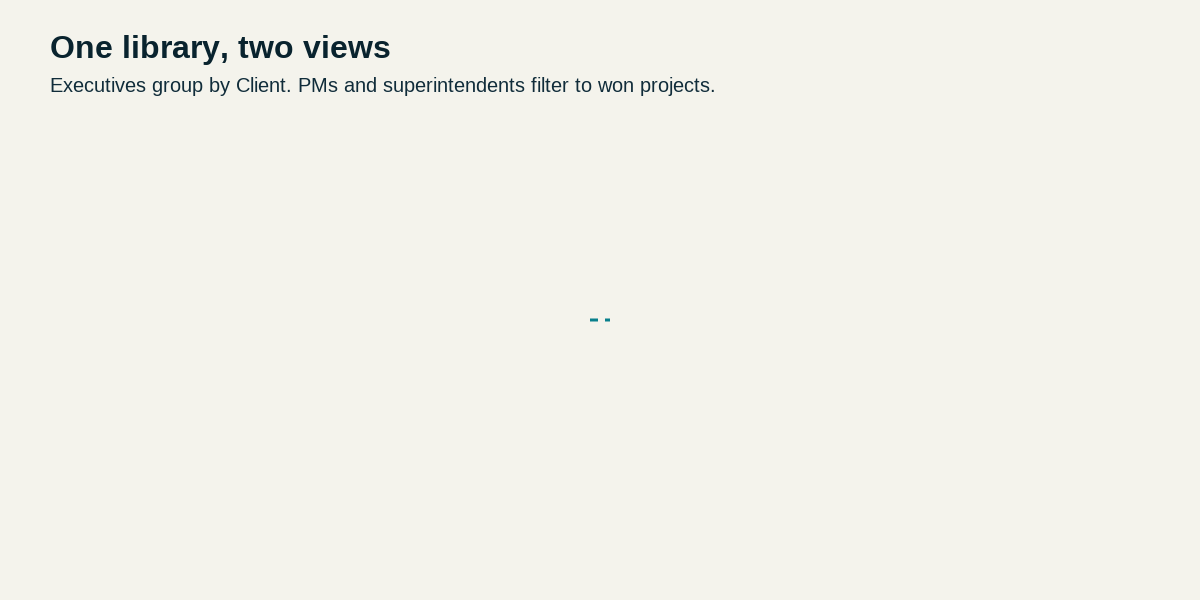 Same folders, two views: by client for executives, by project for the field
| View | Filter | Group or sort | Who uses it |
|---|---|---|---|
| By Client | Status is not Lost | Group by Client, sort by Project Number | Executives, business development |
| Active Projects | Status = Won | Sort by Project Number | PMs, superintendents |
| Bids | Status = Bid | Sort by due date | Estimators |
| My Projects | PM = [Me] | Sort by Project Number | Each PM |
Client-level material stays at the client level
Some documents belong to the client relationship, not to one job: drone photos of a client's sites, your prequalification package for them, their vendor or supplier requirements. Ryan wanted these kept at client level, and we agree. Put them in the Clients library under the client's folder. If a project needs one, link to it from the project rather than copying it.
The standard project folder template
Every project gets the same subfolders, numbered so they sort in a sensible order. Here's the set we discussed, ordered roughly by when each one fills up.
| # | Folder | # | Folder |
|---|---|---|---|
| 01 | Estimating | 12 | Field Use Drawings |
| 02 | Clarifications | 13 | Meeting Minutes |
| 03 | Plans | 14 | Change Orders |
| 04 | Contracts | 15 | Pay Applications |
| 05 | Insurance | 16 | Owner Furnished Equipment |
| 06 | Buyout | 17 | Inspections |
| 07 | Subcontractors | 18 | Photos |
| 08 | Permits | 19 | Reports |
| 09 | Schedule | 20 | Signage |
| 10 | Submittals | 21 | Punchlist |
| 11 | RFIs | 22 | Closeout |
The CSV download adds the purpose of each folder, a typical owner, the matching Procore tool, and whether we'd keep the working copy in SharePoint or Procore. That last column matters. Once a job is in Procore, RFIs, submittals, drawings and punch items should be worked in Procore. The SharePoint folder becomes the place for things Procore doesn't hold well, or the final exported record.
Keep the template shallow. Two levels inside a project folder is plenty. If someone wants a subfolder per trade under Submittals, use a Trade column instead.
The lifecycle: RFP to Procore
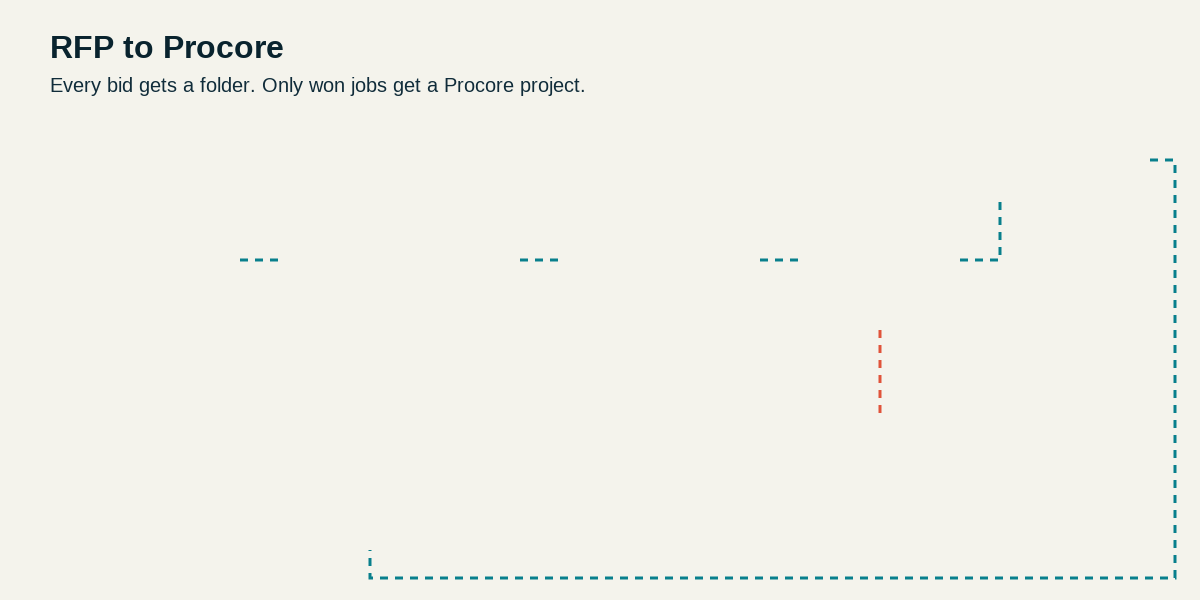 RFP to Procore: lost bids stop at SharePoint
- RFP arrives. Someone fills in the Create new project form. The job gets its number and folder set, with Status = Bid.
- Estimate. The estimator works in 01 Estimating and 02 Clarifications. Plans go in 03 Plans.
- Decision. If the bid is lost, set Status = Lost. The folder stays put, drops out of the active views, and moves to the archive later. It never goes to Procore.
- Won. Someone presses Convert to won. Status changes to Won and the Procore project is created with the same number and name.
- Build. Daily work happens in Procore. SharePoint keeps contracts, insurance, pay app backup and anything Procore doesn't cover.
- Close. Status = Closed. Closeout documents are exported from Procore into 22 Closeout, and the folder is archived on schedule.
Keeping lost bids out of Procore keeps your project list, reports and any dashboard built on them limited to real work. Ryan called Procore "my vehicle, my Trojan horse", and a KPI scorecard is only as good as what goes into it.
The two automations
Ryan asked for two buttons. Both are small.
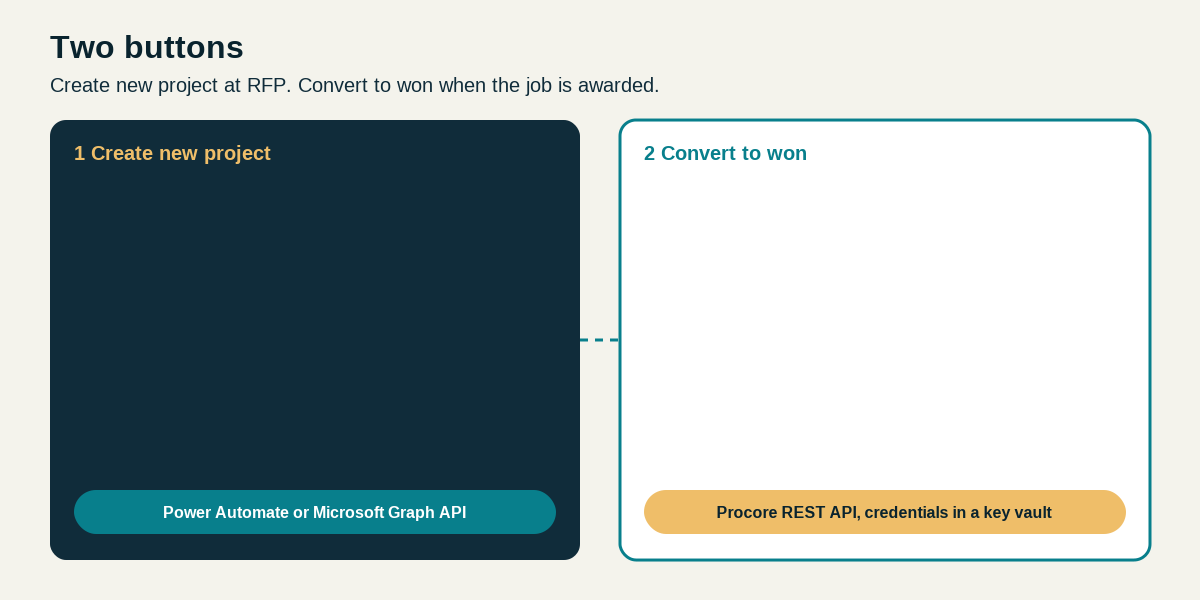 Create new project and Convert to won
1. Create new project
Input: project name, project number (or the next number, suggested automatically), client.
What it does:
- Adds a row to the Projects list with Status = Bid.
- Creates the folder
26-014 Sample Store Remodelin the Projects library and the 22 subfolders inside it. - Sets the folder's Client and Project Number columns, and the column defaults so new files inherit them.
- Writes the folder link back to the list row, so a Projects page can show each job and drill down to its files.
You can build this with Power Automate (a SharePoint list trigger plus the SharePoint connector's folder actions) or with the Microsoft Graph API, which creates a folder with a POST to the parent item's children. We usually prefer code, because it's easier to test and the template is easier to change later.
We've done this before. In Connect, the agentic scheduling platform we built, creating a project also created its OneDrive folder set, so the team never started a job without a place to put files.
2. Convert to won
Input: a project row with Status = Bid.
What it does:
- Sets Status = Won.
- Creates the project in Procore through Procore's REST API, with the same project number and name, and other fields you choose, such as address or project template.
- Saves the Procore project ID and link on the list row.
- Optionally notifies the PM and superintendent.
Power Automate can call Procore through an HTTP action, which needs a premium license, or the flow can call a small service that holds the Procore credentials. We'd keep the Procore credentials out of the flow itself and in a key vault.
OneDrive sync without the pain
Ryan works from OneDrive sync, as most field teams do. A few rules help.
- Add a shortcut or sync, not both. In SharePoint you can Sync a library, or use Add shortcut to My files (older versions called it "Add shortcut to OneDrive") to put a folder in your OneDrive. Microsoft now steers people toward shortcuts. Pick one per library, because using both for the same content can cause sync errors.
- Shortcut one project, not the whole library. A superintendent needs
26-014, not every job since 2019. - Use Files On-Demand. Files stay online until opened, so a laptop doesn't fill up with plan sets.
- Watch path length. Count the full path. A long site name, a long library name, a long folder name and an architect's 90-character file name add up. Keep folder names short and the template two levels deep.
- Avoid characters SharePoint blocks in file and folder names, such as
" * : < > ? / \ |, and don't start or end names with spaces. - Remove old shortcuts at closeout. That keeps sync small and stops people editing closed jobs.
Permissions
Keep it simple. In most small GCs, everyone in the office can read everything in the Projects library, and that's fine.
| Need | How |
|---|---|
| Everyone can read and edit active projects | Site members group, inherited by the libraries |
| Field staff only see their jobs | Use views for convenience. Views are not security. |
| A client's work must be hidden from most staff | Give that client its own library with its own permissions |
| An outside party needs one folder | Share that folder with specific people, with an expiry date |
| Lost bids and archives are read-only | Separate Archive library with read permissions for most users |
Unique permissions on hundreds of folders get hard to manage, so draw real separation at the library or site. The same question, "who has access to view what", came up for the AI layer Ryan's firm is building: an assistant that reads SharePoint as a user sees what that user sees. Our notes on embedding a dashboard in an AI assistant cover the reporting side.
Naming rules
- Project folders:
YY-NNN Short Name, under about 40 characters. - Subfolders: two-digit number + name, from the template only. No ad hoc top-level folders.
- Files:
YY-NNN Type Description YYYY-MM-DD, for example26-014 PayApp 03 2026-11-30.pdf. - Dates as
YYYY-MM-DDso they sort. - No "Final", "Final2", "FINAL-revised". Use version history, which SharePoint libraries keep for you.
Archive policy
| Status | Stays in Projects library | Then |
|---|---|---|
| Lost | 90 days, hidden from active views | Move to Archive, read-only |
| Closed | Until closeout documents are filed and warranty starts | Move to Archive, read-only |
| Archived | n/a | Keep per your records policy. A retention label in Microsoft Purview can enforce it. |
Moving a folder between libraries changes its links, so do it once, at a defined point, instead of moving jobs around during the work.
FAQ
Should we use folders or metadata in SharePoint? Both. Use one folder per project so people can sync and share by job, and use columns for everything else: client, status, PM, trade. Don't build a folder layer for something a column can hold.
What is the path length limit in SharePoint and OneDrive? Microsoft's limit is 400 characters for the entire decoded path, including the file name. Some desktop apps hit trouble with shorter local paths, so keep folder names short.
Should we sync the library or add a shortcut to OneDrive? Either works. Shortcuts are what Microsoft currently recommends for shared libraries. Don't use both for the same content, and shortcut individual projects rather than whole libraries.
Should lost bids go into Procore? No. Create the Procore project only when the job is won. Lost bids stay in SharePoint with Status = Lost and move to the archive.
Can SharePoint create the Procore project automatically? Yes. A Power Automate flow or a small service can call Procore's API to create the project when someone marks a job won, then write the Procore project ID back to the SharePoint list.
Need a hand?
Build Flows sets up project folder structures, the Create new project and Convert to won automations, and the Procore, QuickBooks and Ramp integrations behind them. If your SharePoint has outgrown its folders, email charley@buildflows.ai or tell us what you're building.
References
- Microsoft Support: Restrictions and limitations in OneDrive and SharePoint (400-character path, invalid characters)
- Microsoft Support: Add shortcuts to shared folders in OneDrive
- Microsoft Support: Sync SharePoint and Teams files with your computer
- Microsoft Support: Create a column in a list or library
- Microsoft Support: Create, change, or delete a view of a list or library
- Microsoft Learn: SharePoint connector for Power Automate
- Microsoft Learn: Microsoft Graph: create a new folder in a drive
- Microsoft Learn: Learn about retention policies and retention labels
- Procore Developers: Procore REST API documentation
Frequently asked questions
Should we use folders or metadata in SharePoint for construction projects?
Both. Use one folder per project so people can sync and share by job, and use columns for client, status, PM and trade. Don't build a folder layer for anything a column can hold, because a folder can only sit under one parent.
What is the path length limit in SharePoint and OneDrive?
Microsoft's limit is 400 characters for the entire decoded path, including the file name. Some desktop apps have trouble with shorter local paths, so keep project folder names short and the template no more than two levels deep.
Should we sync a SharePoint library or add a shortcut to OneDrive?
Either works. Microsoft currently steers people toward Add shortcut to My files for shared libraries. Don't use both for the same content, and shortcut individual projects rather than the whole library.
What project numbering format works for a general contractor?
A two-digit year and three-digit sequence, such as 26-001, is short, sorts correctly and is easy to say. Assign it when the RFP arrives, never reuse it, and use the same number in SharePoint and Procore.
Should lost bids be created in Procore?
No. Create the Procore project only when the job is won. Lost bids stay in SharePoint with Status = Lost, drop out of active views, and move to an archive library later.
Can SharePoint create a Procore project automatically?
Yes. A Power Automate flow, which needs a premium license for the HTTP action, or a small service can call Procore's REST API when someone marks a job won, then write the Procore project ID back to the SharePoint Projects list.
What folders should a construction project template include?
A typical set includes Estimating, Clarifications, Plans, Contracts, Insurance, Buyout, Subcontractors, Permits, Schedule, Submittals, RFIs, Field Use Drawings, Meeting Minutes, Change Orders, Pay Applications, Owner Furnished Equipment, Inspections, Photos, Reports, Signage, Punchlist and Closeout. Build Flows publishes it as a free CSV with Procore tool equivalents.
Next step
Want help running this playbook?
Bring the report or workflow. We'll help map the work behind it.
Prefer email? charley@buildflows.ai
Keep learning
Integrations · November 18, 2026
Why Ramp Card Costs Show $0 in Procore: A Real Discovery Call, Walked Through
A walkthrough of a recorded discovery call with Ryan Blankers of Cattlemen Construction Services in Fort Worth, Texas. Ramp card expenses sync to QuickBooks Online as Category details lines, while Procore's QuickBooks integration builds job costs from Item details lines tied to a cost code, so card spend shows $0 in Procore. Covers why the fix can't be fully automatic, the expense coding portal design with approvals and an audit log, the GL to cost code mapping, hosting, a role-based Cattlemen OS with KPIs, SharePoint project folders and a Procore convert-to-won automation, embedding into an AI platform through an iframe, API or MCP server, and the timeline.
Integrations · November 18, 2026
Sage 100 vs QuickBooks Online for Contractors: When to Switch
A practical comparison for growing contractors weighing QuickBooks Online against Sage. Explains the difference between Sage 100, Sage 100 Contractor, Sage 300 CRE and Sage Intacct Construction, where QuickBooks Online job costing relies on workarounds (items as cost codes, no native cost type matrix, WIP or subcontract commitments), the signs you've outgrown it, how the Procore ERP integration changes, and a migration checklist. Based on a question Ryan Blankers of Cattlemen Construction Services asked on a recorded discovery call.
Reporting & analytics · November 18, 2026
What Good Looks Like: A Starter KPI Scorecard for a Small GC
A starter KPI scorecard for a small GC, built from a discovery call with Cattlemen Construction Services: 12 KPIs in four groups (Money, Delivery, Field discipline, Admin), each with a definition, source system, formula, default green/amber/red tolerance and reason. Covers standardizing Procore inputs first, scoring weekly, validating each number against its source of truth, role-based views, tuning tolerances after 4-6 weeks and using red tiles to ask what happened rather than to punish.