Key takeaways
- Every person signs in as themselves; admins use two-step sign-in, sessions time out, and leavers lose access the moment they're switched off.
- Field users see their own expenses, PMs their projects, executives everything, and the filtering happens on the server.
- Systems connect through each vendor's own approval screen. Tokens are encrypted, never shown and revocable from either side; nobody emails a password.
- QuickBooks writes start in preview and need the owner's recorded sign-off; totals, vendors and payment accounts can never change.
- Every sign-in, coding change, approval and write is logged with who, what and when, and executives can read the log.
- An AI vendor gets its own read-only, revocable key with no write tools unless the owner approves each one in writing.
- Ask every vendor how you revoke them without asking them, what the default write mode is, and what you get when you leave.
25 seconds · From a Build Flows walkthrough
How your data is protected
Proper sign-in, every API call and automation logged so it can be tracked and reverted, and secure hosting.
Read the clip transcript
then essentially here's some additional needs that we'll need to get started here and then we'll make sure your data is protected so we're securing your data properly you have proper authentication and login that all of your APIs and automations are properly logged in and able to be tracked and managed to revert anything and be able to then make sure that everything is then hosted properly and secure so I will then now dive into the operating system that we've developed here
Captions adapted from the source video; proper names may reflect automatic transcription. Original segment: 12:11–12:36. Watch at the source.
When a contractor lets a custom app into QuickBooks, Procore and the company card platform, two people need to be comfortable with it. The owner wants to know, in plain words, that nobody will see what they shouldn't and nothing will change the books without their say-so. Their IT person, or the outside IT firm, wants the details: how sign-in works, where tokens live, what gets logged and how access is revoked.
This guide covers both. It walks through the six protections we put on the roadmap for Cattlemen Construction Services in Fort Worth, Texas, when we built their operating system on top of QuickBooks Online, Procore and Ramp. Each one gets a short version for the owner and a longer one for IT. At the end there's a list of questions to ask any vendor, including us. You can watch the walkthrough; the app in it runs on sample data.
 Six protections around your data
The six protections at a glance
| Protection | For the owner | For IT |
|---|---|---|
| Your own login | Everyone signs in as themselves. Admins use two-step sign-in. Sessions time out. | Per-user email and password, scrypt hashing, 12-character minimum, TOTP 2FA, server-side sessions, lockout after repeated failures |
| See only your part | Field users see their own expenses, PMs their projects, executives everything | Capability checks on every route, row-level scoping on the server, a fenced super admin role |
| Approve, don't share | Each system connects through its own approval screen. Nobody emails a password | OAuth authorization code flow, tokens encrypted at rest, never returned by the API, revocable from either side |
| QuickBooks guarded | Preview by default. Live writes need the owner's sign-off. Totals, vendors and payment accounts never change | Three-lock write mode, five invariants checked before each write, before and after payloads logged |
| Everything logged | Every sign-in, coding change, approval and write: who, what, when | 150+ audit event types with user, entity, detail and IP; read access for executives and admins |
| Hosted and backed up | HTTPS, health checks, alerts and backups. You can move it to your own server later | TLS everywhere, HSTS, security headers, managed Postgres backups plus our own dumps, secrets only in the host's encrypted variables |
Here's how they looked on the roadmap page:
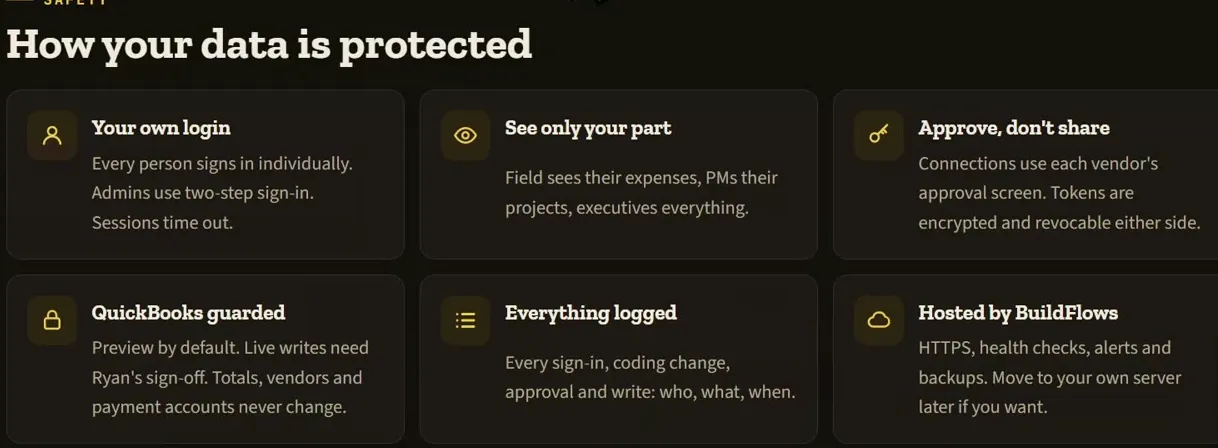 The six protections as shown in the walkthrough
1. Your own login
For the owner. Every person signs in with their own email and password. There's no shared "office" login, so when something happens, the log says exactly who did it. Admins and executives also use a six-digit code from an authenticator app. If someone leaves, an admin switches their account off and every session they had ends on the spot.
For IT.
- Passwords are hashed with scrypt and a per-user salt. Plain passwords are never stored or logged.
- Password policy: at least 12 characters, not the email address, not on a common-password list.
- TOTP two-factor (RFC 6238). Admins use it, and we recommend it for executives. The secret is encrypted and a code can't be replayed.
- Sessions are server side, stored only as a hash, with an
HttpOnly,Secure,SameSite=Laxcookie and a 12-hour maximum. An idle timeout can be switched on. - Login throttling: 10 failures per IP in 15 minutes, a 15-minute lock on an account after 10 failures, and a global cap against password spraying.
- New users get a one-time setup link (seven days, single use, stored hashed) and set their own password. An admin never sees or types a user's password.
- Users can sign out everywhere; admins can do it for any user.
- Cross-site request protection: every state-changing request must come from the app's own origin.
Next on the list: Microsoft Entra ID single sign-on. Cattlemen is on Microsoft 365, so people would sign in with their work account, MFA and offboarding would come from Entra, and password login could be switched off except for one break-glass admin.
2. See only your part
For the owner. A superintendent coding fuel receipts doesn't need to see the company's margin. A PM sees their own projects and their team's expenses. Executives see everything. And this is enforced on the server, so hiding a button isn't the only thing standing between a field user and the financials.
 Rings of access
| Role | Sees | Can do |
|---|---|---|
| Field | Their own card expenses. For coding, a project list with number, name, client and status only | Code and submit their own expenses |
| PM | Their own and their team's expenses; projects they're assigned to, with those projects' financials and reports | Approve expenses on their projects |
| Executive | All projects, all expenses, company financials, reports, the audit log | Approve, reassign, manage mappings, create projects |
| Admin | Everything an executive sees, plus connections, users, settings and API keys | Connect systems, manage users, set the QuickBooks write mode |
| Super admin (the builder) | Everything an admin sees, plus the platform console | Support and operations. Not a contractor account |
For IT.
- Routes check capabilities (for example
financials.view,expenses.approve,connections.manage), never role names. Roles are bundles of capabilities. - Row-level scoping is separate from capabilities. A PM's project list comes from their assignments; an expense is visible to its owner, to the PM or superintendent of its project, or to roles with
expenses.all. A field user requesting a project detail page gets a 403. - Receipts are served only through the authenticated API after the same visibility check.
- The built-in AI assistant runs every tool as the signed-in user and applies the same rules before reading data.
- A contractor admin can never create, promote, edit or remove a super admin. That's enforced at the database layer.
- View as. Our super admins can view the app as a specific user to troubleshoot, for 5 to 240 minutes (30 by default), with a reason. Every request is logged with both identities, and any change that matters is refused: coding or approving an expense, QuickBooks writes, passwords, 2FA, sessions, users, API keys and connections. In the app it reads "read-mostly: QuickBooks writes, passwords and user changes are blocked."
More on the pattern in roles and view-as access control and multi-tenant RBAC with a single authorization chokepoint.
3. Approve, don't share
For the owner. We never ask for your QuickBooks, Procore or Ramp password. Your admin clicks Connect inside the app, signs in on Intuit's, Procore's or Ramp's own page, and approves what the app is allowed to do. If you ever want us out, you can disconnect in the app, or remove our app inside QuickBooks, Procore or Ramp, without asking us.
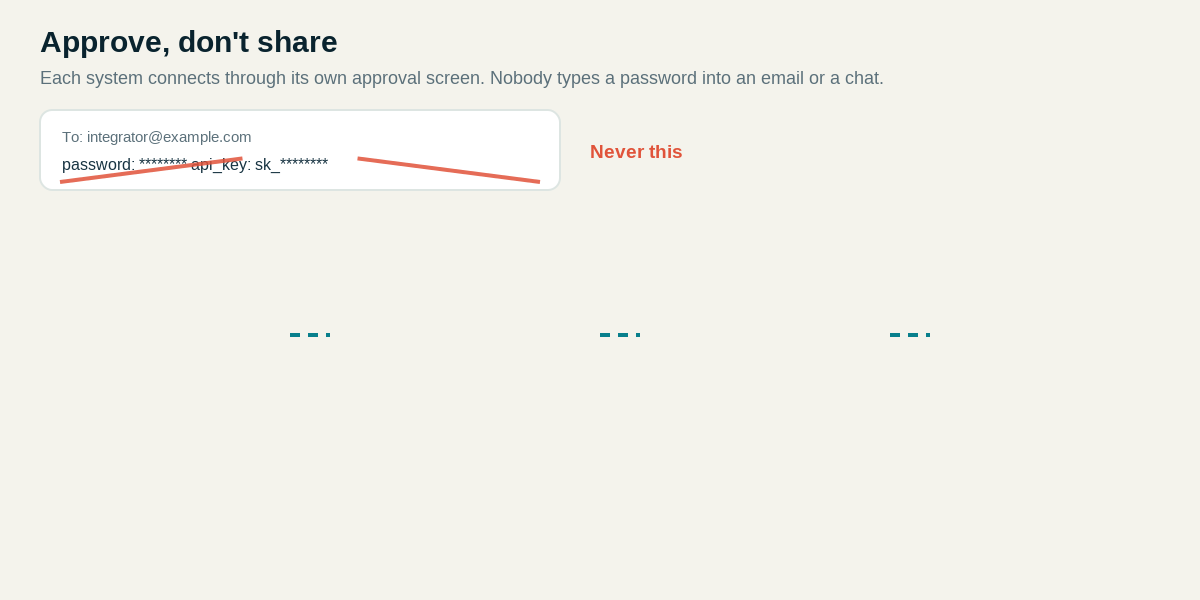 Approve, don't share
For IT.
- Each connection uses the vendor's OAuth 2.0 authorization code flow. The
stateparameter is signed, expires after 15 minutes and is tied to the signed-in admin. - Access and refresh tokens are encrypted at rest with a key held only in the host's environment variables. They're never returned by any API or shown in the UI, and data exports drop every encrypted, hashed or token column.
- Scopes are the minimum for each phase: read first, with QuickBooks writes held at preview (see protection 4), and Procore project creation only in the later folders phase.
- Our own app credentials (client IDs and secrets) live only in the host's encrypted variables. Never in the repository, the database or an email.
- Webhooks from QuickBooks and Ramp are verified by HMAC signature, Procore's by a shared bearer secret; a QuickBooks webhook only ever triggers a read.
- Revocation: Disconnect in the app, or remove the app in each vendor's admin settings. Both work on their own.
What the contractor actually grants, system by system, is in what contractors provide for an integration. If your policy is that credentials stay in a vault you own, that works too; see secure API key handoff.
4. QuickBooks guarded
For the owner. The app starts in preview: it shows you the exact line it would write, and QuickBooks doesn't change. Live writes need your sign-off, recorded in the app. Even then, every write is checked so the total, the vendor and the payment account can't change, and nothing in a closed period gets touched. The app never creates new items in QuickBooks.
For IT.
- Three locks. The effective write mode is the lowest of: a server ceiling in the hosting environment (preview by default), an admin setting in the app that can't exceed the ceiling, and a typed sign-off phrase recorded in the audit log.
- One write path. A full update of an existing transaction. The app never creates transactions or items.
- Invariants checked right before each call, refusing the write if any fail: total unchanged, vendor unchanged, payment account unchanged, date not in a closed period, item already exists, and linked lines (payments) untouched.
- Every write is audited with the before and after payload, who approved it and QuickBooks' response.
- Rollout: preview, then shadow week, then a sandbox test, then live with a small batch. Details in shadow week, sandbox and go-live gates.
- Incident step one is setting the write mode back to preview, which caps every path.
The design principles are in safe QuickBooks write automation guardrails.
5. Everything logged
For the owner. Every sign-in, every coding change, every approval and every write to QuickBooks is recorded: who, what and when. If a cost lands on the wrong code, you can see who coded it and who approved it, without asking around. Executives and admins can read the log in the app.
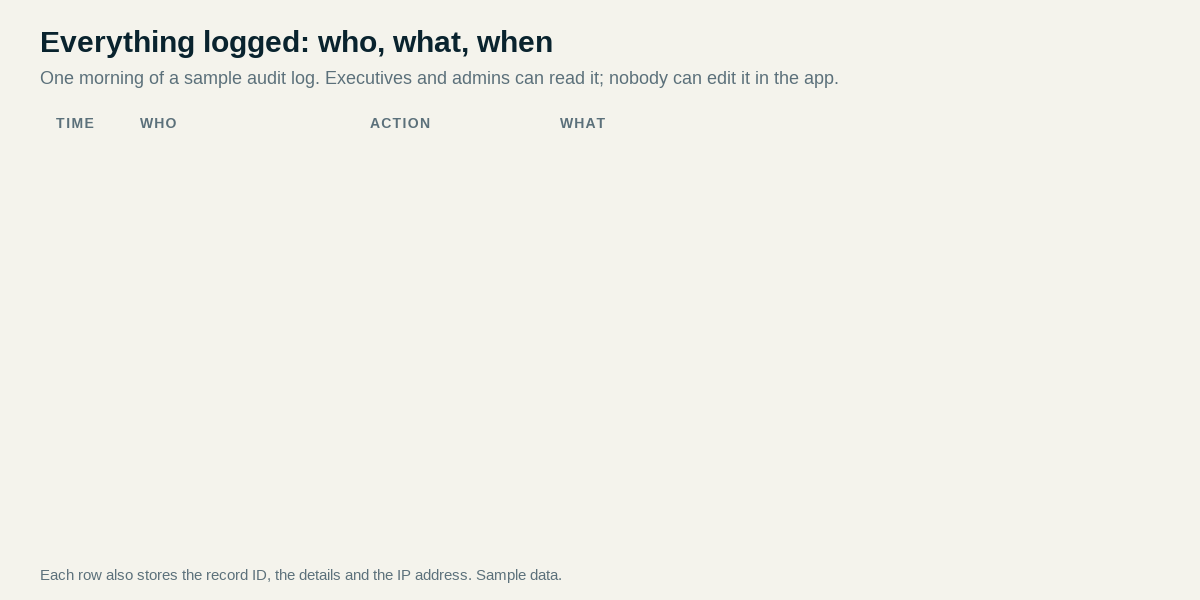 Everything logged: who, what, when (sample data)
For IT.
- More than 150 distinct audit actions, from
auth.login_failedandauth.lockouttoqbo.recode,connection.connected,apikey.create,mcp.callandimpersonation.request. - Each row has time, user, action, entity type and ID, a summary, JSON detail and the client IP (taken from the right-most proxy hop, so it can't be spoofed with a header).
- Readable in the app by executives and admins, exportable as CSV for an incident window.
- Retention: for the life of the contract, seven years for financial changes unless the owner sets otherwise.
- Agent and API key calls are logged too, so you can see what an AI vendor read and when.
6. Hosted and backed up
For the owner. We host the app, keep it running, watch it and back it up. You don't need a server or an IT project. If you'd rather run it on your own server later, it can move. At the end of the contract you get a full export, and we confirm deletion in writing.
For IT.
- HTTPS only. HTTP redirects to HTTPS and HSTS is set.
- Security headers on every response:
X-Content-Type-Options: nosniff, a strict referrer policy, a permissions policy that turns off camera, microphone and geolocation, and aframe-ancestorsallow-list so only approved sites (such as the client's AI platform) can embed it. API routes can't be framed at all. - API docs are off in production; the schema is served only to admins.
- Managed Postgres in the US with the host's automated backups, plus periodic database dumps we keep, and a backup before any risky release.
- Health checks, plus alerts on sync failures and write errors.
- Change control: code changes go through pull requests with automated tests; only BuildFlows merges and deploys; rollback is redeploying the previous release.
- Incident basics: contain (writes to preview, disconnect, revoke keys, end sessions), assess from the audit log, tell the owner within 24 hours, correct the data, write up cause and prevention.
AI vendors get a separate, smaller door
Cattlemen is building an AI platform with another vendor, so the app needed a way for that vendor's agents to read data. The rules:
- Read-only API keys, one per vendor or agent, named, shown once and stored only as a hash. Revocable instantly.
- MCP access off by default per key, with a tool allow-list and a rate limit.
- No write tools for agents without the owner's written approval, per tool. Any future write goes through the same approval queue people use.
- Embedding only from allow-listed sites, and users still sign in.
One thing we tell IT up front: an agent key reads company-wide data, because the key belongs to the company, not to a person. Keep keys to trusted systems and rotate them when the vendor's staff changes. More in give an AI vendor read-only API and MCP access and hardening MCP servers for production.
Questions to ask any vendor
Whoever builds or sells you an app that touches your books, these questions sort the careful from the careless. Good answers are specific and come with evidence.
Access and sign-in
- Does every person get their own login? Can we turn on two-step sign-in or single sign-on with our Microsoft accounts?
- What can a field user see? Show me, signed in as one.
- Is that enforced on the server, or just hidden in the screen?
- Can your staff see our data? How, for how long, and is it logged?
Credentials
- Will you ever ask us for a password or an API key by email? (The right answer is no.)
- Do we connect through each vendor's own approval screen?
- Where are tokens stored, and are they encrypted?
- How do we revoke your access without asking you?
Writes to our systems
- What does the app write, to which system, and what can it never change?
- What's the default when we first connect: preview or live?
- Who signs off before live writes start, and is that recorded?
- How do we stop all writes in one move?
Logging
- What's logged? Can we read the log ourselves?
- How long is it kept?
Hosting and the exit
- Where is our data hosted, and in which country?
- How often is it backed up, and when did you last restore from a backup?
- If we leave, what do we get, in what format, and how do you confirm deletion?
- If there's an incident, who tells us, and how fast?
AI
- Can any AI tool write to our systems? Who approved that?
- Are agent keys read-only, scoped and revocable?
The printable vendor security questions has this list with space for answers. For a fuller IT review of a reporting integration, see the IT security review playbook.
Your next step
Hand this page to whoever looks after your IT, and the question list to every vendor that touches QuickBooks, Procore or your card platform. If a vendor can't answer the credential and write questions clearly, don't connect them yet.
To see where security fits in the wider plan, read the rollout roadmap from proof of concept to live. For the problem this app was built to fix, see why Ramp bills show $0 in Procore, and for the app itself, the construction project operating system tour.
Need a hand?
If you want an app like this built with these protections, or a second opinion on a vendor's answers, email charley@buildflows.ai or tell us what you're building.
References
- Intuit Developer: OAuth 2.0 for QuickBooks Online apps
- Ramp Developer: API authorization
- Microsoft Learn: Grant tenant-wide admin consent to an application
Frequently asked questions
Is it safe to connect a custom app to QuickBooks Online?
It can be, if the app connects through Intuit's own approval screen rather than your password, stores the token encrypted, starts in a read or preview mode, needs your sign-off before writing, refuses to change totals, vendors or payment accounts, and logs every write with before and after values. Ask the vendor to show each of these.
Should I ever email my QuickBooks or Procore password to a consultant?
No. Connections should be made by your admin clicking Connect and approving on the vendor's own screen, or by credentials stored in a vault you own with the consultant given a removable role. An emailed password lives in mailboxes and backups and can't be revoked without changing it everywhere.
What should a field user be able to see in a contractor app?
Usually only their own expenses and a bare project list with number, name, client and status for coding. No contract values, costs, margins or billing. The filtering should happen on the server so the data never reaches their device.
What is view-as or impersonation, and is it safe?
View-as lets a support admin see the app as a specific user to troubleshoot. It is reasonable when it is limited to the vendor's operator role, time-boxed, given a reason, logged with both identities and blocked from changes such as approvals, accounting writes, passwords, users, keys and connections.
What security questions should I ask a construction software vendor?
Whether everyone gets their own login and two-step sign-in, what a field user can see, whether access is enforced on the server, whether they will ever ask for a password by email, where tokens are stored, how you revoke them, what the app writes and what it can never change, the default write mode, what is logged, where data is hosted, how it's backed up, and what you get when you leave.
How should an AI vendor access construction data?
Through read-only, scoped API keys or an MCP server, one key per vendor, shown once, stored hashed and revocable instantly, with every call logged. No write tools without the owner's written approval per tool, and any future write going through the same approval queue as people.
Next step
Need something built around how your team works?
Describe the users, the workflow, and the systems it touches. We'll tell you whether a custom application makes sense and how we'd build it.
Prefer email? charley@buildflows.ai
Keep learning
Integrations · November 19, 2026
What Contractors Provide for an Integration: The QuickBooks, Procore, Ramp and Microsoft 365 Access Checklist
The precise list of what a contractor provides for an integration across QuickBooks Online, Procore, Ramp and Microsoft 365 (SharePoint), from a real rollout for Cattlemen Construction Services. For each system: which admin must do it, the steps, what access it grants, hands-on and calendar time, and how to revoke it later. Explains why passwords and keys should never be emailed, the two safe patterns (a hosted app with Connect buttons, or credentials in a vault you own), the non-secret data lists, how to shorten the wait, and common mistakes.
Playbooks · November 19, 2026
Construction Software Rollout Roadmap: From Proof of Concept to Live, Gate by Gate
The rollout roadmap we walked Cattlemen Construction Services through after building a proof of concept on sample data: proof of concept, agree and sign, access and secure setup, live data and cost-code mapping, tie out the numbers, expense approver go-live (preview, shadow week, sandbox, live), tailor and roll out, SharePoint folders and Convert to won, connecting an AI vendor, and run and improve. For each stage: what happens, what the contractor provides, what the builder does, the gate that ends it and how long it usually takes. About six weeks from signature to fully live, with dates as targets and gates as the real finish line.
Custom applications · November 19, 2026
Roles and View-As in a Contractor App: Who Sees What, and How Support Checks Safely
The access model in the Cattlemen OS proof of concept for Cattlemen Construction Services in Fort Worth, Texas, shown on sample data. Five roles nest like rings: field users see only their own card expenses, project managers add team expenses and assigned projects, executives see all projects and financials, admins add users, connections, settings and API keys, and the BuildFlows super admin adds the platform console. Routes check capabilities rather than role names, and lists are filtered on the server. A super-admin-only view-as mode shows the app exactly as a user sees it, refuses any write that matters, logs every request under both identities and ends after 30 minutes by default. Also covers the audit log, sign-in and two-step rules, sessions, the platform console tabs, and offboarding.