Key takeaways
- Four systems, about an hour of admin time: a QuickBooks admin, a Procore company admin and a Ramp admin each click Connect, and a Microsoft 365 admin grants consent in a later phase.
- Never email, text or chat a password or key. Each system connects by your admin approving on the vendor's own screen.
- Procore is usually the slowest: the app approval and its permissions on active projects and the project template sit with a busy company admin.
- SharePoint folder automation needs tenant-wide admin consent; ask whether it can be limited to one site with Sites.Selected.
- The rest is non-secret spreadsheets: categories, cost codes, users and roles, approvers, PM assignments, whose card is whose and a re-code cut-off.
- Name the admin for each system on day one and book 15 minutes with each; start Procore and Microsoft 365 first.
- Every grant can be revoked without the builder: disconnect in the app or remove the app in each vendor's admin.
Video unavailable? Watch on YouTube or read the written breakdown.
"What do you need from us?" is the first question every contractor asks once they've agreed to an integration, and it's usually answered badly: a vague request for "API access," followed a week later by someone emailing a password. This guide is the precise answer for the four systems most of our contractor integrations touch: QuickBooks Online, Procore, Ramp and Microsoft 365 (SharePoint). For each one: who has to do it, what they grant, how long it takes, and why nobody should ever email a password or key.
The list comes from a real rollout for Cattlemen Construction Services in Fort Worth, Texas, where we connected QuickBooks, Procore and Ramp to fix card spend that showed $0 in Procore, and later Microsoft 365 for project folders. You can watch the walkthrough; the app in it runs on sample data.
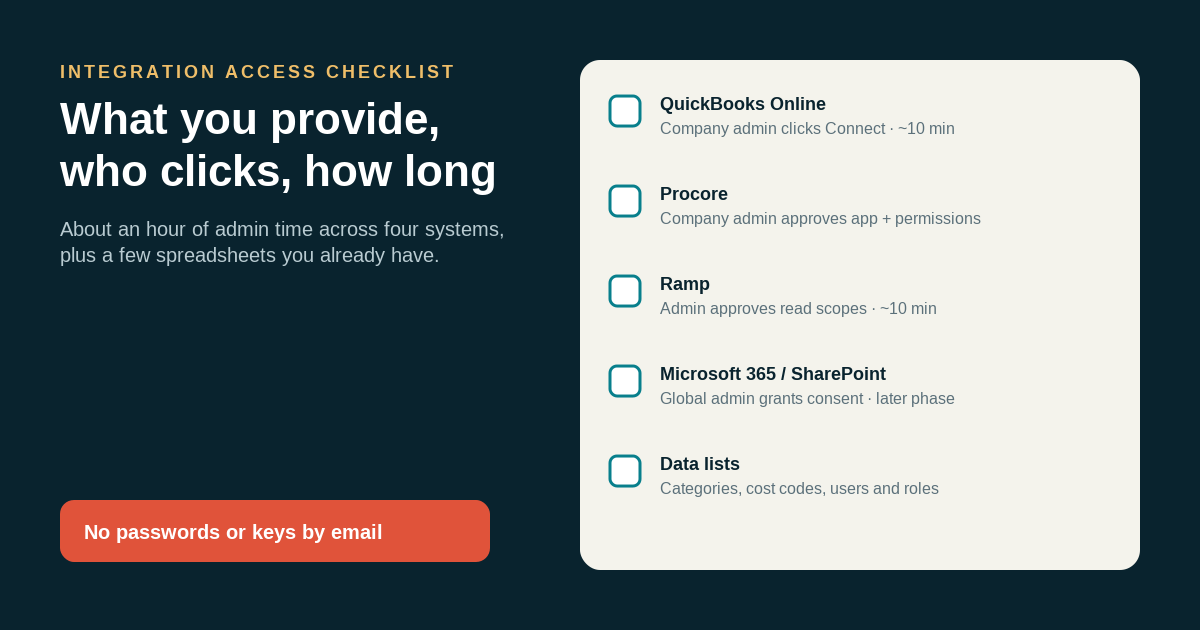 What you provide, who clicks, how long
The short version
| System | Who must do it | What they do | Hands-on time | Watch out for |
|---|---|---|---|---|
| QuickBooks Online | A QuickBooks admin user | Click Connect in the app, sign in to Intuit, pick the company, approve | About 10 minutes | Must be an admin on that company file |
| Procore | A Procore company admin | Approve the app, give it permissions on active projects, then click Connect | 15–30 minutes | App approval and permission templates can take days if the admin is busy |
| Ramp | A Ramp admin | Click Connect, approve read access | About 10 minutes | Cardholder-to-user mapping needs a list from you |
| Microsoft 365 / SharePoint | A Global Administrator or Privileged Role Administrator | Open the admin consent link, approve Sites and Files permissions, confirm the site and template folder | About 10 minutes | Your IT policy may require a review first |
| Data lists | Whoever owns the numbers | Send spreadsheets: categories, cost codes, users, assignments | 1–2 hours | Usually the slowest item on the list |
In total, about an hour of admin time spread across three or four people. The calendar time is longer, mostly waiting for the right person.
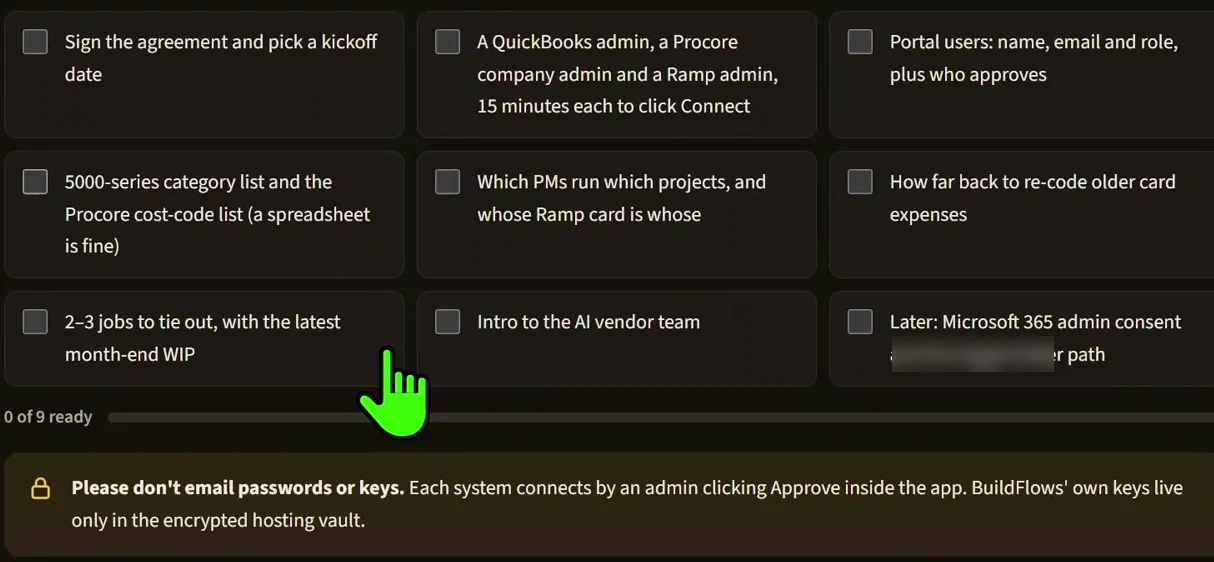 The ask, as shown in the walkthrough (a project name is blurred)
Why never email passwords or keys
Before the systems, the rule. On Cattlemen's roadmap it sat in bold under the checklist: "Please don't email passwords or keys. Each system connects by an admin clicking Approve inside the app."
An emailed password doesn't stay in one place. It lives in the sender's sent folder, the recipient's inbox, the mail server's search index and every backup of all three. Nobody can say who has read it since. It's usually a person's own login, so anything done with it looks like that person did it. And it can't be revoked without changing the password for that person everywhere they use it.
A proper connection is the opposite on every count. Your admin approves it on the vendor's own screen, it's limited to what the app needs, it's tied to the app (so the log shows the app did it), and it can be revoked from either side without touching anyone's password.
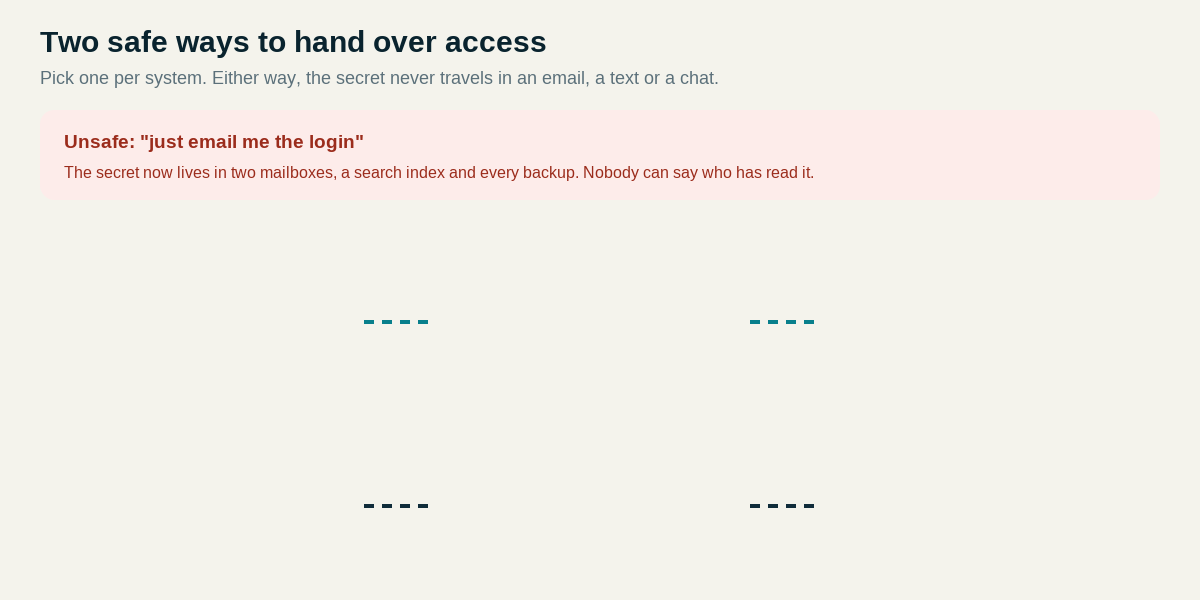 Two safe ways to hand over access
There are two safe patterns, and which one fits depends on who hosts the integration:
- A hosted app with Connect buttons. The builder registers its own app with each vendor and keeps those app keys in its hosting vault. Your admin clicks Connect and approves. This is what we used for Cattlemen, because we host their app and they don't run servers.
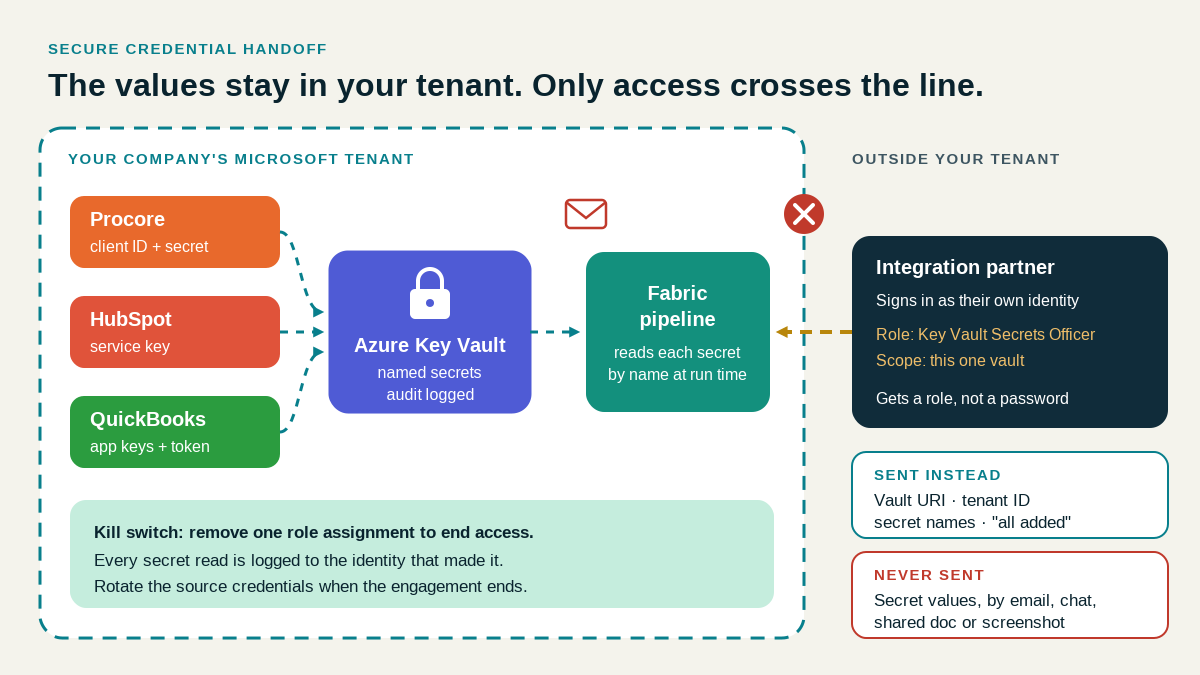
- Your own vault. If the integration runs in your environment (for example a reporting pipeline in your Microsoft tenant), you create credentials, store them in a key vault you own, and give the builder a role on that vault. See secure API key handoff and secure API credential setup for Procore, HubSpot, QuickBooks and Fabric.
Either way, nothing secret travels by email, text, Teams or a shared spreadsheet.
Who provides what, system by system
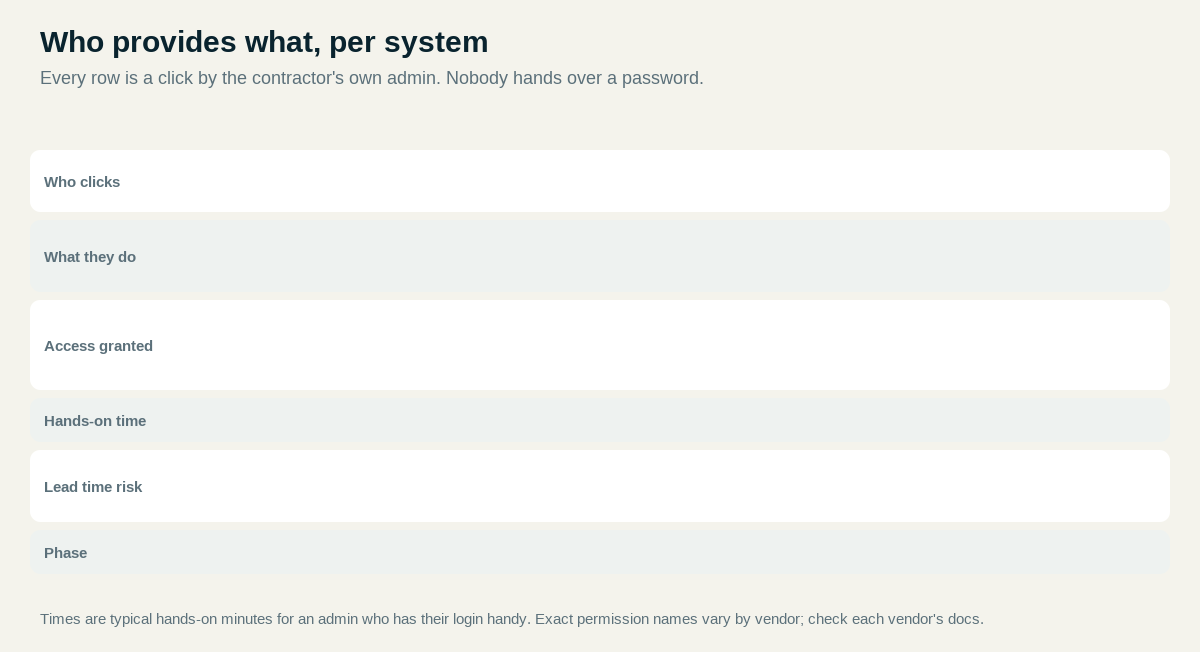 Who provides what, per system
QuickBooks Online
Who. A QuickBooks admin user on the company file. Intuit lets admin users connect apps; a standard user usually can't. If your bookkeeper or outside accountant is the only admin, plan for them to be available.
What they do.
- Sign in to the integration app as an admin and open Connections, then QuickBooks, then Connect.
- Sign in to Intuit on Intuit's own page.
- Pick the right company if they have access to more than one, and approve.
The app records the company ID (Intuit calls it the realm ID) automatically. Nobody needs to look it up.
What it grants. The QuickBooks Online Accounting scope, which is what lets an app read and update transactions. For Cattlemen the connection starts in preview, so the app reads everything and writes nothing until the owner signs off after a shadow week. More on that in shadow week, sandbox and go-live gates.
How long. About ten minutes.
What the builder sets up first. An Intuit developer app with production keys and an exact redirect address. That's on us, not you. The full walkthrough is in QuickBooks Online API credentials.
Procore
Who. A Procore company admin, meaning someone with admin rights to the company-level Admin and App Management tools. A project-level admin isn't enough.
What they do.
- Install or approve the builder's app, from the Procore App Marketplace or as a custom app in the company's App Management (the builder sends the link).
- Give the app the permissions it needs on all active projects, and on the project template so new projects get them too.
- In the integration app, open Connections, then Procore, then Connect, and approve. Confirm the company ID.
What it grants. For Cattlemen, read access to Budget, Commitments, Direct Costs, Prime Contracts, Change Events, RFIs, Submittals, Daily Log, Inspections, Observations and Schedule. Write access to create projects comes later, only for the "Convert to won" automation.
How long. 15 to 30 minutes of clicking. Calendar time is often a few days, because the app approval and its permission template sit with an admin who's usually busy on other things. Start this one first.
Good to know. Procore apps that run without a person signed in use a Developer Managed Service Account, whose permissions you set with a permission template like a user's. Ask your builder which kind of app they use and what it can see. Background in API credential setup and troubleshooting for Procore, HubSpot, QuickBooks and Azure.
Ramp
Who. A Ramp admin.
What they do. In the integration app, open Connections, then Ramp, then Connect, sign in to Ramp and approve the app.
What it grants. Read access to transactions, receipts, users, cards and accounting categories. The app doesn't write to Ramp. Coding changes happen in QuickBooks, which Procore reads.
How long. About ten minutes.
What else we need. A list of whose card is whose, so each person's card spend lands in their own queue.
Microsoft 365 and SharePoint
Who. Someone who can grant tenant-wide admin consent. Microsoft's documentation lists a Privileged Role Administrator for any permission, or a Cloud Application Administrator or Application Administrator for most permissions, but not Microsoft Graph application permissions. In practice for SharePoint folder automation, plan on a Global Administrator or Privileged Role Administrator.
What they do.
- Open the admin consent link the builder sends (or Connections, then Microsoft, then Connect) and approve the Sites and Files permissions.
- Confirm which SharePoint site holds projects and the path to the template folder new projects should copy.
What it grants. Access to SharePoint sites and files so the app can create a project's folder set. If your IT team prefers, ask whether the app can be limited to the one projects site with Microsoft Graph's Sites.Selected permission instead of all sites.
How long. Ten minutes of clicking. If your company has an admin consent workflow or an outside IT provider, allow a few days for their review.
When. Later. For Cattlemen this was the folders and "Convert to won" phase, after the expense approver was live. Don't let it hold up the first phase.
The data lists
None of this is secret. A spreadsheet is fine.
| Item | Used for |
|---|---|
| Cost-of-services (5000-series) category list | The category to cost-code mapping |
| Procore cost-code list, with cost types | The mapping and pick-list suggestions |
| Portal users: name, email, role (field, PM, executive, admin) | Creating accounts |
| Who approves | The approval queue |
| Which PMs run which projects | What each PM can see |
| Whose card is whose | Which expenses land in whose queue |
| How far back to re-code older card spend | The backfill cut-off |
| 2–3 jobs to tie out, with the latest month-end WIP | Checking the numbers before go-live |
| AI vendor contact, if there is one | The later AI phase |
The category list and cost-code list feed a 60 to 90 minute mapping workshop. The method is in map QuickBooks GL accounts to Procore cost codes.
How long it really takes
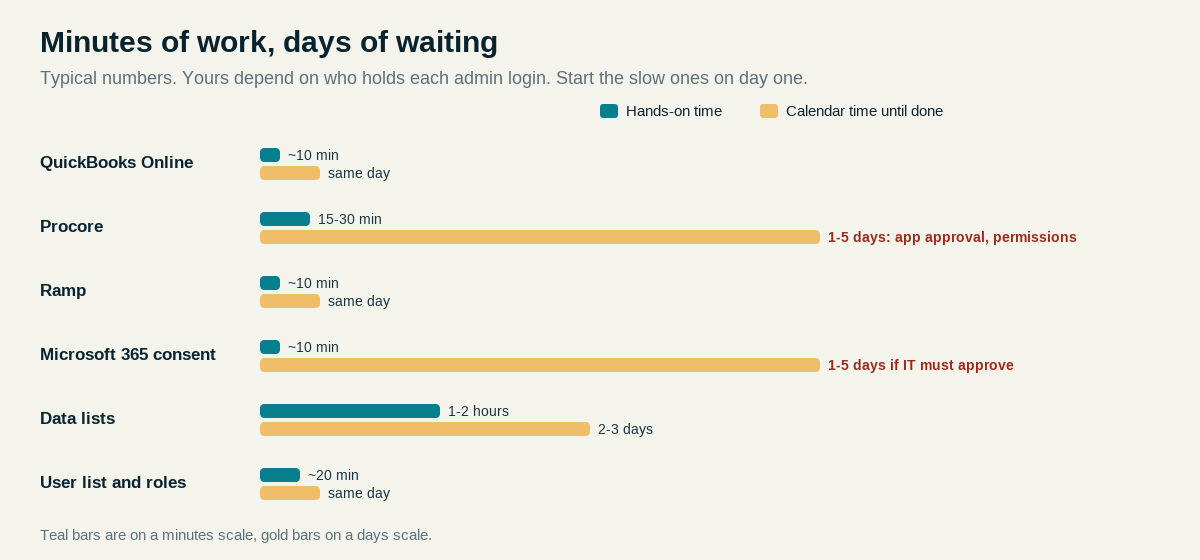 Minutes of work, days of waiting
The work is small. The waiting is what stretches it. Three things shorten it:
- Name the admins on day one. For each system, who actually has admin rights? It's often not who you'd guess. An office manager may be the only QuickBooks admin; a former PM may still be the Procore company admin.
- Book 15 minutes with each admin on the same day. We join, they click, we confirm the connection's self-test passes while they're still there.
- Start Procore and Microsoft 365 first. They're the ones that can wait on someone else.
On Cattlemen's roadmap the whole access stage was planned for three days, and its gate was simple: every connection shows green and passes its self-test.
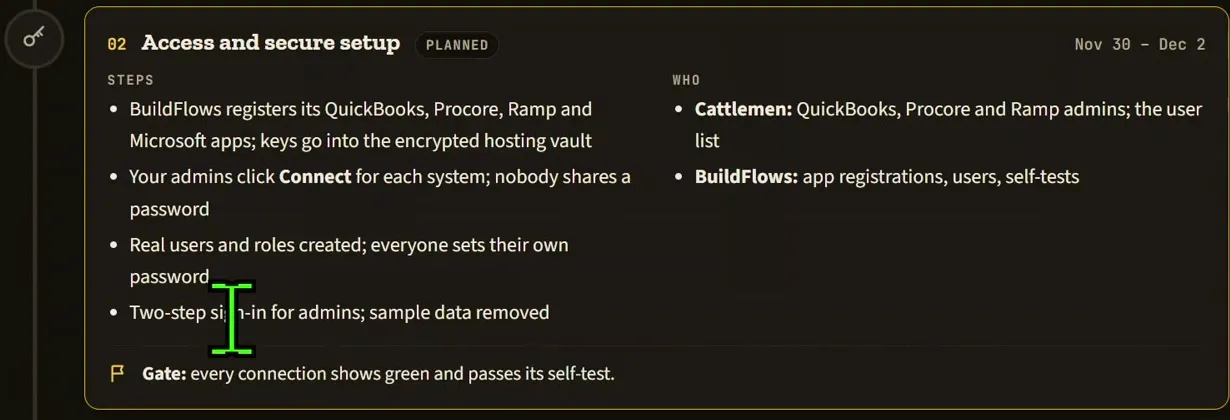 The access stage and its gate
What the builder does on its side
So you know what to expect from a careful builder:
- Registers its own app with Intuit, Procore, Ramp and Microsoft, with exact redirect addresses.
- Keeps its client IDs and secrets only in the hosting platform's encrypted variables. Never in the code repository, a database or an email.
- Keeps QuickBooks writes in preview until the owner signs off.
- Creates real users with invite links, so everyone sets their own password.
- Turns on two-step sign-in for admins and removes sample data.
- Runs a self-test on each connection and shows you the result.
Revoking access later
Every grant above can be undone without the builder's help:
| System | How to revoke |
|---|---|
| QuickBooks Online | Disconnect in the app, or remove the app from QuickBooks' connected apps |
| Procore | Disconnect in the app, or uninstall the app in Procore's App Management |
| Ramp | Disconnect in the app, or remove the app in Ramp's settings |
| Microsoft 365 | Remove the enterprise application's consent in Microsoft Entra |
If someone who connected a system leaves, reconnect it under another admin and revoke any API keys they created. More in how your data is protected.
Common mistakes
- Sending a login "just to get started." Even for a day. Change that password now if it's happened.
- The wrong admin. A project admin in Procore, or a standard user in QuickBooks, gets as far as the approval screen and stops.
- Skipping the project template in Procore. The app works on today's projects and can't see next month's.
- Granting more than the phase needs. Read first. Write access when, and only when, the gate before it has passed.
- Waiting on Microsoft 365 for phase one. It belongs to a later phase. Don't let it hold up QuickBooks, Procore and Ramp.
Your next step
Write down, for each of the four systems, the name of the person who has admin rights. That list is most of the work. Then use the printable integration access checklist to book the 15-minute sessions and tick each one off.
For where this stage sits in the bigger plan, read the rollout roadmap from proof of concept to live. For the job-cost fix these connections serve, see why Ramp bills show $0 in Procore, and for the app on top, the construction project operating system tour.
Need a hand?
If you'd like us to run the connection sessions with your admins, or want a second opinion on what a vendor is asking for, email charley@buildflows.ai or tell us what you're building.
References
- Intuit Developer: OAuth 2.0 for QuickBooks Online
- Procore Developers: Developer Managed Service Accounts
- Procore: App Marketplace
- Ramp Developer: API authorization
- Microsoft Learn: Grant tenant-wide admin consent to an application
- Microsoft Learn: Selected permissions in Microsoft Graph (Sites.Selected)
Frequently asked questions
Who needs to connect QuickBooks Online to a third-party app?
A QuickBooks admin user on that company file. They sign in to the integration app, click Connect, sign in on Intuit's own page, pick the company and approve. The company ID is recorded automatically. It takes about ten minutes.
What does a Procore company admin need to do for an integration?
Approve or install the integration's app from the Procore App Marketplace or company App Management, give it the needed permissions on all active projects and the project template, then click Connect in the integration app and confirm the company ID. Allow 15 to 30 minutes, and sometimes a few days of calendar time.
Who can grant Microsoft 365 admin consent for a SharePoint integration?
Someone who can grant tenant-wide admin consent. Microsoft lists Privileged Role Administrator for any permission, and Cloud Application Administrator or Application Administrator for most permissions except Microsoft Graph application permissions, so SharePoint automation usually needs a Global Administrator or Privileged Role Administrator.
Why shouldn't I email passwords or API keys to an integrator?
An emailed secret stays in mailboxes, search indexes and backups, usually belongs to a person rather than the app, and can't be revoked without changing it everywhere. Connecting through each vendor's approval screen limits access to what the app needs and lets either side revoke it.
How long does it take a contractor to provide integration access?
About an hour of hands-on admin time across QuickBooks, Procore, Ramp and Microsoft 365, plus one to two hours to pull data lists. Calendar time is usually a few days, mostly waiting on the Procore company admin or an IT review for Microsoft 365 consent.
How do I revoke an integration's access later?
Disconnect it in the integration app, or remove the app on the vendor's side: QuickBooks connected apps, Procore App Management, Ramp settings, or the enterprise application's consent in Microsoft Entra. Either route works without the builder's help.
Next step
Need this connection in your environment?
Scope one integration: the records, direction, timing, and business rules behind the connection.
Prefer email? charley@buildflows.ai
Keep learning
Playbooks · November 19, 2026
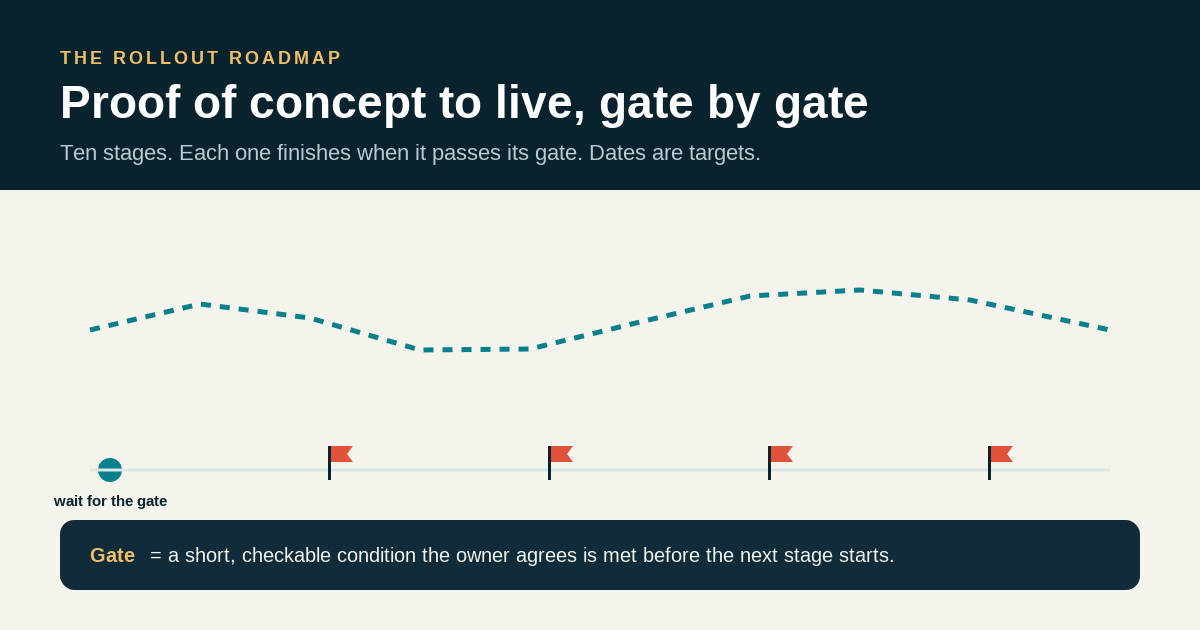
Construction Software Rollout Roadmap: From Proof of Concept to Live, Gate by Gate
The rollout roadmap we walked Cattlemen Construction Services through after building a proof of concept on sample data: proof of concept, agree and sign, access and secure setup, live data and cost-code mapping, tie out the numbers, expense approver go-live (preview, shadow week, sandbox, live), tailor and roll out, SharePoint folders and Convert to won, connecting an AI vendor, and run and improve. For each stage: what happens, what the contractor provides, what the builder does, the gate that ends it and how long it usually takes. About six weeks from signature to fully live, with dates as targets and gates as the real finish line.
Custom applications · November 19, 2026
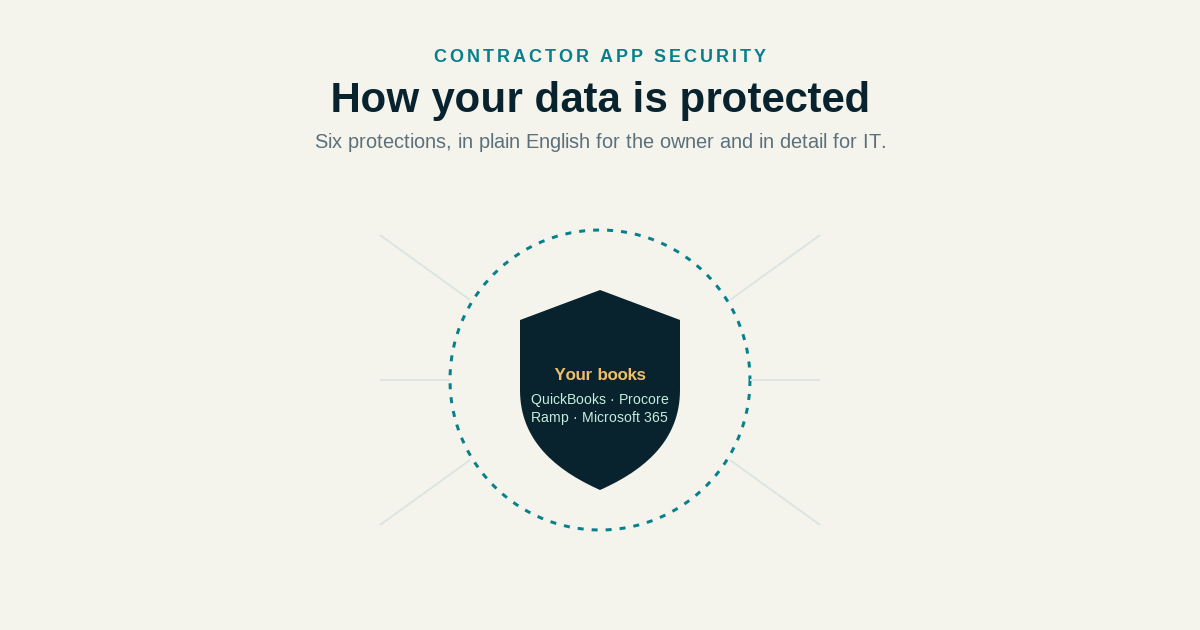
How Your Data Is Protected: Six Security Controls for a Contractor App, for Owners and IT
The six protections on the Cattlemen OS roadmap, each explained in plain words for the owner and in detail for their IT person: your own login (per-user sign-in, two-step for admins, session timeouts), see only your part (role capabilities and server-side scoping from field to super admin, a read-only view-as), approve don't share (OAuth connections, encrypted revocable tokens), QuickBooks guarded (three-lock write mode and write invariants), everything logged (150+ audit actions), and hosting with HTTPS, backups and an exit. Also covers read-only access for an AI vendor and a list of security questions to ask any vendor.
Integrations · November 14, 2026
Never Email an API Key: A Secure Credential Handoff Between a Company and a Consultant
A vendor-neutral process for sharing integration credentials safely: your company owns the vault, the partner gets a scoped role, and only the vault address ever crosses between you.