Key takeaways
- The queue opens on Needs action (to code, coded and sync error), oldest first, with a dollar tile for spend not in Procore yet: $14,346 on the sample data.
- Select ready to approve ticks every charge a cardholder already coded; bulk actions then run charge by charge, and failures stay selected with a reason.
- Approving on the queue is immediate. Cardholders get a 10-second undo on My expenses, where field users approve on a phone.
- The What happens in QuickBooks panel shows the Category details line before, the Procore service item line after, and that the total is unchanged, before anyone presses Approve.
- Send back is one at a time with a required reason; reassign is for executives and admins; approved and synced charges are fixed in QuickBooks, not in the app.
- The oldest open tile turns red past 14 days, and the project grade scores the share of card spend coded within 7 days, so a stale queue shows up on the job's scorecard.
66 seconds · From a Build Flows walkthrough
Recommend a cost code, let the user pick, then rewrite
The app suggests the Procore cost code, the user selects and approves it, and the bill moves from a category line to an item line that Procore reads.
Read the clip transcript
contract line item so essentially the initiative here is that we're going through and reading QuickBooks bills and then we're aligning those bills with the specific cost codes that are aligned in QuickBooks for the accounting side of it there are different job cost cost coding structure in Procore that they even get more specific on and so what we're going to do here is we're taking that line item and we're going to then readjust it so then it goes from a contract line item to the to the bill line item and it will then Procore will then be able to read it and then we'll assign the Procore cost code structure properly assigned to it and we'll give some recommendations on what it should be or what it could be and we'll give the users the options to be able to select it and so then once that selection happens and it's approved it will then ultimately get re-provisioned on that contract from that contract line item to the detail line item on that bill and then Procore will read it and pick up all of the costs to update the job cost reports.
Captions adapted from the source video; proper names may reflect automatic transcription. Original segment: 8:59–10:05. Watch at the source.
75 seconds · From a Build Flows walkthrough
Approving a bill's cost code
Pick the cost code, open the bill to see how it flows into QuickBooks, approve, and it syncs and drops off the list with its history kept.
Read the clip transcript
get started and so what we'll do here is initially just go in to the review and approve and so as you see here we went to the approval section so a user would come in here of course this is mobile friendly so they can see it on there but you can go into your team or you'd only see it for yourself if you'd only have it for yourself but as an admin you'd see everything and you'd be able to come in here and see every single code and you'd be able to then just select and specify the exact one that is necessary for it so this would be the equipment and then if you want to even dive further into here you can select and see what every single invoice and bill is and how it's being flowed and how it's then being assigned in the correct fields for the actual amounts and all of the details for it and it will then ultimately have your approve here and that will then be assigned and it will be fully synced here and you'll then be shown the history for that and so that is then the entire approval process and all of those updated numbers have then been approved and you'll see here it was removed from the list here and so these can then be auto grouped and selected and they can also be auto approved and assigned and so this is great and easy for users to be able to interact with and be able to
Captions adapted from the source video; proper names may reflect automatic transcription. Original segment: 14:09–15:24. Watch at the source.
An approvals queue is the screen where one person checks the cost code on every card charge and bill line, approves it, and watches it land on the job in Procore. Ryan Blankers, Co-Founder of Cattlemen Construction Services in Fort Worth, TX, set the bar for it on our first call: "I don't want to create myself another job of having to go check somebody." This guide walks through the approvals queue we built for the Cattlemen OS proof of concept, screen by screen, on sample data. It covers the filters, the bulk actions, the before-and-after panel that shows exactly what changes in QuickBooks, reassigning, sending back, and the aging rules that keep the queue from rotting.
 One approval, start to finish
If you haven't read why card spend goes missing in Procore in the first place, start with why Ramp bills show $0 in Procore. The design principles behind a coding portal (who picks, what gets logged, hosting) are in Construction expense coding portal: approval workflow. This guide goes one level deeper, into the approver's screen itself. You can also watch the walkthrough, where the approvals part runs from about 14:05 to 16:20.
Who uses the queue
The queue is for approvers. Field users never see it. They code their own charges on My expenses, and if their company lets them self-approve under a limit, they approve there too.
| Role | What they see in Approvals | What they can do |
|---|---|---|
| Field | No queue. "My expenses" only | Code and approve their own charges, within the self-approve rules |
| Project manager | Charges on jobs where they are PM or superintendent, plus their own | Approve, set codes in bulk, mark not job cost |
| Executive | Everyone's charges, with a My team / Everyone switch | Everything a PM can, plus reassign |
| Admin | Same as executive | Same, plus settings such as the QuickBooks write mode |
The visibility is enforced on the server. A PM who edits a URL to point at another PM's job gets an error, not the data. The full role design is in roles and view-as access control.
The top of the queue: four tiles
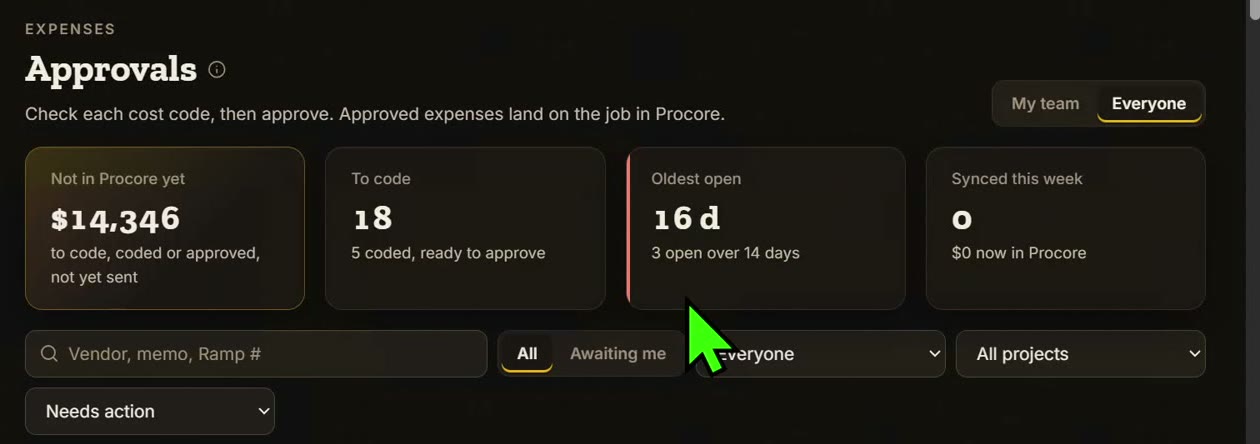 The queue header in the Cattlemen OS proof of concept (sample data)
Each tile answers one question an approver has when they open the page:
| Tile | Sample value | The question it answers |
|---|---|---|
| Not in Procore yet | $14,346 | How much real job cost is Procore missing right now? |
| To code | 18 (5 coded, ready to approve) | How much work is waiting, and how much of it is one click away? |
| Oldest open | 16 d (3 open over 14 days) | Is anything rotting? |
| Synced this week | 0 ($0 now in Procore) | Is the fix actually reaching Procore? |
The first tile is the one executives care about. It's the same number as Not in Procore yet on the company dashboard and Uncoded card spend on the Projects list. Watch one number fall in three places and people start to trust it.
Filters: start with Needs action
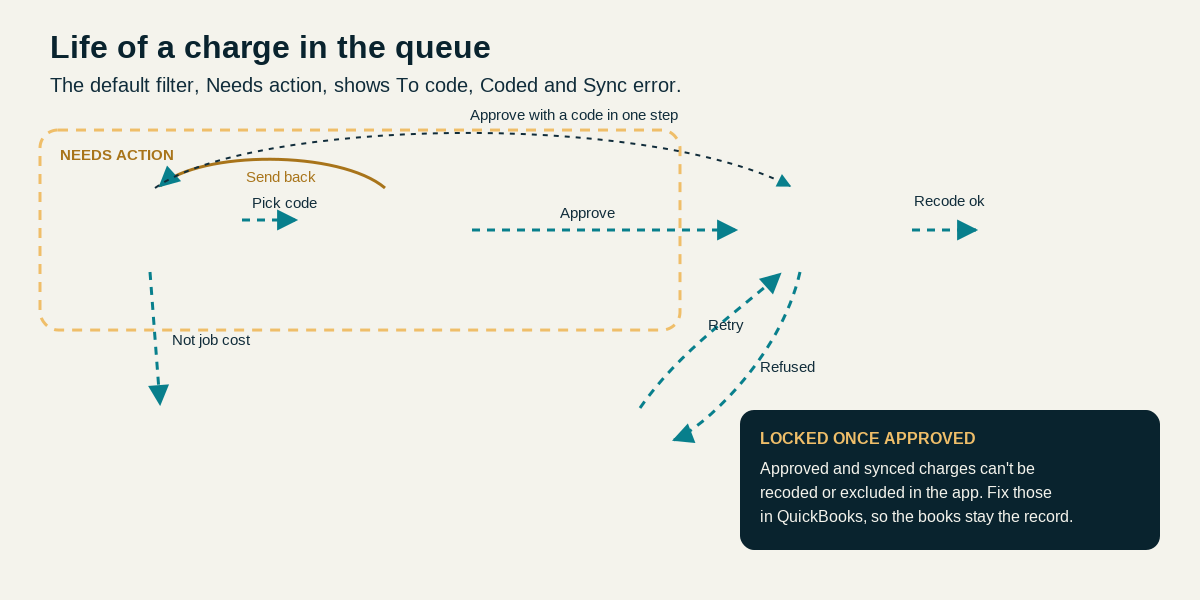
The default view is Needs action, which means three statuses: To code, Coded and Sync error. Everything else (Approved, In Procore, Not job cost) is history, and it stays out of the way unless you ask for it.
The filters, left to right:
- Search by vendor, memo or Ramp number. "Sunbelt" or "2331" finds the light tower rental.
- All / Awaiting me. Awaiting me narrows to charges on jobs where you are the PM and someone else made the purchase. That's the list a PM should clear twice a week.
- Person. Everyone, or one cardholder.
- Project. All projects, or one job.
- Status. Needs action (default), To code, Coded (ready to approve), Approved, In Procore, Sync error, Not job cost, All statuses.
Filters live in the URL, so a link like /approvals?awaiting=me in a reminder email opens the right list. On a phone they collapse into a Filters sheet with Reset and Show N results, and the active ones show as chips you can tap to remove.
Rows sort oldest first. That's deliberate. The charge that has waited 16 days should be the first thing you see, not the one that arrived this morning.
 A row carries everything needed to decide (sample data)
Each row carries everything needed to decide without opening it: vendor and memo, status, Ramp reference and date, the person, the job and GL account, the amount, days open (red after 14), and the Procore cost code picker. When the system has a good guess, the picker is already filled with the top suggestion.
Select ready to approve
Above the table there's a button that reads Select 5 ready to approve. It ticks every Coded row in view, the charges a cardholder has already coded and is waiting on an approver for. Then the sticky bar at the bottom shows 5 selected · $total and an Approve 5 button.
Bulk approval runs each charge on its own:
- Each selected charge is checked against the same rules as a single approval (visibility, status, self-approve limit, permission).
- Each one that passes is approved and its QuickBooks line is rewritten in its own transaction.
- A failure rolls back only that charge.
- The result reads "5 approved" or "4 approved, 1 needs attention". Failed rows stay selected, and a red box lists each one with the reason, usually "Pick a cost code first".
The bar has more than Approve:
- Set code applies one cost code to every selected charge. It only appears when all of them are on the same job, because cost codes belong to a project's budget. Otherwise the hint reads "Select expenses on one project to set a cost code for all of them."
- Not job cost moves the selection out of the queue with a reason (three characters minimum). Office supplies on the wrong card, a personal charge that's being repaid, that kind of thing.
- Reassign (executives and admins) hands the selected charges to another person to code. In bulk it changes only the owner. Moving a charge to another job is done one at a time on its own page.
- Clear empties the selection.
Every bulk run writes one summary row to the audit log, plus each charge's own rows. If someone asks next quarter why 12 charges moved to 01-100 on one afternoon, the answer is there.
Group by person
The Group by person toggle (desktop) adds a header for each cardholder with their count, their total and a select-all box. It's the view for a PM who wants to clear one superintendent's week in one go, or an executive who wants to see whose cards are behind. If one person owns most of the red rows, that's a conversation, not a system problem.
One-tap approve, and where undo lives
On the queue, picking a code and pressing Approve sends the approval straight away. There's no waiting period, because approvers are expected to check before they tap.
Cardholders get a softer version on My expenses. When they press Approve, a bar reads "Approving Sunbelt Rentals → 01-100 in 10s" with Undo and Send now. Nothing is sent for 10 seconds. Field users approve on a phone, often with gloves on, and a fat-finger undo saves a lot of send-backs. My expenses also has Approve all suggested, which previews every charge with its suggested code and amount, lists anything it skipped (no project, a split charge, no suggestion), and approves the rest after one confirm. There's no undo window on that path; the preview is the check.
We've been asked why the approver's queue doesn't have the same 10-second window. The approver is the check. A second safety net at that point tends to make people tap faster, not more carefully.
The "What happens in QuickBooks" panel
Click a row and the expense page opens. The right side of it is the panel we'd put in any coding tool, because it removes the guesswork about what Approve actually does.
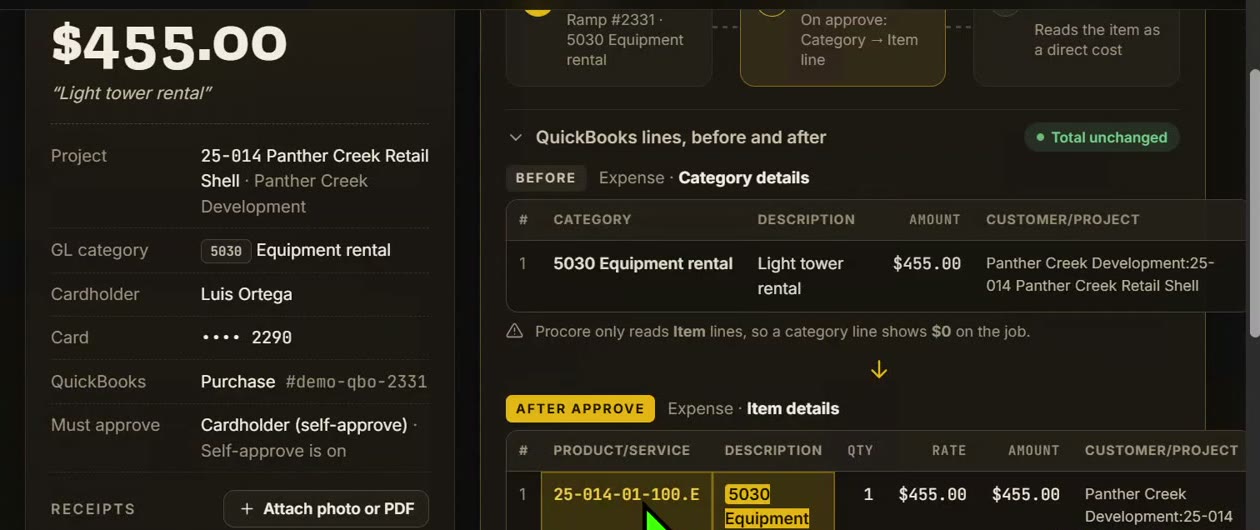 Before and after, side by side (sample data)
The panel has three parts:
- Before. The QuickBooks line as Ramp wrote it: Category details, GL 5030 Equipment rental, the description, $455.00, the customer and project.
- After approve. The same money as an Item details line on the Procore service item
25-014-01-100.E(project 25-014, cost code 01-100, cost type E). Quantity 1, rate and amount $455.00. The GL account moves into the description ("5030 Equipment rental | Light tower rental") so accounting still sees where it came from. Gold highlights mark exactly what changes. - Procore direct cost. A before-and-after bar for that job and cost code: $0.00 "invisible to Procore", then $455.00 "shows as an actual cost on the job".
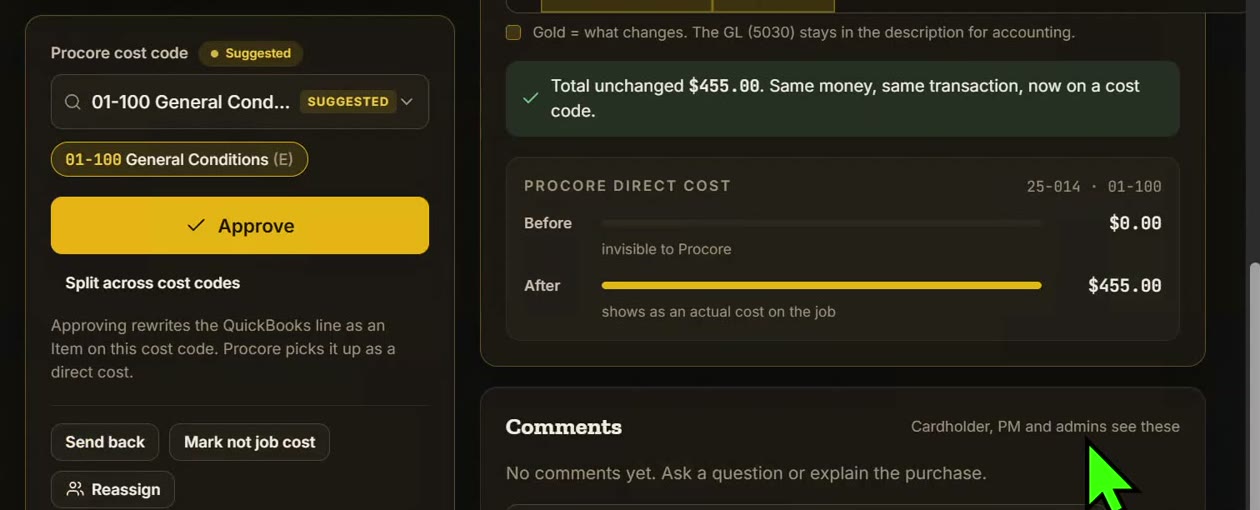 Approve, with the result shown before you press it (sample data)
Under it sits a green line: "Total unchanged $455.00. Same money, same transaction, now on a cost code." That sentence is the reason this panel exists. Controllers get nervous when software edits QuickBooks. Showing that the amount, vendor and transaction stay the same, before anyone presses a button, answers the question before it's asked.
If the preview can't be built, the panel says so: Preview blocked: ... or Totals differ. The rule for approvers is simple. If you see either, don't approve. Something about the charge (a missing service item, a split that doesn't add up) needs a person first.
Behind the panel, the rewrite follows the guardrails in safe QuickBooks write automation: it never changes the amount, vendor or payment account, never touches a closed period, and never creates a QuickBooks item. In the proof of concept every write runs in dry run. The history on the expense page reads "QuickBooks line rewritten (dry run)" so you can see what would have happened without anything reaching the books.
One honest caveat: Procore's QuickBooks Online connector imports job costs on its own schedule (once a day, with an on-demand sync), and it only reads lines coded to the Procore-created service item for that job and cost code. We confirm the end-to-end path on real data with three bills recoded by hand before switching any automation on.
Approval rules: who has to approve what
The expense page shows a Must approve line, and it always explains itself:
| What the page says | When |
|---|---|
| Cardholder (self-approve). Self-approve is on | Under the company's self-approve limit |
| Over the $N self-approve limit | The PM or an executive approves it |
| Self-approve is off | Every charge goes to an approver |
| Sent back once, so an approver checks it | The charge was returned and resubmitted |
A PM's own spend over the limit can't be approved by that PM. An executive or admin does it. If a PM tries anyway in a bulk run, the charge is submitted for approval instead, and the result still counts it as handled.
Send back, reassign, not job cost
Three buttons sit under Approve on the expense page:
- Send back returns a Coded charge to the cardholder with a reason ("This was the Pad B layout, not Panther Creek"). It shows a Sent back badge in the queue when it comes back, and it then needs an approver even if it's under the self-approve limit. Send back is one at a time on purpose. A bulk send-back is how people stop reading the reasons.
- Reassign changes who codes it. The common case is a super who bought materials for another super's job. The new owner gets an in-app "needs coding" notice.
- Mark not job cost takes it out of job cost entirely, with a reason. It can be reversed by setting a code later.
Once a charge is approved and synced, none of these work. The fix for a wrong code at that point is a correction in QuickBooks, so the books stay the record. The app says so ("Already synced to QuickBooks/Procore") instead of quietly allowing a second edit.
 Statuses and the moves between them
Sync errors and Retry
When QuickBooks refuses a rewrite, the row turns to Sync error with the message. The common ones:
| Message | Usual cause | Fix |
|---|---|---|
| Service item not found | The cost code isn't on the job's Procore budget yet, so Procore never created the QuickBooks item | Add the code to the budget in Procore, wait for it to sync, then Retry |
| Closed period | The charge is dated before the QuickBooks closing date | Handle it as a month-end exception with accounting |
| Totals differ | A split doesn't add up to the original amount | Fix the split on the expense page |
Retry uses the same code and runs the same checks. In the sample queue the Fastenal charge for safety glasses and fasteners ($205.13) sits in Sync error so you can see what one looks like. The naming rules behind "service item not found" are in Procore service items in QuickBooks.
Aging: keep the queue from rotting
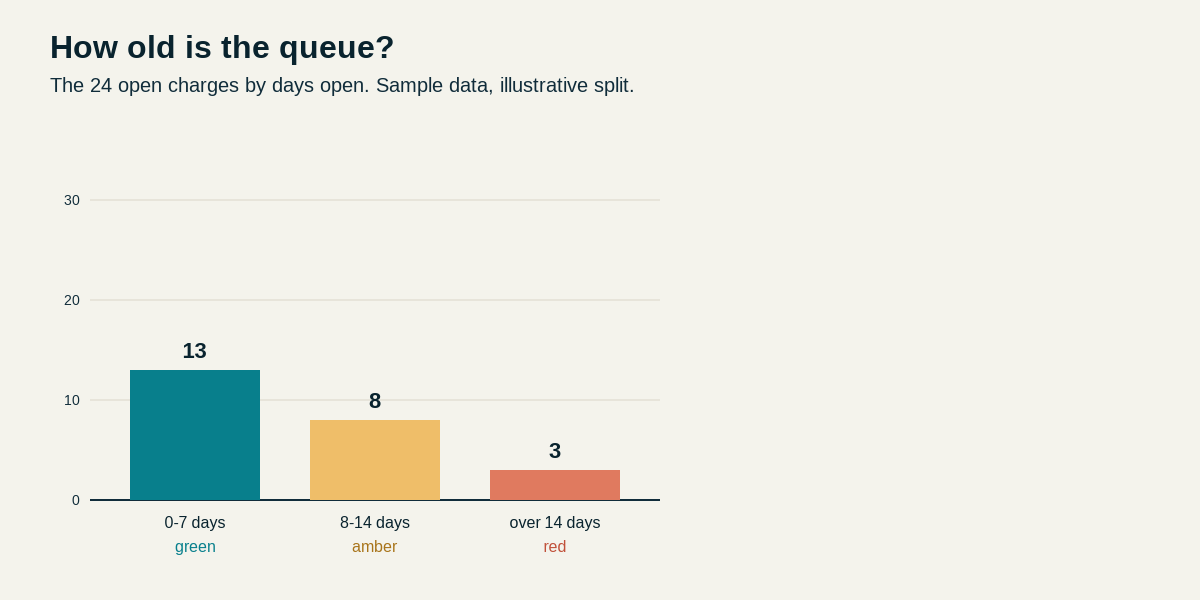
A queue that's never empty is fine. A queue with old charges in it isn't, because every old charge is cost Procore doesn't know about at month end.
 Aging bands, and why 7 days matters
The rules in the app:
- The Oldest open tile is green up to 7 days, amber over 7, red over 14. It takes its color from the single oldest charge, so one forgotten receipt turns it red.
- Rows over 14 days show their days open in red.
- Stale coding shows up in Needs attention on the company dashboard.
- The project grade has a Cost Coding measure: the share of each job's card spend coded within 7 days. 95% or more scores full marks, under 80% scores zero. More on that in the weighted project grade.
That last one matters more than any reminder email. When a job's grade drops because its cards aren't coded, the PM hears about it from the same scorecard the partners read.
What changed after one tap
In the walkthrough we approved the Sunbelt Rentals charge and went back to the queue. The tiles moved:
 Before (sample data)
 After (sample data)
| Tile | Before | After |
|---|---|---|
| Not in Procore yet | $14,346 | $13,891 |
| To code | 18 | 17 |
| Oldest open | 16 d, 3 over 14 days | 15 d, 2 over 14 days |
| Synced this week | 0 | 1, $455 now in Procore |
$14,346 minus $455 is $13,891. Small, but it's the point: the number on the screen is the number of dollars, and every approval moves it.
Approving from email or Teams
Not every approver lives in the app. Approval emails can carry one-click links: single use, valid for 72 hours, only for the approver they were sent to. Opening the link shows a confirmation page; the approval happens only when they confirm, with the same permission checks and an audit row marked "via email". If someone else is signed in on that browser, the link is refused.
Teams channel cards never carry approval links, because everyone in the channel can read them. Their buttons open the charge in the app, which needs a sign-in.
Where Ramp for Construction fits
Ramp launched Ramp for Construction in July 2026 with job, cost code and cost-type coding at the card and PM approval routing. If you're on it, some of the coding moves to the moment of purchase, which is good. What's still needed is the step this queue exists for: getting the line in QuickBooks onto the Procore-created service item, because that's what Procore's QuickBooks Online connector reads. Ramp's documentation doesn't say how its construction coding lands in QuickBooks (item, customer, class or custom field), so test one charge before you assume. The settings to check before an integration guide lists what to look at.
A checklist for your own queue
- Default the queue to Needs action, oldest first.
- Put "Not in Procore yet" in dollars at the top, and show the same number on the executive dashboard.
- Pre-fill the cost code from a GL to cost code mapping and past approvals.
- Give approvers one button that selects everything already coded.
- Run bulk actions charge by charge, keep failures selected and say why.
- Show the QuickBooks line before and after, and the total, before anyone approves.
- Block approval when the preview fails.
- Make send-back one at a time and require a reason.
- Color the oldest charge, not the average.
- Log every approval, bulk run and QuickBooks write, with before and after.
Where this sits in the bigger system
The queue is one area of a larger app. The project operating system tour walks through every screen and what each role sees. The fix this queue serves is explained in Ramp bills show $0 in Procore, and how we take it from proof of concept to live is in the rollout roadmap.
Want a queue like this?
If your card spend or bills are coded in QuickBooks but missing from Procore, and you want one person to control where costs go without checking everyone's work, we build this. Email charley@buildflows.ai or tell us what you're working on.
Frequently asked questions
What should a construction expense approvals queue show by default?
Only the charges that need someone: uncoded, coded and waiting for approval, and sync errors, sorted oldest first. Approved and synced charges are history and belong behind a filter. A dollar total of spend not yet in Procore at the top tells the approver what's at stake.
Can a PM approve card charges in bulk safely?
Yes, if each charge is checked on its own. In the Cattlemen OS queue, a bulk approve runs the same rules as a single approval for every charge, rewrites each QuickBooks line in its own transaction, rolls back only the ones that fail, and keeps failed rows selected with the reason.
What changes in QuickBooks when a card charge is approved?
The expense's Category details line is replaced by an Item details line on the Procore-created service item for that job, cost code and cost type, such as 25-014-01-100.E. The amount, vendor, payment account and transaction stay the same, and the GL account moves into the line description so accounting keeps its view.
Is there an undo after approving?
On My expenses, where cardholders approve, there is a 10-second undo before anything is sent. On the approvers' queue, approval is immediate because the approver is the check. Once a charge is approved and synced, corrections are made in QuickBooks.
What does a sync error mean in the approvals queue?
QuickBooks refused the rewrite. Common causes are a cost code not yet on the job's Procore budget, so the service item doesn't exist in QuickBooks, a transaction dated in a closed period, or a split that doesn't add up. Fix the cause, then press Retry.
How do you stop a coding queue from piling up?
Show the age of the oldest charge, not an average: green up to 7 days, amber over 7, red over 14. Tie it to a measure people care about. In the Cattlemen OS, the project grade scores the share of each job's card spend coded within 7 days.
Next step
Want this workflow automated?
Tell us the handoff, approval, or reminder your team repeats. We'll scope the automation, the approvals it needs, and who owns it.
Prefer email? charley@buildflows.ai
Keep learning
Integrations · November 18, 2026
Design a Human-in-the-Loop Expense Coding Portal for Ramp, QuickBooks and Procore
The expense coding portal designed on a recorded discovery call with Cattlemen Construction Services. Cardholders sign in and see only their uncoded card expenses, pick a suggested Procore cost code and approve; the portal rebuilds the QuickBooks Online expense with Item details and Procore's own integration brings it in as actual cost. Covers the admin view, notifications, roles, audit log, failure handling, idempotency, API scopes, hosting, the proof of concept and the metrics that show it's working.
Custom applications · November 19, 2026
A Contractor's Project Operating System, Screen by Screen: What Each Role Sees and Why
A screen-by-screen tour of the Cattlemen OS proof of concept built for Cattlemen Construction Services in Fort Worth, Texas, on sample data over QuickBooks Online, Procore, Ramp and Microsoft 365. Covers sign-in and Home, My expenses and the approvals queue that gets card spend onto Procore cost codes, the Projects list with convert to won and SharePoint folders, the project page tabs (overview, grade, job cost, expenses, subs, files), the weighted project grade, the month-end cost-to-complete close, the company dashboard, alerts, reports, the platform console with read-only view as, the help center and the AI brain connection through iframe, read-only API and MCP. For each screen: what it shows, which role sees it and why, with sample numbers and timestamps from the walkthrough video.
Integrations · November 19, 2026
Why Ramp Bills Show $0 in Procore, and How to Fix It
The section hub for the Ramp to QuickBooks to Procore job-cost fix, built from the plan we wrote for Cattlemen Construction Services. Ramp writes its coding to the Category details lines of a QuickBooks Online bill. Procore's QuickBooks Online connector only retrieves job costs from lines coded to the project-specific service items it created, which live in Item details, so the cost never reaches the Procore budget. The guide shows how to confirm the gap in five minutes, then the cheapest order to fix it: check four settings, build a translation table, re-code three bills by hand to prove it, then automate with a bill line rewriter and a nightly reconciliation, with guardrails and a phased rollout.