Key takeaways
- The setup is four steps and about 90 minutes of your team's time: Fabric access, read-only API access in Procore, HubSpot and QuickBooks, Key Vault, then the consultant connects and goes live.
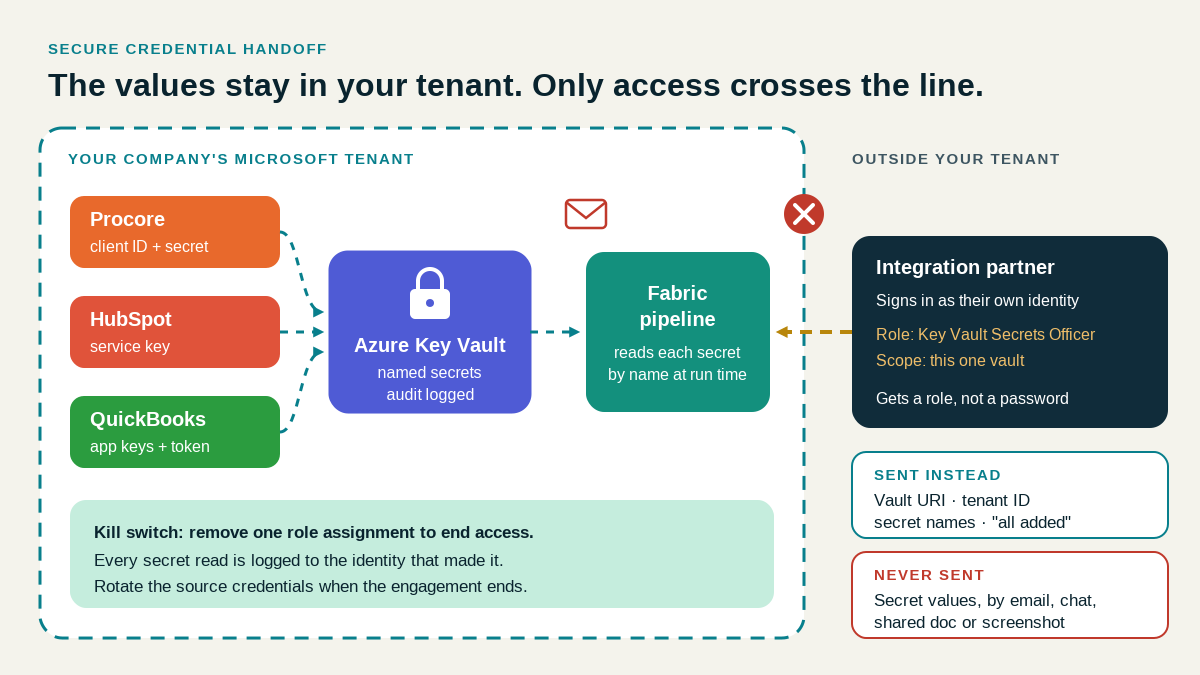
- Credentials stay in an Azure Key Vault in your own tenant. You send back the vault address and tenant details, never a secret value.
- Use a Procore Developer Managed Service Account with Read Only tools, a HubSpot service key with .read scopes, and an Intuit app with only the Accounting scope and production keys.
- Assign Key Vault Secrets Officer on the one vault to yourself and the consultant account. Subscription Owner alone cannot add secrets, and Secrets User cannot save the rotating QuickBooks refresh token.
- Fabric reads each secret by name at run time, from notebooks or Key Vault references, so use the same account for the Fabric workspace and the vault role.
- To end access, remove one role assignment and the workspace role. No key was ever sent outside your team, and you can rotate the secrets too if your policy calls for it.
28 seconds · From a Build Flows walkthrough
Keep API keys in your own tenant
Why the setup stores every Procore, HubSpot and QuickBooks credential in your own Azure Key Vault and shares Fabric access instead of the keys. This is the principle only; the steps that put it in place are in the rest of the guide.
Read the clip transcript
The goal is to extract your API credentials and store them inside your own environment. That keeps the credentials private to you. You don't need to share the credentials anywhere. Instead, you share access to Fabric with a third party, or with me, and I reference those API credentials through Key Vault to build the notebooks, lakehouses and reports in the Power BI dashboard you need.
Captions adapted from the source video; proper names may reflect automatic transcription. Original segment: 0:29–0:57. Watch at the source.
42 seconds · From a Build Flows walkthrough
Invite a consultant to your Fabric workspace
Open the workspace, choose Manage access, add the person by email and pick a role (Admin, Member, Contributor or Viewer). It does not cover buying or assigning the Fabric capacity itself.
Read the clip transcript
You can invite any third party or user to a Fabric workspace. To do that, once you have a Fabric account, open the workspace. Once it's created, you can share it by selecting Manage access. From there you add people or groups by entering their email and choosing the type of access they should have. That's how you provision access. For me, I'll need Admin access. That lets me create everything the project needs for data transformation and storage.
Captions adapted from the source video; proper names may reflect automatic transcription. Original segment: 2:00–2:42. Watch at the source.
33 seconds · From a Build Flows walkthrough
Send back vault details, never the secrets
Once the secrets are in Key Vault, you send your consultant only the vault URI, directory (tenant) ID, and subscription and resource group names, and Fabric reads each secret by name. The clip recaps the handoff; it does not show creating the secrets or the role assignment.
Read the clip transcript
At this point, everything is provisioned. You haven't handed over any credentials. What you've shared is the resource group, the subscription, the directory ID and the vault URI. All of that can then be referenced in Fabric. That's everything needed to pull the data into Fabric and reference your credentials in Key Vault, so they stay securely stored and are read when needed.
Captions adapted from the source video; proper names may reflect automatic transcription. Original segment: 29:57–30:31. Watch at the source.
You want one dashboard that shows job cost from Procore, pipeline from HubSpot and cash from QuickBooks Online. The reporting side is the easy part to picture. The hard part is the first week: three admins in three systems create credentials, somebody has to put them somewhere, and the consultant building the reports needs to use them without anyone emailing a client secret around the office.
This guide is the whole setup in one place, in the order we run it with contractors. It covers who does each step and how long it takes, the four steps themselves, how the pieces fit together (sources → Azure Key Vault → Microsoft Fabric → Power BI), and the short list of things you send back at the end. Each step links to a deep-dive article if you want every screen. The pattern is simple. Access is read-only, the keys stay in your own Microsoft tenant, and your team spends about 90 minutes on it.
Watch the full walkthrough
The full screen-recorded walkthrough follows the same four steps in the live tools. Watch it on YouTube (30 minutes), or open the full walkthrough page with chapters and the complete transcript. The short clips on this page come from that recording. Use the chapter index below to jump to the deep-dive article for each part:
| Chapter | What it covers | Deep dive |
|---|---|---|
| Overview | Why the keys stay in your tenant, the four steps | This page |
| 1. Fabric access | Workspace, capacity, Manage access | Microsoft Fabric + Key Vault |
| 2a. Procore | Developer Managed Service Account, Read Only tools, install | Procore DMSA setup |
| 2b. HubSpot | Service key with read scopes | HubSpot service key |
| 2c. QuickBooks Online | Intuit developer app, production keys, realm ID | QuickBooks Online API credentials |
| 3. Key Vault | Create, RBAC, Key Vault Secrets Officer, secrets | Azure Key Vault for integrations |
| 4. Go live | How pipelines read secrets at run time | Microsoft Fabric + Key Vault |
| Wrap-up | What to send back, and what never to send | Secure API key handoff |
If something fails along the way, the troubleshooting guide is organized by error message. The read-only scopes reference lists exactly which permissions each report needs.
Who does what, and how long
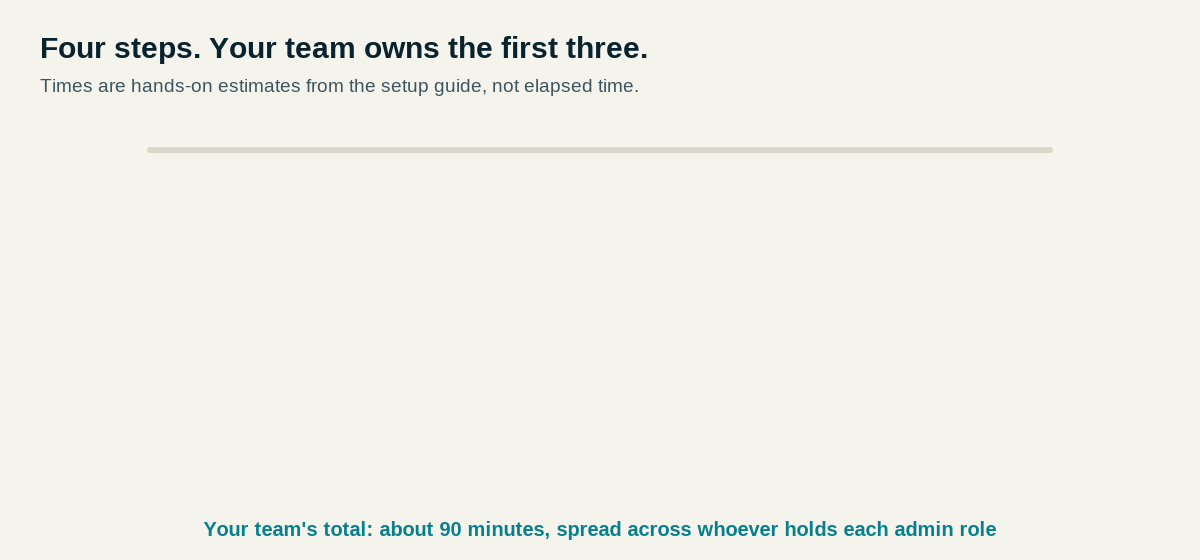 Your team owns the first three steps. The consultant takes it from the vault address onward.
| Step | Owner on your side | Role they need | Time | Output |
|---|---|---|---|---|
| 1. Fabric access | IT or a Microsoft 365 admin | Fabric capacity admin or workspace creator | ~10 min | A workspace on a capacity, consultant added as Admin |
| 2a. Procore | Procore company admin | Admin on the company Directory tool | ~20 min | Installed custom app with a read-only service account |
| 2b. HubSpot | HubSpot super admin | Super admin or Developer tools access | ~10 min | A service key with read scopes |
| 2c. QuickBooks Online | QuickBooks admin | QuickBooks Online admin, plus an Intuit developer account | ~30 min | An app with production keys |
| 3. Key Vault | Azure subscription owner | Owner, User Access Administrator or Role Based Access Control Administrator on the subscription or resource group | ~20 min | A vault, one role assignment, the secrets typed in |
| 4. Connect and go live | Consultant, with your QuickBooks admin for 5 minutes | Workspace Admin, Key Vault Secrets Officer | One setup call, then build time | First load, reconciled numbers, scheduled refresh |
The times are hands-on estimates, not elapsed time. Production keys from Intuit and the Procore install can each take a little back-and-forth, so start step 2 early. Steps 1 and 3 can happen in parallel.
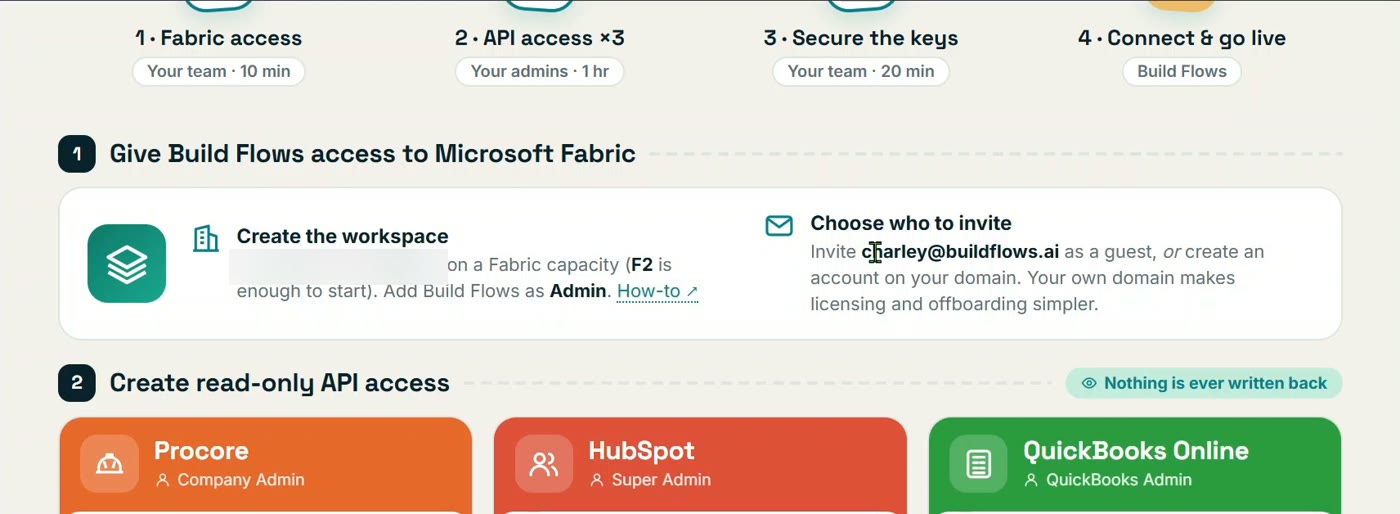 The client setup guide shown in the walkthrough. Each system card names the admin role it needs.
How the pieces fit together
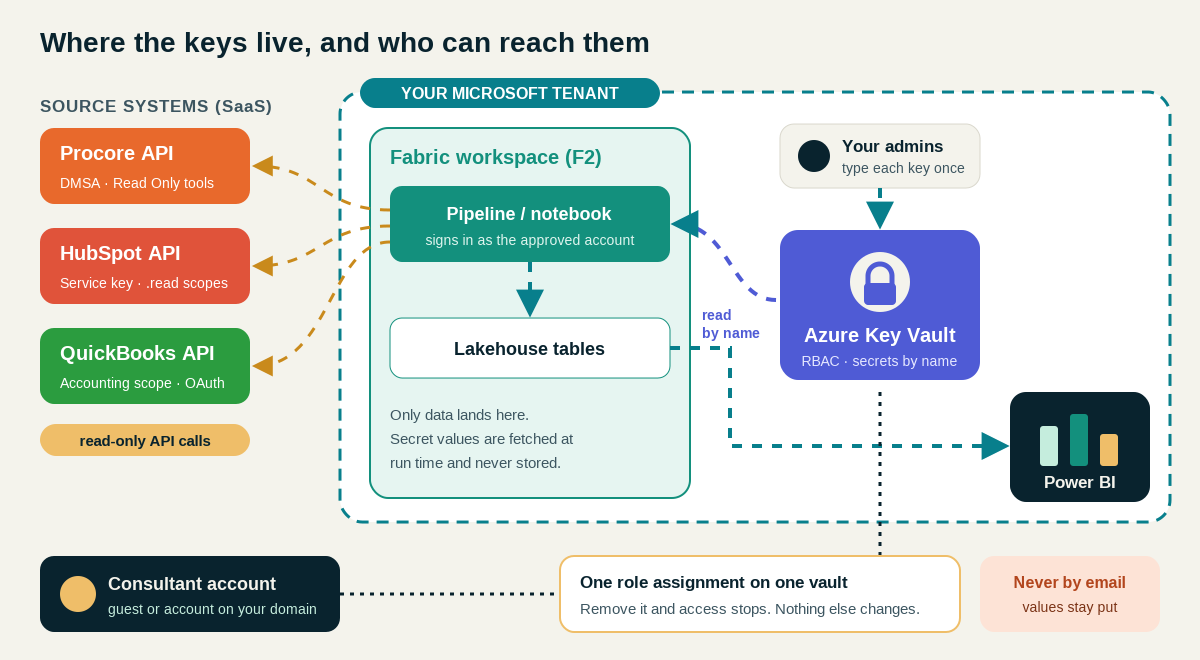 The trust boundary is your tenant. Data comes in, keys never go out.
Four parts, each with one job:
- Source systems (Procore, HubSpot, QuickBooks Online) issue credentials that can read and nothing more, or as close to that as each vendor allows.
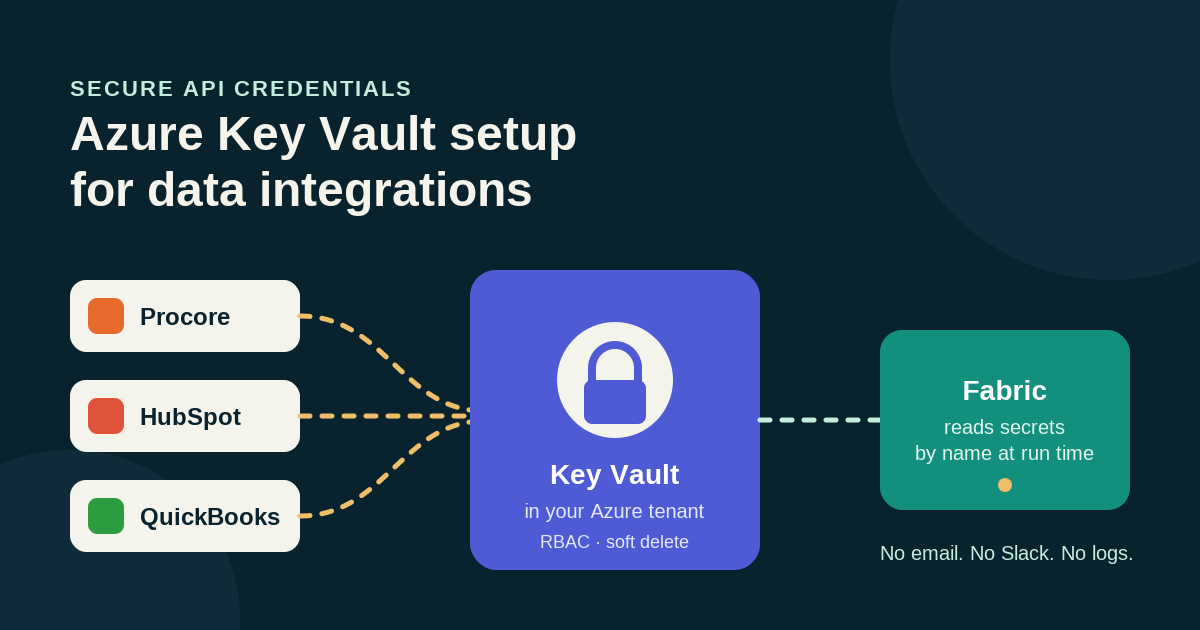
- Azure Key Vault holds those credentials in your Azure subscription. Access is controlled by Azure role-based access control (RBAC), so you decide who can read or change secrets, and you can see and remove that access at any time.
- Microsoft Fabric runs the pipelines and notebooks that pull data on a schedule and land it in lakehouse tables. It looks up each secret by name at run time. It does not keep a copy.
- Power BI reports read the lakehouse tables. Report viewers never touch a credential.
The point of the design is that you never have to hand over a key. You hand over an address (the vault URI) and grant one permission (a role assignment on that vault). If you end the engagement, you remove that role assignment and nothing else needs to change.
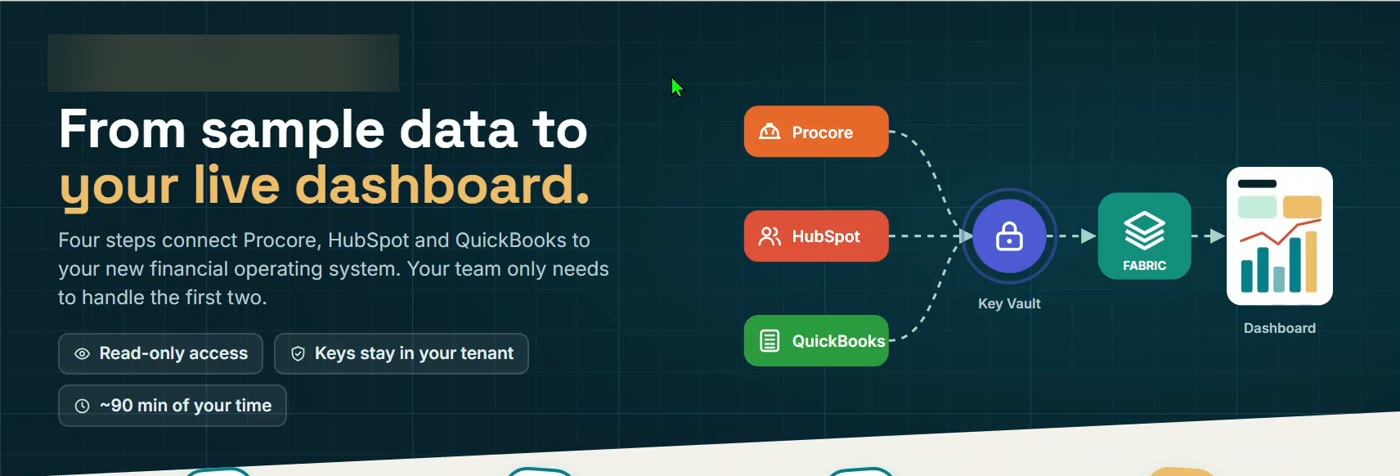 The same flow as it appears at the top of the setup guide.
Step 1: Give the consultant access to Microsoft Fabric
You need a Fabric workspace that runs on a capacity. F2 is the smallest Fabric SKU and is enough to start for most contractors' reporting. At Microsoft's US list price of $0.18 per capacity unit hour, an F2 running all month (730 hours) costs about $262.80 on pay-as-you-go (checked November 2026). The walkthrough quotes roughly $269. Prices vary by region, so check yours. You can pause a pay-as-you-go capacity when it is idle, or commit to a one-year reservation for about 41% less, which cannot be paused. The F2 capacity guide covers sizing, throttling and Power BI viewer licensing.
- Create the capacity in the Azure portal, or ask your Fabric admin to assign an existing one.
- In Fabric, create a workspace for this work, for example Reporting Analytics, and assign it to the capacity under Workspace settings → License info.
- On the workspace page, select Manage access. On some layouts it is under More options (...).
- Select Add people or groups, enter the consultant's email, choose Admin and select Add.
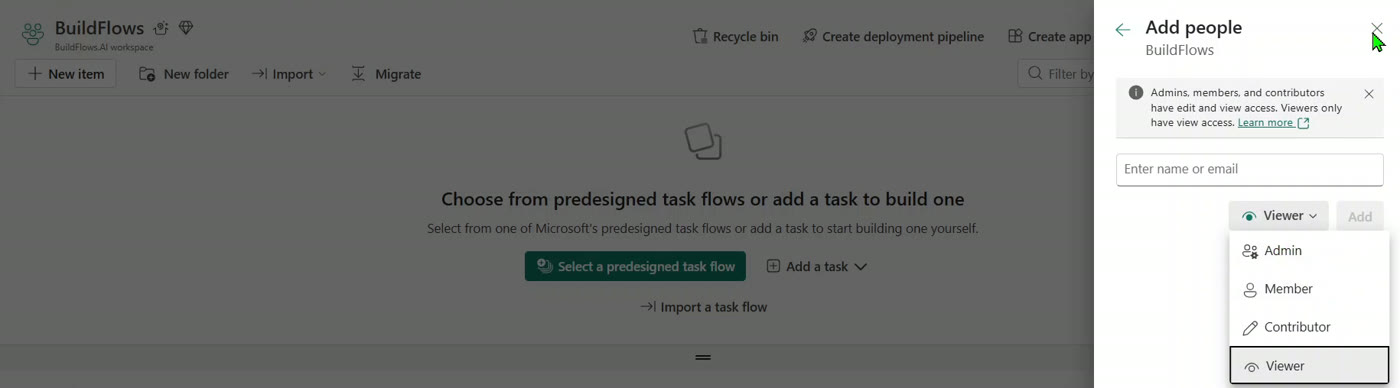 Manage access, then Add people. Pick the role from the drop-down before you select Add.
Admin lets the consultant create lakehouses, notebooks, pipelines and the schedule, and manage the workspace's connections. If your policy allows only Member, that works for building, but someone on your side will need to handle anything that requires Admin. Microsoft notes that a role change takes effect the next time the user signs in to Fabric.
Guest or an account on your domain? You can invite the consultant's own address as a Microsoft Entra guest, or create an account for them on your domain. A domain account is often simpler for licensing, conditional access and offboarding, because you control it end to end. The trade-offs are in guest account vs domain account. Whichever you choose, use the same account in step 3, because that is the identity Fabric will use to read the vault.
Step 2: Create read-only API access in three systems
Each vendor does this differently. The rule is the same for all three: grant the smallest read access that feeds a report you can name. Nothing is written back to your systems.
Procore: a Developer Managed Service Account
A Developer Managed Service Account (DMSA) is a Procore app that authenticates as its own service account, not as a person. It uses the OAuth client credentials flow, so no one has to sign in for it to run, and its tool permissions are declared in the app version.
- Sign up for a free account at developers.procore.com and open My Apps → Create New App. Name it something your admins will recognize.
- On the app version, open Add Components and add Service Account Authentication. Procore's setup steps pair it with User Level Authentication, and the walkthrough checks both. Your pipeline does not use the user-level part.
- Click Manage on the service account component. On the Company Level and Project Level tabs, set the tools your reports need to Read-only (typically Directory, Budget, Prime Contracts, Commitments, Change Orders, Direct Costs and Invoicing). Leave everything else at None.
- Save the version and Promote to Production. Production credentials only appear on the Credentials tab after a version is promoted. The walkthrough shows the "credentials not available yet" message at exactly this point, so do not copy the Developer Sandbox ones by mistake.
- A company admin installs it under Company Admin → Company Settings → App Management → Install App → Install Custom App by pasting the 36-character App Version ID. That person needs Admin on the company Directory tool.
- Add the app to your active projects as permitted projects, and plan to add new jobs as they start.
Have ready: client ID, client secret, and the company ID, which is the number in your Procore address bar (app.procore.com/<company-id>/company/...). Every screen, with the error messages you might hit, is in the Procore DMSA setup guide.
HubSpot: a service key with read scopes
HubSpot now offers service keys for simple REST integrations. The older setup instructions, including the first version of our client guide, said to create a private app under Settings → Integrations → Private Apps. HubSpot's developer docs now treat private apps as legacy apps, and the walkthrough shows a service key instead.
- Go to Development → Keys → Service keys and click Create service key. In the walkthrough the page was reached from Settings → Integrations, so check both if your account's navigation differs. You need super admin rights or the Developer tools access permission.
- Name the key, then add only
.readscopes, typicallycrm.objects.deals.read,crm.objects.companies.read,crm.objects.contacts.read,crm.objects.owners.readand, if you split deals by line item,crm.objects.line_items.read. - Click Create, then copy the key straight into the vault in step 3.
The walkthrough added one scope "for the example". In a real setup, add every scope the reports need up front, or the first run returns 403 on the objects you skipped. Service keys can be rotated, with an optional 7-day window before the old key expires. The HubSpot service key guide covers rotation and the private app comparison.
QuickBooks Online: an Intuit developer app
QuickBooks Online has no API key you can copy. You register an app, a QuickBooks admin approves it once, and the integration keeps itself connected with a refresh token.
- Sign in at developer.intuit.com, open My Hub → App dashboard and create a new app.
- Choose only the Accounting scope,
com.intuit.quickbooks.accounting. You do not need Payments or Payroll. The video shows Payments as an option. Leave it unticked. - Complete the app details and Intuit's compliance questionnaire to unlock production keys. Development keys only reach sandbox companies.
- Copy the production client ID and client secret.
- On the setup call, a QuickBooks admin clicks Connect once. That returns the realm ID (the company ID) and the first refresh token. The integration writes that token to the vault itself.
Intuit has no read-only accounting scope. The accounting scope is read and write, so "read-only" here is enforced by the pipeline only running queries and reports. Access tokens last one hour. The refresh token rotates and must be written back to the vault each time it changes. The QuickBooks Online credentials guide explains Intuit's current refresh token policy.
What you should have at the end of step 2
| System | Values | Read-only by |
|---|---|---|
| Procore | Client ID, client secret, company ID | Read Only tool permissions on the service account |
| HubSpot | Service key | .read scopes only |
| QuickBooks Online | Client ID, client secret (production) | Pipeline design. There is no read-only scope |
Do not paste these values into email, Teams, a ticket or a spreadsheet while you wait for step 3. Leave the source screen open, or regenerate the value later. Most of these systems let you rotate a secret, and a fresh one is cleaner than one that has been sitting in a chat thread.
Step 3: Secure the keys in Azure Key Vault
This is where the credentials go to live. A Key Vault costs very little for this use. Standard tier secret operations are $0.03 per 10,000 at list price, and there is no set-up fee, so a few scheduled runs a day costs pennies a month. The full walkthrough is in Azure Key Vault for integrations.
A. Create the vault
- Sign in at portal.azure.com and go to Create a resource → Key Vault → Create.
- Create a new resource group, for example
rg-reporting-analytics. - Name the vault, for example
kv-reporting-analytics. Names are 3 to 24 characters and must be unique across Azure. - Choose the same region as your Fabric capacity and the Standard pricing tier.
- Under Access configuration, keep Azure role-based access control. RBAC is now the default for new vaults.
- Under Networking, the walkthrough keeps public access on. Microsoft Entra sign-in and RBAC still protect every secret. A private vault also works, but Fabric then needs a gateway with line of sight to it.
- Select Review + create, then Create.
B. Grant access
- Open the vault and go to Access control (IAM) → Add → Add role assignment.
- Choose Key Vault Secrets Officer.
- Under Members, add yourself and the consultant account from step 1. Select Review + assign.
Creating the vault, or owning the subscription, does not let you add secrets. Owner is a management role. Reading and writing secrets is a separate data-plane permission. If you see "not authorized" on the next step, finish this one and give it a few minutes.
Why Officer and not the read-only Key Vault Secrets User? Microsoft describes Secrets Officer as "perform any action on the secrets of a key vault, except managing permissions". The integration needs to write the QuickBooks refresh token after the Connect step and every time it rotates, and to update a key if one is reissued. Secrets User can only read. The role is scoped to this one vault, not the rest of your Azure.
C. Add the secrets
Go to Objects → Secrets → + Generate/Import. For each row, type the name exactly, paste the value, and select Create.
| Secret name | Value | Where it comes from |
|---|---|---|
procore-client-id | Client ID | Procore Developer Portal → your app → production credentials |
procore-client-secret | Client secret | Same screen |
procore-company-id | Digits only | Your Procore address bar |
procore-base-url | https://api.procore.com | Type as shown |
hubspot-service-key | The service key | HubSpot → Development → Keys → Service keys |
quickbooks-client-id | Client ID | Intuit app → production keys |
quickbooks-client-secret | Client secret | Same screen |
quickbooks-realm-id | Company ID | Returned when your admin clicks Connect, or QuickBooks settings |
quickbooks-environment | production | Type as shown |
quickbooks-refresh-token | Skip | Written by the integration during the Connect call |
Three rules from the setup guide save most of the debugging: names in lowercase with dashes, exactly as above; no spaces or quotes around values; leave content type, activation and expiry dates empty. The checklist tool can generate this list with your own prefix if you run more than one company.
Step 4: Connect and go live
From here the consultant does the work, using the vault address and the account you approved.
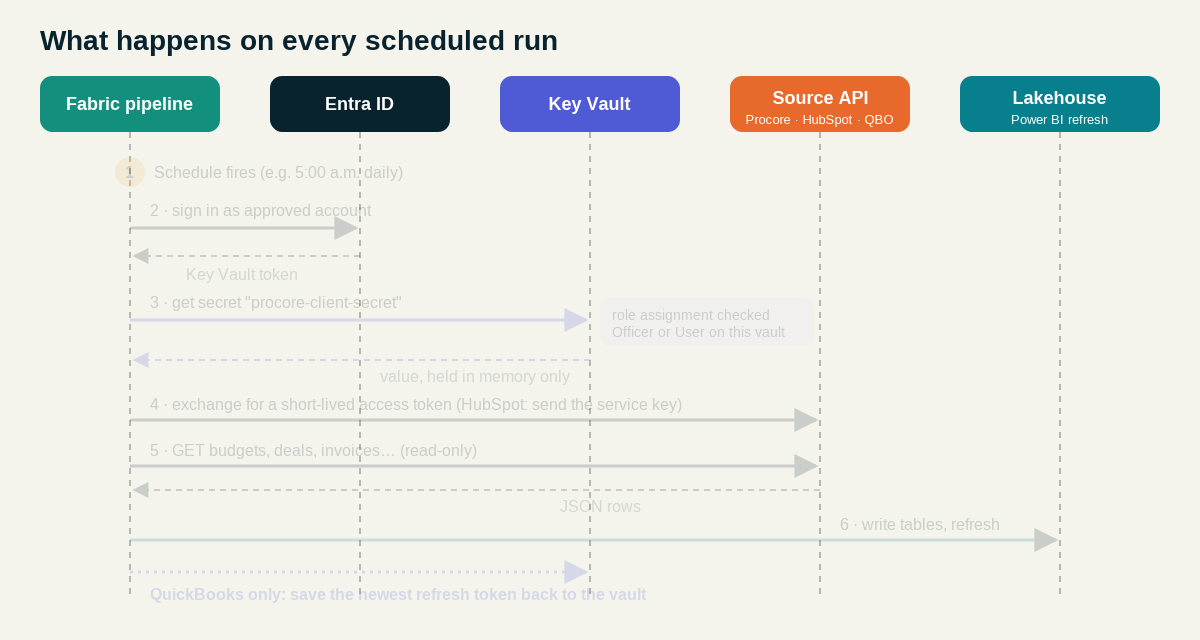 Every scheduled run looks up the secrets fresh. Nothing is cached in the workspace.
There are two common ways Fabric reads the vault, and a build often uses both:
- Notebooks call
notebookutils.credentials.getSecret("https://<vault-name>.vault.azure.net/", "procore-client-secret"). Microsoft documents that this call uses the current user's credentials, so the identity the notebook runs as needs a role on the vault. Interactively that is whoever is signed in. On a schedule it is the identity the scheduled run executes under, typically the account that owns the schedule or pipeline. - Connections created under Settings (gear) → Manage connections and gateways can use an Azure Key Vault reference, for the connector types and authentication methods that support it. Fabric stores the vault URI, the secret name and the sign-in it uses to reach the vault, never the secret value, and always fetches the latest version of the secret.
The Fabric + Key Vault article shows both, with secret naming and identity details.
The go-live itself:
- Setup call. Your QuickBooks admin clicks Connect, and the integration stores the realm ID and refresh token in the vault. Five minutes of their time.
- First full load of all three systems into lakehouse tables.
- Reconcile the numbers against your own source reports, such as job cost in Procore, AR aging in QuickBooks and pipeline in HubSpot, before anyone relies on the dashboard.
- Publish the Power BI report and schedule the daily refresh.
- Review together and sign off.
What to send back
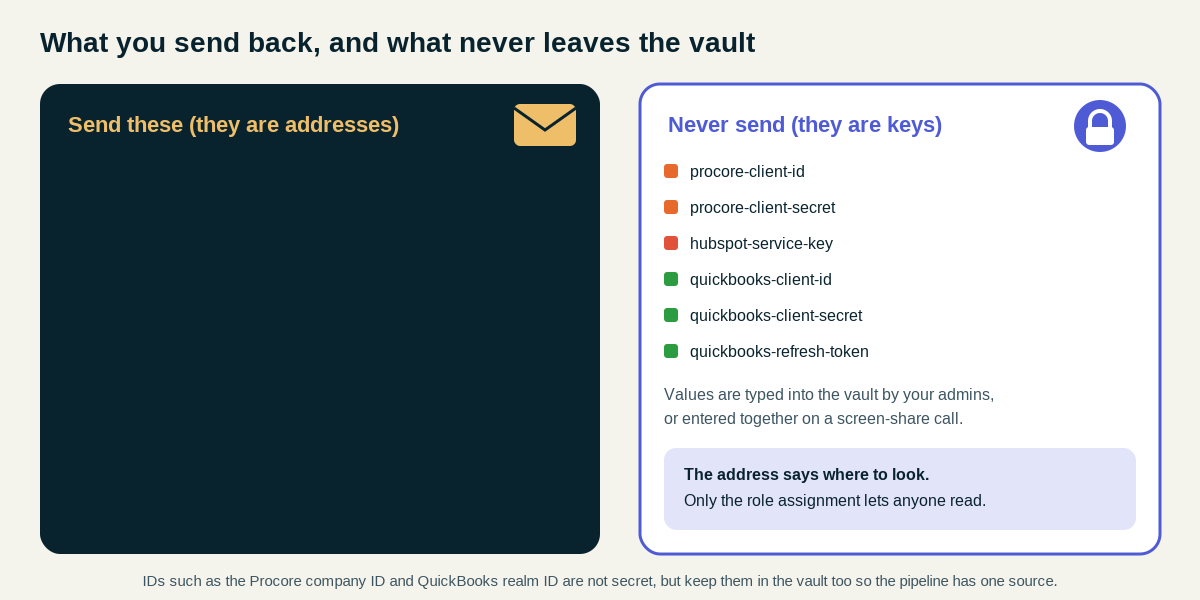 The address says where to look. Only the role assignment lets anyone read.
When step 3 is done, reply with five things. None of them is a credential:
- Vault URI, from the vault's Overview page, for example
https://kv-reporting-analytics.vault.azure.net/ - Directory (tenant) ID, from Microsoft Entra ID → Overview or the vault's Overview
- Subscription and resource group names
- The account given access in step 3B
- Secrets added: "all done", or the names still missing
The guide asks for the subscription name. In the recap at the end of the video it is called the subscription ID. Either is fine to share. Neither grants access on its own.
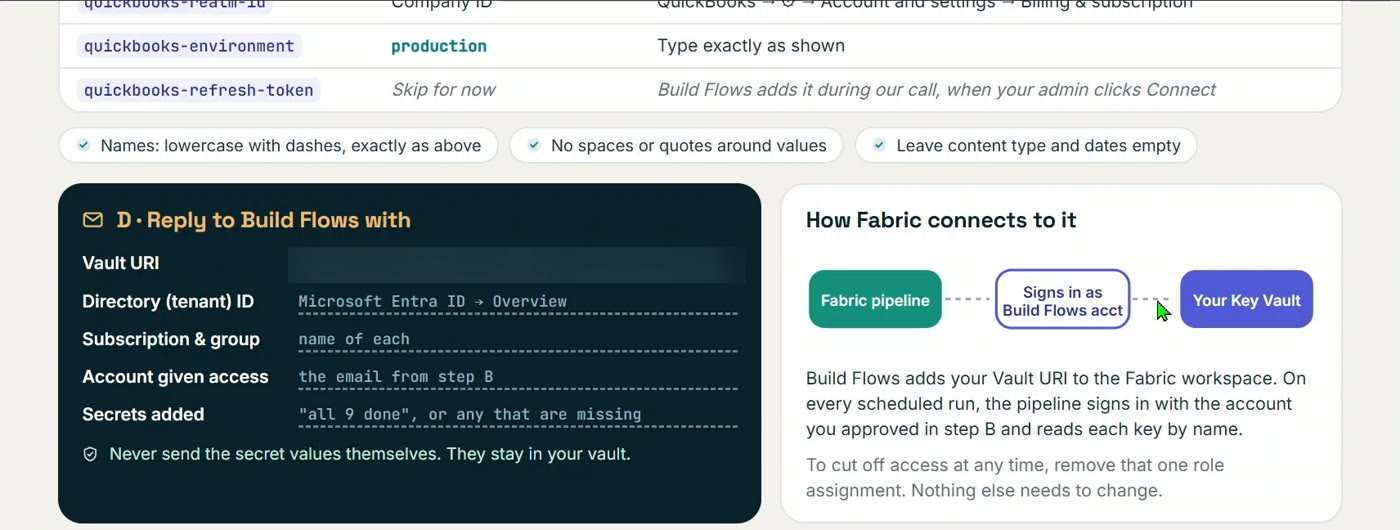 The reply checklist from the guide. The values stay in your vault.
Need to share a value outside the vault for some reason? Read never email an API key first. It covers the safe options, and what to do if a key has already gone out by email.
Revoking or changing access later
- End the engagement: remove the consultant's Key Vault Secrets Officer assignment on the vault and their Fabric workspace role. Role changes in Azure can take a few minutes to apply, and after that their account can no longer read the vault. No key was ever sent outside your team. Anyone who held the role could technically read a value from code, though, so rotate the secrets as well if your policy calls for it or you have any doubt.
- Rotate a key: generate a new value in the source system and add it as a new version of the same secret. Fabric picks up the latest version on the next run. The rotation guide has the order of operations for each system.
- Turn off one source: uninstall the Procore app in App Management, delete or rotate the HubSpot service key, or disconnect the app in QuickBooks.
Common mistakes
| Mistake | What happens | Do this instead |
|---|---|---|
| Granting admin "so it just works" | One leaked key can change budgets, deals or the books | Read Only tools in Procore, .read scopes in HubSpot |
| Copying the Procore sandbox credentials | The API returns nothing from your live company | Promote the version, then copy the production keys |
| Forgetting permitted projects | Procore calls succeed but return empty lists | Add every active project at install, then each new job |
| One HubSpot scope "to test" | 403 errors on deals, companies or owners | Add every read scope the reports need |
| Development keys in QuickBooks | Sandbox data or 401 errors | Production keys, and production in quickbooks-environment |
| Assigning Secrets User instead of Officer | The QuickBooks refresh token cannot be saved and the connection dies later | Key Vault Secrets Officer on this vault only |
| Assuming subscription Owner can add secrets | "Not authorized" on Generate/Import | Assign yourself Secrets Officer on the vault too |
| A different account in Fabric and in Key Vault | Scheduled runs fail with 403 on the vault | Use the same account in step 1 and step 3B |
| Emailing a key "just to unblock" | A credential in mailboxes and backups for years | Type it into the vault, or enter it together on a call |
| Secret names with capitals, spaces or quotes | Lookups fail by name | Lowercase with dashes, values pasted clean |
Checklist
- Fabric workspace created on a capacity (F2 to start)
- Consultant account added to the workspace as Admin (guest or domain account decided)
- Procore DMSA app with Read Only tools, version promoted to production
- Procore custom app installed in the live company, active projects permitted
- HubSpot service key created with every
.readscope the reports need - Intuit app with the Accounting scope only, production keys unlocked
- Key Vault created with Azure RBAC, in the same region as the capacity
- Key Vault Secrets Officer assigned to you and to the consultant account on the vault
- Nine secrets added with exact names, refresh token left for the Connect call
- Vault URI, tenant ID, subscription and resource group, account and secret status sent back
- No secret value sent by email, chat or ticket
- Setup call booked with your QuickBooks admin for the one-time Connect
Getting help
Most teams get through this with the guide and an hour of admin time. If you would rather do it together, Build Flows can run the setup with you on a screen-share. Your admins stay in control and type the values straight into your vault, and nobody emails a key. Email charley@buildflows.ai, start at buildflows.ai, or send a short brief. The security page explains how we handle access. The Procore, QuickBooks and HubSpot to Fabric demo shows what the finished pipeline looks like, and the interactive checklist tracks every step above.
Related reading: building construction reporting in Microsoft Fabric, connector framework and Procore OAuth and the integration mapping template.
References
- Microsoft Learn: Give users access to workspaces in Microsoft Fabric
- Microsoft Learn: Roles in workspaces in Microsoft Fabric
- Microsoft: Microsoft Fabric pricing
- Microsoft Learn: Quickstart: Create a key vault using the Azure portal
- Microsoft Learn: Grant permission to applications to access an Azure key vault using Azure RBAC
- Microsoft: Azure Key Vault pricing
- Microsoft Learn: Configure Azure Key Vault references in Microsoft Fabric
- Microsoft Learn: NotebookUtils credentials utilities for Fabric
- Procore Developers: Developer Managed Service Accounts
- Procore Support: Install a custom app
- Procore Support: Add a permitted project to a data connection app
- HubSpot Developers: Make API requests using a service key
- HubSpot Developers: Legacy private apps overview
- HubSpot Developers: Scopes
- Intuit Developer: Set up OAuth 2.0 for QuickBooks Online
- Intuit Developer: Authorization FAQ (token lifetimes)
- Intuit Developer: Publish your app and get production keys
Frequently asked questions
How long does the credential setup take?
About 90 minutes of hands-on time from your team: roughly 10 minutes for Fabric access, an hour across the Procore, HubSpot and QuickBooks admins, and 20 minutes for Key Vault. Elapsed time is often a few days, because Intuit production keys and the Procore install can need some back-and-forth, so start the API step early.
Do we have to send our API keys to the consultant?
No. Your admins type each key into an Azure Key Vault in your tenant and grant the consultant's account one role on that vault. You send back only the Vault URI, the Directory (tenant) ID, the subscription and resource group names, the account you approved and which secrets you added.
Is the access really read-only?
In Procore and HubSpot, yes: the service account gets Read Only tool permissions and the service key gets only .read scopes. QuickBooks Online has no read-only accounting scope, so read-only is enforced by the pipeline only running queries and reports. Treat the QuickBooks credentials as write-capable secrets.
Why does the consultant need Key Vault Secrets Officer instead of Secrets User?
Secrets User can only read. The integration has to write the QuickBooks refresh token after the one-time Connect step and every time Intuit rotates it, and occasionally update a reissued key. Secrets Officer is assigned on the one vault only, so it does not reach the rest of your Azure.
What does Microsoft Fabric cost for this?
An F2 capacity is enough to start for most contractors. At Microsoft's US list price of $0.18 per capacity unit hour it is about $262.80 a month on pay-as-you-go, less if you pause it or buy a reservation. Check current pricing for your region, and note that Power BI viewers on capacities below F64 need their own licenses.
Should we invite the consultant as a guest or create an account on our domain?
Both work. A guest invite is quickest. An account on your domain is often simpler for licensing, conditional access and offboarding because you control it fully. Whichever you choose, use the same account for the Fabric workspace and the Key Vault role, because that is the identity the pipeline reads the vault with.
How do we cut off access when the project ends?
Remove the consultant's Key Vault Secrets Officer assignment on the vault and their Fabric workspace role. Once the change applies, usually within minutes, their account can no longer read the vault. No key was ever emailed out, but anyone who held the role could have read a value, so rotate the secrets as well if your policy requires it. You can also uninstall the Procore app, delete the HubSpot service key or disconnect the QuickBooks app to stop the data feed itself.
Next step
Need this connection in your environment?
Scope one integration: the records, direction, timing, and business rules behind the connection.
Prefer email? charley@buildflows.ai
Keep learning
Integrations · November 14, 2026
Azure Key Vault Setup for Data Integrations: Create the Vault, Set RBAC and Assign Secrets Officer
A step-by-step guide to creating an Azure Key Vault for integration secrets: resource group and globally unique name, matching the Fabric region, Standard tier, soft delete and the purge protection trade-off, the RBAC permission model, networking, the Key Vault Secrets Officer role assignment, why 'not authorized' appears right after setup, and what it really costs.
Integrations · November 14, 2026
Read-Only API Scopes for Construction Reporting: Procore, HubSpot, QuickBooks, Azure and Fabric
A reference that starts from the report (WIP, backlog, pipeline, AR aging, cash) and maps it to the smallest read permission in Procore, HubSpot and QuickBooks Online, plus the right Azure Key Vault and Microsoft Fabric roles, with every name checked against vendor docs.
Integrations · November 14, 2026
Never Email an API Key: A Secure Credential Handoff Between a Company and a Consultant
A vendor-neutral process for sharing integration credentials safely: your company owns the vault, the partner gets a scoped role, and only the vault address ever crosses between you.