Key takeaways
- HubSpot stopped new legacy private app creation on September 28, 2026 for new accounts and October 26, 2026 for older ones; existing private apps keep working, but new integrations use service keys.
- Create the key at Settings > Integrations > Service Keys (also reached through Development > Keys > Service Keys) as a Super Admin or a user with Developer tools access.
- A reporting integration needs only five read scopes: crm.objects.deals.read, companies.read, contacts.read, line_items.read and owners.read, plus crm.schemas.*.read if it needs property definitions.
- Click Copy and paste the key straight into Azure Key Vault as hubspot-service-key; send the Vault URI, never the key.
- Rotate every six months with Rotate and expire later, which keeps the old key working for 7 days while you add a new secret version; use Rotate and expire now for a leaked key.
- Service keys can't authenticate webhooks or UI extensions, so they suit scheduled reporting pulls, not real-time push.
38 seconds · From a Build Flows walkthrough
Find Service Keys in HubSpot settings
Open Settings, expand Integrations and pick Service Keys instead of Private Apps or Legacy Apps. The speaker says private apps are discontinued; precisely, HubSpot stopped new legacy private app creation on October 26, 2026 for existing accounts, and existing private apps keep working.
Read the clip transcript
What we need to do next is go into the Settings tab, and within Settings, scroll over here. We're looking for Integrations, I believe. Integrations, here it is. Legacy apps and private apps are basically discontinued, so we need to create a service key. So essentially, what we'll do is create a service key.
Captions adapted from the source video; proper names may reflect automatic transcription. Original segment: 12:36–13:13. Watch at the source.
36 seconds · From a Build Flows walkthrough
Create a service key with read-only CRM scopes
Name the key, open Add new scope, search for each read scope (here crm.objects.deals.read) and tick it. The demo adds one scope; a reporting integration also needs the companies, contacts, line items and owners read scopes.
Read the clip transcript
We'll name this. I'll just name it buildflows. And we'll give it the scopes that we need. These are all of the different settings, so we can look back at which scopes we need to provision it for. We'd search for each of these and give it access. I'm just going to do one for now, for this example. I'll go back here, and I can just search for it, and there you go. So for the example, I'll just do one. And there we go.
Captions adapted from the source video; proper names may reflect automatic transcription. Original segment: 13:14–13:50. Watch at the source.
27 seconds · From a Build Flows walkthrough
Create the key and copy it straight to Key Vault
Confirm Create, then use Copy on the key page and put the value in Key Vault, not in email or chat. The key page also shows Rotate and Automatic Rotation, where the old key keeps working for 7 days; the clip does not show the rotation itself.
Read the clip transcript
And now let's create it. Great. Now we have the service key. We can use this to make API calls, so what we'll do is copy it. Then we'd store it in our Key Vault as well. So we just provisioned HubSpot.
Captions adapted from the source video; proper names may reflect automatic transcription. Original segment: 13:50–14:18. Watch at the source.
Your reporting project needs HubSpot deals, companies, contacts, line items and owners in the same place as your Procore and QuickBooks data. For years the answer was "create a private app and send over the token." That answer is out of date. HubSpot no longer lets you create new legacy private apps, and the setup screen most guides describe now points you somewhere else.
The replacement is a service key: an account-level credential you create in HubSpot settings, limit to specific scopes, and send as a Bearer token. This guide walks through creating one with read-only CRM scopes, getting it into Azure Key Vault without passing it through email, and rotating it later without breaking the integration.
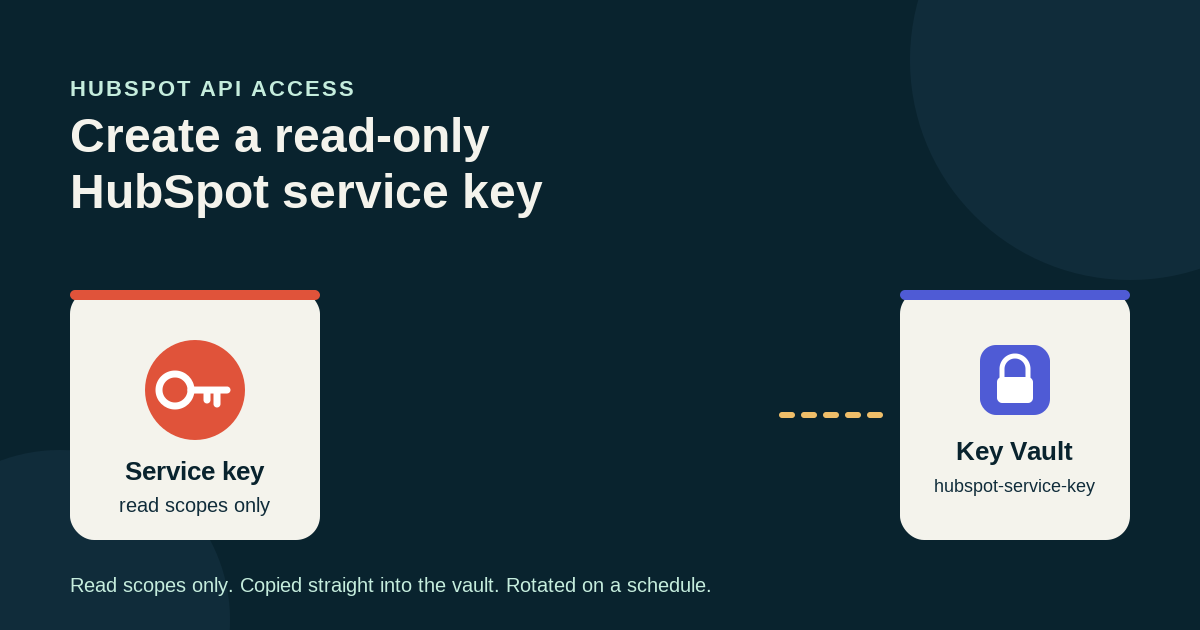 One key, five read scopes, one place it lives.
This is step 2 of the secure API credential setup for Procore, HubSpot and QuickBooks. The Procore and QuickBooks equivalents are in the Procore DMSA guide and the QuickBooks Online credentials guide.
What changed: private apps vs service keys
The video walkthrough says private apps are "basically discontinued." That is close, but the precise status matters if you already have one.
- Service keys entered public beta on February 10, 2026. HubSpot built them for system-to-system integrations, BI tools, data warehouses and internal reporting. HubSpot's current service keys documentation no longer describes them as beta.
- New legacy private apps can no longer be created. Accounts created on or after September 28, 2026 lost the option that day. Older accounts lost it on October 26, 2026.
- Existing legacy private apps keep working as-is. HubSpot still supports them but they don't get new platform features, and HubSpot recommends migrating.
 If you have a working private app, nothing breaks today. New integrations start with a service key.
| Legacy private app | Service key | |
|---|---|---|
| Can you create a new one? | No (since Sep 28 or Oct 26, 2026, depending on account age) | Yes |
| Where | Development > Legacy Apps (existing apps only) | Settings > Integrations > Service Keys, or Development > Keys > Service Keys |
| How it authenticates | Authorization: Bearer with the app's access token | Authorization: Bearer with the service key |
| Scopes | Chosen per app | Chosen per key, editable after creation |
| Webhooks | Supported | Not supported; use a project-based app |
| Rotation | Rotate now or with a 7-day overlap | Rotate now or with a 7-day overlap, plus optional automatic rotation |
| Tied to a person? | No | No. The integration keeps working if the creator leaves |
For a reporting pipeline that only reads CRM data on a schedule, a service key is the right fit. You don't need webhooks, UI extensions or OAuth installs into other people's accounts.
If an older guide or setup sheet tells you to create a private app and store a
pat-token ashubspot-private-app-token, do the service key steps below instead and store the key ashubspot-service-key.
Before you start
- Who: a HubSpot Super Admin, or a user with the Developer tools access permission. A key can only be given scopes the person creating it already has, so a limited user may not see every scope.
- What you need open: HubSpot in one tab, and your Azure Key Vault's Objects > Secrets page in another. If the vault doesn't exist yet, set it up first with the Key Vault guide. You need the Key Vault Secrets Officer role on it to add a secret.
- Time: about five minutes.
Step 1: Find Service Keys in HubSpot settings
- In HubSpot, click the Settings gear icon in the top navigation bar.
- In the left sidebar, expand Integrations. You'll see Connected Apps, Service Keys, Private Apps and Legacy Apps.
- Click Service Keys.
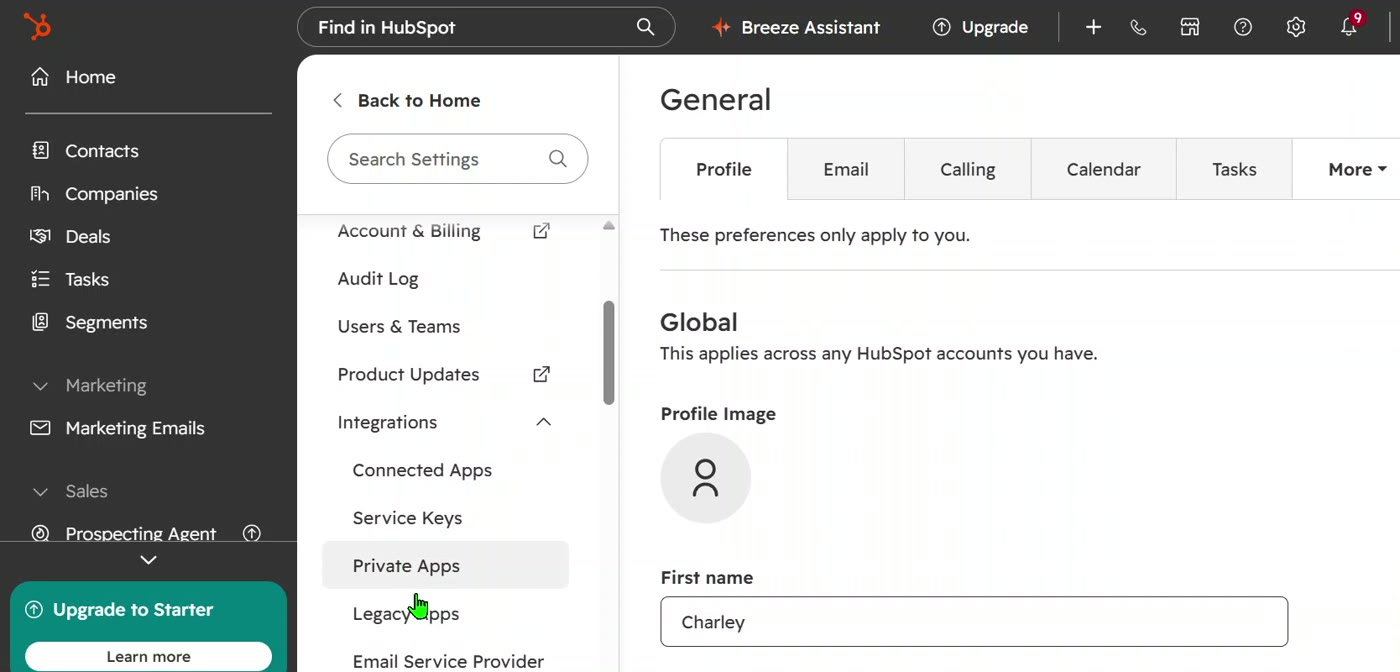 Settings > Integrations > Service Keys. Skip Private Apps and Legacy Apps.
The page that opens sits under Development > Keys > Service Keys in the main navigation, which is the path HubSpot's own documentation uses. Both routes land on the same list. Give each integration its own key. HubSpot allows up to 100 service keys, project-based apps and MCP connectors combined per account.
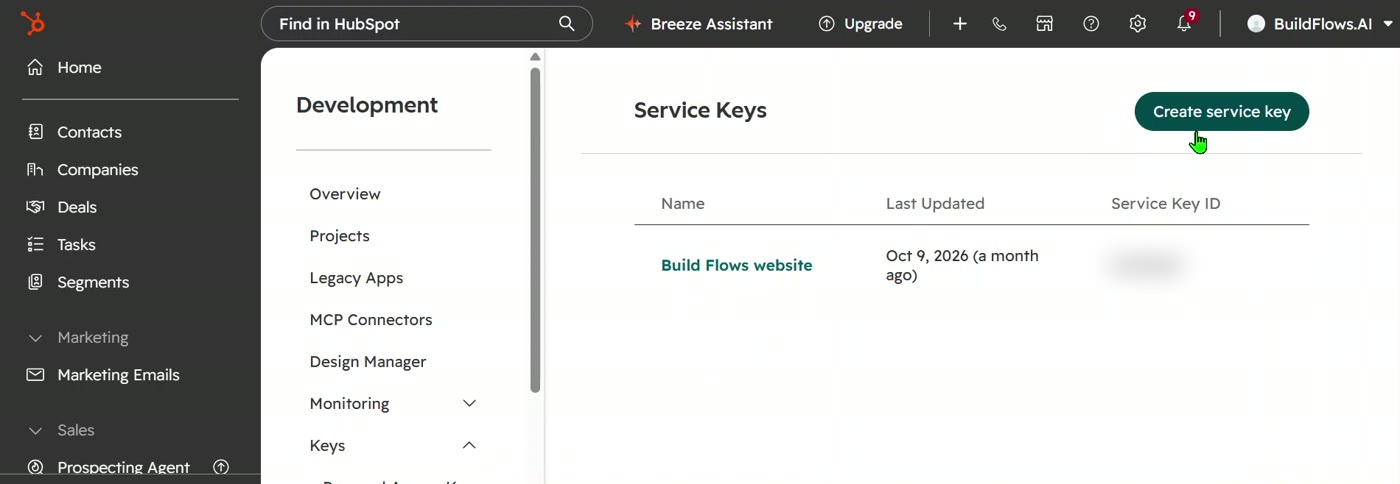 The Service Keys list. Any existing keys show here with their ID.
Step 2: Create the key with read-only CRM scopes
- Click Create service key in the top right.
- Under Name, enter something that says what the key is for, such as
reporting-fabric-readonly. The name appears in HubSpot logs and must be unique in the account. - Under Scopes, click + Add new scope.
- In the search box, type
crm.objects.deals.readand tick it under CRM. - Repeat for each scope in the table below. Search the full name each time so you don't tick a
.writescope by accident. - Expand Summary of selected scopes and check that every entry ends in
.read. - Click Create in the top right.
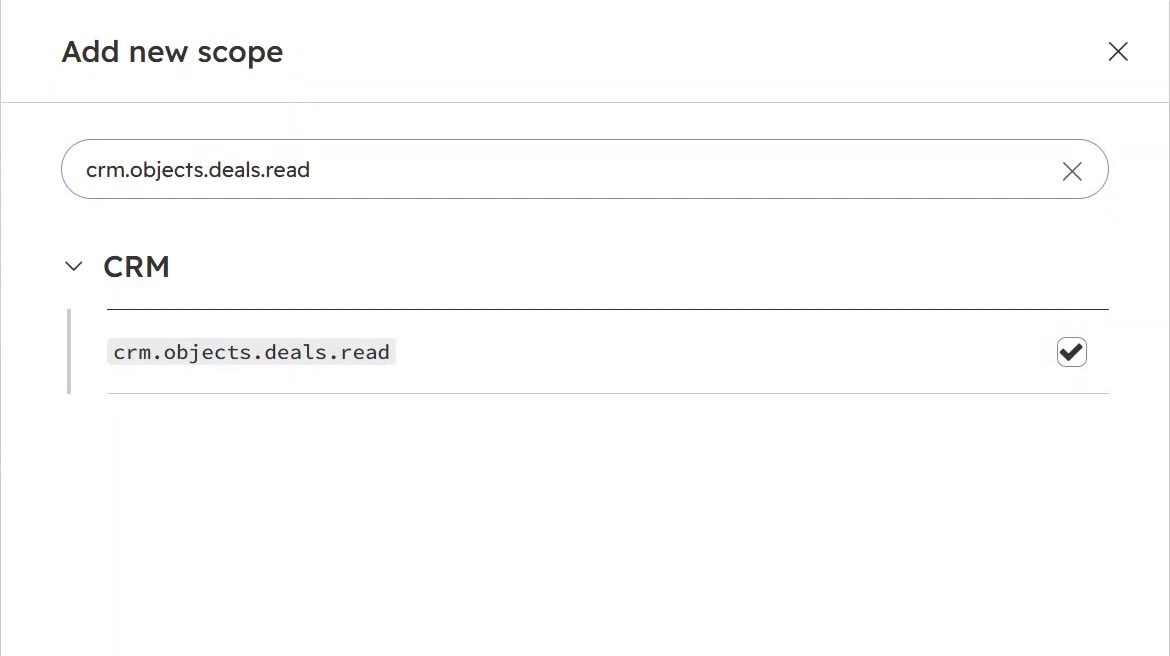 Search each scope by its full name and tick only the .read version.
These are the scopes a typical construction reporting integration needs. All five are listed in HubSpot's scope reference and are available on every HubSpot tier.
| Scope | What it allows (HubSpot's description) | Why reporting needs it |
|---|---|---|
crm.objects.deals.read | View properties and other details about deals | Pipeline, backlog and win rate |
crm.objects.companies.read | View properties and other details about companies | Owner and client names on each deal |
crm.objects.contacts.read | View properties and other details about contacts | Decision makers and contact counts |
crm.objects.line_items.read | View properties and other details about line items | Bid breakdowns and scope of work on deals |
crm.objects.owners.read | View details about users assigned to a CRM record | Mapping deals to your estimators and salespeople |
If the integration also needs property definitions, such as the labels of a custom dropdown, add the matching schema scopes: crm.schemas.deals.read, crm.schemas.companies.read, crm.schemas.contacts.read and crm.schemas.line_items.read. They are also read-only. For the same least-privilege list across Procore and QuickBooks, see the read-only scope reference.
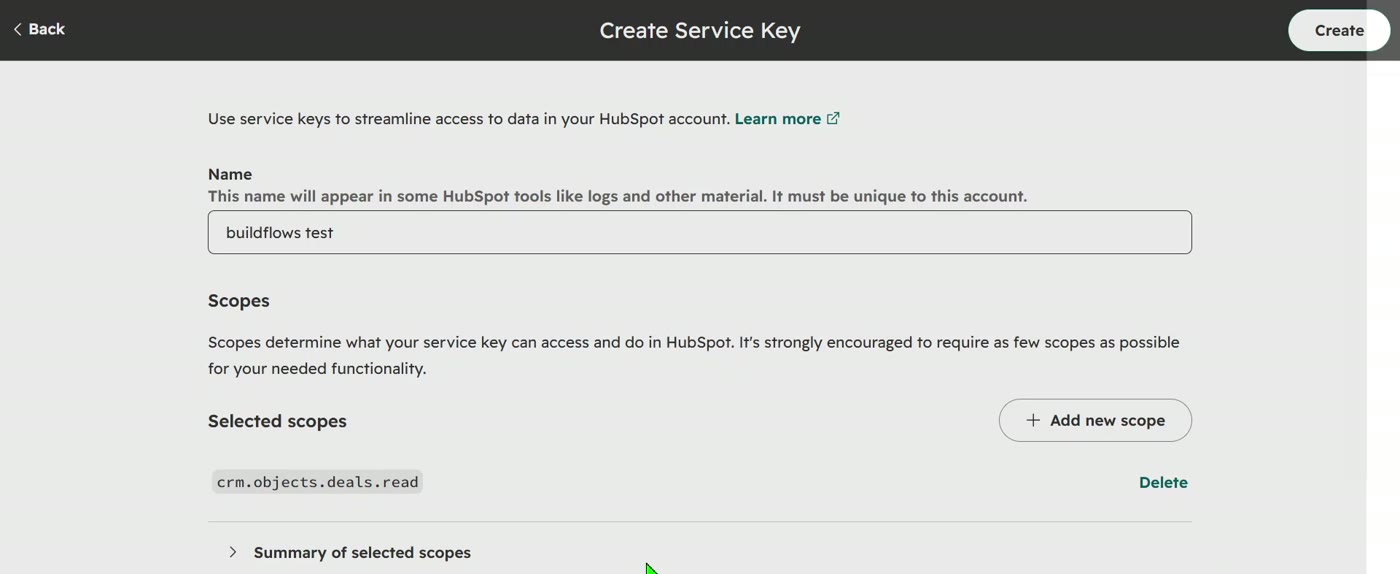 The demo adds one scope to keep it short. A real reporting key has all five read scopes.
The demo adds only crm.objects.deals.read to keep the recording short. You can add the rest later with Edit on the key's page, so a missing scope is easy to fix.
Step 3: Copy the key straight into Key Vault
After you click Create, HubSpot opens the key's page. The Service Key row shows the value partly hidden, with Show and Copy links and a Rotate menu.
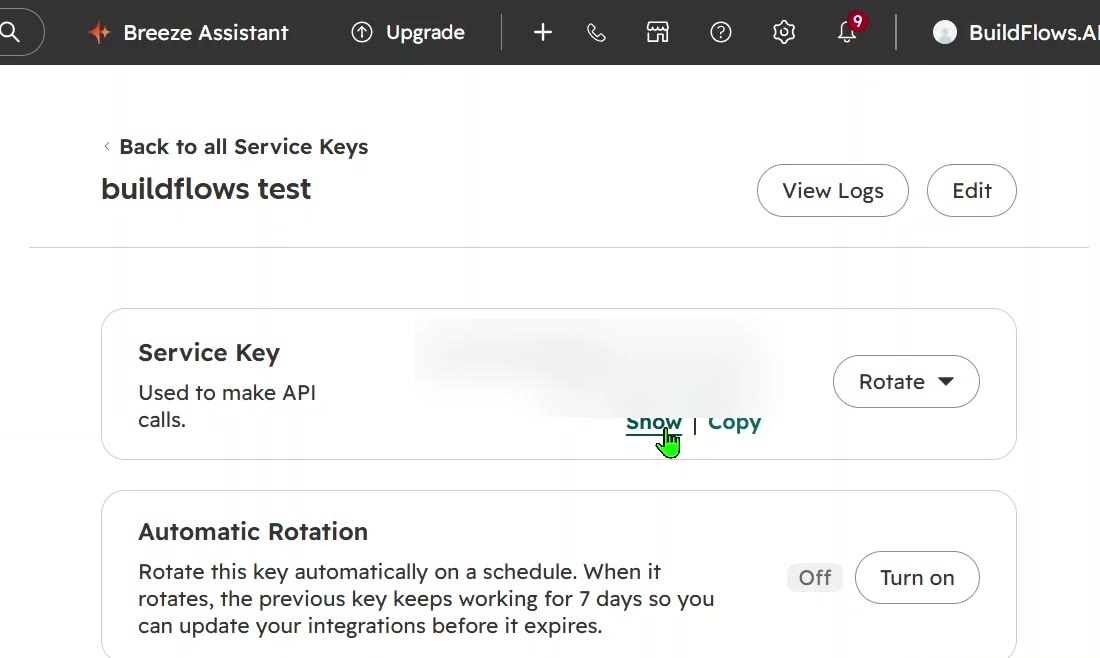 The key page: Copy the value, and note the Rotate and Automatic Rotation controls for later.
- Click Copy. You don't need to click Show.
- Switch to your Azure Key Vault tab and go to Objects > Secrets > + Generate/Import.
- Set Name to
hubspot-service-key, exactly as written: lowercase, with dashes. - Paste the key into Secret value. No quotes, no spaces, no
Bearerprefix. - Leave content type and the activation and expiration dates empty unless your team has a rotation policy. Click Create.
Unlike some client secrets, a service key isn't shown only once. An admin can open the key later and click Show and Copy again. Treat that as a recovery option, not a reason to save it anywhere else. The vault is the only copy that should exist outside HubSpot.
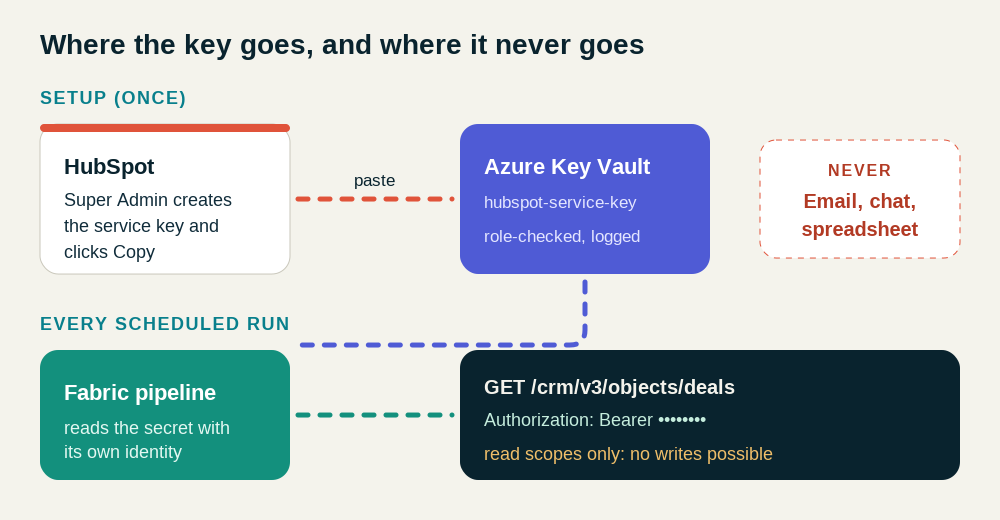 A person handles the key once. After that, only the pipeline reads it.
You then send your consultant the Vault URI, not the key. How that handoff works, and why it beats a password-protected email, is covered in never email an API key. How a Fabric notebook or pipeline reads the secret at run time is in Microsoft Fabric and Key Vault secrets.
Step 4: Test the key (optional)
If you're comfortable with a terminal, one request confirms the key and its scopes. Run it from a machine you trust, and don't paste the key into a shared chat to get help.
curl "https://api.hubapi.com/crm/v3/objects/deals?limit=1" \
  -H "Authorization: Bearer $HUBSPOT_SERVICE_KEY"
- 200 with a
resultsarray: the key works and has deals access. - 401: the key is wrong, was copied with extra characters, or has been rotated and expired.
- 403 mentioning missing scopes: the key works, but the scope for that object isn't on it. Add it with Edit.
Repeat with /crm/v3/objects/companies, /crm/v3/objects/contacts, /crm/v3/objects/line_items and /crm/v3/owners to check the other four. Build Flows runs the same checks during the go-live call, so this step is optional.
Rotate the key without breaking the pipeline
HubSpot recommends rotating service keys every six months, even if nothing has gone wrong. The Rotate menu on the key's page gives you two options:
| Option | What happens | Use it when |
|---|---|---|
| Rotate and expire later | A new key is issued. The old key keeps working for 7 days | Planned rotation |
| Rotate and expire now | A new key is issued. The old key stops working immediately | The key was emailed, pasted somewhere public or otherwise exposed |
During a 7-day rotation you can also choose Expire now to end the overlap early, or Cancel rotation.
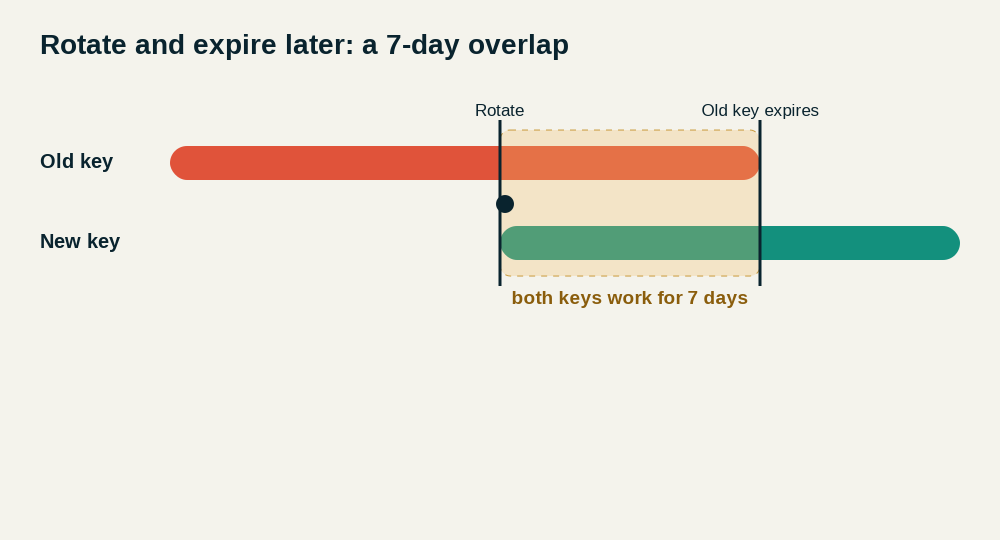 The 7-day overlap is your window to update the vault and confirm one good run.
A planned rotation takes three steps:
- In HubSpot, open the key and choose Rotate > Rotate and expire later. Copy the new key.
- In Key Vault, open
hubspot-service-keyand click + New Version. Paste the new key. Pipelines that read the latest version pick it up on their next run. - Run the pipeline once, or wait for the next scheduled run, and confirm HubSpot data refreshed. Then let the old key expire.
You can also turn on Automatic Rotation to rotate every 3, 6 or 12 months. It is off by default, and turning it on disables manual rotation. Super Admins and users with Developer tools access get an email when a key rotates and before the old key expires. Automatic rotation only helps if someone acts on that email and updates the vault within 7 days. If nobody owns that, keep rotation manual and put it on a calendar. The rotation guide covers the same pattern for Procore and QuickBooks.
Common mistakes
- Creating a private app because an old guide said so. New ones can't be created. Use a service key and name the secret
hubspot-service-key. - Ticking
.writescopes "just in case." A reporting integration never needs them. If someone asks for write access, ask what it will write. - Missing a scope, then broadening everything. A 403 on one object means one scope is missing. Add that scope with Edit. Don't recreate the key with more access.
- Creating the key as a user with limited permissions. A key can only receive scopes its creator has. If a scope doesn't appear, have a Super Admin create the key.
- Pasting the key with
Bearerin front, or with a trailing space. Key Vault stores exactly what you paste. Store the bare key. - Emailing the key "just this once." If that happened, use Rotate and expire now and store the new key in the vault.
- Turning on automatic rotation with nobody watching the email. The pipeline breaks 7 days after the rotation. Assign an owner first.
- Expecting webhooks. Service keys can't authenticate webhooks or UI extensions. If you need real-time push from HubSpot, that's a project-based app, not a service key.
More error-by-error fixes are in credential setup troubleshooting.
Checklist
- Signed in as a Super Admin or a user with Developer tools access.
- Opened Settings > Integrations > Service Keys (not Private Apps or Legacy Apps).
- Named the key for its purpose, such as
reporting-fabric-readonly. - Added
crm.objects.deals.read,crm.objects.companies.read,crm.objects.contacts.read,crm.objects.line_items.readandcrm.objects.owners.read. - Confirmed in Summary of selected scopes that every scope ends in
.read. - Copied the key and stored it in Key Vault as
hubspot-service-key, with no quotes, spaces orBearerprefix. - Did not send the key by email, chat or spreadsheet.
- Sent the Vault URI, not the key, to whoever runs the integration.
- Set a rotation date (HubSpot recommends every six months) and named who acts on rotation emails.
The API credential setup checklist tracks this step with the Procore, QuickBooks and Key Vault steps, and generates the exact secret names.
Want help with the setup?
Build Flows connects Procore, HubSpot and QuickBooks Online to Microsoft Fabric for construction reporting. If you'd rather not do this alone, we can do the HubSpot key and the rest of the credential setup with you on a short call. You keep the keys in your own vault and we never ask for them by email. Email charley@buildflows.ai or start at buildflows.ai. To see what the finished pipeline looks like, there's a Procore, QuickBooks and HubSpot to Fabric demo and a write-up on building construction reporting in Microsoft Fabric. How we handle access is on the security page.
References
- HubSpot Developers: Service keys (who can create keys, Bearer authentication, Show and Copy, editing scopes, rotation options, the 7-day overlap, automatic rotation every 3, 6 or 12 months, six-month recommendation, webhook limitation, 100-per-account limit)
- HubSpot Developers changelog: Service Keys now in public beta (February 10, 2026; Settings > Integrations > Service Keys; scopes limited to the creator's own access; not tied to an individual employee)
- HubSpot Developers changelog: Legacy private app creation sunset (September 28 and October 26, 2026; existing private apps continue to work)
- HubSpot Developers: Legacy private apps overview (creation disabled, existing apps supported without new features, found under Development > Legacy apps)
- HubSpot Developers: Scopes (
crm.objects.*.readandcrm.schemas.*.readscope names and descriptions) - Microsoft Learn: Azure Key Vault secrets overview (secret versions)
Frequently asked questions
Are HubSpot private apps discontinued?
Creation is. Accounts created on or after September 28, 2026 can't create legacy private apps, and older accounts lost the option on October 26, 2026. Existing private apps continue to work as-is, but they don't get new platform features and HubSpot recommends migrating. For new system-to-system integrations, HubSpot points you to service keys.
What is the difference between a HubSpot service key and a private app access token?
Both are account-level credentials sent as an Authorization: Bearer header and limited by scopes. A service key is created under Settings > Integrations > Service Keys, can have its scopes edited later, and supports automatic rotation every 3, 6 or 12 months. Unlike private apps, service keys can't authenticate webhooks or UI extensions.
Which HubSpot scopes does a read-only reporting integration need?
Usually crm.objects.deals.read, crm.objects.companies.read, crm.objects.contacts.read, crm.objects.line_items.read and crm.objects.owners.read. If the integration reads property definitions, such as dropdown labels, add the matching crm.schemas.<object>.read scopes. None of these allow writes.
Who can create a HubSpot service key?
Super Admins and users with the Developer tools access permission. A key can only be given scopes the person creating it already has. If a scope you need doesn't appear in the list, ask a Super Admin to create the key.
Can I see a HubSpot service key again after creating it?
Yes. The key is partly hidden on its details page, and an admin can click Show and then Copy. That makes recovery easy, but the key should still go straight into Azure Key Vault and nowhere else, so there's one copy outside HubSpot to manage.
How do I rotate a HubSpot service key without breaking my pipeline?
Choose Rotate, then Rotate and expire later. HubSpot issues a new key and keeps the old one working for 7 days. Add the new key as a new version of the hubspot-service-key secret in Key Vault, confirm one good pipeline run, and let the old key expire.
What should I do if a HubSpot service key was emailed or shared in chat?
Treat it as exposed. Open the key in HubSpot and choose Rotate and expire now, which stops the old key immediately. Store the new key in Key Vault, and expect the pipeline to fail until the vault holds the new value.
Next step
Need this connection in your environment?
Scope one integration: the records, direction, timing, and business rules behind the connection.
Prefer email? charley@buildflows.ai
Keep learning
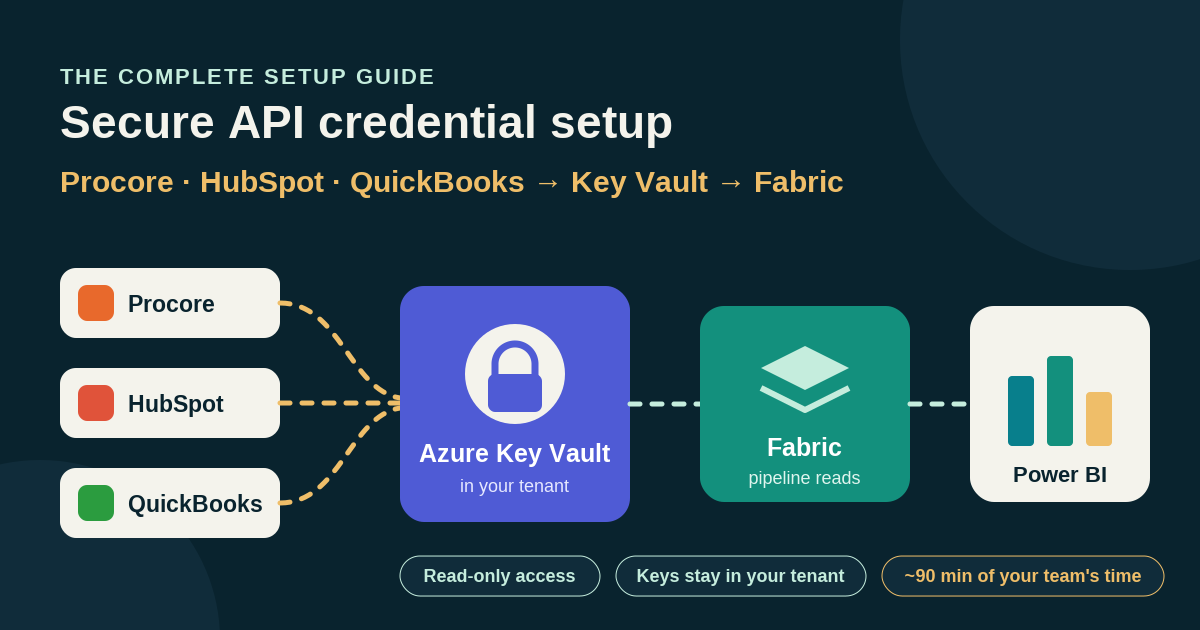
Integrations · November 14, 2026
Secure API Credential Setup for Procore, HubSpot and QuickBooks with Azure Key Vault and Microsoft Fabric
The end-to-end guide to connecting Procore, HubSpot and QuickBooks Online to Microsoft Fabric and Power BI without handing over credentials: who owns each step and how long it takes, the architecture from sources through Azure Key Vault to Fabric, the four steps (Fabric access, read-only API access in three systems, Key Vault with the Secrets Officer role, connect and go live), the exact secret names, what to send back, how to revoke access, common mistakes and a checklist.
Integrations · November 14, 2026
Read-Only API Scopes for Construction Reporting: Procore, HubSpot, QuickBooks, Azure and Fabric
A reference that starts from the report (WIP, backlog, pipeline, AR aging, cash) and maps it to the smallest read permission in Procore, HubSpot and QuickBooks Online, plus the right Azure Key Vault and Microsoft Fabric roles, with every name checked against vendor docs.
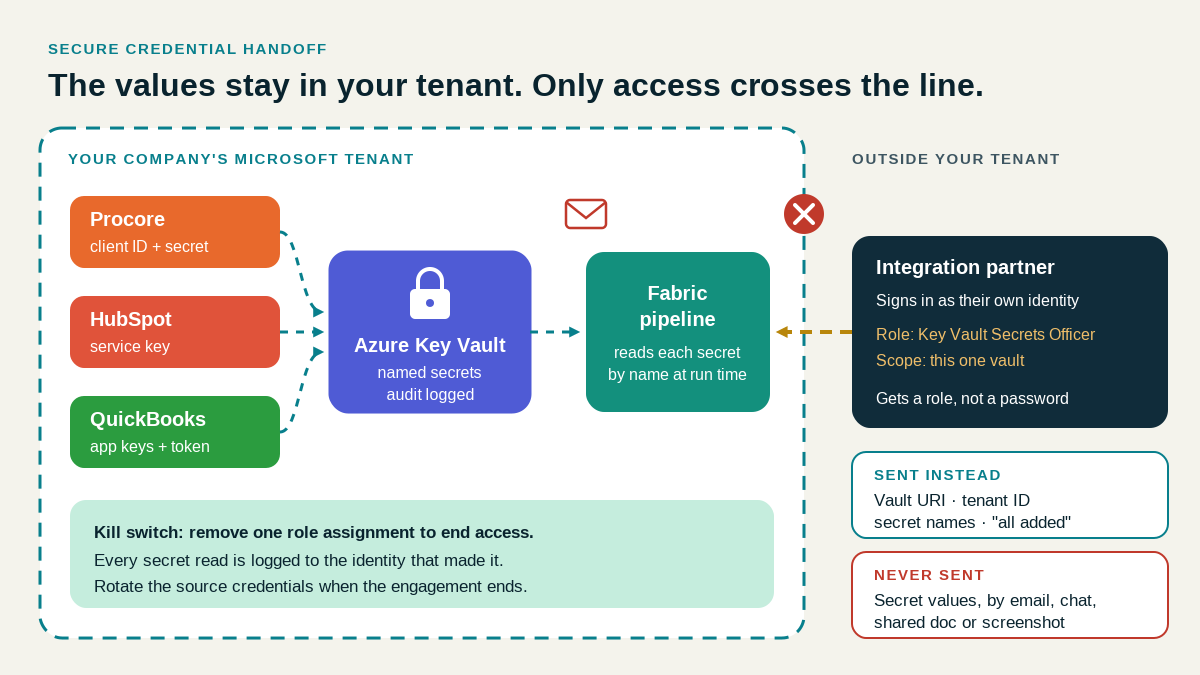
Integrations · November 14, 2026
Never Email an API Key: A Secure Credential Handoff Between a Company and a Consultant
A vendor-neutral process for sharing integration credentials safely: your company owns the vault, the partner gets a scoped role, and only the vault address ever crosses between you.