Estimating job setup: job numbers and folder templates in SharePoint
Add a row to a job register and a flow issues the next job number, builds the estimating folder from your template, and later converts it into the project folder.
The problem
New jobs are set up by hand: someone checks the last job number, creates a folder, copies a template tree, and later repeats it for the project. Numbers get skipped or duplicated, folder names drift, and nobody can say when a job was set up or by whom.
What we build
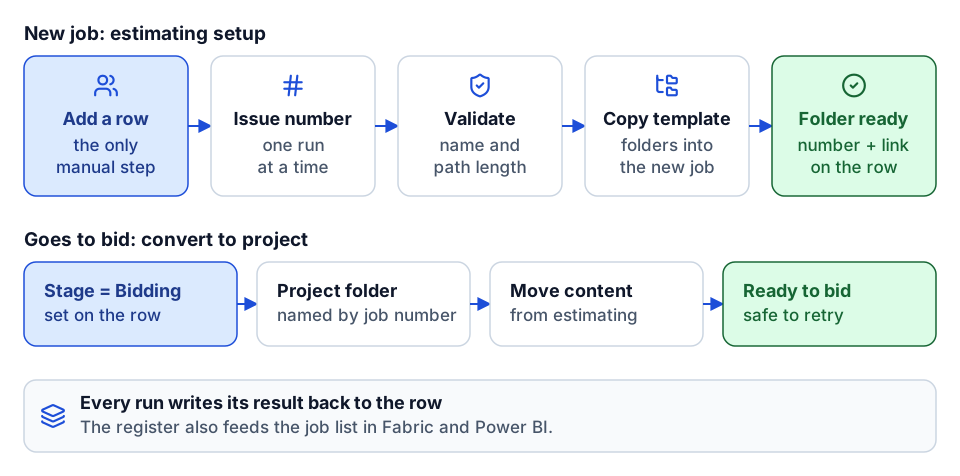
We use one SharePoint list as the job register. A new row triggers a flow that issues the next number, validates the name and path length, and copies your template folders. Changing the stage to bidding converts the estimating folder into a project folder. Every run writes its result back to the row.
How it works
- 1
Register the job
Someone adds the project name to the job register. That is the only manual step.
- 2
Issue the number
The flow reads the last number for the year and issues the next, with runs serialized so two jobs can never receive the same number.
- 3
Build the folders
The name is cleaned and checked against SharePoint path limits before anything is created, then the template folders are copied in.
- 4
Convert at bid
Setting the stage to bidding creates the project folder by job number and moves the estimating content into it. Both flows are safe to retry.
- SharePoint
- Power Automate
- Microsoft Fabric
- Power BI
The value it creates
Time saved
Job setup goes from a manual checklist to adding one row; we compare setup time before and after.
Standardization
Every job gets the same number format and the same folder tree.
Visibility
The register shows each job's stage, folders, who requested it and when.
Better decisions
The register feeds the job list in reporting, so reports and folders use the same job numbers.
Proof
Related use cases
- We design and build this
AP invoice approval routing by job, cost code and amount
Vendor invoices routed to the right project manager by job and amount, checked against the commitment, and passed to accounting once approved.
- We design and build this
Certificate of insurance expiry tracking and vendor reminders
Expired and expiring certificates of insurance flagged by vendor and project, with renewal requests sent before coverage lapses.
- We design and build this
Change order approval workflow with routing and escalation
Change orders routed to the right approver by amount and project, with reminders, escalation and a logged decision on every one.
- We design and build this
Daily log reminders that chase only the jobs that are missing one
A scheduled check that finds active projects with no daily log for the last workday and reminds the person responsible, not the whole company.
- We design and build this
RFI and submittal aging alerts before they hold up the work
RFIs and submittals approaching or past their due dates flagged to whoever has the ball in court, with a weekly aging summary for the project team.
- We design and build this
Subcontractor onboarding and prequalification without re-keying
One intake for new subcontractors that collects documents, routes prequalification for review, and sets the vendor up in Procore and accounting once approved.
Frequently asked questions
How do you stop two jobs getting the same number?
SharePoint lists have no atomic counter, so the flow runs one at a time. Two simultaneous runs would both read the same last number; serializing them removes that risk.
What happens if a run fails halfway?
The row is marked failed with the reason. Fix the cause, set the stage back, and the flow finishes the job without duplicating folders, because it checks what already exists first.
Who should own the flow?
A service account, not a named person. Flows run as their connection owner, so a personal account means the flow breaks when that person leaves.
Next step
Which report or workflow would you like to improve?
Tell us what your team does today, which systems are involved, and what you want to change. We'll discuss whether there is a practical fit.
Prefer email? charley@buildflows.ai