The short version: The construction workflows most worth automating in Power Automate are the repetitive, rule-based ones that hurt when someone forgets: change order and invoice approvals, daily log reminders, certificate of insurance expiry, RFI and submittal aging, project setup when a job is won, and scheduled report distribution. Design each one around a clear trigger, explicit conditions, a recorded approval, a log of every run, and a named owner. Build them in a solution under a service account, not in one person's "My flows", and govern connectors with data loss prevention (DLP) policies before the flow count grows.
Most construction admin work is the same steps repeated by people who have better things to do: chase an approval, remind a superintendent about yesterday's log, check whether a sub's insurance is still current, send the Friday update. If your company already runs on Microsoft 365, SharePoint and Teams, Power Automate is usually the cheapest place to start, because the licenses, the identity and the mailboxes are already there.
This guide covers which workflows to automate first, how to design them so they hold up on a real job, the pitfalls we see most often, and the governance that keeps fifty flows from becoming fifty liabilities.
What Power Automate is good at in construction
Power Automate cloud flows run when something happens (an automated trigger, such as a new SharePoint item or an email), when someone presses a button (an instant trigger), or on a timetable (a scheduled trigger). Each flow is a chain of actions across connectors: SharePoint, Outlook, Teams, Excel, Dataverse, approvals, and hundreds of third-party services.
That makes it a strong fit for:
- Approvals with a record of who approved what, when, and with what comment.
- Reminders and nudges that go to the right person at the right time.
- Alerts on aging or expiring items, from open RFIs to insurance certificates.
- Handoffs between systems, such as creating the project folder, Teams channel and tracking list when a job is won.
- Distribution, such as sending a report link to the owner every Friday.
It is a weaker fit for heavy data movement. If you are moving thousands of job cost lines every night, reconciling them and keeping history, that is a pipeline job for a data platform such as Microsoft Fabric, with Power Automate handling the human steps around it. Keep flows for decisions and messages, and keep bulk data in the data platform.
Construction workflows worth automating first
Pick workflows that are frequent, rule-based, and painful when missed. The table below is where we usually start.
| Workflow | Typical trigger | What the flow does | Who owns it | Use case |
|---|---|---|---|---|
| Change order approval | New or updated change order item | Routes by amount and type, waits for approval, records the decision, notifies the PM | Project controls or operations | Change order approval workflow |
| AP invoice approval | Invoice received in a mailbox or list | Matches to job and commitment, routes to the PM, escalates when stalled | Accounts payable | AP invoice approval routing |
| Daily log reminders | Scheduled, late afternoon on working days | Checks which active projects have no log for today and nudges the superintendent | Operations | Daily log compliance reminders |
| Certificate of insurance expiry | Scheduled, daily | Finds certificates expiring inside your windows, alerts the team, requests renewal from the vendor | Risk or compliance | Insurance certificate expiry tracking |
| RFI and submittal aging | Scheduled, daily or weekly | Lists items past due or open beyond a threshold, sends a digest to the responsible party | Project management | RFI and submittal aging alerts |
| Project setup when a job is won | Deal moves to closed won in the CRM | Creates folders, channels, tracking lists and project records with consistent names and IDs | Operations or IT | Deal won to project setup |
| Report distribution | Scheduled, weekly or monthly | Sends the current report link or export to owners and executives with a short summary | Project controls | Weekly owner update reports |
A few notes on each.
Approvals: change orders and invoices
Approvals are the classic Power Automate job. The built-in approvals connector supports "first to respond", "everyone must approve" and custom responses, and it records each decision. The design work is in the routing rules: which amounts go to which level, who covers when the approver is on site or on leave, and what happens when nobody responds. Write those rules down before you build anything. If the rules only exist in someone's head, the flow will encode a guess.
Reminders: daily logs
A daily log reminder is simple, but it only works if the flow knows which projects are active and who the superintendent is on each one. That list is usually the real project: one maintained table of active jobs and roles, which every other flow can also use.
Expiry: certificates of insurance
Certificate tracking needs two separate states: vendors with no certificate on file and vendors with an expired or expiring certificate. They need different follow-up, and mixing them hides both. In our production reporting build, certificates from Procore feed a vendor insurance view that lists expired and expiring certificates as a chase list. A scheduled flow is the natural next layer: read that list, alert the compliance owner, and send the vendor a renewal request from an approved template.
Aging: RFIs and submittals
Aging alerts work best as a digest, not a stream. One message per responsible person per day, sorted by days open, gets read. One message per overdue item gets filtered to a folder within a week.
Handoffs: project setup
When a project is won, the same setup steps repeat across systems. Automating them means the project exists everywhere with the same name and ID from day one, which also removes a matching problem later in reporting. We use Power Automate for this kind of supporting automation, setting up a project correctly once it is won, alongside the Fabric platform in our production reporting build, as covered in its walkthrough.
Distribution: reports
Scheduled distribution is the easiest win and the easiest to get wrong. Send a link to the live report rather than an attachment wherever you can, so nobody forwards last month's numbers. If the data behind the report failed its refresh or its quality checks, the flow should hold the send and tell the owner, not distribute a stale or wrong number. A stale answer beats a wrong one.
How to design a construction flow that holds up
Every reliable flow we build answers the same five questions.
1. Trigger: what starts it?
Choose the narrowest trigger that fits. "When an item is created or modified" on a busy SharePoint list fires on every edit, including the flow's own updates, which can loop. Use trigger conditions in the trigger's settings to fire only when the field you care about changes, or a status column to mark items as processed. For scheduled flows, pick a time that matches the work: a daily log reminder at 4 p.m. local time is useful; one at midnight is noise.
2. Conditions: what decides the path?
Put business rules in conditions that a non-developer can read: amount thresholds, project type, cost code group, days until expiry. Keep thresholds in one place, such as a settings list or environment variables in a solution, so changing an approval limit doesn't mean editing six flows.
3. Approvals: who decides, and what if they don't?
Every approval needs a timeout and an escalation. Decide what happens after two days of silence: remind, escalate to a deputy, or return the item to the requester. Cloud flow runs also have a maximum duration (30 days at the time of writing, per Microsoft's limits documentation), so long-running approvals need a design that survives a timeout, such as recording state in a list and picking it up in a new run. Keep a person on any decision that commits money or sends something to a client. That is human-in-the-loop by design, not a bolt-on.
4. Logging: can you prove what happened?
Run history in Power Automate is kept for a limited period and is visible mainly to flow owners. For anything that matters, write your own record: one row per run or per decision in a SharePoint list or Dataverse table with the item, the outcome, who acted, and when. Wrap the main actions in a Scope, add a second Scope set to "run after" failure or timeout, and have it log the error and notify the owner. A silent failure on a certificate reminder is worse than no automation, because everyone assumes it is handled. This is the same idea as telemetry on an agent: evidence on every output.
5. Ownership: who fixes it at 7 a.m.?
Every flow needs a named business owner (who decides the rules) and a technical owner (who fixes it when it breaks). Write both in the flow description and in your flow register. If the only person who understands a flow leaves, the flow keeps running until the day it doesn't, and then nobody knows what it was doing.
Common pitfalls with Power Automate in construction
- Flows owned by one person. Flows in someone's "My flows" use their connections and their permissions. When they leave and their account is disabled, the flows stop. Build in a solution, use a service account for connections, and add co-owners.
- Over-broad permissions. A flow that can read every SharePoint site because its owner can is a risk. Give the service account only the sites, lists and mailboxes the flow needs. That is least privilege applied to automation.
- Infinite loops. A flow that updates the item that triggered it can retrigger itself. Use trigger conditions or a processed flag.
- Alert fatigue. One email per item per day trains people to ignore the flow. Batch into digests, send to the responsible person only, and stop when the item is closed.
- Messy source data. A reminder that goes to the wrong superintendent, or a certificate matched to the wrong vendor, destroys trust fast. Fix the master data first: one project list, one vendor list, consistent IDs.
- Licensing surprises. Standard connectors such as SharePoint and Outlook are included with many Microsoft 365 plans; premium connectors, custom connectors and the HTTP action need premium licensing. Check before you design around a connector.
- Hard-coded values. Email addresses, site URLs and thresholds typed into actions break when anything moves. Use environment variables and lookups.
- No test path. Testing a reminder flow against live projects emails real subcontractors. Build in a development environment with test data, then move the solution to production.
Governance: keeping fifty flows manageable
Governance sounds heavy, but for most contractors it is a short list of habits set up early.
Environments. Separate development and production environments, so changes are built and tested before they reach live projects. Package flows in solutions so they move between environments with connection references and environment variables rather than being rebuilt by hand.
Data loss prevention policies. In the Power Platform admin center, DLP policies control which connectors can be used together. A common starting point is to keep business connectors (SharePoint, Outlook, Dataverse, your ERP or project system) in one group and block mixing them with consumer services.
A flow register. One list of every production flow: purpose, trigger, systems touched, business owner, technical owner, service account, and last review date. If a flow isn't on the register, it isn't production.
Change control. Changes to production flows go through the development environment and a short review, the same as any other system that sends money decisions or client-facing messages.
Monitoring. A daily check on failed runs, sent to the technical owner, plus your own run log for business-critical flows. Review the register quarterly and retire flows nobody uses.
These are the same principles we apply to data platforms and AI agents, described on our governance page: least privilege, evidence on every output, and built as code where the platform allows it.
Checklist: before you switch a flow on
- The process and its rules are written down and agreed by the business owner.
- The trigger fires only on the events you intend (trigger conditions or a processed flag are in place).
- Thresholds, recipients and URLs come from settings or environment variables, not hard-coded values.
- Every approval has a timeout, an escalation path and a recorded decision.
- Customer- and vendor-facing messages use an approved template, and anything committing money keeps a person in the loop.
- Errors are caught, logged and sent to the technical owner.
- Each run or decision writes a record you can audit after run history expires.
- The flow lives in a solution, uses a service account with least-privilege access, and has co-owners.
- Connectors are allowed by your DLP policy and covered by your licenses.
- The flow was tested in a development environment with test data.
- The flow is on the register with a business owner, a technical owner and a review date.
Power Automate, n8n or Zapier?
Power Automate fits teams that already live in Microsoft 365, SharePoint and Teams, and want identity and governance in the same tenant. n8n suits workflows that need self-hosting, custom construction nodes or more complex logic; we publish our own n8n nodes for Procore, Autodesk, HCSS and Power BI. Zapier is quick for simple links between SaaS tools, as in our Zapier sales automation build. We pick after mapping the process, and mixing them is fine when that is simpler. More on how we approach it is on the workflow automation capability page.
How to measure whether a flow is worth it
Don't claim savings you haven't measured. Before you switch a flow on, capture a baseline: how long approvals take from request to decision, how many daily logs are missing at week end, how many certificates were found expired after the fact, how many hours go into assembling and sending reports. Measure the same things a month after go-live. The run log you built for governance gives you most of the "after" numbers for free. If you want to estimate the hours behind your current reporting cycle, our monthly report cost calculator is a quick place to start.
Where to go next
- If you have a workflow in mind, plan your build and we will scope it with you; for flows that connect several systems, the integration sprint has fixed scope and price, agreed after discovery.
- See the production Fabric and Power BI platform these flows sit beside in the construction reporting work example (its walkthrough covers the supporting Power Automate automations), or watch the n8n construction nodes walkthrough for the same patterns on another platform.
- Estimate the time your team spends on the monthly report with the monthly report cost calculator.
- Want to talk through your workflows first? Start a conversation.
Frequently asked questions
What construction workflows can Power Automate automate?
Good first candidates are change order and AP invoice approvals, daily log reminders, certificate of insurance expiry alerts, RFI and submittal aging digests, project setup when a job is won, and scheduled report distribution. They are frequent, rule-based and costly when someone forgets.
Can Power Automate connect to Procore?
Power Automate can call the Procore REST API through a custom connector or the HTTP action, both of which need premium licensing. For heavy data movement, such as nightly job cost and budget extracts with history, a data platform such as Microsoft Fabric is usually the better home, with flows handling the approvals and alerts around it.
What happens to Power Automate flows when an employee leaves?
Flows built in a person's My flows run on that person's connections, so they can stop when the account is disabled. Build production flows in a solution, use a service account for connections, add co-owners, and record a business owner and technical owner for each flow.
How do you stop Power Automate approvals from stalling?
Give every approval a timeout and an escalation path, such as a reminder after two days and then a deputy approver. Cloud flow runs also have a maximum duration, so long approvals should record their state in a list or table and resume in a new run if needed.
How should a contractor govern Power Automate?
Separate development and production environments, package flows in solutions, use DLP policies to control which connectors can be combined, keep a register of production flows with owners, and send failed-run alerts to the technical owner. Review the register regularly and retire unused flows.
Should we use Power Automate, n8n or Zapier?
Power Automate fits teams already on Microsoft 365, SharePoint and Teams. n8n suits self-hosting, custom construction nodes and more complex logic, and Zapier is quick for simple SaaS-to-SaaS links. Choose after mapping the process and who will maintain it.
Next step
Want this workflow automated?
Tell us the handoff, approval, or reminder your team repeats. We'll scope the automation, the approvals it needs, and who owns it.
Prefer email? charley@buildflows.ai
Get the next guide in your inbox
Field Notes: practical guides and new walkthroughs, about once a month.
Field Notes
Practical guides and new walkthroughs on construction data and automation, roughly monthly.
Keep learning

Integrations · October 9, 2026
Custom n8n Nodes for Procore, Autodesk, HCSS and Power BI
A walkthrough of the n8n nodes we built for Procore, Autodesk, HCSS and Power BI, the read-only Procore financials MCP server behind an AI agent, and the dashboard that traces every request.

AI agents & MCP · October 9, 2026
AI Sales Automation with Zapier, HubSpot and AI Agents
A breakdown of five Zapier zaps for sales and solutions work: business-card leads, discovery and demo prep, deal updates, and info requests with a human approval before any email is drafted.
Reporting & analytics · October 7, 2026
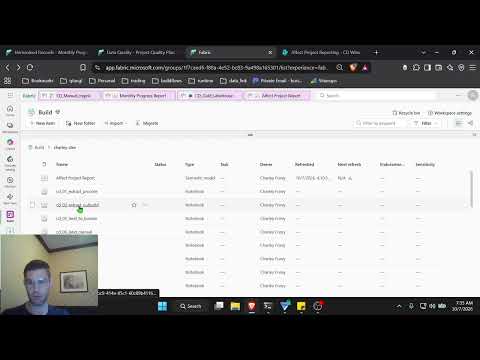
How We Built Construction Reporting in Microsoft Fabric
The engineering behind a nightly Procore + Sage + Outbuild reporting platform in Microsoft Fabric: medallion lakehouse, cost-code mapping, a quality gate, and building it with Claude and MCP servers.