The short answer: We automated a general contractor's job-setup procedure with two Power Automate flows and one SharePoint list. Adding a row to a Job Register issues the next sequential job number, creates the estimating folder and copies the template into it. Setting the row to Bidding creates the project folder from the standard project template and copies the estimating work across. The list is the trigger, the only source of job numbers, the audit log and the source of the job dimension in the reporting platform. The hard parts were not the folder creation. They were stopping two runs issuing the same number, stopping a flow re-triggering itself, keeping paths under SharePoint's length limit, copying deep folder trees on a standard licence, and making every run safe to retry. Both flows are built, tested offline and deployed to the client's tenant, created stopped. They are waiting on the template contents and a service account before they are switched on.
This is a deep dive on that build. It is the "project setup when a job is won" pattern from our Power Automate construction workflows guide, built for real, and it sits beside the Fabric reporting platform described in the construction reporting work example.
The procedure we automated
The contractor's written procedure had two steps, both done by hand:
- New job for estimating. Assign the next job number for the year in the form
YY-###, create a folder namedE-YY-###-Project Namein the estimating library, and copy the estimating boilerplate folders into it. - Convert to bidding. When the job goes to bid, create
YY-###-Project Namein the projects library from the standard project template, and copy the estimating folder's contents into a fixed subfolder inside it.
Done by hand, this goes wrong in predictable ways: two people take the same number, someone types the name slightly differently in the second step, a folder name contains a character SharePoint rejects, the copy misses a subfolder, and nobody has a list of which jobs exist. Each of those has a specific guard in the flows.
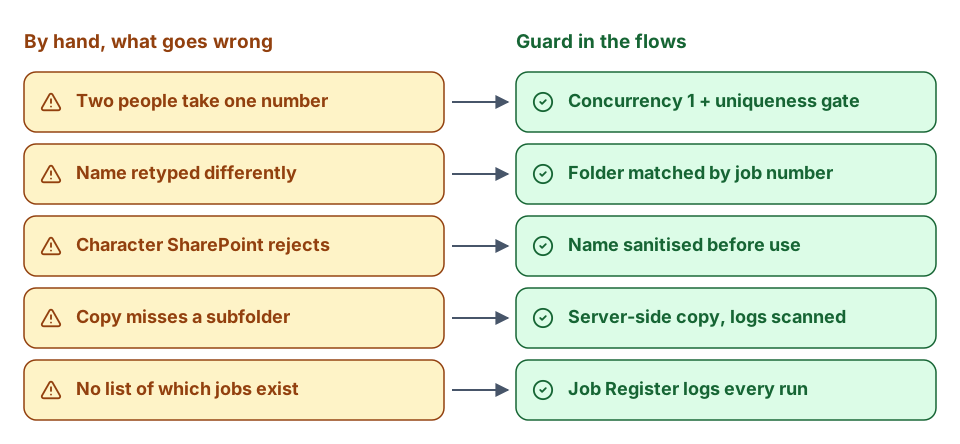 Each manual failure mode has a specific guard in the flows.
The Job Register is the whole design
One SharePoint list does four jobs:
| Role | How |
|---|---|
| Trigger | A new row starts Estimating Setup. Setting Stage to Bidding starts Convert to Bidding. |
| Sequential-number authority | The flow reads the highest JobSeq for the current JobYear from this list and adds one. There is no counter anywhere else. |
| Audit log | Every run writes back to the row that triggered it. List versioning is on, so every field change has a who and a when. |
| Job dimension source | The reporting platform's ingestion reads this list through the usual medallion layers into a dim_Job table. |
There is no separate log to forget to write to, and no second place a job number can come from. A run that does not update its row is a run that failed, and the row says so.
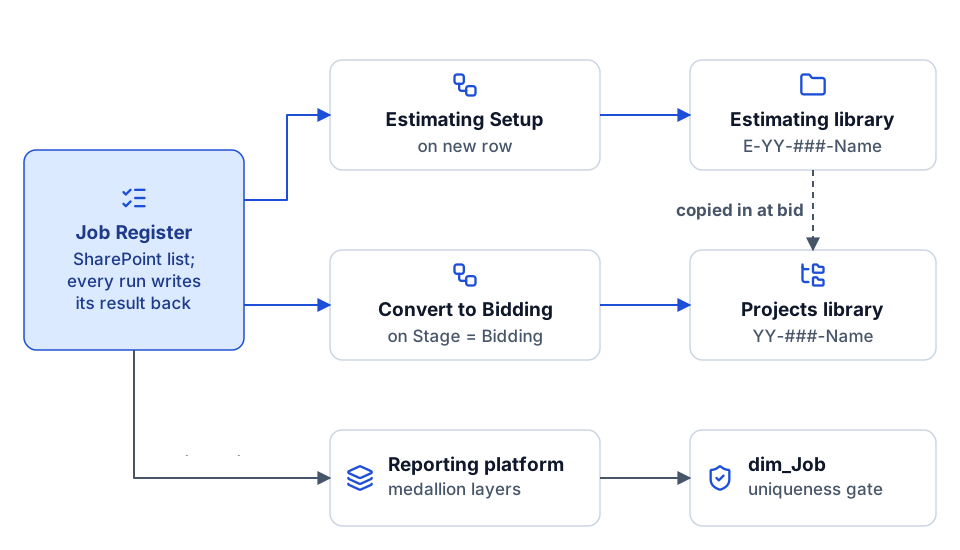 One list is the trigger, the number authority, the audit log and the source of dim_Job.
The columns are deliberately plain. Title holds the project name exactly as typed and is never modified; the sanitised form only ever exists as a folder name. Stage is a choice column with four values: Requested, Estimating, Bidding, Failed. The flows also write JobYear, JobSeq, JobNumber, both folder URLs, RequestedBy, timestamps, CopyJobStatus and ErrorDetail. RequestedBy is a text column holding an email rather than a Person column, because a Person column lands in the data platform as a nested record that the next layer then has to unpick.
For the person using it, the whole interface is: add a row, type the project name, wait a minute. The row fills in with the job number and a link to the folder. To convert, change Stage to Bidding. If a row says Failed, ErrorDetail says why, and setting Stage back retries it.
Estimating Setup, step by step
- Trigger: new item in the Job Register, with concurrency set to 1 (more on that below).
- Derive URLs from a single
SiteUrlparameter, so there is only one URL to keep correct. - Skip rows not at
Stage = Requested, so someone backfilling history does not create folders. - Sanitise the name: strip
" * : < > ? / \ | # %, trim, and strip trailing dots. - Validate before anything is created: the name is not empty, fits an 80-character budget, has no leading or trailing dot, and the full path fits the length budget. A failure writes
Stage = Failedwith a specific message and stops. Nothing exists yet, so there is nothing to clean up. - Issue the number: read the last
JobSeqfor thisJobYear, add one, formatYY-###. - Idempotency probe: check whether the folder already exists. If it does, record that on the row and exit as succeeded.
- Create the job folder.
- Enumerate the template's immediate children. The procedure says copy the folders from the template, not the template folder itself.
- Copy them server-side with SharePoint's
CreateCopyJobs, in one batch. - Poll
GetCopyJobProgressabout every 20 seconds until the job finishes, with a ceiling of 120 polls or one hour. - Scan the copy logs for errors. A copy job can report finished and still have failed.
- Write the row:
Stage = Estimating, job number, folder URL, timestamps, copy status. - A failure scope catches anything the explicit guards did not.
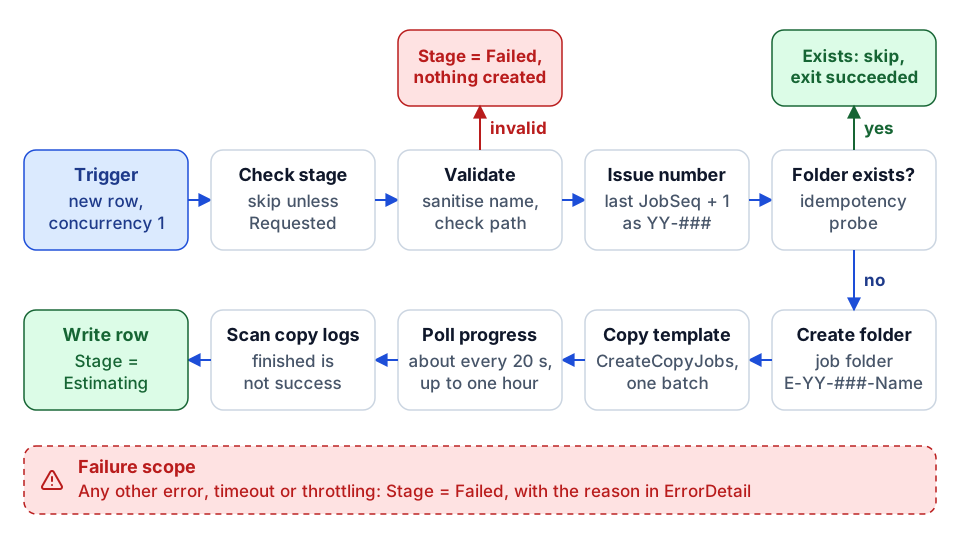 Estimating Setup: every guard runs before the step it protects.
Convert to Bidding, step by step
- Trigger: item modified in the Job Register, concurrency 1.
- Loop guard: continue only if
Stage = Bidding,ProjectFolderUrlis empty, andJobNumberis set. - Find the estimating folder by number: list the estimating library and match the child whose name starts with
E-YY-###-. Matching on the number prefix means a project title edited after setup still converts. - No match: write
Stage = Failedwith the reason, before anything is created in the projects library. - Drop the
E-prefix to get the project folder name, after verifying the prefix is really there. Without that check, a hand-renamed folder would silently lose two real characters. The path length is checked again, because project paths are longer. - Idempotency probe on the project folder.
- Create it and copy the standard project template's children into it with
CreateCopyJobs; poll; scan logs. - Ensure the estimating subfolder exists inside the new project, creating it if the template did not supply it. One extra folder create is cheaper than a failed run.
- Second copy job: the estimating folder's contents into that subfolder. Poll, scan logs.
- Write the row:
ProjectFolderUrl,CompletedAt, copy status. - Failure scope, which deliberately does not write
ProjectFolderUrl, so a fixed problem can be retried by settingStageback toBidding.
Concurrency 1: the most likely production bug is a setting
Issuing a number means: read the current maximum, add one, write it back. If two runs overlap, both read 24, both compute 25, and two different projects are called 26-025.
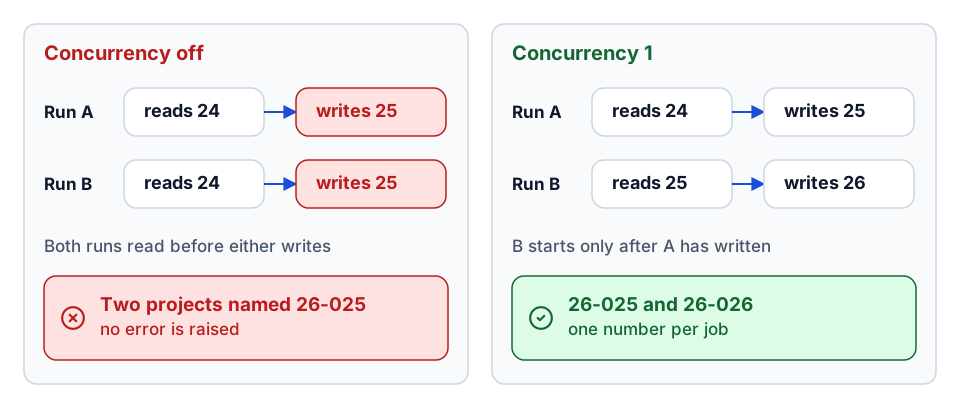 Overlapping runs read the same last number; serializing them gives one number per job.
Nothing errors. No copy job fails. Nobody notices until someone opens the wrong folder weeks later, by which time both trees contain real documents.
SharePoint lists have no atomic increment and no unique constraint to lean on here, so the fix is to stop runs overlapping. In the flow definition, that is three lines on the trigger:
"runtimeConfiguration": {
  "concurrency": { "runs": 1 }
}
This is a setting, not code. It is also exposed in the designer under the trigger's settings as concurrency control, where anyone editing the flow can switch it off without touching anything else. The offline test suite asserts it is present on both triggers, so removing it from the committed definition shows up in a diff.
The cost is that jobs are created one at a time. Each run is seconds of flow time plus the copy. For a firm creating a handful of jobs a day, that costs nothing.
The backstop is a data-quality gate, not the flow
A test on the definition does nothing about someone turning concurrency off in the live flow, which is the likelier way it happens. So the check that catches it sits at the other end of the chain. In the reporting platform, dim_Job carries a blocking data quality gate on job number uniqueness. If two jobs are issued the same number, the nightly gate fails on the day it happens and names both rows, instead of the problem surfacing weeks later as two folder trees.
That only works because the platform's cleaning layer deduplicates on the SharePoint item ID, not on the job number. Deduplicating on the job number would look reasonable, quietly discard one of the two real jobs, and hide exactly the thing the gate exists to catch. A test asserts that both rows survive. We describe the wider rule set in construction data quality rules.
The self-triggering loop
Convert to Bidding triggers on "item modified". Its last action modifies the item that triggered it, to write the project folder URL. That write fires the trigger again.
Without a guard, it loops. The guard is the condition in step 2: proceed only when Stage = Bidding and ProjectFolderUrl is empty. The second pass sees the URL it just wrote and exits immediately. The same field doubles as the retry mechanism: because the failure path never writes it, clearing a problem and setting Stage back to Bidding reruns cleanly. A test asserts the guard is in place.
Names, characters and the 400-character path budget
SharePoint rejects certain characters in folder names and limits the total length of a decoded path to 400 characters. A project name typed into a list can contain anything: Test / Job: "Alpha" is a perfectly reasonable thing for someone to type.
The flows handle this in three ways:
- Sanitise: remove the forbidden characters, trim whitespace and trailing dots.
Test / Job: "Alpha"becomesTest Job Alpha. The raw name stays inTitle. - Budget the name: cap it at 80 characters.
- Budget the tree: check that site URL + library + job folder + an allowance for the deepest path inside the template stays under 400. The allowance is a parameter (200 characters by default), because the flow cannot know how deep the client's template will become. If the template grows, raise the parameter.
All of this runs before anything is created. A run that fails validation leaves no half-built folder behind.
Copying deep trees: CreateCopyJobs on a standard licence
The SharePoint connector has a "Copy folder" action. We did not use it.
| Connector "Copy folder" | CreateCopyJobs | |
|---|---|---|
| Where the work happens | The flow runtime, item by item | SharePoint's own copy engine, server-side |
| Deep trees | Many calls from the flow | One call for the whole batch |
| Throttling | A burst of small calls from one connection is exactly the shape that gets throttled | Queued and rate-managed by SharePoint |
| Async | No; the flow blocks and can time out partway through | Yes; returns a job, which you poll with GetCopyJobProgress |
| Licensing | Standard | Standard, called through Send an HTTP request to SharePoint |
The last row is what makes it viable. CreateCopyJobs is a SharePoint REST call. The obvious way to make a REST call in Power Automate is the generic HTTP connector, which is premium and would put a per-user licence between the contractor and their own folder structure. Send an HTTP request to SharePoint is part of the standard SharePoint connector, uses the same connection as the rest of the flow, and can call any SharePoint REST endpoint. The test suite asserts that no other connector appears in either definition.
A trimmed version of the request body:
{
  "exportObjectUris": ["https://<tenant>.sharepoint.com/sites/<site>/<template>/01-Admin", "..."],
  "destinationUri": "https://<tenant>.sharepoint.com/sites/<site>/<library>/E-26-025-Project Name",
  "options": {
    "IgnoreVersionHistory": true,
    "IsMoveMode": false,
    "NameConflictBehavior": 0
  }
}
Three details from building it:
- Absolute URIs.
CreateCopyJobswants absolute URLs, while the folder APIs return server-relative ones, so the flow builds both from the oneSiteUrlparameter. - Fail on conflict.
NameConflictBehavioris 0, so a name conflict fails rather than replacing or renaming. The idempotency probe already established the destination did not exist, so a conflict here means something raced the flow, and that should surface. - Finished is not the same as succeeded. The poll ends when
JobStatereaches 0, but a job can finish with errors. The flow scans the returned logs forJobErrorandJobFatalErrorand treats either as a failure. It also detects an empty template up front, becauseCreateCopyJobsrejects an empty source list, and says "template is empty" rather than failing obscurely.
Idempotency: every run is safe to repeat
Flows get rerun. Someone resubmits a failed run, someone re-saves a row, a run fails after creating the folder but before the copy. Every write in these flows is preceded by a check, which is what idempotency means in practice:
- Before creating a job or project folder, probe for it. If it exists, record "skipped, folder already existed" and exit as succeeded.
- Before creating the estimating subfolder in a project, probe for it.
- The convert flow's loop guard doubles as its "already done" check.
The result is that a retry after a partial run finishes the job rather than duplicating it.
Failure modes and how each is handled
| Failure | Handled by |
|---|---|
| Two requests race for the same number | Trigger concurrency 1, backed by the uniqueness gate in the data platform |
| Flow rerun, or someone re-saves the row | Folder-exists probe before every create |
Project name contains /, :, ? and similar | Stripped before use; the raw name stays in Title |
| Name is only forbidden characters, or ends in a dot | Validation fails the run before any folder exists |
| Path would exceed 400 characters | Same validation, using the template depth allowance |
| Convert flow re-triggers on its own write | Loop guard on ProjectFolderUrl |
| Estimating folder not found on convert | Explicit failure before anything is created in the projects library |
| Template folder is empty | Detected and reported as such |
| Copy job finishes with errors in its log | Logs scanned; finished alone is not success |
| Copy takes longer than an hour | Poll limit trips; the failure scope marks the row Failed |
| Throttling, server errors, expired connection | Failure scope, run after failed, timed out or skipped, writes the detail to ErrorDetail |
| More than 999 jobs in one year | Not handled. The format would produce 26-1000, which no longer matches YY-###. The procedure has no answer either. The tests record this ceiling explicitly. |
The last row is there on purpose. Writing down a known limit is better than discovering it in December.
Flow definitions in git, deployed through the API
The flow definitions live in git as workflow JSON, with the site URL left as a placeholder and supplied at deploy time. A test asserts that no tenant is hard-coded.
Getting them into the tenant took a few attempts. The Power Automate import menu accepts a solution or a legacy package, not a bare workflow definition. The legacy package route was rejected with a manifest error that did not say what it expected, and the PnP PowerShell route for provisioning needed an admin consent the tenant would not give. What worked was a small deployment script that posts the definition directly to the Power Automate API using the operator's existing Azure CLI sign-in. It has a dry run by default that prints the environment, the SharePoint connection it will bind and the flows it would create; it writes nothing without an explicit apply flag; and it never overwrites an existing flow of the same name, because a flow someone has since edited in the designer should not be silently replaced from a file. Both flows were created stopped.
Offline tests
A test script checks the definitions with no network and no tenant. Among other things it asserts:
- concurrency is 1 on both triggers;
- the sanitiser strips every forbidden character, and leading and trailing dots are handled;
- the job number format and the
E-prefix drop behave as expected; - the copy uses
CreateCopyJobs, not the connector's copy action; - only the standard SharePoint connector is used;
- no tenant is hard-coded;
- the failure scope runs after failure;
- the convert flow cannot loop;
- the provisioning script creates every column the flows write.
Status and what is left
Honestly stated: both flows are built, tested offline and deployed to the contractor's tenant, created stopped. The SharePoint structure is provisioned, and the reporting platform's ingestion for the Job Register is published, though not yet signed in and refreshed.
Two things are needed before the flows are switched on:
- The template contents. The procedure names the estimating and project template folders but never says what is inside them. The flows currently copy a correct but empty skeleton, and the estimating flow detects a fully empty template and says so. The boilerplate documents (blank forms, checklists, the standard subcontract) have to come from the contractor, or be lifted from an existing job known to be set up correctly. One template's name also bakes in the year, which means it would need renaming every January; we recommended a year-free name.
- A service account for the SharePoint connection. The flows run as whoever owns the connection. A named person's account means the flows stop when that person leaves.
RequestedBystill records the real requester either way.
After that: confirm concurrency is still 1 on the live flows, switch them on, and run the smoke test. Adding one row titled Test / Job: "Alpha" exercises the sanitiser, the number issuer, the folder create and the copy job in a single action, and the next nightly run should show the row in dim_Job, which proves the chain end to end.
Where to go next
- The broader patterns and governance for flows like these: Power Automate construction workflows, and the deal won to project setup use case.
- The reporting platform the Job Register feeds: the construction reporting work example and construction data quality rules.
- The same design ideas on an integration platform: the anatomy of a construction integration flow, and the discovery questions we ask before automating anything.
- Have a setup or approval process that runs on people remembering? Plan your build, or see the integration sprint for fixed scope and price.
- Want to talk it through first? Start a conversation.
Frequently asked questions
How do you stop Power Automate issuing duplicate job numbers?
Set the trigger's concurrency control to 1 so runs that read the current maximum and add one cannot overlap. Back it with a uniqueness check downstream, because anyone can switch the setting off in the designer.
Why use CreateCopyJobs instead of the SharePoint Copy folder action?
CreateCopyJobs runs server-side and asynchronously in one call for a whole tree, avoiding the throttling and timeouts of copying item by item from the flow. Called through Send an HTTP request to SharePoint, it stays on a standard licence.
How do you stop a flow re-triggering on its own update?
Add a trigger guard on a field the flow writes at the end. Here the convert flow only proceeds when ProjectFolderUrl is empty, so the second pass after its own write exits immediately.
Is this automation live?
Both flows are built, tested offline and deployed to the contractor's tenant, created stopped. They are waiting on the template folder contents and a service account to own the SharePoint connection.
Next step
Want this workflow automated?
Tell us the handoff, approval, or reminder your team repeats. We'll scope the automation, the approvals it needs, and who owns it.
Prefer email? charley@buildflows.ai
Get the next guide in your inbox
Field Notes: practical guides and new walkthroughs, about once a month.
Field Notes
Practical guides and new walkthroughs on construction data and automation, roughly monthly.
Keep learning
Workflow automation · October 9, 2026
Power Automate for Construction: Workflows Worth Automating
A practical guide to the construction workflows worth building in Power Automate, including approvals, reminders, certificate expiry, RFI aging and report distribution, and how to design and govern them so they hold up.
Reporting & analytics · October 8, 2026
Construction Data Quality: The Rules That Make Reports Trustworthy
A practical checklist of the data-quality rules behind construction reports people can defend, from quality gates and blank-never-zero to cost-code crosswalks, reconciliation and snapshots.
Integrations · October 9, 2026
Anatomy of a Construction Integration Flow
How an iPaaS integration flow is put together, illustrated with Trimble App Xchange concepts: connectors, triggers, the cache-and-event model, step types, write scope, naming, remediation and limits. Ends with building a custom connector with the public Xchange SDK.