Key takeaways
- Most values an integration asks for are identifiers, not secrets: company, project, Hub, realm, tenant, subscription and workspace IDs, the resource group and the Vault URI.
- Client secrets, the HubSpot service key and any tokens are the real credentials. They go straight into Azure Key Vault and never into email, chat or tickets.
- Many IDs can be read from a URL: Procore company and project IDs, the HubSpot Hub ID, the QuickBooks realmId on the OAuth redirect, the Fabric workspace ID after /groups/, and the Azure subscription ID and resource group in a portal address.
- The Key Vault Overview page shows the resource group, subscription ID, directory (tenant) ID and Vault URI in one Essentials panel.
- Most wrong-ID problems are environment mix-ups: a sandbox company, Hub ID or version key used against production, or the wrong Azure directory.
- Identifiers are fine in a setup reply but should stay off public pages, repos and forums.
The setup form asks for a "realm ID." The integrator's email asks for your "Hub ID" and "directory ID." The Procore install screen wants a 36-character "App Version ID." Each one takes thirty seconds to find once you know where it lives. Until then, it can take an afternoon of clicking through settings pages, often in the wrong company or the wrong tenant.
This is a quick reference for every identifier a construction data integration usually asks for when it connects Procore, HubSpot, QuickBooks Online, Azure Key Vault and Microsoft Fabric. For each one you get where it lives, what it looks like, and whether it is a secret. Most of them are not secrets. A few things that sit right next to them are.
It is the lookup companion to the secure API credential setup guide. That guide walks through the full setup; this page answers "where do I find that number?"
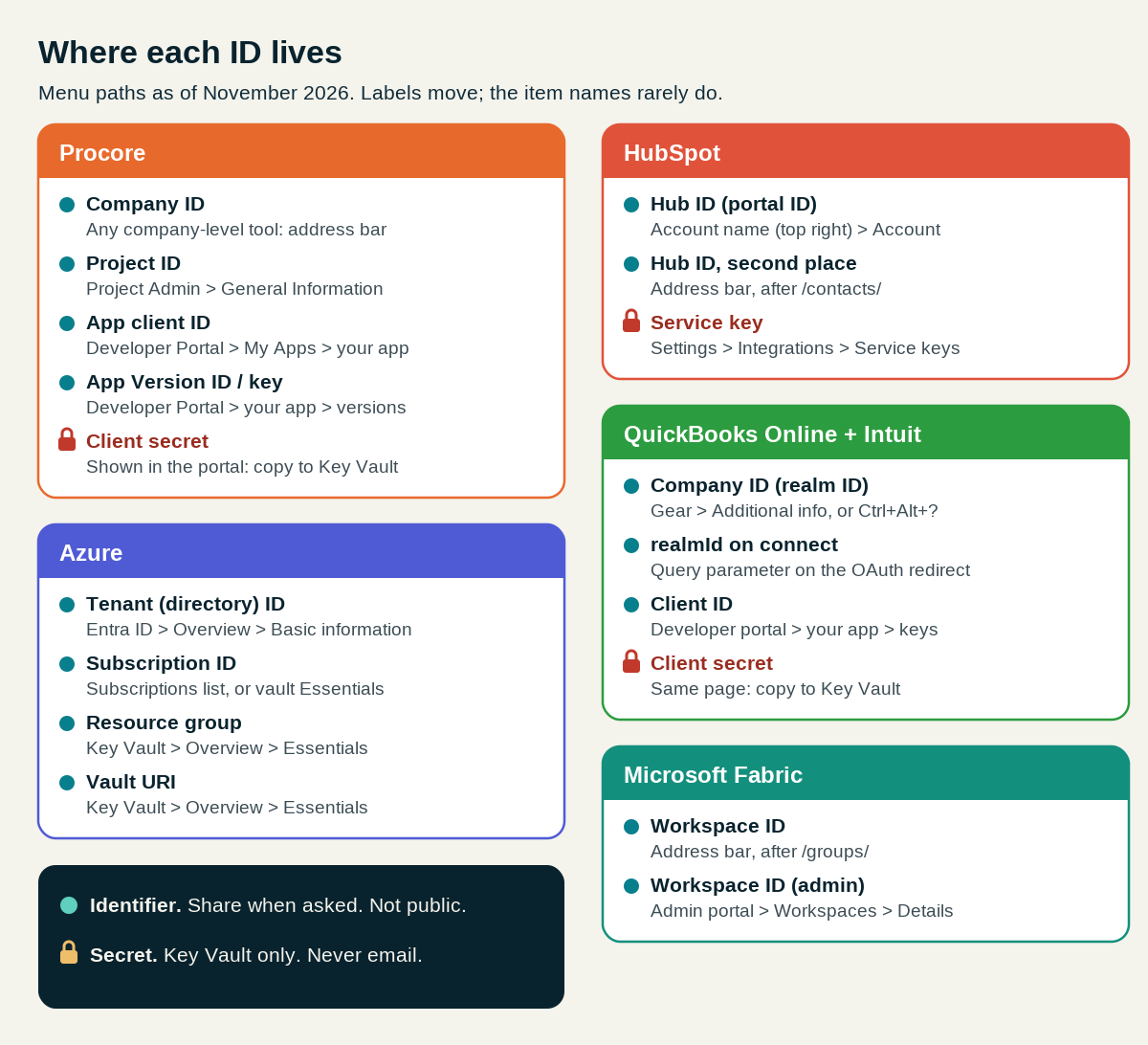 Where each ID lives. Locked items are secrets and go straight into Key Vault.
The quick answer
| ID | System | Where to find it | Looks like | Secret? |
|---|---|---|---|---|
| Company ID | Procore | Open any company-level tool and read the browser address bar | A long number | No |
| Project ID | Procore | Project Admin tool > General Information (copy icon), or the address bar | A long number | No |
| App client ID | Procore Developer Portal | My Apps > your app > credentials | A long string | No, but store it with its secret |
| Client secret | Procore Developer Portal | Same place as the client ID | A long string | Yes |
| App Version ID (the install key) | Procore Developer Portal | Your app > versions | 36 characters | No |
| Hub ID (portal ID) | HubSpot | Click your account name (top right); it is listed under Account | A number | No |
| Service key | HubSpot | Settings > Integrations > Service keys | A long token | Yes |
| Company ID (realm ID) | QuickBooks Online | Gear icon > Additional info, or press Ctrl+Alt+? | A long number | No |
| Client ID | Intuit Developer | Your app > keys and credentials (Development and Production) | A long string | No, but store it with its secret |
| Client secret | Intuit Developer | Same page as the client ID | A long string | Yes |
| Tenant ID (directory ID) | Microsoft Entra ID | Microsoft Entra ID > Overview > Basic information | A GUID | No |
| Subscription ID | Azure | Subscriptions list, or the vault's Overview > Essentials | A GUID | No |
| Resource group | Azure | Vault Overview > Essentials | A name, e.g. rg-reporting-analytics | No |
| Vault URI | Azure Key Vault | Vault Overview > Essentials | https://kv-reporting-analytics.vault.azure.net/ | No |
| Workspace ID | Microsoft Fabric | Address bar, the value after /groups/ | A GUID | No |
A GUID looks like 7c1e2f04-5b6a-4c3d-9e8f-0a1b2c3d4e5f: 32 hex characters in five groups. All example values on this page are made up.
Procore
Procore integrations usually need four things: the company ID, sometimes one or more project IDs, the app's client credentials, and the App Version ID used to install the app.
Company ID. Procore's support article is short: sign in at app.procore.com, open any company-level tool, and read the URL in the address bar. The company ID is the long number in that URL. In the walkthrough video this guide comes from, the company ID is pointed out as "this part of the URL" right after the app is installed. Procore's URLs have changed shape over the years. In the current layout it is usually the number after /companies/, but Procore's article does not spell that out, so treat the URL pattern as a hint rather than a rule. If you are not sure which number is which, ask whoever is building the integration to confirm it with a list-companies call against the API. That call returns the companies your app can see, with their IDs.
Project ID. Open the project, go to the project-level Admin tool, and find the Project ID under General Information. There is a copy icon next to it. If you do not have Admin access on that project, Procore says you can read it from the address bar instead.
App client ID and client secret. These come from the Procore Developer Portal (developers.procore.com), not from your Procore company. Open My Apps, pick the app, and the credentials are on the app's page. The sandbox and production credentials are different. Production credentials appear once a version of the app has been promoted to production and the developer account has production access. Procore may ask a developer account to complete a one-time verification first; accounts that belong to an active Procore customer often already have it. Treat the secret like a password from the moment it appears: copy it straight into Key Vault. The developer managed service account guide covers the full app setup.
App Version ID. This is what a company admin pastes into the company-level Admin tool > Company Settings > App Management > Install App > Install Custom App. Procore's install article calls it a 36-character "App Version ID" that the app developer provides. In the Developer Portal, you find it under the app's versions, where it may be labelled as a version or installation key. Procore's sandbox documentation says the sandbox version key only works in the Developer Sandbox, and other sandboxes and production need the production key. If an install fails with an unrecognized key, check that first. Installing needs Admin permission on the company-level Directory tool. For a data connection app (one that uses a service account), installing is not the last step: the app's service account also needs permissions, granted per project in App Management or company-wide with a permission template. Without them the IDs are right but the API returns nothing.
Watch for: the Developer Sandbox is a separate company with its own company ID. A sandbox ID in a production config is a common reason for "company not found" errors.
HubSpot
Hub ID (also called portal ID or account ID). HubSpot's knowledge base gives two places:
- Click your account name in the top-right corner. The dropdown lists the account name and Hub ID under Account.
- Read the address bar on any CRM page. The Hub ID is the number in
app.hubspot.com/contacts/{HubID}/....
Your address may start with app-na2.hubspot.com or app-eu1.hubspot.com instead of app.hubspot.com, depending on where the account's data is hosted. The number in the path is still the Hub ID.
If you manage more than one HubSpot account, such as a production account and a sandbox, each has its own Hub ID. Check the dropdown before you copy, so you are not sending the sandbox number.
Service key. A service key is not an identifier. It is the credential. HubSpot's current route for data-only, system-to-system access is the service key, created under Settings > Integrations > Service keys (some accounts show it under Development > Keys > Service keys). Service keys are in public beta as of November 2026, and creating one needs Developer Tools access in HubSpot. HubSpot shows the key when you create it. Copy it straight into Key Vault. The HubSpot service key guide covers scopes and setup.
QuickBooks Online and Intuit
QuickBooks has two halves: your QuickBooks company, and the Intuit Developer app that connects to it. Each has its own IDs.
Company ID (realm ID). Intuit's help center calls it the "QuickBooks Online company ID." Intuit's developer docs call the same number the realm ID. The OAuth documentation describes the value returned after a user connects as "the QuickBooks Company ID (i.e. the Realm ID)." To find it inside QuickBooks Online:
- Click the Settings gear and select Additional info. Intuit says all users can see it here.
- Or press Ctrl + Alt + ? on Windows (Control + Option + ? on a Mac) while QuickBooks Online is open.
- Admins can also see it from the gear menu under Subscriptions and billing.
When an app connects through OAuth, Intuit sends the realm ID back on the redirect URL as a realmId query parameter, alongside the authorization code. So your integrator usually captures it automatically. It is still worth knowing the number, so you can confirm the connection points at the right company and not a sandbox or a test file.
Client ID and client secret. These live in the Intuit Developer portal, on your app's keys and credentials page. There are two sets. Development keys only work with sandbox companies, and production keys only work with real QuickBooks companies. Intuit makes production keys available after you complete its production questionnaire. In the walkthrough video, the development client ID and secret appear right after the app is created. The QuickBooks API credentials guide covers the app setup.
Azure: tenant, subscription, resource group, Vault URI
Four Azure values come up when an integration reads secrets from Key Vault. Three of them sit on the same screen.
Tenant ID. Microsoft's steps: sign in to the Azure portal, make sure you are in the right directory, open Microsoft Entra ID, and find Tenant ID under Basic information on the Overview page. There is a copy icon next to it. Azure also shows the same value as Directory ID on a Key Vault's overview page. Microsoft notes the tenant ID also goes by "directory ID." They are the same thing.
Subscription ID. In the Azure portal, open Subscriptions and read the Subscription ID column. Or open the subscription and copy it from Essentials. If the list is empty or the wrong one shows, you are probably in a different directory. Switch directories first.
Resource group and Vault URI. Open the key vault. The Overview page's Essentials panel shows the resource group, subscription, subscription ID, directory ID and the Vault URI. The Vault URI is https://<vault-name>.vault.azure.net/. Microsoft's quickstart says applications that call the vault through its REST API must use this URI, not just the name. Copy the whole string, including https:// and the trailing slash.
That Overview screen is also the one screen in this list that shows several identifiers at once. That is fine to share with your integrator on request. Do not post a screenshot of it publicly.
If you have not created the vault yet, see Azure Key Vault setup for data integrations.
Microsoft Fabric: workspace ID
Microsoft's Fabric admin docs say the easiest way to find a workspace ID is the URL. Open the workspace, or any item in it, and copy the value after /groups/. The address looks like app.fabric.microsoft.com/groups/{workspaceID}/.... Item IDs follow later in the path, such as /lakehouses/{lakehouseID}. Do not mix the two up.
If the address shows /groups/me, you are in your personal My workspace, not the shared workspace the integration should use. Switch workspaces first.
A Fabric admin can also find the ID in the admin portal's workspace list. Pick the workspace, then open Actions > Details.
For how pipelines and notebooks then read secrets from the vault, see Microsoft Fabric and Azure Key Vault secrets in pipelines.
Reading IDs straight out of the address bar
Most of these values appear in a URL you already have open. The diagram shows where each one sits.
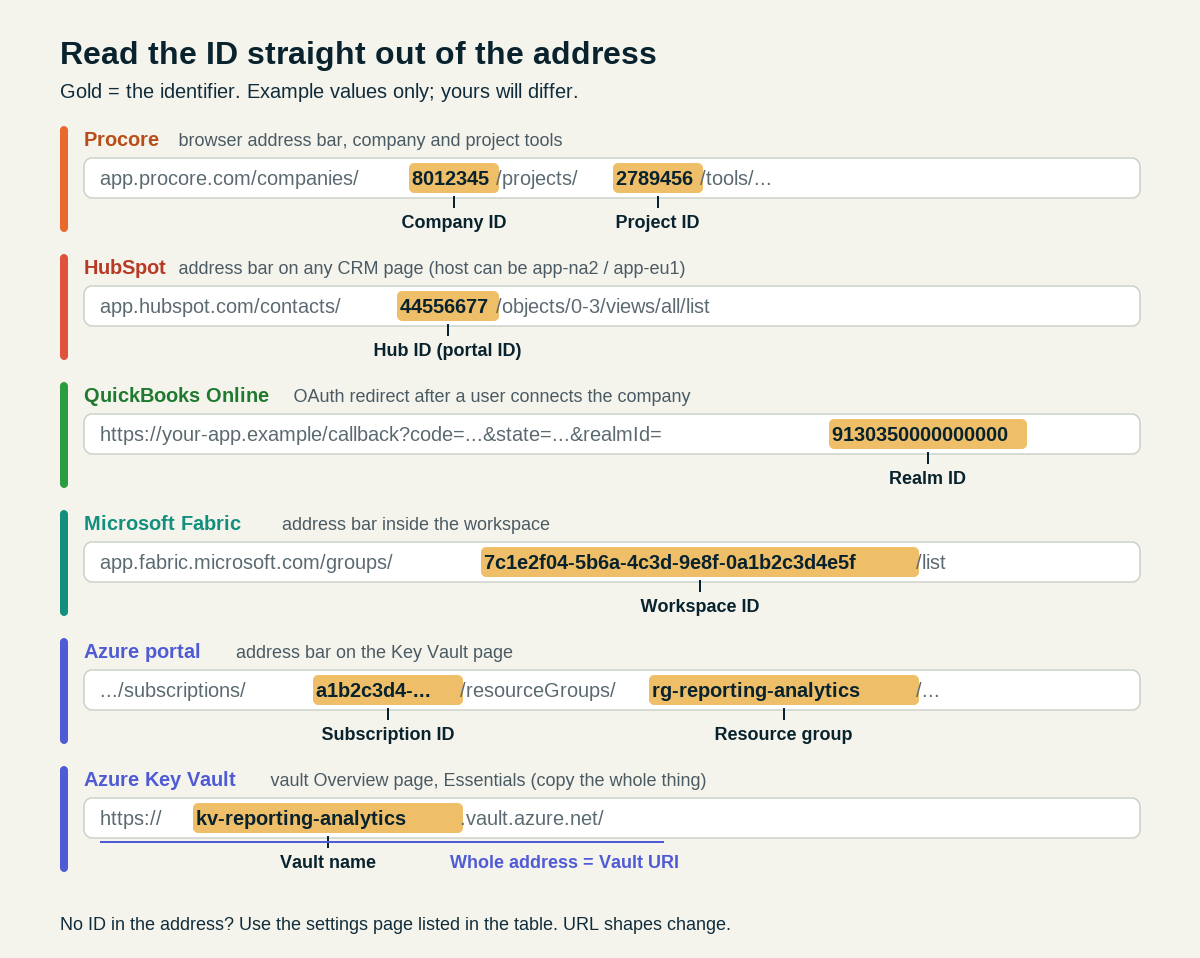 Where each ID appears in a URL. Example values only.
Two cautions. URL shapes change, and the product's own settings page is the authoritative source. And a URL copied from a browser often carries extra query parameters, so paste only the ID itself.
Identifier or secret?
An identifier names a thing: a company, an account, a workspace. A secret proves you are allowed to use it. Someone holding your Procore company ID and Hub ID still cannot read a single record without a client secret, a service key or a token.
That does not make IDs public. Microsoft's sign-in metadata is designed so a client can discover a tenant from a domain name, and that is normal. But a list of every ID in your stack, posted in a public forum, hands an attacker a map. The practical rule:
- Identifiers: fine in a setup reply, a ticket or a pipeline config. Keep them off public pages, public repos and forum posts.
- Secrets: Key Vault only. Never email, chat, tickets or spreadsheets. The secure handoff guide explains how to give someone access without ever sending the value.
- Client IDs: technically identifiers, but they are useless without their secret. Storing them in Key Vault next to the secret keeps each pair together. That is the pattern the setup guide uses, with secret names like
procore-client-idandprocore-client-secret.
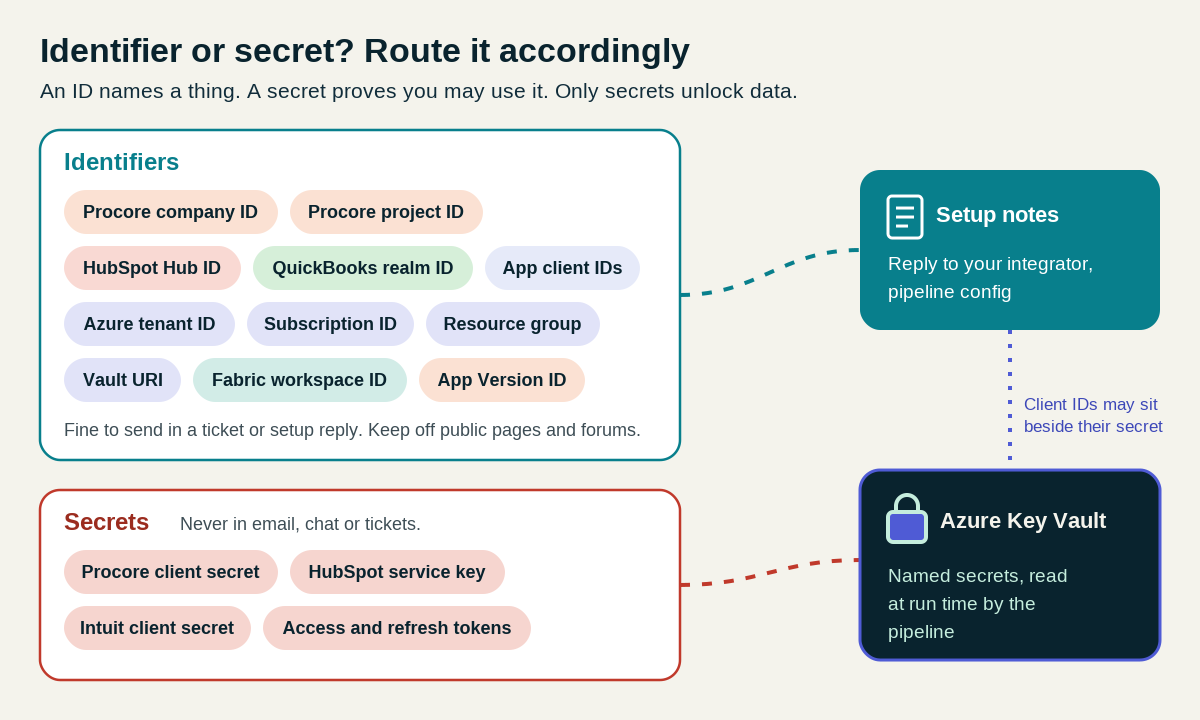 Route identifiers to setup notes and secrets to Key Vault.
If a secret ever lands somewhere it should not, rotate it. The secret rotation guide has the steps for each system.
Common mix-ups
| Symptom | Likely cause | Fix |
|---|---|---|
| Procore returns "company not found" or empty data | Sandbox company ID used against production, or the reverse. Or the app's service account has no project permissions yet | Confirm which environment the credentials belong to, re-read the company ID from that environment, then check the app's permissions in App Management |
| Procore custom app install rejects the key | Sandbox version key used outside the Developer Sandbox | Use the production App Version ID |
| QuickBooks connects but shows the wrong books | Authorized a sandbox or test company | Compare the realmId returned on connect with Additional info in the right company |
| HubSpot data looks like a test account | Sandbox Hub ID copied | Check the account dropdown before copying |
| Azure portal shows no subscriptions, or the wrong vault | Signed into a different directory | Switch directory, then re-read the tenant and subscription IDs |
| Fabric item is "not found" | A lakehouse or item ID was copied instead of the workspace ID, or the workspace was My workspace | Use the value right after /groups/ in the shared workspace |
| Key Vault calls fail with a host error | Vault name sent instead of the full Vault URI | Send https://<vault-name>.vault.azure.net/ |
For errors beyond wrong IDs, see the credential setup troubleshooting guide.
Checklist
- Procore company ID copied from a company-level tool in the production company, not the sandbox.
- Procore project IDs copied from each project's Admin > General Information, if the integration is limited to certain projects.
- Procore App Version ID is the production one, and the custom app is installed under App Management.
- HubSpot Hub ID confirmed in the account dropdown of the right account.
- QuickBooks company (realm) ID read from Additional info and matches the company being connected.
- Azure tenant ID, subscription ID and resource group read from the vault's Overview > Essentials.
- Full Vault URI copied, including
https://and the trailing slash. - Fabric workspace ID taken from the shared workspace URL, not My workspace.
- Every client secret and the HubSpot service key went straight into Key Vault and nowhere else.
- Identifiers sent to your integrator in one reply. No secrets in it.
The API credential setup checklist tracks the whole setup, and the read-only scope picker helps you choose permissions for each credential.
Want a hand with it?
Build Flows connects Procore, HubSpot and QuickBooks Online to Microsoft Fabric for commercial contractors. We ask for identifiers in one short reply and read secrets from your Key Vault. We never need them emailed. If you are stuck on a setup step, send a short brief or email charley@buildflows.ai. More guides are at buildflows.ai.
References
- Procore Support: How do I find the company ID? (company-level tool, address bar)
- Procore Support: How do I find the project ID? (Admin tool, General Information, copy icon; address bar if no Admin access)
- Procore Support: Install a Custom App (App Management, 36-character App Version ID, required Directory permission, data connection app permissions)
- Procore Developers: Development environments and sandboxes (sandbox and production app version keys, separate credentials)
- HubSpot Knowledge Base: Manage multiple HubSpot accounts (Hub ID in the account dropdown and in the URL)
- HubSpot Developers: Service keys changelog and Service keys for data integrations (public beta, menu locations, Developer Tools access)
- QuickBooks Help: Find your QuickBooks Online company ID (Additional info, keyboard shortcut, Subscriptions and billing)
- Intuit Developer: OAuth 2.0 (authorization code and realm ID returned on the redirect URL)
- Intuit Developer: Get the Client ID and Client Secret for your app (development vs production keys)
- Microsoft Learn: Get subscription and tenant IDs in the Azure portal
- Microsoft Learn: How to find your Microsoft Entra tenant ID (tenant ID is also called directory ID)
- Microsoft Learn: Quickstart: Create a key vault using the Azure portal (Vault URI format and use)
- Microsoft Learn: Workspace admin settings in Microsoft Fabric (workspace ID after
/groups/, or admin portal Details) - Microsoft Learn: OpenID Connect on the Microsoft identity platform (tenant-specific sign-in metadata discovery)
Menu paths were checked against these pages and the walkthrough video in November 2026. Vendors rename settings pages often. If a label here does not match your screen, search the product's settings for the item name.
Frequently asked questions
Where do I find my Procore company ID?
Sign in at app.procore.com, open any company-level tool, and read the long number in the browser address bar. Procore's support article gives exactly those steps. If you are unsure which number is the company ID, an API list-companies call returns the companies your app can see with their IDs.
Is the QuickBooks realm ID the same as the company ID?
Yes. Intuit's help center calls it the QuickBooks Online company ID and its developer docs call it the realm ID. Find it under the Settings gear > Additional info, or with Ctrl+Alt+? on Windows. It is also returned as the realmId query parameter when an app connects through OAuth.
How do I find my HubSpot Hub ID or portal ID?
Click your account name in the top-right corner of HubSpot. The dropdown lists the Hub ID under Account. It is also the number in the address bar after /contacts/ on any CRM page, even when the host is app-na2 or app-eu1.
Is the Azure directory ID the same as the tenant ID?
Yes. Microsoft Entra ID shows it as Tenant ID on the Overview page under Basic information, and a Key Vault's Overview page shows the same value as Directory ID.
What is the Key Vault URI and where is it?
It is the address applications use to call the vault, in the form https://<vault-name>.vault.azure.net/. Open the key vault in the Azure portal and copy it from the Essentials panel on the Overview page. Send the full URI, not just the vault name.
How do I find a Microsoft Fabric workspace ID?
Open the workspace in Fabric and copy the value after /groups/ in the address bar. If it shows /groups/me you are in My workspace, not the shared workspace. Fabric admins can also see it in the admin portal under Workspaces > Actions > Details.
Which of these values are secrets?
The Procore and Intuit client secrets, the HubSpot service key and any access or refresh tokens. Everything else on the list is an identifier. Identifiers can go in a setup reply, but keep them off public pages. Secrets belong only in Azure Key Vault.
Next step
Need this connection in your environment?
Scope one integration: the records, direction, timing, and business rules behind the connection.
Prefer email? charley@buildflows.ai
Keep learning
Integrations · November 14, 2026
Secure API Credential Setup for Procore, HubSpot and QuickBooks with Azure Key Vault and Microsoft Fabric
The end-to-end guide to connecting Procore, HubSpot and QuickBooks Online to Microsoft Fabric and Power BI without handing over credentials: who owns each step and how long it takes, the architecture from sources through Azure Key Vault to Fabric, the four steps (Fabric access, read-only API access in three systems, Key Vault with the Secrets Officer role, connect and go live), the exact secret names, what to send back, how to revoke access, common mistakes and a checklist.
Integrations · November 14, 2026
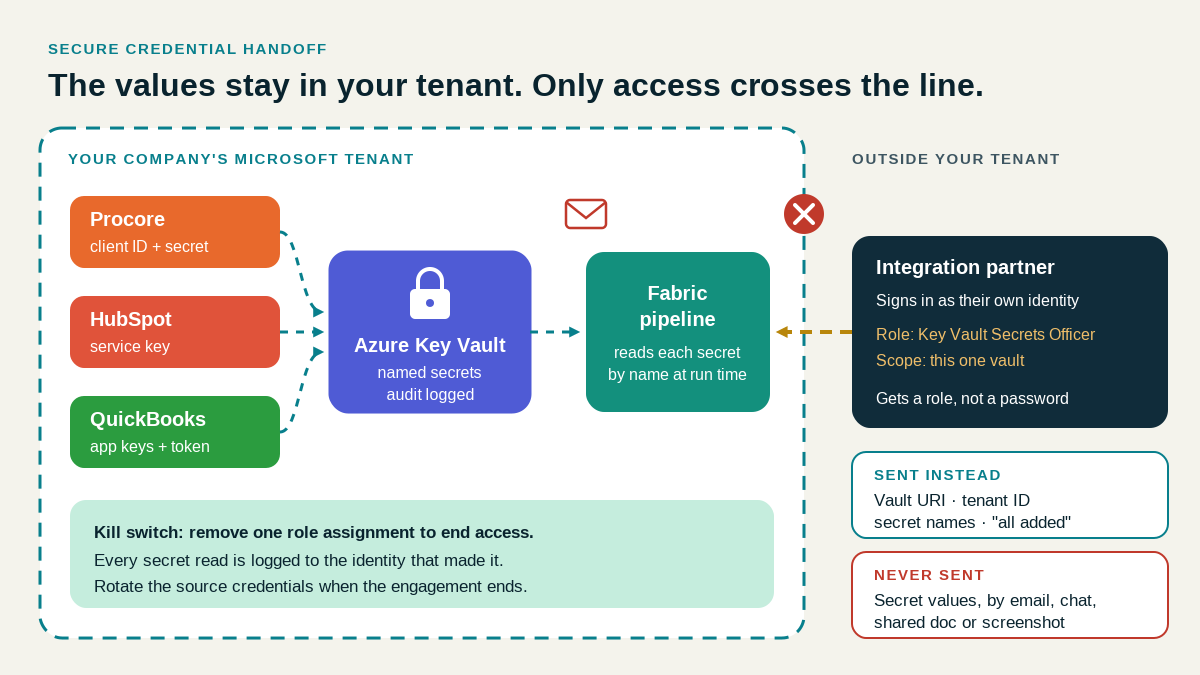
Never Email an API Key: A Secure Credential Handoff Between a Company and a Consultant
A vendor-neutral process for sharing integration credentials safely: your company owns the vault, the partner gets a scoped role, and only the vault address ever crosses between you.
Integrations · November 14, 2026
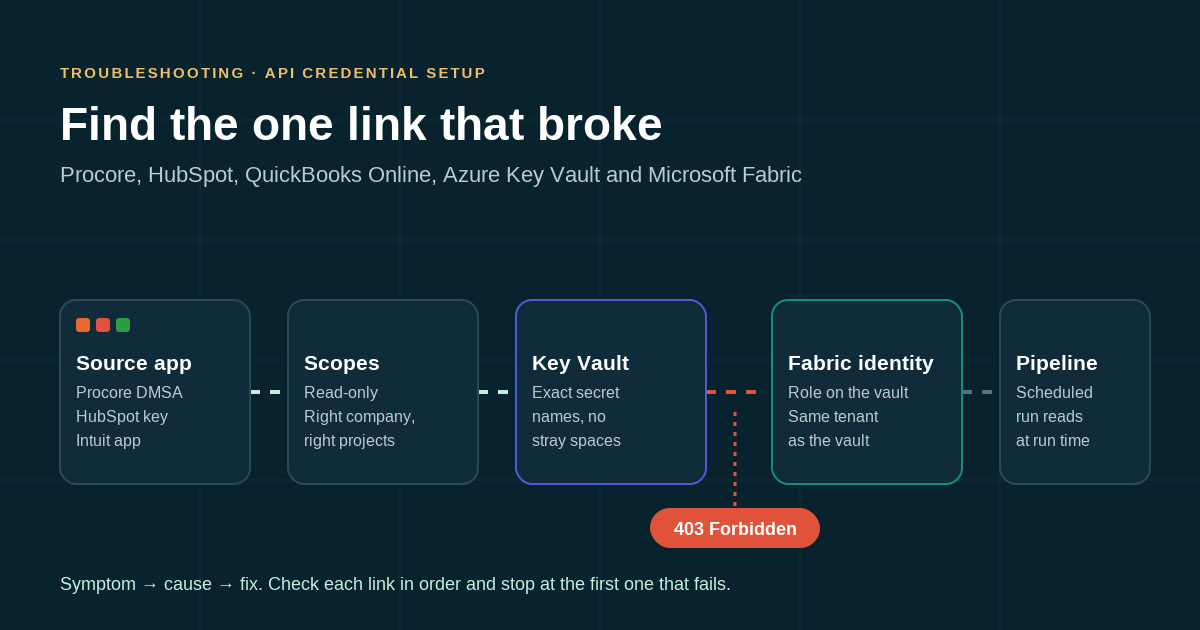
Troubleshooting API Credential Setup: Procore, HubSpot, QuickBooks, Key Vault and Fabric
A symptom, cause and fix guide for the errors that stop a read-only reporting integration: Key Vault roles, Procore service accounts, HubSpot service keys, QuickBooks tokens and Fabric identities.