Key takeaways
- Gemini Apps Developer Mode, at gemini.google.com/devmode, is Google's test bench for MCP servers, with an event log, tool schemas, simulated environment and OAuth settings.
- Gemini needs a public HTTPS URL ending in /mcp, so a local server on port 8123 needs a tunnel or a Cloud Run deployment.
- The demo build reads ?mode= and ?persona= from the URL because Gemini's connect dialog takes only a URL. Headers win when both are present.
- Check the tool count before you connect: hybrid mode with the GC persona shows 42 tools, and thousands means the server is in expanded mode.
- A working call shows Confirmation requested, then Confirmed, then 200 OK in the event log.
- Google's docs don't state who is eligible for Developer Mode, so treat it as a test surface and roll out through Gemini Enterprise or ADK.
70 seconds · From a Build Flows walkthrough
Gemini connects to the Procore MCP and lists projects
After connecting the server in Gemini Developer Mode, Gemini shows 42 tools, then answers which Procore projects you're on by calling list_companies and list_projects, each confirmed and logged.
Read the clip transcript
Cool. So we have 42 tools that we are using in this instance. We will connect. And here we go. Now, let's go to what Procore project is working on. Okay. Let's pull this live thing. So I can see down here it's doing list companies, confirm list the companies, it lists the projects and gathered insights around the projects. And so these are all the different projects that I am working on. So it looks like this MCP is working quite well. Anyways, thank you very much for your time. I really appreciate it. And I wish you all the best. If there's anything you have questions on or need insight into,
Captions adapted from the source video; proper names may reflect automatic transcription. Original segment: 23:48–24:58. Watch at the source.
You have a Procore MCP server running and you want to see it work in Google Gemini before you build anything bigger. Gemini's Developer Mode lets you do that in a few minutes: paste an HTTPS URL, review the tools, and ask a question. Every tool call shows up in an event log with its status and latency.
This is the step-by-step version of what the video shows from 23:05 to 24:50. It covers running the server over streamable HTTP, building the server URL, each Gemini screen in order, what the confirmation prompts mean, and how to fix the errors you're most likely to hit. The example is the open-source Procore MCP server in hybrid mode with a read-only GC persona, connected to a Procore developer sandbox.
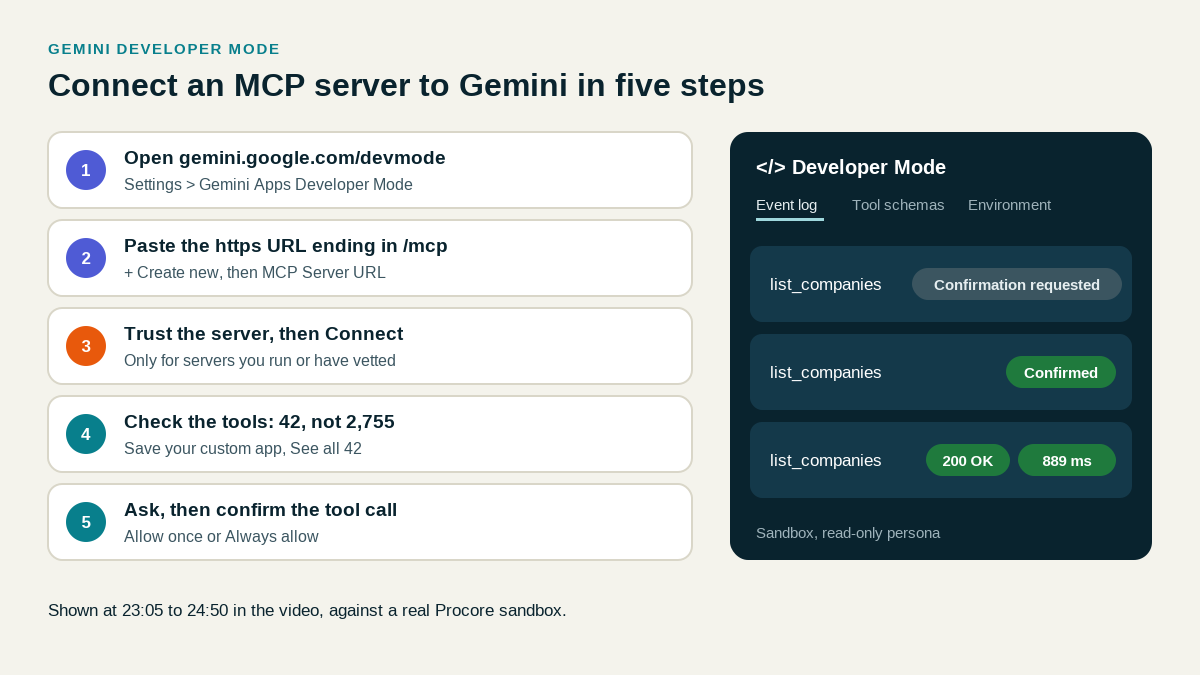 From a URL to a live Procore answer in Gemini Developer Mode.
What Gemini Developer Mode is, and who can use it
Google describes Gemini Apps Developer Mode as "an interactive, web-based debugging and evaluation workspace" for testing an MCP server before you submit a connected app for review. You open it from Settings > Gemini Apps Developer Mode or by going to gemini.google.com/devmode. It gives you a chat pane on the left and an inspector on the right with four tabs: Event log, Tool schemas, Environment and Authentication.
What the docs say about the connection:
- The server must be reachable at an HTTPS URL. The connect dialog says "Make sure your URL starts with https://".
- Credentials go under Additional settings > Show more.
- The Authentication tab offers Dynamic Client Registration or Manual Client Registration, so the supported auth is OAuth. The docs don't mention API keys or custom headers.
What the docs don't say: which account types can use Developer Mode (personal, Workspace, or both), regional availability, or any limit on tool count. We couldn't find an official statement on eligibility as of November 2026, so check with your Google admin if the menu item doesn't show up for you.
Treat Developer Mode as a test bench. To roll Procore answers out to employees, use a Gemini Enterprise custom MCP server data store, which an admin manages, or an ADK agent. The pillar guide covers those paths.
Before you start: run the server over streamable HTTP
Gemini talks to the server over the network, so it needs the HTTP transport, not stdio. From the repo root (github.com/charley-forey/procore-mcp):
npm install
npm run build

# Credentials: copy .env.example to .env and fill in
# PROCORE_CLIENT_ID, PROCORE_CLIENT_SECRET and PROCORE_COMPANY_ID

# Sandbox, hybrid mode, GC persona, read-only policies
export PROCORE_ENVIRONMENT=sandbox
export PROCORE_MCP_MODE=hybrid
export PROCORE_MCP_PERSONA=gc_demo
export PROCORE_MCP_POLICIES=readonly-by-default,sandbox-only
export PROCORE_MCP_EMBEDDINGS=disabled

npm run start:http
# Procore MCP Streamable HTTP Server listening on port 8123
# Connect to: http://localhost:8123/mcp
On Windows PowerShell, set each variable with $env:NAME="value" instead of export. Your Procore client ID, secret and company ID come from environment variables loaded on the server. They never go in the URL and Gemini never sees them.
Check it's alive before you involve Gemini:
curl http://localhost:8123/health
# {"status":"ok","service":"procore-mcp-server"}
The port defaults to 8123. Change it with PORT or --port=XXXX. The MCP endpoint is always /mcp.
Gemini runs in Google's cloud, so it can't reach localhost. You need a public HTTPS URL that forwards to port 8123: a Cloudflare quick tunnel for a five-minute test, or Cloud Run or a named tunnel behind access controls for anything longer. How to choose, and how to do it without leaking a token, is in Expose a Dev MCP Server to Gemini Safely. For production hosting, see Hosting Streamable HTTP MCP Servers.
Build the server URL
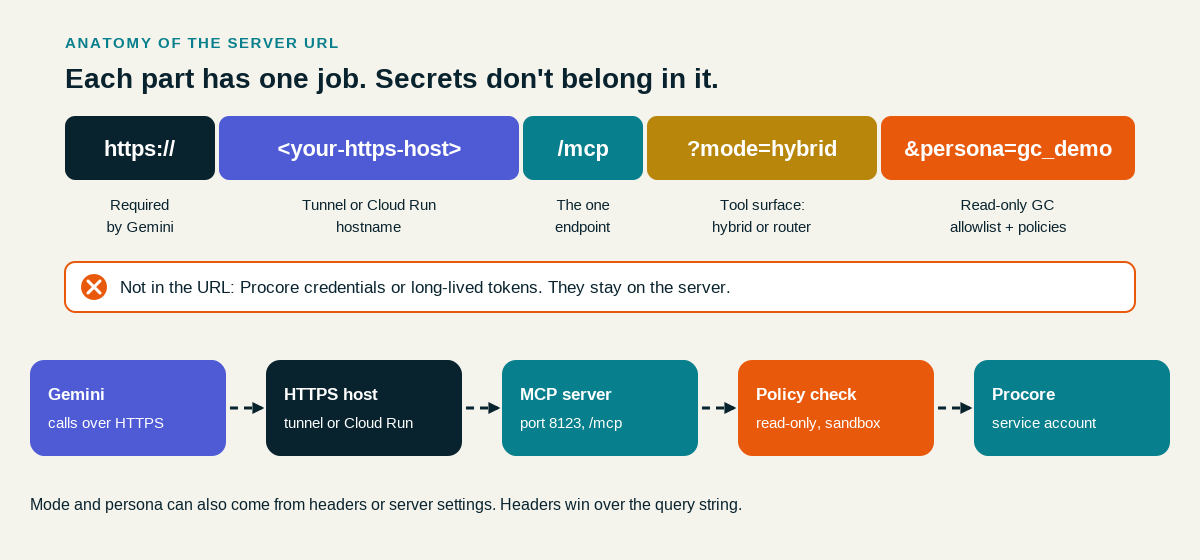 Each part of the URL has one job. Secrets don't belong in it.
Most MCP clients let you set headers, and this server normally takes its mode and persona from x-procore-mcp-mode and x-procore-mcp-persona. Gemini's connect dialog only takes a URL, so the demo build of the server also reads them from the query string in src/server/http.ts:
https://<your-https-host>/mcp?mode=hybrid&persona=gc_demo
mode=hybridshows the persona's tools plus the router meta-tools.persona=gc_demolimits the Procore tools to a 15-tool read-only allowlist and appliesreadonly-by-defaultandsandbox-only.- If a header is also present, the header wins.
Both parameters are optional. Without them the server falls back to PROCORE_MCP_MODE and the persona set on the server, which is the cleaner choice once you deploy. Leave mode and persona in the URL only while you're testing.
Connect it, step by step
The video covers this at 23:05.
-
Open Developer Mode. In Gemini on the web, click Settings > Gemini Apps Developer Mode, or go straight to gemini.google.com/devmode. The Developer Mode panel opens on the right with "No telemetry recorded."
-
Create a custom app. In the Choose an app dialog ("No custom MCP servers yet"), click + Create new.
-
Enter the server URL. In Connect to an MCP server, paste your URL into MCP Server URL. It has to start with
https://and end in/mcp, plus any query parameters.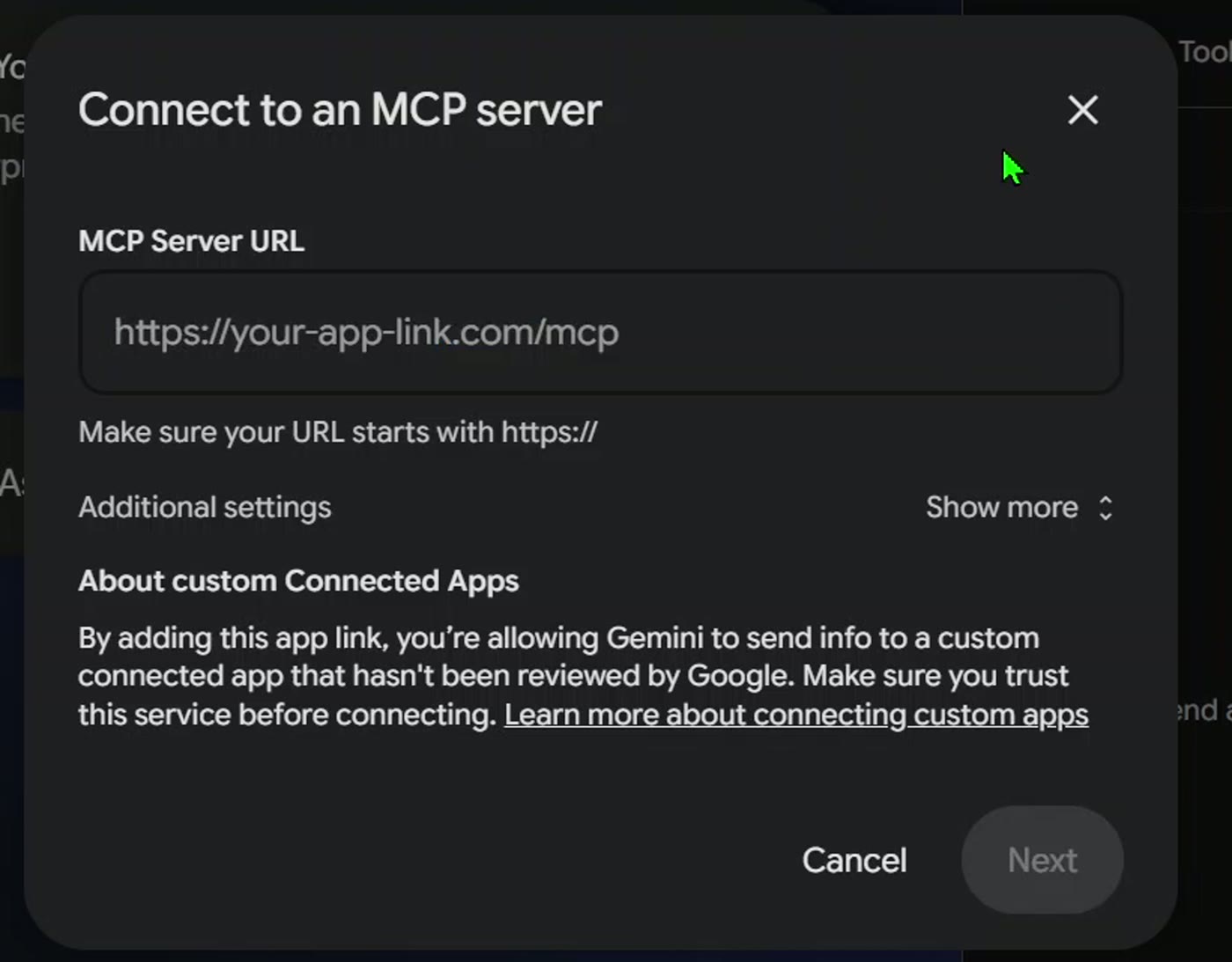 The connect dialog, before a URL is entered.
-
Check Additional settings. Click Show more if your server uses OAuth and enter the client details there. Our sandbox demo didn't use OAuth, so we left it closed.
-
Read the trust notice, then connect. Click Next. Gemini shows a notice headed Make sure you trust this MCP server: Google "does not control, monitor, or secure this MCP server," and the server "may request data beyond what is needed." Tick I understand and accept the security and privacy risks of connecting this custom app and click Connect. That warning is a fair one. Only connect servers you run or have vetted.
-
Review the tools. The Save your custom app dialog shows the app name (ours came through as "Procore Mcp Server") and Available actions with a last-synced time. Click See all 42 to check the list: the 15 Procore read tools from the persona, then the 27
procore_*meta-tools. If you see thousands of tools, the server is in expanded mode. Stop and fix that first. Click Connect, and Gemini confirms with "Custom app added." -
Ask your first question. We used: "What Procore projects am I working on?"
-
Answer the prompts. Two prompts showed up in the video, and they're different things:
- The browser asked whether gemini.google.com may Show notifications. That's Chrome's site permission, not the server. Allow or Block, either works.
- Gemini asked Let Gemini use list companies? with Don't allow, Allow once and Always allow. That's the tool-level confirmation. Charley chose Always allow for this read-only tool.
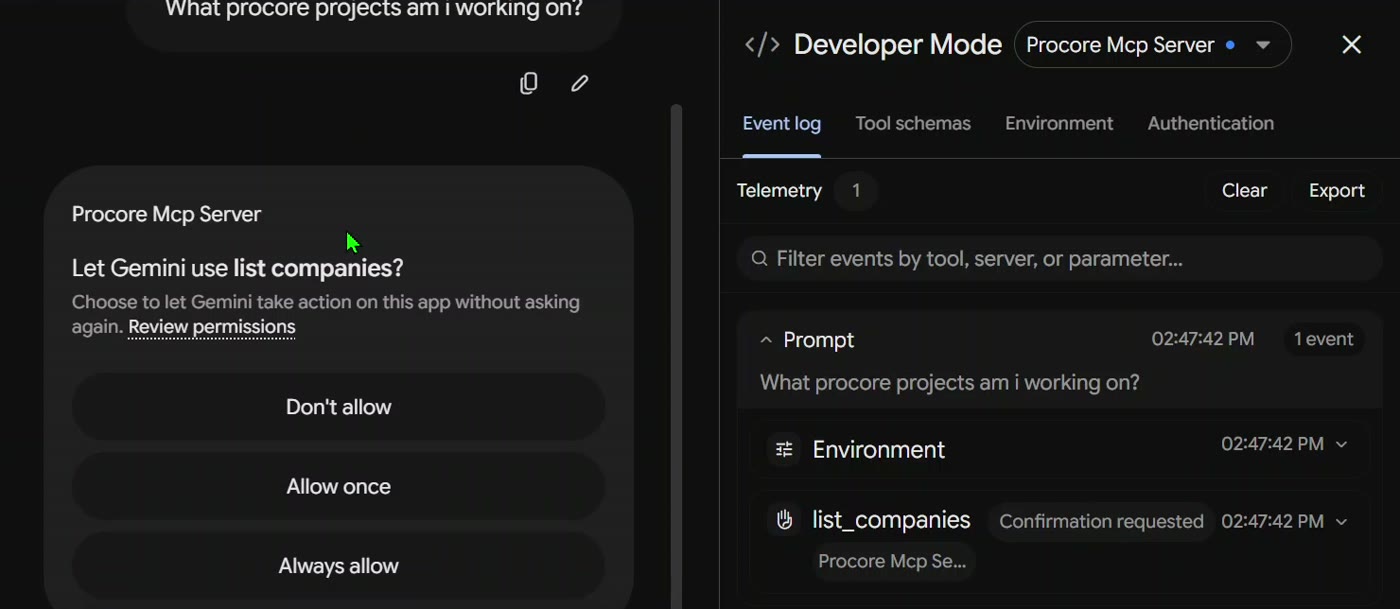 Gemini asks before calling the tool. The event log shows Confirmation requested.
-
Watch the event log. Under Telemetry,
list_companiesmoved from Confirmation requested to Confirmed and then to a tool result of 200 OK in 889 ms.list_projectsfollowed the same pattern. Expand any event to see the JSON-RPC request and response.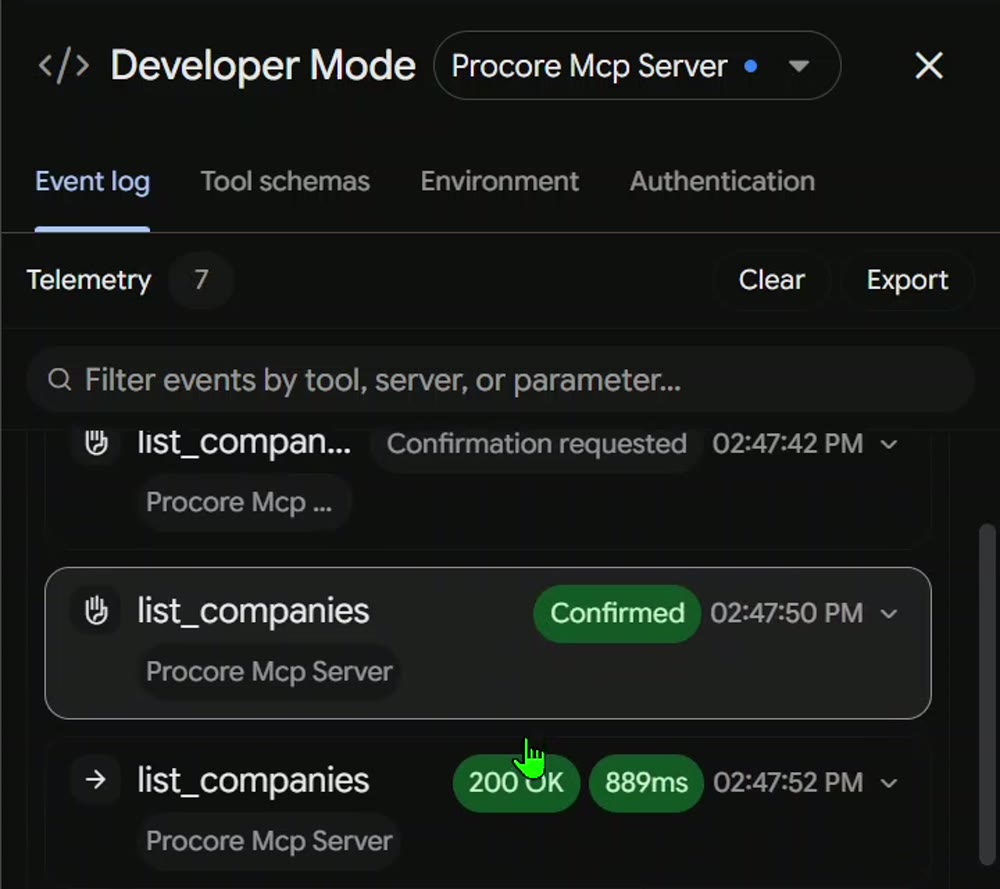 Confirmation requested, Confirmed, 200 OK. That's a working connection.
The other three tabs
The video stays on the Event log, but the other tabs are worth a look before you build on this. Per Google's docs:
- Tool schemas lists the server's instructions and every tool from
tools/list, with a filter, safety badges (Read-only, Destructive, Auth-required), parameters, the raw schema and the response structure. Sync schema re-fetches the tool list without resetting the chat. Use it after you change a persona or restart the server. - Environment sets a Simulated Date, Simulated Time and Language. That's handy for anything date-relative, like "overdue as of today." Set it to the date your data was captured and the answers stay stable.
- Authentication is where you pick Dynamic Client Registration or Manual Client Registration for OAuth, then Save.
What it looks like on real data
Gemini answered the first question with a table of the 10 Procore projects the sandbox service account can see. That matches the server's own capture from the same day. Once that works, the GC persona's tools answer real project questions. Here's what the same server returned on the sandbox project:
| Prompt | Tools Gemini should call | Sandbox result |
|---|---|---|
| Which RFIs are overdue and who has the ball? | list_project_rfi_rfis | 23 open, 22 past due |
| What's our open change exposure? | list_change_events | 5 events, $114,021 ROM |
| Where are we over budget? | list_budget_views, list_budget_view_detail_rows | 3 lines, $261,050 over |
| Can you create an RFI for me? | procore_call_tool | Denied by policy readonly-by-default |
Paste these after the first test to exercise each domain:
What Procore projects am I working on?

On The Sparkling Skyrise Project, which RFIs are overdue as of today?
Rank by days late and show who has the ball in court.

What open or pending change events are there, and what's the total
ROM exposure?

Create an RFI asking the architect to confirm the L4 embed locations.
(Expect a policy denial: this persona is read-only.)
The last one is a good test to show your IT lead. The write gets refused at the server, before it reaches Procore, whatever the model decides to try.
Troubleshooting
| What you see | Likely cause | Fix |
|---|---|---|
| Connection fails with 401 Unauthorized | The server requires a token and Gemini isn't sending a valid one. The server answers with JSON-RPC error -32001 Unauthorized | Use OAuth for anything shared. For a short throwaway demo, see the token options in the security guide. Then reconnect |
| "Make sure your URL starts with https://" | You pasted http:// or localhost | Put the server behind an HTTPS tunnel or deploy it to Cloud Run |
| Worked yesterday, fails today | The quick tunnel's hostname changed or the tunnel process stopped | Start a new tunnel and create a new custom app with the new URL, or move to a stable hostname |
| Thousands of tools, slow or confused answers | The server is in expanded mode (2,755 tools) | Use mode=hybrid with a persona, or router. See the modes guide |
| A confirmation card on every call | The tools don't declare readOnlyHint, so Gemini asks first | Choose Always allow for read tools you trust. Adding readOnlyHint to read tools is the server-side fix |
-32602 invalid params | Gemini's arguments don't match the tool schema | Compare the Tool call payload with Tool schemas and tighten the description |
| 403 from Procore | The service account isn't in that project's directory | Add it in Procore, or ask about a project it can see |
| 429 or slow responses | Procore rate limit (25 per window on our sandbox) | The server retries with backoff. Ask narrower questions |
| Tools changed, Gemini shows the old list | Cached schema | Click Sync schema on the Tool schemas tab |
Do it with us
BuildFlows sets this up with GCs, from the Procore service account to a Gemini Enterprise rollout with personas, policies and audit. If you want to see your own projects in Gemini, email charley@buildflows.ai or visit /engage. The whole run is on the Procore MCP and Gemini demo page, and the use-case catalog is in the Procore Agent Playbook.
Related reading: Routing 2,755 Procore API Tools Through MCP, What is MCP?, Hardening MCP Servers for Production and Governing AI Agents in Construction.
References
- Google, Gemini Apps Developer Mode overview (updated Oct 28, 2026): https://developers.google.com/connected-apps/mcp/dev-mode
- Google, Test, debug, and evaluate in Gemini Apps Developer Mode (updated Oct 28, 2026): https://developers.google.com/connected-apps/mcp/dev-mode/usage
- Google, Set up a custom MCP server in Gemini Enterprise: https://docs.cloud.google.com/gemini/enterprise/docs/connectors/custom-mcp-server/set-up-custom-mcp-server
- Model Context Protocol, Authorization specification (2025-11-25): https://modelcontextprotocol.io/specification/2025-11-25/basic/authorization
- Cloudflare, Quick Tunnels: https://developers.cloudflare.com/cloudflare-one/connections/connect-networks/do-more-with-tunnels/trycloudflare/
- Google Cloud Run, Host MCP servers: https://docs.cloud.google.com/run/docs/host-mcp-servers
- Procore, Rate limiting: https://procore.github.io/documentation/rate-limiting
- Procore MCP server (open source), README and
src/server/http.ts: https://github.com/charley-forey/procore-mcp - Video, connecting the server in Gemini (23:05): https://youtu.be/wXAZCQnYIjA?t=1385
Frequently asked questions
Where is Developer Mode in Gemini?
In Gemini on the web, open Settings and choose Gemini Apps Developer Mode, or go to gemini.google.com/devmode. Then click + Create new in the Choose an app dialog to add a custom MCP server.
Can I connect a localhost MCP server to Gemini?
No. Gemini runs in Google's cloud and requires a URL that starts with https://. Put the local server behind an HTTPS tunnel for a short test, or deploy it to Cloud Run for anything longer.
What authentication does Gemini Developer Mode support?
Google's docs describe OAuth, with Dynamic Client Registration or Manual Client Registration on the Authentication tab. They don't mention API keys or custom headers.
Why does Gemini ask for confirmation before every tool call?
Gemini decides when to confirm based on tool annotations and context. Tools without readOnlyHint get a confirmation card. Choose Always allow for read tools you trust, or add readOnlyHint to read-only tools on the server.
What does a 401 Unauthorized mean when connecting?
The server requires a token and Gemini didn't send a valid one. The Procore MCP server returns JSON-RPC error -32001 Unauthorized before any tool runs. Use OAuth for anything shared, and see the security guide for short demos.
Who can use Gemini Developer Mode?
Google's documentation, last updated October 28, 2026, doesn't state account-type or regional eligibility. If the menu item doesn't appear, check with your Google admin.
Next step
Need this connection in your environment?
Scope one integration: the records, direction, timing, and business rules behind the connection.
Prefer email? charley@buildflows.ai
Keep learning
AI agents & MCP · November 16, 2026
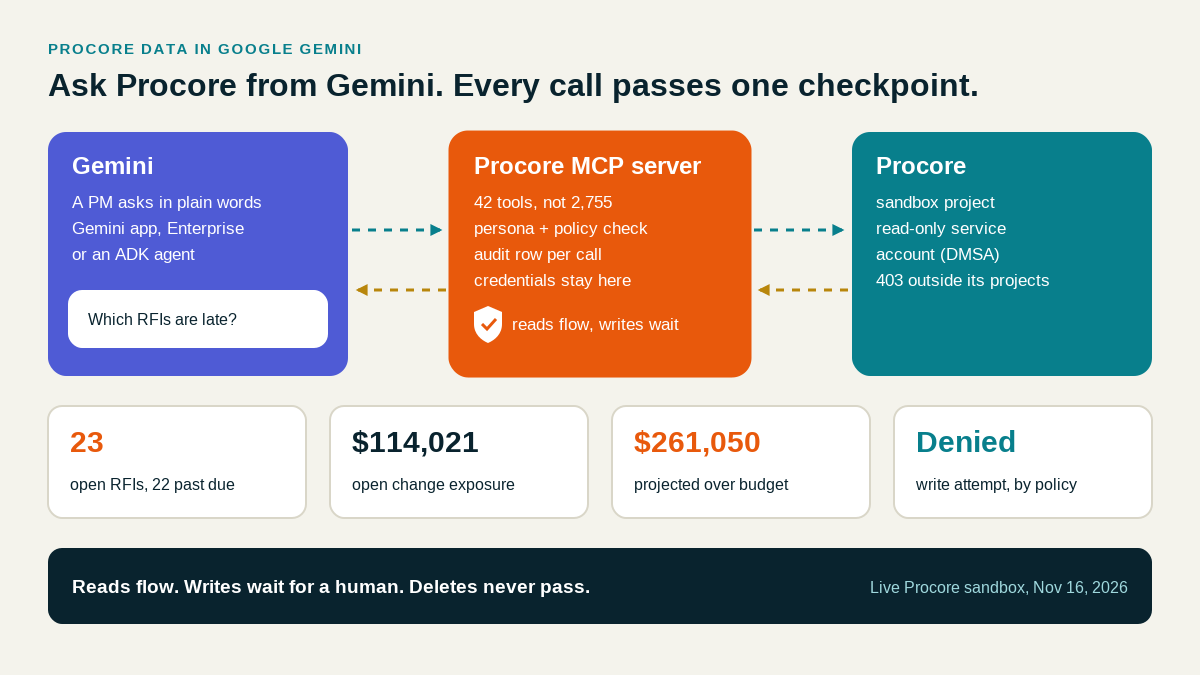
Procore Data in Google Gemini: The Governed Path for GC Agents
Why GCs want Procore answers in Gemini, the gap while Procore AI MCP supports only Claude, the Ask, Plan, Check, Fetch, Answer path, what we proved on a live Procore sandbox, where it fits in Google Cloud (Gemini Enterprise, ADK, A2A, BigQuery, Cloud Logging), the use cases to start with, and how to run a pilot.
Integrations · November 16, 2026
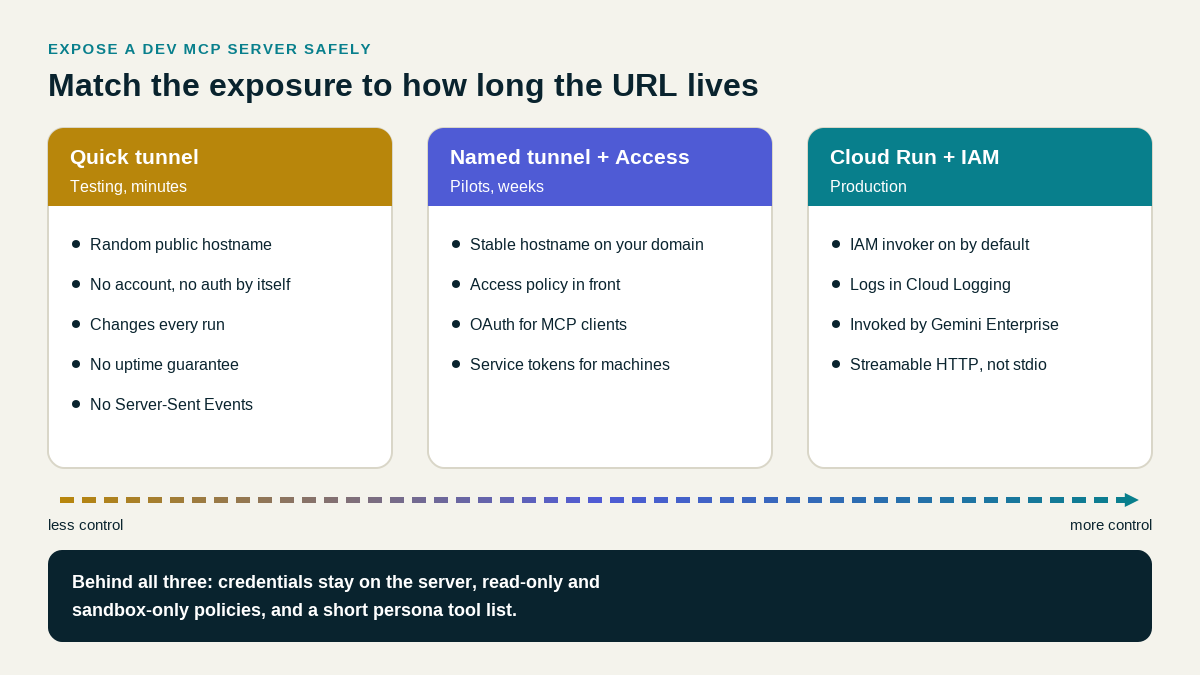
Expose a Dev MCP Server to Gemini Safely: Tunnels, Tokens and Recording Hygiene
General best practice for exposing a dev MCP server to a hosted client: when to use a Cloudflare quick tunnel, a named tunnel behind Access, or Cloud Run; why tokens belong in the Authorization header; how the Procore MCP server's demo token gate works; read-only, sandbox-only Procore access; rotation; and a screen-recording checklist.
AI agents & MCP · October 10, 2026
Hosting Streamable HTTP MCP: Kubernetes, Container Apps or a VM
A vendor-neutral guide to hosting streamable HTTP MCP servers: choosing a session posture, comparing Kubernetes, managed containers and a VM with nginx and systemd, and getting probes, Origin checks, OAuth 2.1, secrets, observability and load testing right.