Video unavailable? Watch on YouTube or read the written breakdown.
The short version: Start with the portal your project management or accounting system already includes. Build a custom client or owner portal only when owners need a view those tools cannot give them: data combined from several systems, your own branding and narrative, questions and confirmations recorded on the project, or a simpler experience than a full guest login. A good portal shows status, schedule, pay applications, documents and open approvals, gives each owner access to their own projects only, syncs from your systems of record instead of becoming a new one, and has a named owner for maintenance after launch.
Owners want to know three things: where the job stands, what they owe, and what they need to decide. Most contractors answer those questions with a monthly PDF, a pay application package and a long email thread. It works until the owner asks a question the PDF does not answer, or a dispute turns on what the owner was told and when.
A client portal is one place where the owner reads current status, sees the documents that matter to them and answers what is waiting on them. This guide covers when a vendor portal is enough, when a custom one earns its keep, what to put in it, how to secure it, how to keep its data in sync, and what it costs to run once it is live.
What a construction client portal is (and is not)
A client or owner portal is a secure, client-facing view of a project. The owner signs in or opens a protected link and sees an agreed subset of the project: progress, schedule milestones, billing, selected documents and the items that need their answer.
It is not a second project management system. The portal should not be where your team enters data. Your team keeps working in Procore, your ERP, your scheduling tool and SharePoint, and the portal reads from those systems. The one exception is the owner's own input: answers, approvals and comments flow back from the portal and are stored on the project record.
That boundary decides most of the design. A portal that only reads and records owner responses stays small. A portal that starts holding its own copies of cost, schedule or document data becomes a system someone has to reconcile.
Build vs use a vendor portal
Many construction platforms already let you invite owners as external collaborators with restricted permissions, and some accounting systems offer customer portals for invoices and payments. Those are the first thing to try, because they cost nothing extra to build and the vendor maintains them.
The trade-offs:
| Question | Vendor portal (inside an existing platform) | Custom portal |
|---|---|---|
| Where does the data come from? | One system, the one hosting the portal | Any combination: project management, ERP, schedule, SharePoint, reporting |
| What does the owner see? | The vendor's screens, filtered by permission templates | Exactly the pages and wording you design |
| Branding and narrative | Limited to what the platform allows | Your branding, your update format, your commentary |
| Owner effort | Usually a full user account in that platform | Can be a guest account or a password-protected link |
| Owner questions and confirmations | Depends on the platform's workflow features | Designed around your process, stored with timestamps |
| Permissions model | The vendor's roles, which can expose more than intended if templates are not set carefully | Built for owner access only, with the smallest possible scope |
| Upfront effort | Configuration | Discovery, build and testing |
| Ongoing maintenance | The vendor | You, or the team you hire |
| Licensing | May count owners as users, depending on your agreement | Hosting and the services the portal uses |
Use the vendor portal when the owner only needs what one system already holds, your contract and the vendor's license terms allow external users, and the permission templates can be set so the owner sees nothing internal (cost to complete, margin, internal notes, subcontractor pricing).
Build a custom portal when at least one of these is true:
- The owner's view combines systems, such as schedule milestones from your scheduling tool, billing from accounting and documents from SharePoint.
- You want owner updates in your own format, with your commentary, not a raw system screen.
- Owner answers and confirmations need to land on the project record with a timestamp, so there is no argument later about what was agreed.
- Owners will not create and manage an account in your platform, and a guest login or protected link is what they will actually use.
- You serve many owners and want each one to see a consistent, branded experience across every job.
There is also a middle path: a shared Power BI report built on the same semantic model as your internal reporting, filtered to each owner's projects. It is a good fit when the owner mostly needs numbers and charts and does not need to answer questions or approve anything.
What to include in an owner portal
Start from what owners ask about most, and resist adding everything the internal team sees. A first version usually covers five areas.
1. Project status
A one-screen summary per project: percent complete, the current phase, what happened this period, what is next, and the risks or issues the owner should know about. The narrative matters as much as the numbers. Keep a short written update from the project manager next to the figures, and show the date the data was last refreshed so the owner never mistakes an old figure for a current one.
2. Schedule
Owners rarely want the full CPM schedule. Show key milestones with baseline and forecast dates, the next few weeks of major activities, and a plain-language note on anything moving on the critical path. Pull milestones from the scheduling system on a set cadence; do not retype them.
3. Pay applications and billing
Show each pay application with its period, amount, status (submitted, approved, paid) and supporting documents. Include contract value, approved change orders, billed to date and retainage held. Where the owner approves the pay app, the portal can record that approval. Make sure the figures come from the system that actually issued the invoice, not from a spreadsheet copy.
4. Documents
A curated document list: the latest owner report, approved drawings and change order documents, meeting minutes, inspection and closeout documents. Curated is the important word. Link to the controlled copy in your document system rather than uploading duplicates, and decide per document type what owners can see.
5. Approvals and open questions
This is where a custom portal does what a PDF cannot. List the items waiting on the owner (change orders to approve, selections to confirm, questions to answer) with due dates. When the owner responds, store the response, who gave it and when, and mark it as coming from the client. Notify your team so the answer is used, not just filed.
Later additions that are often worth it: a change order log with status, photo progress from the field, punch and closeout status, and warranty contacts after handover.
Security and access
A client portal puts project and financial data outside your company. Treat it with the same care as any external system.
- Least privilege. Each owner user sees only their own projects and only the data types agreed for owners. Apply least privilege at the data layer, not just by hiding menu items. If the portal shows Power BI content, use row-level security so filters are enforced by the model; Microsoft documents this in its row-level security guidance.
- Never use public publishing for client data. Power BI's "publish to web" creates a public link that anyone can open, with no sign-in. Microsoft's publish to web documentation is explicit that it is for public content only.
- Real identity for real users. For owners who return often, use proper accounts with multi-factor sign-in, ideally through an identity service rather than passwords you store yourself. Microsoft's Entra External ID is one option if you already run on Microsoft 365.
- Protected links for occasional input. For a one-off answer, a password-protected link scoped to a single update or question is simpler for the owner. Give links an expiry and the ability to revoke them.
- Separate internal and owner data at the source. Fields such as cost to complete, margin, internal notes and subcontractor pricing should never reach the portal's data store, so a permission mistake cannot expose them.
- Audit everything the owner does. Log sign-ins, views of sensitive documents, approvals and answers, with timestamps. That record is part of the value.
- Offboarding. When a project closes or an owner contact changes, access should end. Build a review of active owner users into project closeout.
Data sync: read from the source, write back only owner input
The quickest way to break trust in a portal is to show the owner a number that does not match the pay application they received. That happens when the portal holds its own copy of data and nobody reconciles it.
A design that holds up:
- Name the system of record for each field. Billing from accounting, milestones from the schedule, documents from the document system, narrative from the project manager.
- Sync on a cadence that matches the content. Billing and milestones change on a monthly or weekly rhythm; nightly is usually plenty. Approvals and answers should be stored the moment they are submitted.
- Reuse your reporting pipeline where you have one. If you already land Procore, ERP and schedule data in a data platform for reporting, the portal can read from the same cleaned tables. Owners and your executives then see the same numbers, mapped through the same project ID crosswalk.
- Show freshness. Every page shows when its data was last updated. If a sync fails, show the last good data with its date rather than a blank or a half-loaded page.
- Write back only what the owner owns. Answers, approvals and comments go back to the project record, either in the portal's own store or pushed to the source system through its API. Decide which, and make the other side read from it.
- Check before you publish. Run the same kinds of checks you would run on internal reports: missing projects, totals that do not tie to accounting, milestones with no date. Our guide to construction data quality rules covers the checks we use.
If your data is not connected yet, that work comes first, and it serves internal reporting too. The Procore data in Power BI and structured manual inputs in SharePoint use cases describe the usual starting points, and our integrations capability covers the wider picture.
What we have built
Connect, the scheduling platform we built for Syncify, is in production and includes the client side of this pattern. Schedulers send means-and-methods questions to the client by email or through a secure, password-protected link. The client answers directly, and the answer appears in Connect marked as client verified. Published schedule updates get a share link where the client can read the update, ask questions and confirm requests, with history and export kept for both sides. Workspaces have admin, member and guest roles.
The Connect walkthrough shows the client links and published updates, and the Connect article explains how the pieces fit. The client and owner reporting portal use case describes how we apply the same approach to reporting data.
Cost and maintenance considerations
We do not publish a typical price, because the cost depends on scope. These are the factors that drive it:
- Number of source systems. One clean source is quick; three systems with mismatched project IDs need a crosswalk and reconciliation first.
- Read-only vs interactive. A status and documents view is smaller than a portal with approvals, questions and notifications.
- Identity approach. Protected links are simpler; full owner accounts with multi-factor sign-in need an identity service and user administration.
- Write-back. Storing owner answers in the portal is simpler than pushing them back into a source system through its API.
- Branding and per-owner variations. One consistent layout for every owner is cheaper to build and maintain than a different view per client.
After launch, plan for:
- Hosting and services the portal relies on, such as the web host, database, identity service and any reporting capacity.
- Source system changes. APIs change, fields get renamed and new projects use new cost codes. Someone has to notice and adapt.
- Security upkeep. Dependency updates, access reviews and offboarding.
- Content ownership. Project managers need to write the narrative. A portal with stale commentary is worse than a PDF.
Ask any builder, including us, who owns the code and the hosting account at the end. You should. Our custom applications capability explains how we hand over code, documentation and admin access.
To judge whether it is working, measure before and after: how long owner answers take by email today versus through the portal, how many owner questions arrive about status or billing, and how much time the team spends assembling the owner update. If you already send a weekly or monthly owner package, the weekly owner update reports use case is a smaller first step that can grow into a portal.
Checklist: before you build a client portal
- We tried, or ruled out with a reason, the portal our existing platform already offers.
- We have a written list of what owners see, and what they must never see.
- Every field in the portal has a named system of record.
- Project IDs match across the systems the portal reads from, or a crosswalk exists.
- Owner access is limited to their own projects, enforced in the data, not only the screens.
- No owner-facing content uses public, unauthenticated publishing.
- We chose between full accounts and protected links, and links can expire and be revoked.
- Owner answers and approvals are stored with who, what and when, and our team is notified.
- Every page shows when its data was last refreshed, and a failed sync shows the last good data.
- A named person owns the narrative on each project and updates it on a set cadence.
- A named person owns maintenance, access reviews and offboarding after launch.
- We own the code, the hosting account and the documentation.
- We know how we will measure response time and owner questions before and after.
Where to go next
- Have a portal in mind? Plan your build and we will scope it with you, or start with the integration sprint to connect the systems the portal will read from, with fixed scope and price, agreed after discovery.
- See client links, published updates and client-verified answers in production in the Connect work example and the Connect walkthrough.
- Check whether your data is ready to show to owners with the reporting readiness checklist.
- Prefer to talk it through first? Start a conversation.
Frequently asked questions
Should a contractor build a custom client portal or use Procore's owner access?
Start with the access your platform already offers, since the vendor maintains it. Build a custom portal when owners need data from several systems in one place, your own update format, a guest or link-based experience, or answers and approvals recorded on the project with timestamps.
What should an owner portal include?
Most first versions cover project status with a written update, schedule milestones with baseline and forecast dates, pay applications and billing with retainage, a curated document list, and the approvals and questions waiting on the owner. Add more only when owners ask for it.
Can I share Power BI reports with owners?
Yes, through authenticated sharing or embedding with row-level security so each owner only sees their own projects. Do not use publish to web for client data, because it creates a public link that anyone can open without signing in.
How does a client portal stay in sync with Procore and accounting?
Name a system of record for every field and sync from it on a set cadence, often nightly for billing and milestones. Owner answers and approvals are stored the moment they are submitted. If you already have a reporting pipeline, the portal can read from the same cleaned tables.
How much does a custom client portal cost to build and maintain?
It depends on the number of source systems, whether the portal is read-only or handles approvals, how owners sign in, and whether answers are written back to source systems. Ongoing costs include hosting, identity and database services, adapting to source system changes, and security upkeep.
Next step
Need something built around how your team works?
Describe the users, the workflow, and the systems it touches. We'll tell you whether a custom application makes sense and how we'd build it.
Prefer email? charley@buildflows.ai
Get the next guide in your inbox
Field Notes: practical guides and new walkthroughs, about once a month.
Field Notes
Practical guides and new walkthroughs on construction data and automation, roughly monthly.
Keep learning

Scheduling & P6 · October 8, 2026
How Specialized AI Agents Standardize CPM Scheduling
A walkthrough of Connect, the agentic platform we built on Syncify, where one agent per step turns drawings, specs and client answers into validated, versioned CPM schedules.
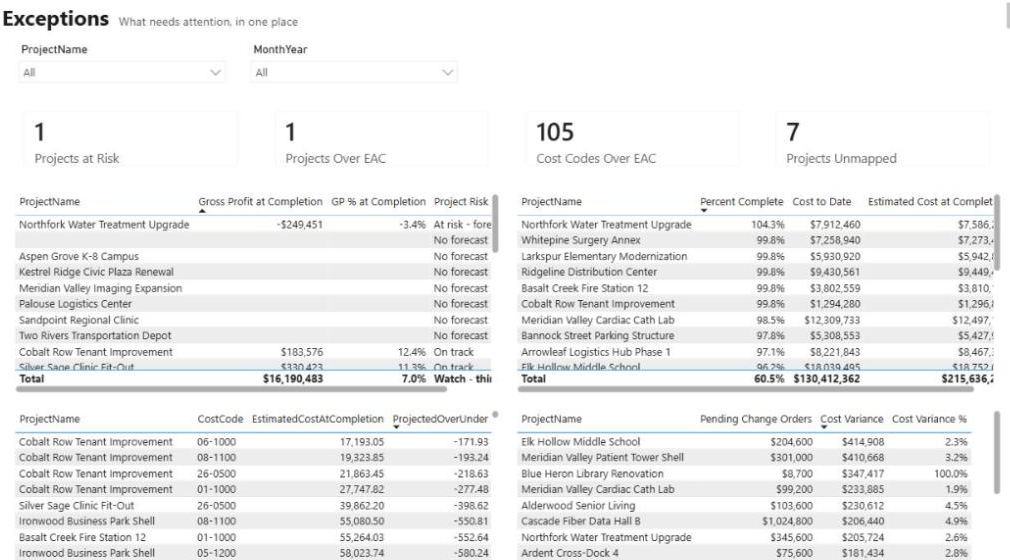
Integrations · October 8, 2026
Procore API Integration Guide: Patterns, Crosswalks and Governance
A practical guide to connecting Procore with accounting, scheduling, BI and CRM systems: which pattern to use, how to link projects across systems, and how to keep the numbers trustworthy.
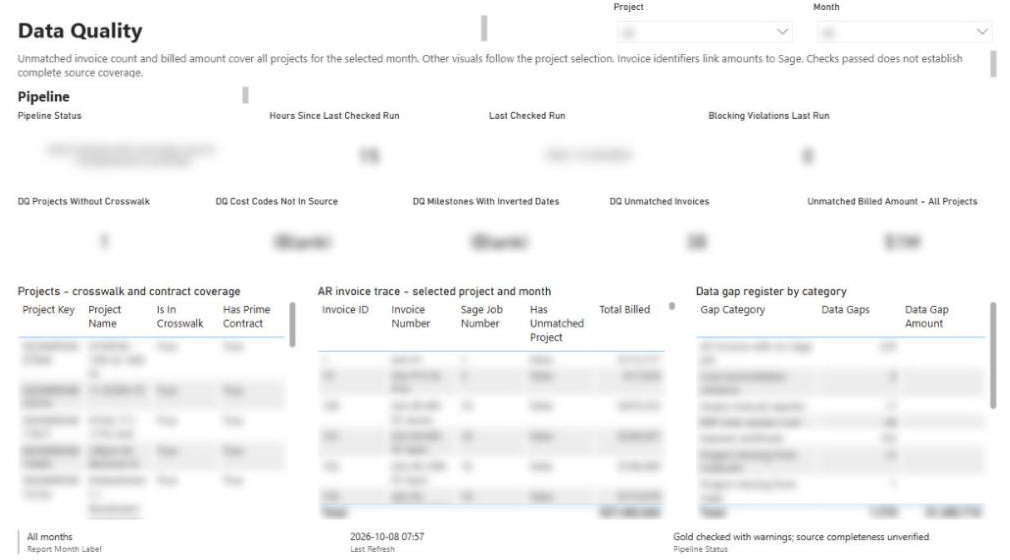
Reporting & analytics · October 8, 2026
Construction Data Quality: The Rules That Make Reports Trustworthy
A practical checklist of the data-quality rules behind construction reports people can defend, from quality gates and blank-never-zero to cost-code crosswalks, reconciliation and snapshots.