Key takeaways
- The error means the person isn't in your Microsoft Entra directory yet. Fabric's workspace access list doesn't send invitations, so typing an outside email there always fails.
- A Fabric administrator must enable Guest users can access Microsoft Fabric under Tenant settings, Export and sharing settings, for the whole organization or a security group, and select Apply.
- Users can invite guest users to collaborate through item sharing and permissions only covers invitations from Fabric sharing screens. It doesn't fix the workspace error, and you can leave it off if invitations go through Entra.
- Invite the consultant from the Microsoft Entra admin center: Users, New user, Invite external user, then Review + invite. You need at least the Guest Inviter or User Administrator role.
- After the guest accepts, add them under Manage access, Add people or groups. Contributor suits most outside builders; Member also lets them add people. Keep Admin for your own staff.
- If the invitation is refused, check External collaboration settings in Entra for who may invite and whether the consultant's domain is blocked.
40 seconds · From a Build Flows walkthrough
Outside email blocked? Two ways in
Fabric rejects an address outside your organization until that person exists in your directory. Either create them an account on your domain, or invite them as a guest and allow guests in Fabric.
Read the clip transcript
Okay, so it is because I like I'm outside of your email. So if you could either go through and there's one option to go through and either create an email under my under your domain. And then I give me access to that so I can work in your instance or you can allow guest access to fabric. And so, uh, either one would be optional. The quickest one would just be to allow my email to Build Flows.ai to then get shared access as a guest to that workspace. But if you want, we can also create an email and that would just be an additional step in a sense. It's fine. How do I allow access?
Captions adapted from the source video; proper names may reflect automatic transcription. Original segment: 35:20–36:00. Watch at the source.
72 seconds · From a Build Flows walkthrough
Turn on guest access in Fabric tenant settings
In the Fabric admin portal, Tenant settings, Export and sharing settings, check "Guest users can access Microsoft Fabric" and decide whether people can invite guests from inside Fabric. Select Apply after each change.
Read the clip transcript
email and that would just be an additional step in a sense. It's fine. How do I allow access? Okay, cool. So in the fabric solution will go to the gear icon and there should be an admin portal. And then tenant settings. Okay. Okay, and then what we'll want to do here is for the settings under export and sharing settings. So export and sharing settings. it is switched both of these and clicked apply each time. So for guest users can access Microsoft Fabric and users can invite guests to collaborate through item sharing and permissions. - Okay, so export and sharing, external data sharing disabled. Okay. So, I mean, guest users can access. Yeah. So select that one. That's enabled. Okay. For, um,
Captions adapted from the source video; proper names may reflect automatic transcription. Original segment: 36:00–37:12. Watch at the source.
47 seconds · From a Build Flows walkthrough
Invite the consultant from Microsoft Entra
In the Microsoft Entra admin center, go to Users, New user, Invite external user, enter their email and send the invitation. Once they accept, they can be added to the workspace.
Read the clip transcript
So Entra ID users new user and then invite external user and then that would be to invite them. and the charley@buildflows.ai review, invite, and then invite. I would accept this and then guest users can access Microsoft fabric. So then I could then in fabric go to the tenant and build both of them view it. So I need to go to Entra ID. So Entra ID and the, and then users and then new user. So I think it's right here. So add a user. - This is the, do I do it through Enter here? - Yeah, I do it through Enter. I believe through here. Or let me see here.
Captions adapted from the source video; proper names may reflect automatic transcription. Original segment: 39:13–40:00. Watch at the source.
36 seconds · From a Build Flows walkthrough
Viewer or Member? Pick the workspace role
Viewer can only look. To build lakehouses, pipelines and reports, an integrator needs Contributor or Member. Start with the lowest role that works and raise it only if needed.
Read the clip transcript
There you go. All right. All the same magic. Yeah. Right. There's so many steps and things. It's just. It's crazy. Cool. Okay. So you added me on there. Do you know what the permission that you added me was I viewer or a member? I'm saying viewer. Can you have me as a member? Member. I may need to be admin, but. I'm not entirely sure. I'll let you know if I need to admin access. Okay.
Captions adapted from the source video; proper names may reflect automatic transcription. Original segment: 41:50–42:26. Watch at the source.
You've created a Microsoft Fabric workspace for your reporting project. You open Manage access, type your consultant's email address, and Fabric refuses with a red message:
One or more e-mail addresses with the following domains are outside your organization: consultant@theirfirm.com
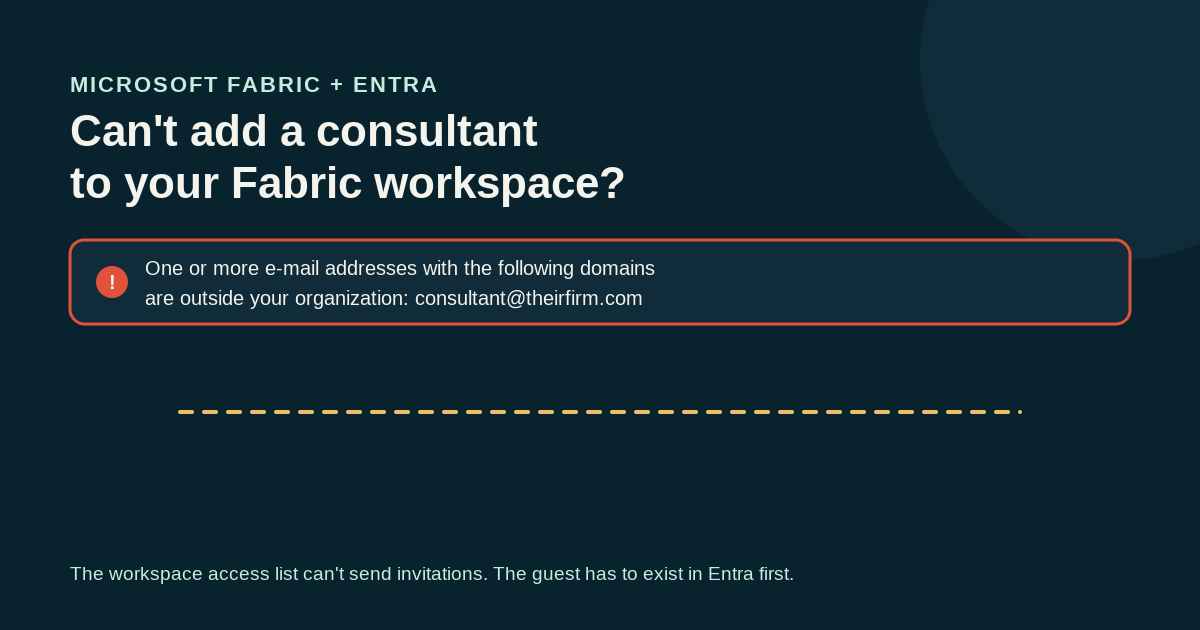
Nothing is broken. Fabric is telling you the person doesn't exist in your Microsoft Entra directory yet, and the workspace access list won't create them for you. This guide explains why, then walks through the fix in four steps: two Fabric tenant settings, an invitation from Entra, the guest accepting, and adding them to the workspace with the right role.
If you haven't decided whether the consultant should be a guest at all, read guest account vs domain account first. This article assumes you've picked the guest route.
 From blocked to added in four steps
Why Fabric says "outside your organization"
Every Fabric workspace lives in your company's Microsoft Entra tenant. Workspace roles can only be given to people and groups that tenant knows about. Your own staff are already there. An outside consultant isn't, until someone invites them as a B2B guest.
Some Fabric screens can send that invitation for you. Sharing a report, subscribing someone to a report, and an app's access list can all invite a new guest. Microsoft calls these ad hoc invites. The workspace access list can't. Microsoft's B2B page says it directly: "The workspace access list doesn't support ad hoc invites." You have to use a planned invite from Entra, then add the guest to the workspace.
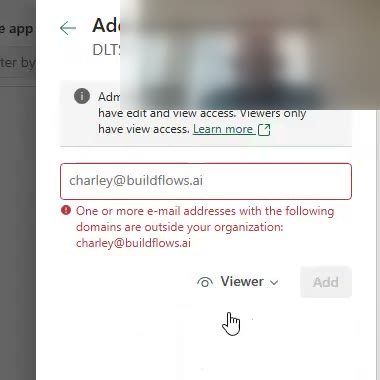 The error in the Add people panel
The fix at a glance
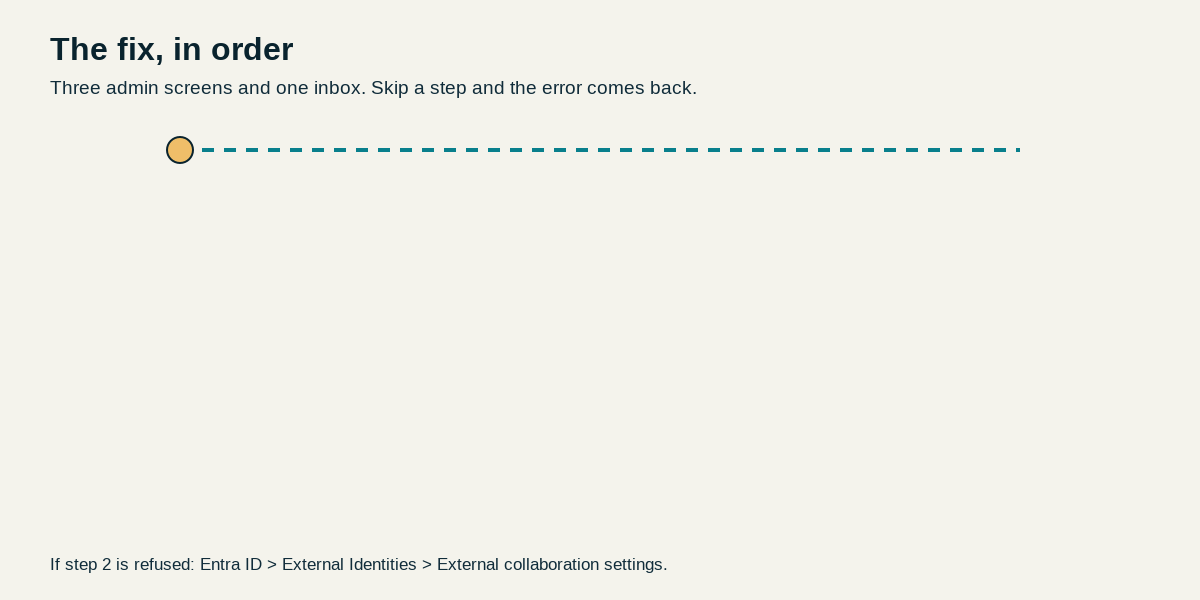 Four steps, three different admin screens
| Step | Where | Who can do it |
|---|---|---|
| 1. Allow guests into Fabric | Fabric admin portal > Tenant settings | Fabric administrator |
| 2. Invite the consultant | Microsoft Entra admin center > Users | Guest Inviter or User Administrator |
| 3. Accept the invitation | The consultant's inbox | The consultant |
| 4. Give a workspace role | Workspace > Manage access | Workspace Admin or Member |
In a small company, one admin often holds all three admin roles. In a larger one, expect to ask two different people.
Step 1: Turn on guest access in Fabric
- In Fabric, select the gear icon and open the Admin portal. Microsoft is moving these screens to OneLake catalog > Govern > Configurations > Tenant settings, and you'll see a banner about it during the rollout. Either route works.
- Select Tenant settings and scroll to Export and sharing settings.
- Expand Guest users can access Microsoft Fabric. Set it to Enabled.
- Under Apply to, choose The entire organization or Specific security groups. A security group such as
fabric-external-consultantsis tighter. Select Apply. - Expand Users can invite guest users to collaborate through item sharing and permissions and decide whether to turn it on. Select Apply if you change it.
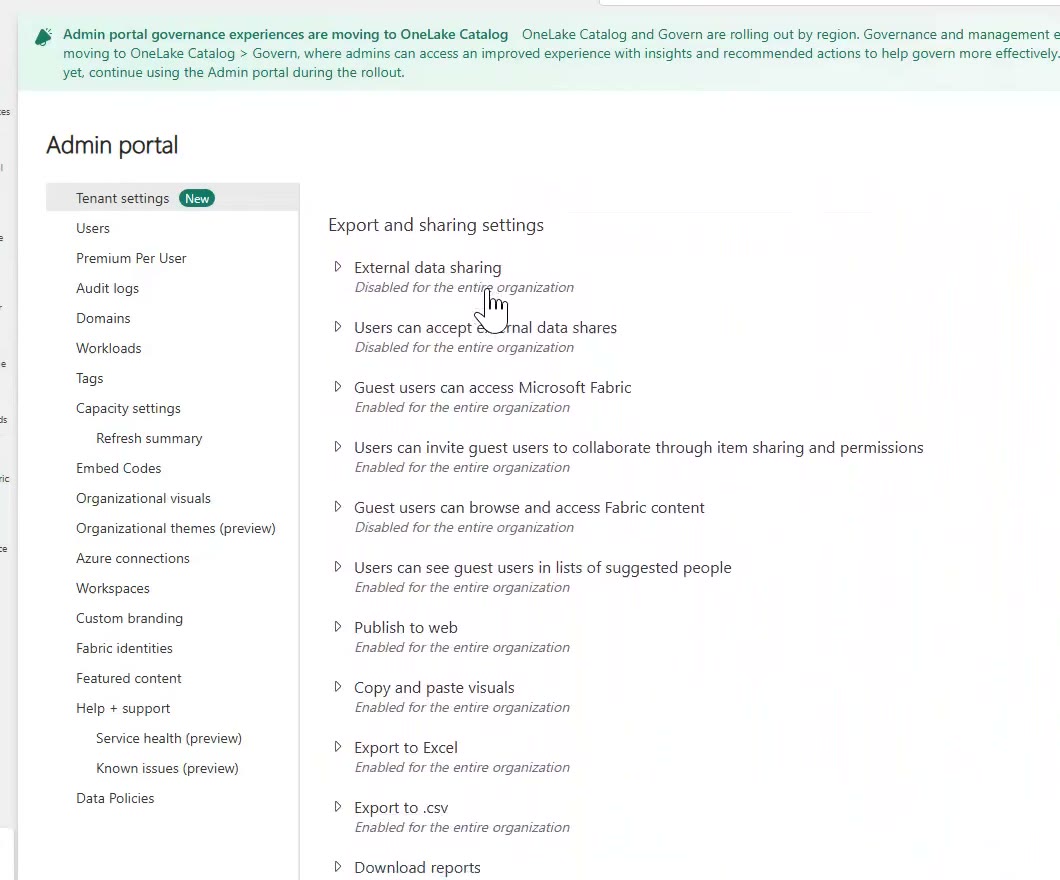 Export and sharing settings in the admin portal
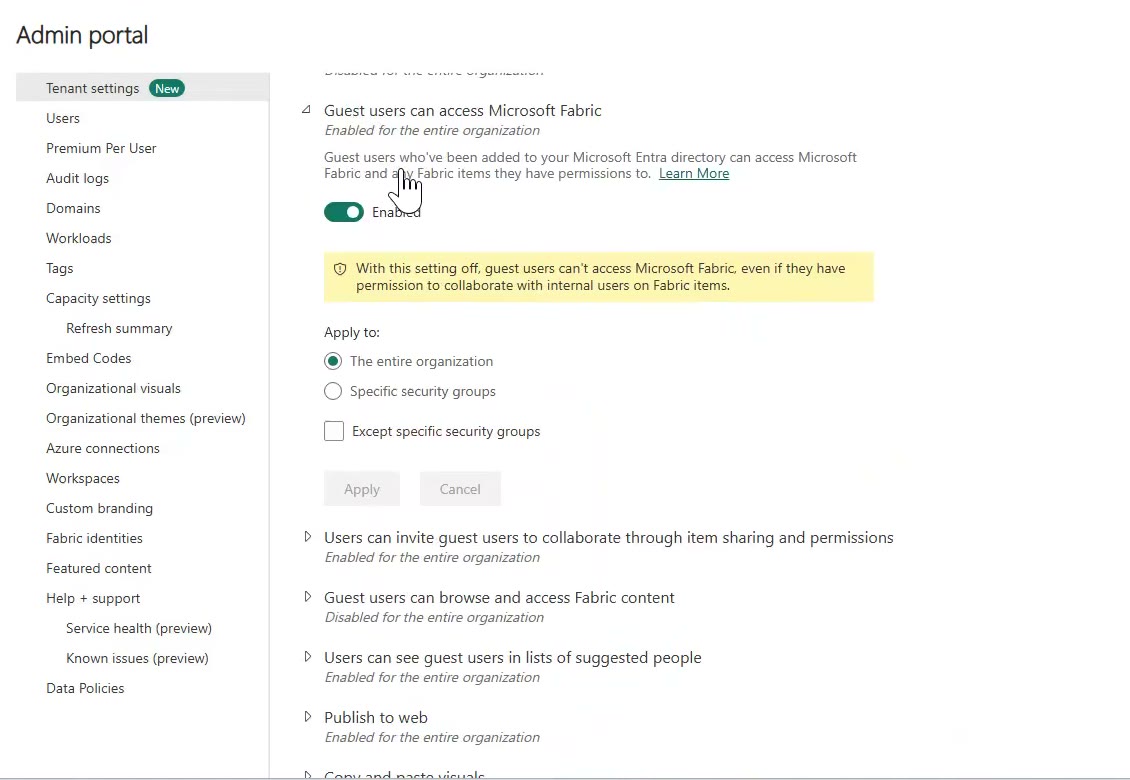 Guest users can access Microsoft Fabric, enabled
The first setting is the one that matters. If it's off, Microsoft says B2B guests get an error when they open Fabric, even when they have permissions.
The second setting only controls whether people can send new invitations from inside Fabric's sharing screens. When it's off, the admin portal says external users can't be invited through Fabric, but external users added directly to Microsoft Entra ID can still be given access to Fabric items. That's the route this guide uses, so you can leave it off if your IT team prefers all invitations to go through Entra. Even when it's on, the person sharing also needs the Entra Guest Inviter role to invite.
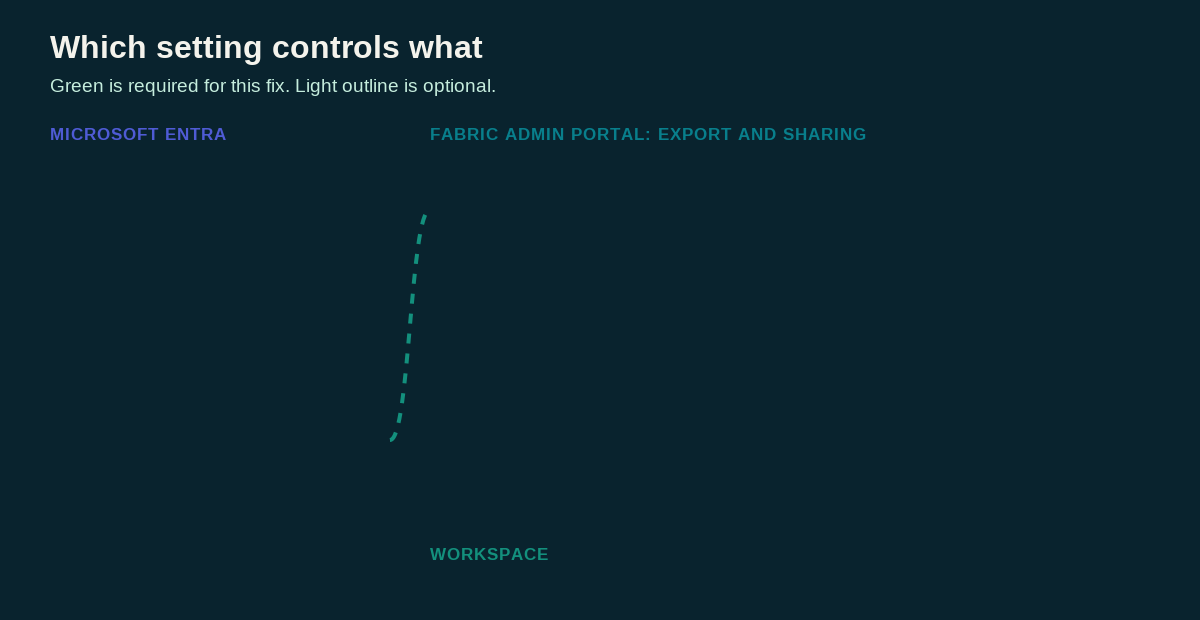 Which setting controls what
Step 2: Invite the consultant from Microsoft Entra
- Sign in to the Microsoft Entra admin center with at least the Guest Inviter or User Administrator role.
- Go to Entra ID > Users > New user > Invite external user.
- On Basics, enter the consultant's work Email and a Display name.
- Leave Send invite message checked. Add a short Message so they know who it's from.
- Check the Invite redirect URL. It's where the guest lands after accepting. Setting it to
https://app.fabric.microsoft.comsaves them a step. - Select Review + invite, then Invite.
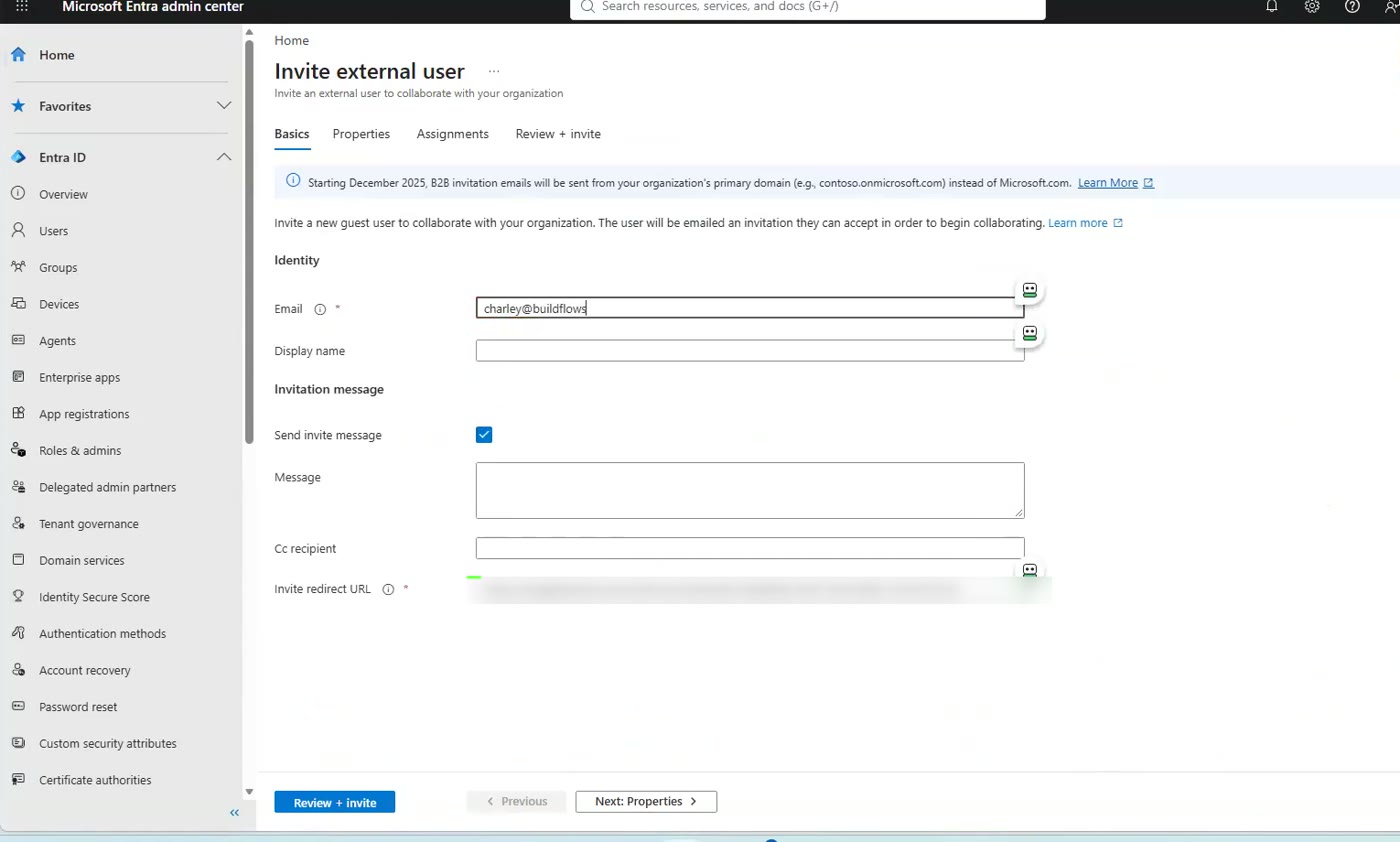 Invite external user in Entra
The guest account appears in your directory straight away, before they accept.
If the invitation is refused, check Entra ID > External Identities > External collaboration settings. Guest invite settings decides who may invite. The most restrictive option, No one in the organization can invite guest users including admins, blocks everyone. Collaboration restrictions can block or allow specific domains, so make sure the consultant's domain isn't on a deny list.
Step 3: The consultant accepts
The consultant opens the email and selects Accept invitation, then Accept on the permissions prompt. Since late 2025 Microsoft sends guests to their own organization's sign-in page, so they sign in with their usual work account and MFA.
If the email doesn't arrive, open the guest in Entra ID > Users. In the B2B collaboration tile, a state of PendingAcceptance means they haven't accepted yet, and Resend invitation sends it again.
Step 4: Add them to the workspace with the right role
- Open the workspace and select Manage access. It's at the top right, or under More options (...).
- Select Add people or groups.
- Type the consultant's email. It should resolve now instead of showing the red error.
- Pick a role and select Add.
Microsoft says the change takes effect the next time the user signs in to Fabric, so have the consultant sign out and back in.
| Role | What it can do | Use it for |
|---|---|---|
| Admin | Everything, including adding or removing other admins, updating or deleting the workspace, and connecting it to Git | Your own staff only |
| Member | Everything a Contributor can, plus add members and lower roles and let others reshare | An integrator who also onboards your team |
| Contributor | Create, edit, run and delete lakehouses, warehouses, notebooks and pipelines, and schedule refreshes | Most outside builders. Our default. |
| Viewer | View content and read data through the SQL endpoint. No writes, no running notebooks or pipelines | People who only check the numbers |
Contributor is usually right for a consultant building your pipelines and reports. Member is fine when you want them to add your staff to the workspace for you. Give the role to a security group instead of the person, and removing access later is one change. Report licensing is separate from the role: on a capacity smaller than F64, building and viewing Power BI reports needs Pro or PPU. The guest vs domain account guide covers licensing, MFA and offboarding.
The other option: an account on your domain
You could skip all of this and create consultant@yourcompany.com in Entra instead. It works, and some security policies require it. You then own that password and the offboarding. The trade-offs are in guest account vs domain account.
From the live session
We hit this exact error on a setup call with a client, a low-voltage and security integrator. They had just started the Fabric trial and created a shared workspace. When the client's admin added Charley's Build Flows address under Add people, Fabric showed the outside-your-organization error (32:53 in the video).
Charley laid out the two options: an account on the client's domain, or guest access for his own address. The admin picked guest access. At 35:59 they opened the admin portal and confirmed both Export and sharing settings. The workspace still wouldn't take the address, and the message under the invite setting pointed the way: invite through Entra ID. At 38:39 the admin used New user > Invite external user in the Entra admin center. After Charley accepted, the admin added him to the workspace (41:19). It went in as Viewer first, and they switched it to Member so he could build. Watch the full session on the demo page, or read the three roadblocks write-up.
Checklist
- Decided on guest vs domain account, and wrote down why
- Guest users can access Microsoft Fabric enabled for the org or a security group, then Apply
- Users can invite guest users to collaborate through item sharing and permissions set the way IT wants
- External collaboration settings allow you to invite, and the consultant's domain isn't blocked
- Invitation sent from Users > New user > Invite external user
- Consultant accepted, and no longer shows PendingAcceptance
- Guest (or their security group) added under Manage access as Contributor or Member
- Consultant signed out and back in to Fabric
- Power BI licensing covered if they build or view reports
- End date and offboarding owner written down
Need a hand?
Build Flows builds construction reporting on Microsoft Fabric for QuickBooks, Procore and HubSpot data. Getting access set up cleanly is part of the first call, and we can walk your admin through these screens on a screen-share. Email charley@buildflows.ai or tell us what you're building.
References
- Microsoft Learn: Distribute Power BI content to external guest users with Microsoft Entra B2B
- Microsoft Learn: Export and sharing tenant settings
- Microsoft Learn: Quickstart: Add a guest user and send an invitation
- Microsoft Learn: How to create, invite, and delete users
- Microsoft Learn: Configure external collaboration settings
- Microsoft Learn: Give users access to workspaces
- Microsoft Learn: Roles in workspaces in Microsoft Fabric
- Microsoft Learn: Understand Microsoft Fabric licenses and capacity
Frequently asked questions
What does "One or more e-mail addresses with the following domains are outside your organization" mean in Fabric?
The email belongs to someone who isn't in your Microsoft Entra directory, and the workspace access list can't invite them. Invite the person as a guest from the Microsoft Entra admin center (Users, New user, Invite external user). Once they accept, add them to the workspace under Manage access.
How do I add an external user to a Microsoft Fabric workspace?
Four steps. A Fabric administrator enables Guest users can access Microsoft Fabric in Tenant settings. An Entra admin invites the person with Invite external user. The person selects Accept invitation in the email. Then a workspace Admin or Member opens Manage access, selects Add people or groups, enters the email, picks a role and selects Add.
Which Fabric tenant setting allows guest users?
Guest users can access Microsoft Fabric, under Export and sharing settings. If it's off, B2B guests get an error when they open Fabric even if they have permissions. You can apply it to the entire organization or to specific security groups.
I enabled "Users can invite guest users to collaborate through item sharing and permissions". Why can't I add the guest to the workspace?
That setting only controls invitations sent from Fabric sharing, subscription and app access screens, and the sender also needs the Entra Guest Inviter role. Microsoft says the workspace access list doesn't support ad hoc invites, so you still have to invite the person from Entra first.
What workspace role should I give an outside consultant in Fabric?
Usually Contributor. It can create, edit, run and delete lakehouses, warehouses, notebooks and pipelines. Member adds the ability to add people with Member or lower roles. Viewer can only view and read data. Keep Admin for your own staff, and assign the role to a security group so access is easy to remove.
Who can invite a guest user in Microsoft Entra?
Anyone with at least the Guest Inviter or User Administrator role, unless External collaboration settings are more restrictive. Check Entra ID, External Identities, External collaboration settings for the Guest invite settings and for collaboration restrictions that block specific domains.
The guest accepted, but they still can't see the Fabric workspace. What now?
Confirm Guest users can access Microsoft Fabric is enabled and includes them if it's scoped to a security group. Confirm they have a workspace role under Manage access. Microsoft says access changes take effect the next time the user signs in, so have them sign out and back in, using the invitation link or your tenant URL.
Next step
Need this connection in your environment?
Scope one integration: the records, direction, timing, and business rules behind the connection.
Prefer email? charley@buildflows.ai
Keep learning
Integrations · November 14, 2026
Guest Account vs Domain Account: Giving a Consultant Access to Fabric and Azure
How to give an outside consultant access to a Microsoft Fabric workspace and an Azure Key Vault, comparing a Microsoft Entra B2B guest invite with an account created on your own domain, with setup steps for each and a six-step offboarding sequence.
Integrations · November 17, 2026
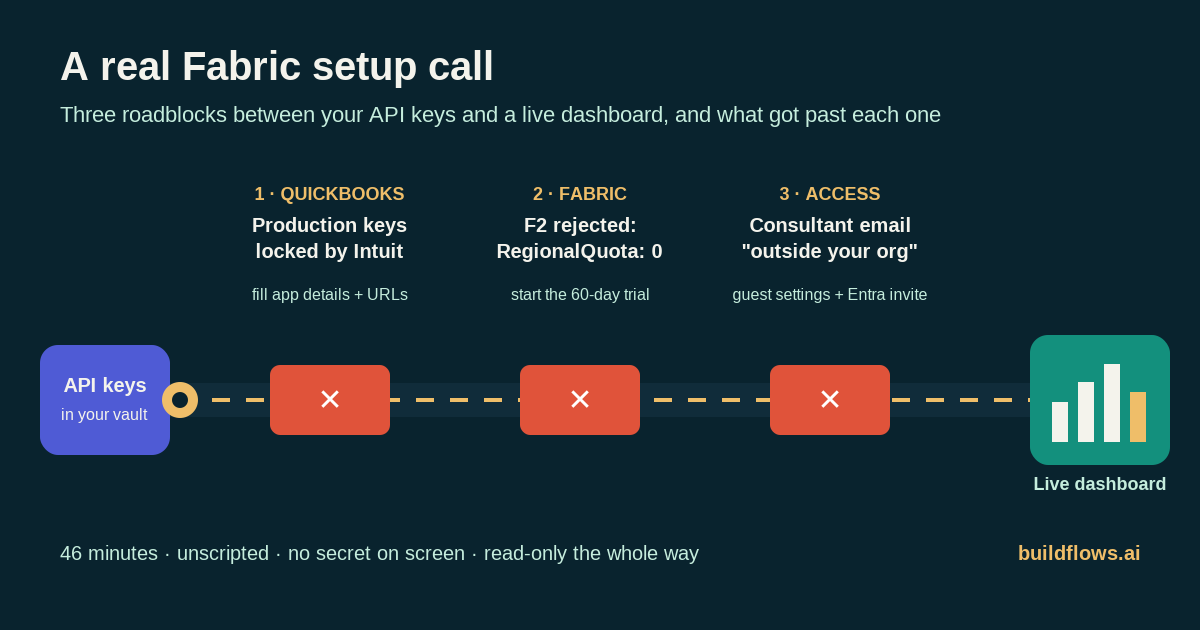
A Real Microsoft Fabric Setup Call: QuickBooks, Key Vault and 3 Roadblocks We Fixed Live
A walkthrough of an unscripted 46-minute setup call with a client's admin: unlocking QuickBooks production keys in the Intuit Developer portal, checking Azure Key Vault values safely, getting past the Fabric F2 "RegionalQuota: 0" error with the 60-day trial, and giving an outside integrator guest access to a Fabric workspace, with a run sheet and checklist.
Integrations · November 17, 2026
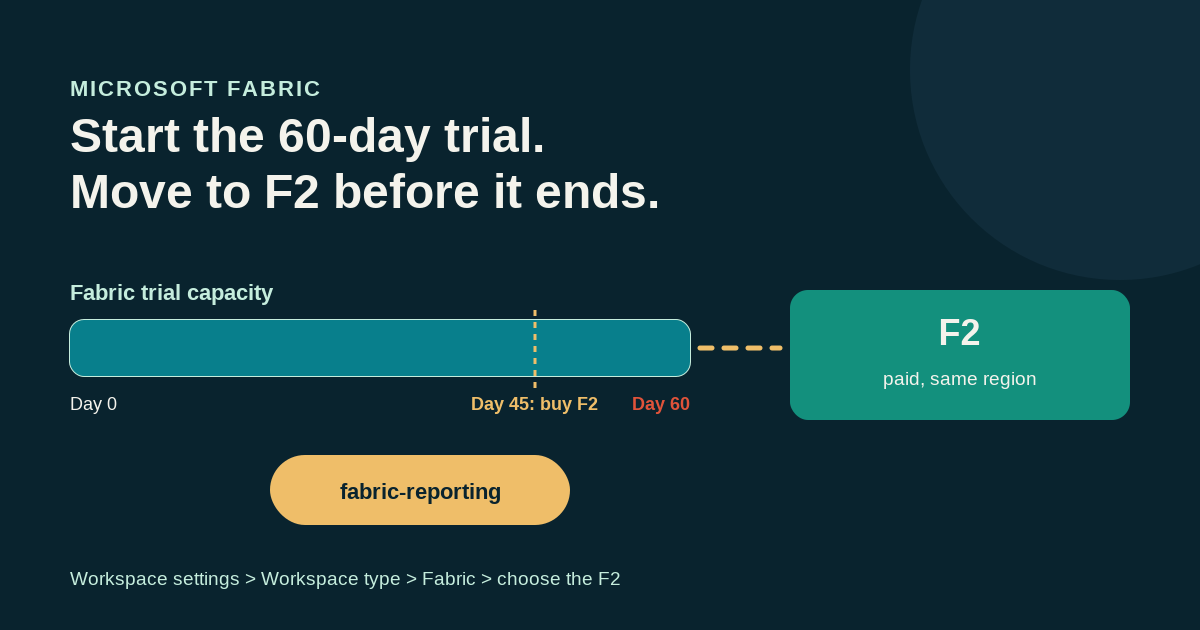
Start the Microsoft Fabric Free Trial (60 Days) and Move to a Paid F2 Before It Ends
How to start the Microsoft Fabric trial from the account manager, what the trial capacity includes and excludes, how to create a workspace on it, what happens on day 60 and in the seven days after, and how to move the workspace to a paid F2 in the same region, with a 60-day plan and a trial vs F2 comparison.