Key takeaways
- "RegionalQuota: 0" means your Azure subscription is allowed zero Fabric capacity units in that region. The form, resource group and Microsoft 365 licenses are not the problem.
- Azure checks that capacity units already used plus the size you request stay within the regional quota. An F2 needs 2 CUs, so 0 + 2 against a limit of 0 fails.
- Param1, Param2 and Param3 in the error details repeat TotalCapacityUnits, RegionalQuota and RequestedSku.
- Register the Microsoft.Fabric resource provider, then check Quotas > Microsoft Fabric for your subscription and region and submit a New Quota Request. Microsoft says you hear back within minutes.
- Capacity overage is on by default and its threshold also uses quota, so ask for at least 3 CUs for an F2. Unused quota costs nothing.
- Free trial Azure subscriptions can't get quota increases. Upgrade to pay-as-you-go, use another subscription, or try a region that already has quota.
- Start the 60-day Fabric trial so the workspace can be built while you wait, and plan Power BI Pro for viewers before moving to a paid F2.
33 seconds · From a Build Flows walkthrough
What "RegionalQuota: 0" means
The subscription is allowed zero Fabric capacity units in that region, so even the smallest F2 is rejected. Request a quota increase, try another region, or start a Fabric trial while you wait.
Read the clip transcript
This is what was set up yesterday. I don't know if that's. Okay. I just did a search on this. The same F2 is allowed zero fabric capacity units in that region. So even the smallest gets reviewed setting it in the form will fix it. Microsoft has to raise the limits. which you request. And so I wonder if we can either change the limits, or we can change the where it's hosted the region.
Captions adapted from the source video; proper names may reflect automatic transcription. Original segment: 29:25–29:58. Watch at the source.
You fill in the Create Fabric capacity form in the Azure portal, pick F2, select Review + create, and Azure comes back with Your deployment failed. The red banner says:
The sum total of CapacityUnits of all Fabric capacities in the current subscription must not exceed the regional quota for the subscription! TotalCapacityUnits: 0, RegionalQuota: 0, RequestedSku: F2. Please refer to - https://learn.microsoft.com/en-us/fabric/enterprise/fabric-quotas?tabs=Azure for more information.
In plain words, this subscription is allowed zero Fabric capacity units in that region, and an F2 needs two. Your form is fine. So is your resource group, and your Microsoft 365 licenses have nothing to do with it. You need quota, a different region, or a different subscription. This guide explains each number in the error, gives the fixes in the order we'd try them, and shows how to keep working on the Fabric trial while you wait.
We hit this exact error on a live setup call with a client's admin. It's one of three roadblocks in our write-up of that call. If you haven't built the capacity yet, start with creating a Fabric capacity in Azure.
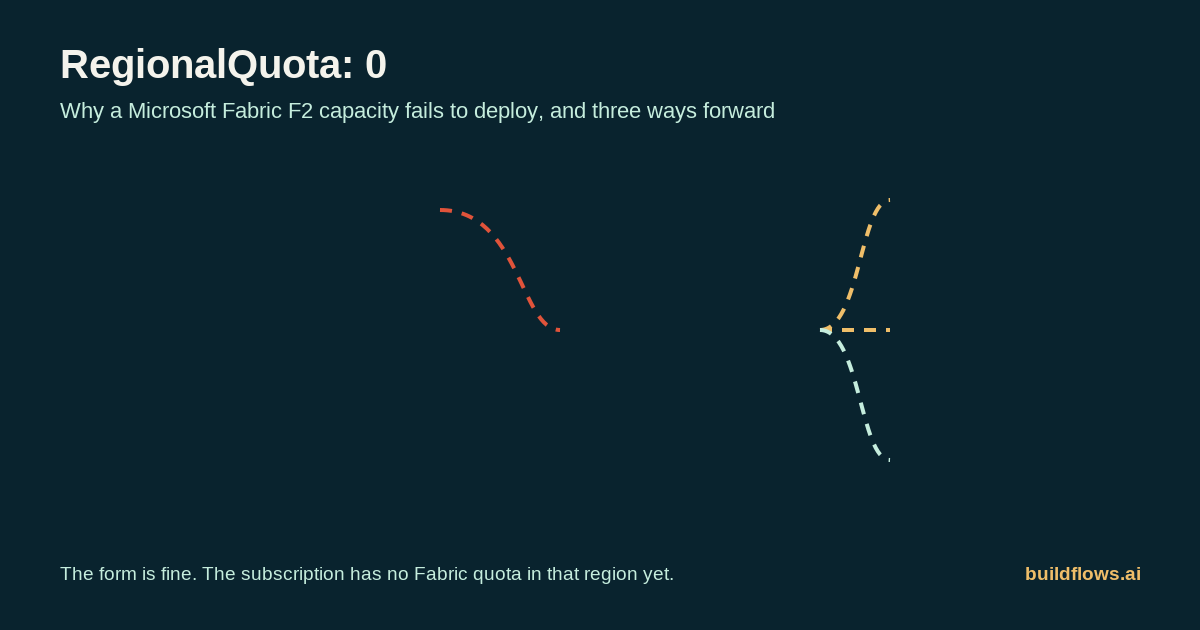 RegionalQuota: 0 means the region's limit is zero, not that the form is wrong
What the error means
Fabric capacity is measured in capacity units (CUs). The number in the SKU is the CU count, so an F2 has 2 CUs and an F64 has 64. Microsoft caps how many CUs each Azure subscription can hold in each region. That cap is your Fabric quota. Microsoft's quota page says quotas depend on your subscription type, and you're charged only for capacities, never for quota.
Before Azure creates a capacity, it does one check: the CUs you already have in this subscription and region, plus the CUs you're asking for, must not exceed the regional quota. In our case that was 0 + 2 against a limit of 0, so the deployment stopped.
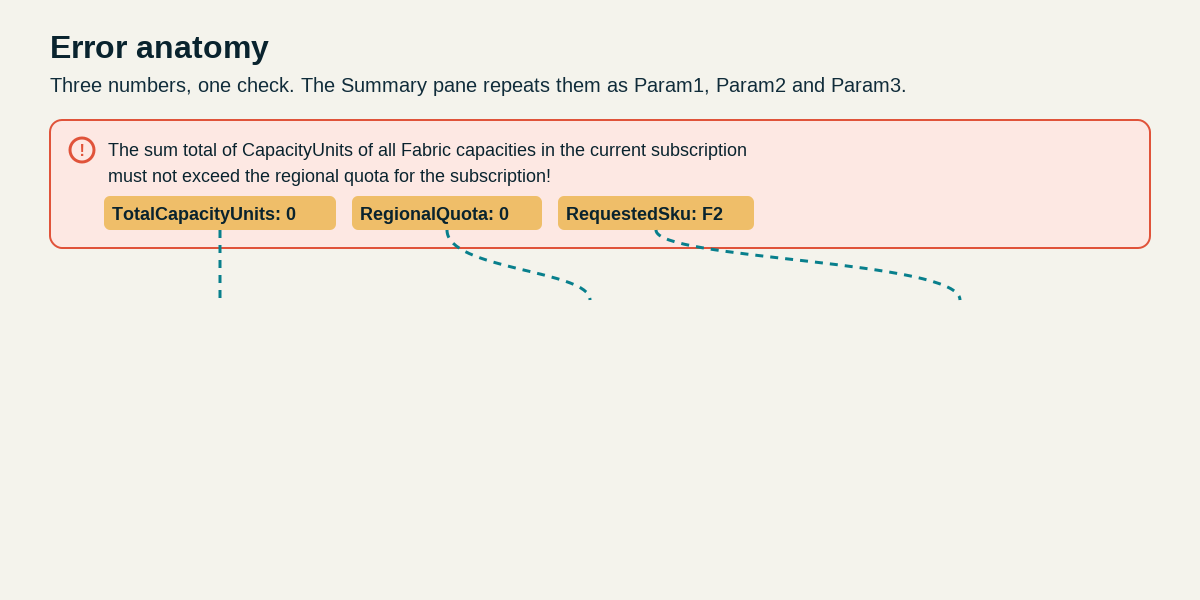 Error anatomy: three numbers, one check
| Part of the error | Value we got | What it means |
|---|---|---|
TotalCapacityUnits (shown as Param1) | 0 | CUs already used by Fabric capacities in this subscription and region. 0 means you have none yet. |
RegionalQuota (shown as Param2) | 0 | The most CUs this subscription may hold in this region |
RequestedSku (shown as Param3) | F2 | The size you asked for. F2 needs 2 CUs. |
| Subscription | Microsoft 365 Default Subscription | Quota belongs to this subscription only |
| Region | West US | Quota belongs to this region only |
The Summary pane next to the error lists 0 (Code: Param1), 0 (Code: Param2) and F2 (Code: Param3). In our session they matched the three values in the banner, in the same order.
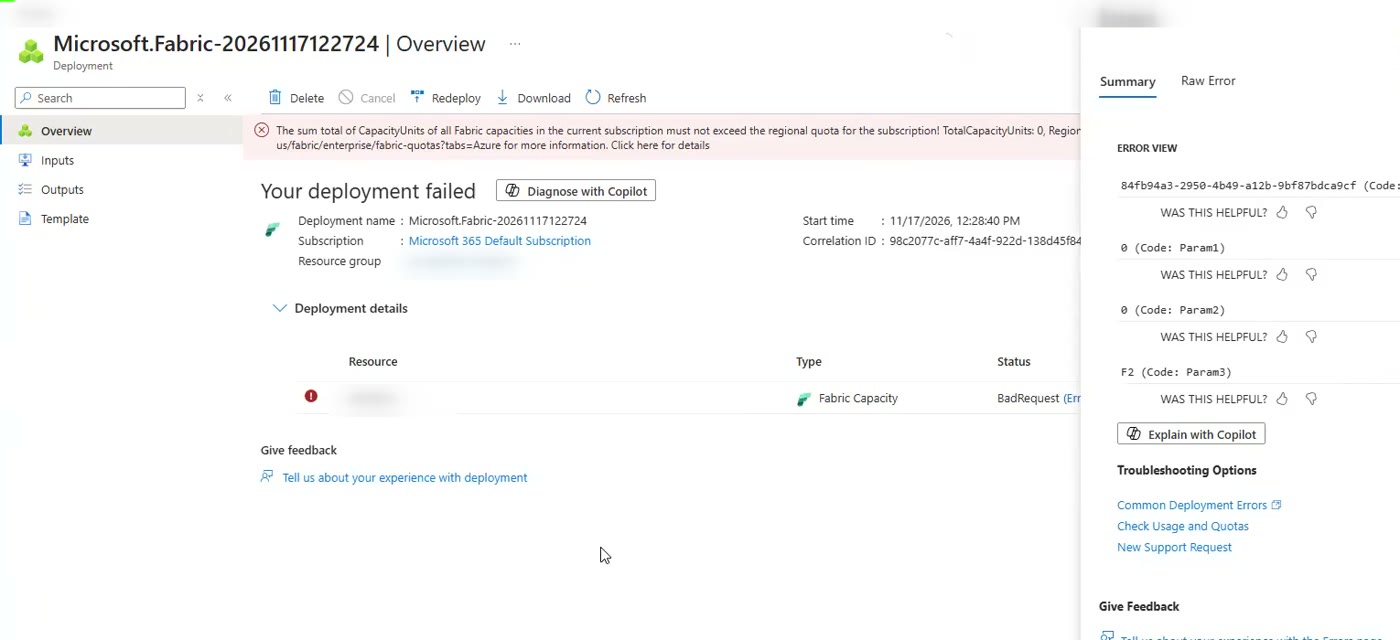 The failed deployment from the session, with the quota banner and Param1 to Param3
Why a subscription can show 0
- Quota is set per subscription and per region. A subscription that has never run Fabric can start at 0, and one subscription can be at 0 in one region and have quota in another.
- The resource provider may not be registered. Microsoft's quota page says to register the
Microsoft.Fabricresource provider before your first capacity, or if your quota is 0. - Free trial subscriptions can't get more. Azure's limits page says free trial subscriptions aren't eligible for limit or quota increases, and you can upgrade to pay-as-you-go.
- The subscription name doesn't tell you much. "Microsoft 365 Default Subscription" is just a name. On the call we first guessed that this subscription only covered Office licenses and couldn't hold Fabric. That guess was wrong. The error says the quota is 0. It doesn't say the subscription is ineligible. To see what kind of subscription you have, open Subscriptions, select it, and check the offer on its Overview page.
Fix it, in this order
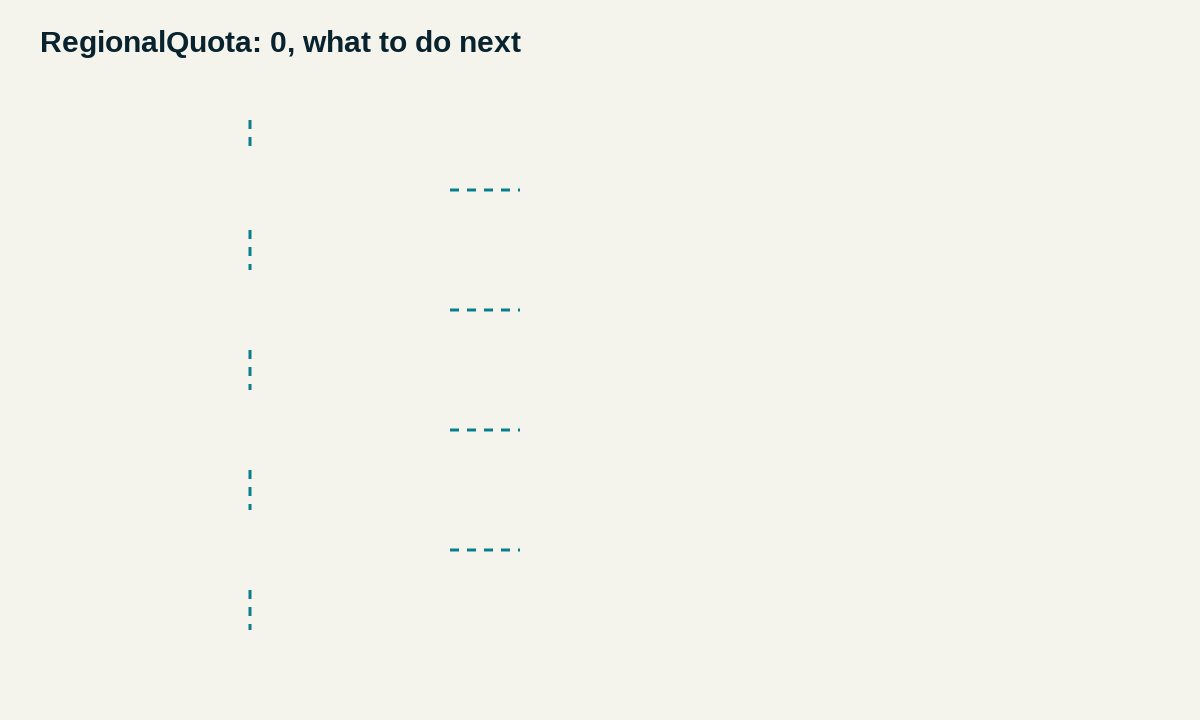 Troubleshooting decision tree for RegionalQuota: 0
1. Check the quota for your region
You need the Contributor role, or a role that includes it, to view quota.
- In the Azure portal, search for quotas and select Quotas.
- On the overview page, select Microsoft Fabric.
- Set the filters: Provider = Microsoft Fabric, Subscription = yours, Region = the one you tried, Usage = Show all.
- Compare the limit with current usage. Your free quota is the limit minus what's used.
The failed deployment page also has a Check Usage and Quotas link under Troubleshooting Options.
2. Register the Microsoft.Fabric resource provider
- Search for Subscriptions and open the subscription.
- In the left menu, under Settings, select Resource providers.
- Find
Microsoft.Fabric, select it, and select Register. - Wait until it shows Registered, then check your quota again.
Registering needs Contributor or Owner on the subscription. The capacity setup guide explains what a resource provider is.
3. Request a quota increase
You need the permissions in the Quota Request Operator role.
- Go to Quotas > Microsoft Fabric.
- Select New Quota Request.
- Choose Enter a new limit (or Adjust the usage %) and enter the CUs you need.
- Select Submit.
Microsoft says the request is reviewed and you're told within minutes whether it worked. If it's denied, open a support request: Help + support > Create a support request, issue type Service and subscription limits (quotas), quota type Microsoft Fabric, then Enter details with your new limit. Microsoft says Azure support for quota adjustments is included without a paid support plan.
How much to ask for. An F2 needs 2 CUs, but that's not the whole number. Capacity overage is on by default when you create a capacity, and its threshold also uses quota: 1/24 of the threshold in CU hours. The default threshold is 25%, which for an F2 is about 12 CU hours a day, or about half a CU of quota. So plan on at least 3 CUs for an F2, and more if you might scale up later. Quota you don't use costs nothing.
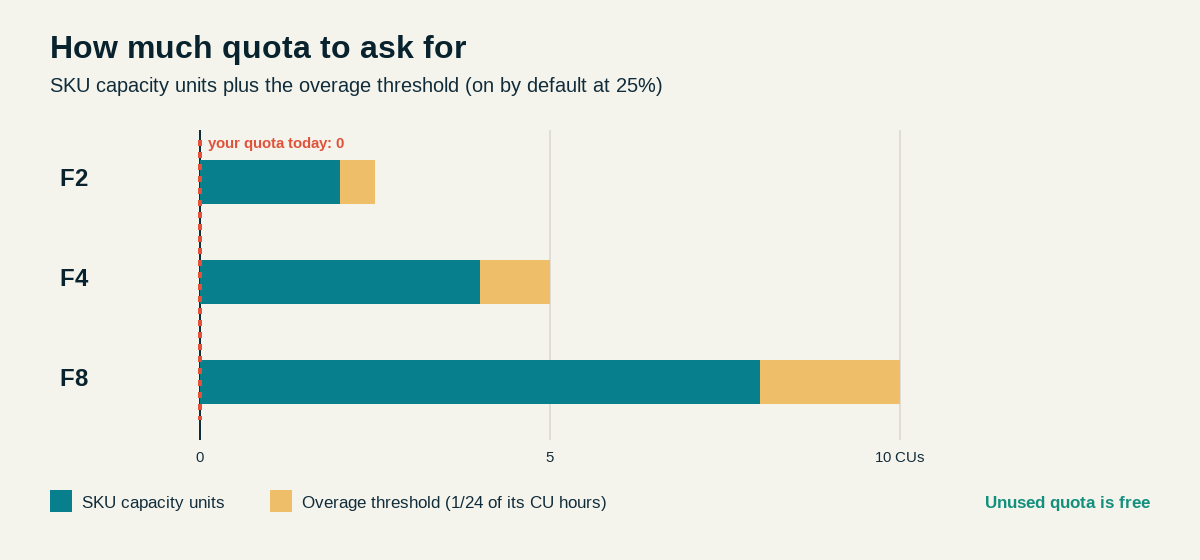 Ask for the SKU's CUs plus room for the overage threshold
| Size | SKU CUs | Overage at default threshold | Ask for at least |
|---|---|---|---|
| F2 | 2 | about 0.5 | 3 |
| F4 | 4 | about 1 | 5 |
| F8 | 8 | about 2 | 10 |
4. Try another region
Because quota is per region, another region may already have room. Check it in Quotas before you redeploy. Don't pick a region only because it has quota, though. Microsoft recommends putting capacity where your other resources already are, and moving a workspace with Fabric items to another region later means deleting those items first. Choose the region you'd be happy to keep.
5. Use a different subscription
If the subscription is a free trial, upgrade it to pay-as-you-go or use another subscription. A brand-new subscription can also start at 0, so check its quota before you deploy. In our session, a subscription created a few minutes earlier didn't show up in the form's Subscription list yet. Give it time and reload the form.
6. Start the Fabric trial while you wait
You don't have to stop work. The Fabric trial gives you a capacity free for 60 days, and you start it from Fabric itself, not from the Azure portal. Open the account manager (your profile picture) at app.fabric.microsoft.com, select Start trial, pick a region and select Activate. Then create your workspace on it. When the paid F2 is ready, switch the workspace over. Starting the trial and moving to F2 covers both steps.
One catch: on a trial capacity, people with a free license can view reports. On a paid F2, which is below F64, each report viewer needs Power BI Pro. Plan for that before you switch.
Errors that look similar
| What you see | Likely cause | Fix |
|---|---|---|
RegionalQuota: 0 on a first capacity | No Fabric quota in this subscription and region | Register Microsoft.Fabric, then request quota or change region |
TotalCapacityUnits equals RegionalQuota | Another capacity already uses the quota | Delete an unused capacity or request more |
| Same message when scaling F8 to F64 | Quota is below the new size | Request quota for the larger size first |
| Can't save a capacity overage threshold | Threshold needs quota you don't have | Lower the threshold or request more quota |
| No Start trial in the account manager | Trials turned off, or the tenant hit its trial limit | Ask your Fabric admin, or share an existing trial |
From the live session
At 26:27 in the session, the client's admin, at a low-voltage and security integrator, deployed an F2 into the Microsoft 365 Default Subscription in West US. It failed with the quota banner above, and the admin pasted the error into the Zoom chat. Charley's first guess was that this subscription was tied to the company's Office licenses and couldn't hold Fabric, so they tried a newly created subscription. It didn't appear in the form yet.
At 29:24, after looking up the message, he read out the real cause: the subscription was "allowed zero Fabric capacity units in that region," and "Microsoft has to raise the limits, which you request." The two options were to raise the limit or change the region. To keep the call moving, the admin started the Fabric free trial instead, created the shared workspace on it, and left the paid F2 until the quota came through. The whole call is on the video page.
Checklist
- Error copied in full, including the
Param1toParam3values - Subscription offer checked (not a free trial, or upgraded)
-
Microsoft.Fabricshows Registered under Resource providers - Quota checked in Quotas > Microsoft Fabric for your region
- New Quota Request submitted for at least 3 CUs (F2 with overage on)
- Support request opened if the quota request was denied
- Region chosen to stay near your Key Vault and other resources
- Fabric trial started so work continues while you wait
- Power BI Pro planned for report viewers before moving to paid F2
- Capacity redeployed, then the workspace moved to it
Need a hand?
Build Flows sets up Microsoft Fabric reporting for contractors, including the Azure side: subscriptions, quota, Key Vault and the capacity itself. If your F2 is stuck on a quota error and you'd like someone to work through it with your admin, email charley@buildflows.ai or tell us what you're building.
References
- Microsoft Learn: Microsoft Fabric quotas (view quota, New Quota Request, support request)
- Microsoft Learn: Buy Fabric capacity Azure SKUs (prerequisites, quota, resource provider)
- Microsoft Learn: Azure resource providers and types (register a resource provider)
- Microsoft Learn: Azure subscription and service limits (free trial quota increases)
- Microsoft Learn: How to create an Azure support request
- Microsoft Learn: Capacity overage in Microsoft Fabric (threshold uses quota)
- Microsoft Learn: Enable capacity overage (default threshold)
- Microsoft Learn: Fabric trial capacity
- Microsoft Learn: Understand Microsoft Fabric licenses and capacity
- Microsoft Q&A: Quota error when scaling a Fabric capacity from F8 to F64
Frequently asked questions
What does "The sum total of CapacityUnits of all Fabric capacities in the current subscription must not exceed the regional quota for the subscription" mean?
Your Azure subscription has a limit on how many Fabric capacity units it can hold in each region. The capacity units you already use plus the size you're creating would go over that limit. With TotalCapacityUnits: 0, RegionalQuota: 0, RequestedSku: F2, the subscription is allowed zero units in that region and an F2 needs two.
How do I increase my Microsoft Fabric quota in Azure?
In the Azure portal, search for Quotas, select Microsoft Fabric, then New Quota Request. Enter a new limit for your subscription and region and select Submit. Microsoft says the request is reviewed within minutes. If it's denied, create a support request with the issue type Service and subscription limits (quotas) and the quota type Microsoft Fabric.
How many capacity units should I request for a Fabric F2?
At least 3. An F2 uses 2 capacity units, and capacity overage, which is on by default at a 25% threshold, also uses quota equal to one twenty-fourth of its CU-hour threshold, about half a CU for an F2. Ask for more if you may scale to F4 or F8. You aren't charged for quota, only for capacities.
Why is my Fabric quota 0 in a new Azure subscription?
Quota is set per subscription and per region, based on subscription type, and a subscription that has never run Fabric can start at 0. Microsoft says to register the Microsoft.Fabric resource provider before your first capacity or if your quota is 0. Free trial subscriptions aren't eligible for quota increases.
Can I create a Fabric capacity in the Microsoft 365 Default Subscription?
The subscription name isn't what blocks you. The regional quota error means that subscription has no Fabric capacity units in the region you picked. Check its offer on the subscription's Overview page, register Microsoft.Fabric, and request quota for that region, or use another subscription that has quota.
What are Param1, Param2 and Param3 in the Fabric capacity deployment error?
They repeat the numbers from the error message. In our deployment, Param1 was 0 (TotalCapacityUnits, the units already used), Param2 was 0 (RegionalQuota, the limit), and Param3 was F2 (RequestedSku, the size requested).
Can I use Microsoft Fabric while I wait for a quota increase?
Yes. Start the Fabric trial from the account manager in the Fabric portal. It runs for 60 days and is started in Fabric, not in the Azure portal. Build your workspace on the trial, then switch the workspace type to your paid capacity when it's ready. On a paid F2, report viewers need Power BI Pro.
Next step
Need this connection in your environment?
Scope one integration: the records, direction, timing, and business rules behind the connection.
Prefer email? charley@buildflows.ai
Keep learning
Integrations · November 17, 2026
Create a Microsoft Fabric Capacity in Azure: Subscriptions, Resource Groups and F2 Costs
A plain-English guide for office managers and IT generalists at contractors: what an Azure subscription, resource group, resource and resource provider are, how to create a Microsoft Fabric F2 capacity (name rules, region, size, Capacity Overage Protection, capacity administrator), assign it to a workspace, pause it, and what F2 really costs with reservations, Power BI Pro viewers, tags and budgets.
Integrations · November 17, 2026
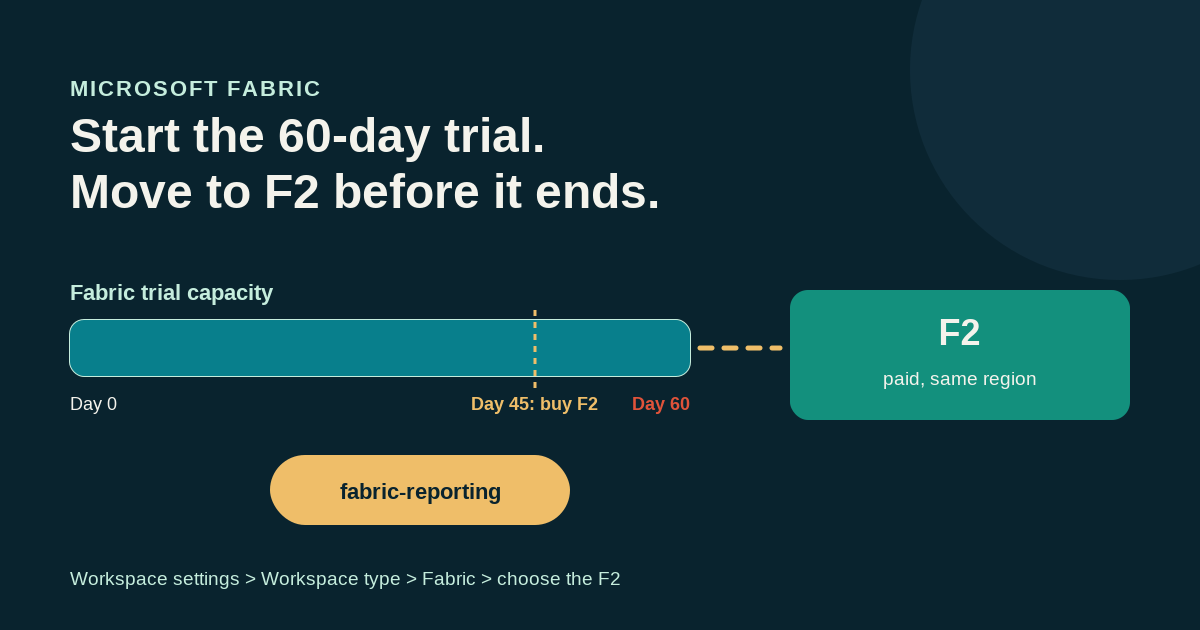
Start the Microsoft Fabric Free Trial (60 Days) and Move to a Paid F2 Before It Ends
How to start the Microsoft Fabric trial from the account manager, what the trial capacity includes and excludes, how to create a workspace on it, what happens on day 60 and in the seven days after, and how to move the workspace to a paid F2 in the same region, with a 60-day plan and a trial vs F2 comparison.
Integrations · November 17, 2026
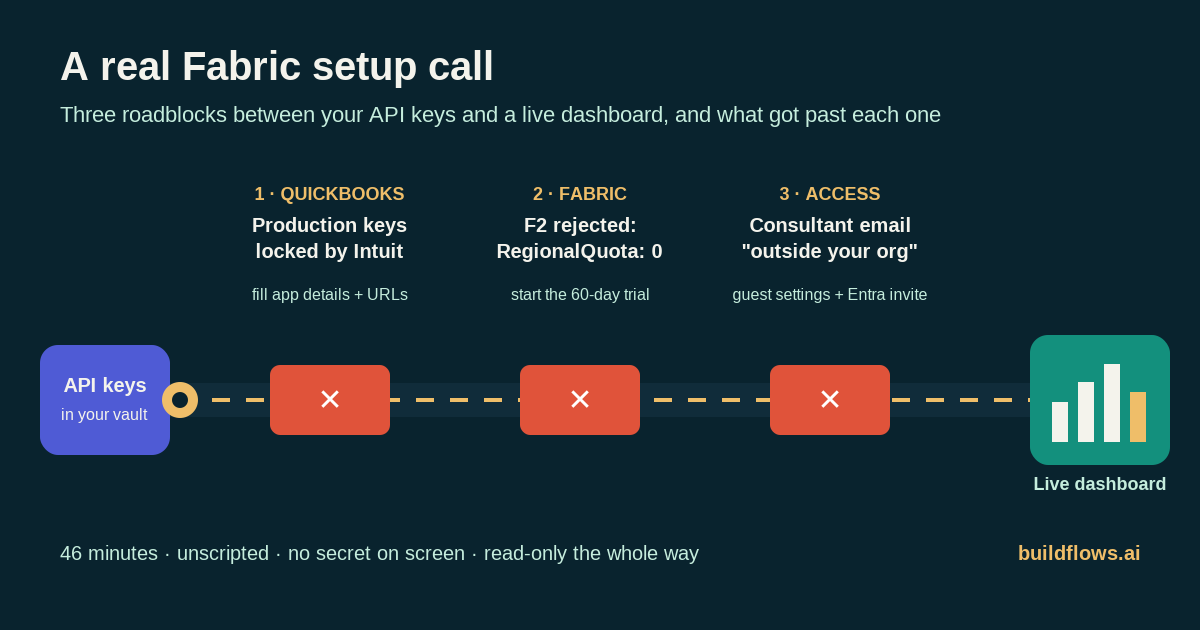
A Real Microsoft Fabric Setup Call: QuickBooks, Key Vault and 3 Roadblocks We Fixed Live
A walkthrough of an unscripted 46-minute setup call with a client's admin: unlocking QuickBooks production keys in the Intuit Developer portal, checking Azure Key Vault values safely, getting past the Fabric F2 "RegionalQuota: 0" error with the 60-day trial, and giving an outside integrator guest access to a Fabric workspace, with a run sheet and checklist.