Video unavailable? Watch on YouTube or read the written breakdown.
To connect HubSpot or Salesforce to Procore, trigger on the deal reaching your won stage, check the required fields, look up the company and project in Procore before creating anything, hold the new project for a person to approve, then create it with the CRM deal ID stamped on it and write the Procore project ID back to the deal. Keep pursuit data (stages, probabilities, contacts being courted) in the CRM and delivery data (budget, commitments, cost, change orders) in Procore. In reporting, show pipeline next to backlog, never added to it.
That is the short version. The rest of this guide covers the trigger, the field map, the approval step, duplicate handling, which system owns what, and how to keep pipeline and backlog apart once both are in one report. The reporting half comes from our Procore, QuickBooks and HubSpot build, a production implementation. The write-into-Procore half is a pattern we design and build to each client's requirements. In that build it was the next step we discussed: a flow that creates the Procore project when a HubSpot deal moves to closed won, so the link exists from day one.
Why CRM to Procore is worth connecting
Business development lives in the CRM and operations lives in Procore. They meet when someone retypes the job. That handoff causes three problems that keep growing:
- Names drift. The same building is "Main St Clinic" in HubSpot and "Main Street Medical Clinic - Phase 2" in Procore. Nothing links the two except someone's memory.
- Setup waits. The project gets created when someone has time, not when the deal closes, and the details are copied from emails and the estimate.
- Reporting can't join them. With no shared ID, a report can't put a won deal next to the project it became, or compare pipeline with backlog without hand matching.
In our Procore, QuickBooks and HubSpot build, the three systems shared no common ID. A crosswalk had to link each Procore project to a QuickBooks job and a HubSpot deal, using a controller's mapping file first, then exact project-number matches, then cautious name matching. Projects that didn't match stayed in the totals, flagged as unmapped. That works for legacy jobs. For new ones, the better fix is at the source: create the link when the deal is won so nobody has to rebuild it later.
The deal-won to project setup flow, step by step
This is the sequence we design for a HubSpot or Salesforce to Procore handoff. The tool can be Power Automate, n8n, Zapier or a small service in code. The steps stay the same.
- Trigger on the won stage. The flow starts when a deal enters your won stage (closed won in HubSpot, Closed Won on a Salesforce opportunity). In HubSpot that is usually a workflow or a webhook subscription. In Salesforce, a record-triggered Flow or a platform event. Pick one stage, in one pipeline, and write it down.
- Check required fields. Before anything is created, confirm the deal has what Procore needs: project name, address, customer company, contract value, project type or stage, office, and the project manager. If anything is missing, stop and tell the deal owner exactly which fields to fill in. A half-built project is worse than a late one.
- Look up before you create. Search Procore for an existing project carrying this deal ID, then for the customer company in the Procore directory. A returning customer should be reused, not created again. Uncertain matches go to review (more on that below).
- Hold for approval. Send a summary to a named approver: what will be created, which company it will link to, and any warnings. The approver accepts, edits or rejects.
- Create the project. On approval, create the Procore project from your standard setup with name, number, address, stage and dates, and stamp the CRM deal ID in a dedicated field.
- Write back. Write the Procore project ID and project number back to the CRM deal. Both systems now point at each other.
- Notify and log. Tell the project team and accounting that setup is done and list anything that still needs a person, such as team permissions or budget import. Log every run, including skipped and failed ones, and send failures to a named technical owner.
If accounting needs a job at the same time (a QuickBooks customer and job, or a Sage job), add it as a parallel step with the same identifiers. Each extra system adds another place where a lookup can fail, so start with CRM to Procore and add accounting once that path is stable.
Field mapping: deal to project
The field map is the real deliverable. Agree it with sales, operations and accounting before building anything, and give every field an owner, the person who fixes it when it's wrong.
| CRM field (HubSpot deal / Salesforce opportunity) | Procore target | Rule | Owner |
|---|---|---|---|
| Deal or opportunity ID | Custom field on the project (for example "CRM Deal ID") | Required, written once, never edited | Integration (system-set) |
| Project number (CRM custom property) | Project number | Required; one format agreed company-wide | Operations or project admin |
| Deal name | Project name | Cleaned to your naming convention, not copied as typed | Operations |
| Associated company | Customer or owner company in the Procore directory | Look up first; create only after review | Operations or project admin |
| Property address | Project address | Required; standardized | Deal owner |
| Amount | Not the contract value; reference only | The signed contract enters Procore through the prime contract, not from the deal amount | Project manager |
| Close date | Reference date for setup, not the project start date | Start and completion dates come from the contract or schedule | Project manager |
| Deal owner | Notified on setup; not added to the project team by default | Team membership is an operations decision | Operations |
| Pipeline stage and probability | Not synced | Pursuit data stays in the CRM | Sales |
| Procore project ID | Written back to a CRM deal property | System-set after creation | Integration (system-set) |
Two rows trip teams up most often.
Deal amount is not contract value. The deal amount is the estimate at the time of the win. The contract value in Procore should come from the executed prime contract and approved change orders. If you copy the deal amount into Procore as the contract, the WIP schedule inherits a number nobody signed.
The project number needs one owner and one format. In our crosswalk, the exact-match rule depended on the Procore project number appearing in the accounting job name. If the number is set at handoff, in one format, that match becomes automatic for every new job.
For the endpoints and fields involved, work from the official docs: the Procore developer documentation, the HubSpot developer documentation, and the Salesforce developer documentation. Confirm which project fields, custom fields and setup options your Procore company exposes through the API before you finalize the map. Procore configurations vary between companies.
Approvals before creating records
A Procore project is hard to undo cleanly. It picks up a directory, permissions and, soon, cost and documents. That is why we put a human in the loop between "deal won" and "project created", at least until the flow has proven itself.
A good approval step:
- Shows the decision, not the payload. "Create project 2026-014 Main Street Medical Clinic for the existing customer company, with the named project manager" is reviewable. A JSON dump is not.
- Surfaces warnings. Possible duplicate company, missing address, project number already in use, deal reopened after a previous won.
- Lets the approver edit. Fixing a typo at approval beats fixing it in two systems later.
- Has a timeout and an escalation. If nobody answers, remind them, then go to a deputy. A stalled approval quietly brings back the old delay.
- Records who approved what. Keep the approver, time and final values in the run log.
Some teams later relax this. Clean deals with an exact company match create automatically, and only exceptions wait for a person. That is a reasonable second phase. Base the decision on the run log, not on optimism.
Handling duplicates: companies, contacts and projects
Duplicates are the most common way a CRM to Procore integration goes wrong, and the hardest damage to undo. Both systems hold companies and people, typed by different teams at different times.
Projects. The deal ID field is the guard. Before creating, search for a project already carrying that deal ID. If one exists, update it or stop. Never create a second. This also covers the deal that is moved out of won and back again, which would otherwise fire the trigger twice.
Companies. Match in order of trust, the same way our reporting crosswalk does:
- A stored link (the Procore company ID already saved on the CRM company).
- An exact match on a stable identifier you control, such as a vendor or customer number.
- A cautious name match, used only as a suggestion for the approver, never to merge automatically.
Anything below an exact match goes to review. A wrong merge, where a new client is attached to someone else's directory record, is harder to unwind than a short review.
Contacts. Sync fewer than you think. The CRM holds everyone sales has spoken to. Procore needs the people who will actually act on the project. Create Procore contacts only for named roles (owner's representative, architect, billing contact) and match on email first.
What stays in the CRM and what lives in Procore
The integration works when each system keeps the job it is good at. Copying everything both ways creates two half-true records instead of one true one.
Stays in the CRM:
- Pursuits, stages, probabilities and forecast close dates
- Bid history, lost deals and reasons
- Relationship contacts, marketing activity, sales notes
- The deal amount as estimated at the time of the win
Lives in Procore:
- The project record, team and directory for the job
- Prime contract value and change orders
- Budget, commitments, cost to date and forecasts
- RFIs, submittals, daily logs and other delivery records
Shared, set once:
- The deal ID on the Procore project, and the Procore project ID on the deal
- The project number
- The customer company link
After the win, data mostly flows one way: from the CRM into Procore at setup, then from Procore into reporting. Writing delivery data such as cost or percent complete back into the CRM is rarely worth it. Sales teams who want that view are better served by a report that reads both.
Keeping backlog and pipeline separate
Once deals and projects are linked, it is tempting to add them together into one "future revenue" number. Don't.
- Backlog is contracted work not yet earned: revised contract minus earned revenue, from Procore. It is signed.
- Pipeline is work you might win: open deal amounts from the CRM. Weighted pipeline multiplies each amount by its probability (the deal's own, else the stage's). It is a forecast with assumptions.
In our Procore, QuickBooks and HubSpot report, won work enters through Procore only. HubSpot deals are never added to backlog or called revenue. The pipeline page shows weighted pipeline next to backlog by month, side by side, so a reader can see both without one inflating the other. Pipeline confidence (weighted pipeline divided by total pipeline) shows how much of that pipeline is early-stage hope.
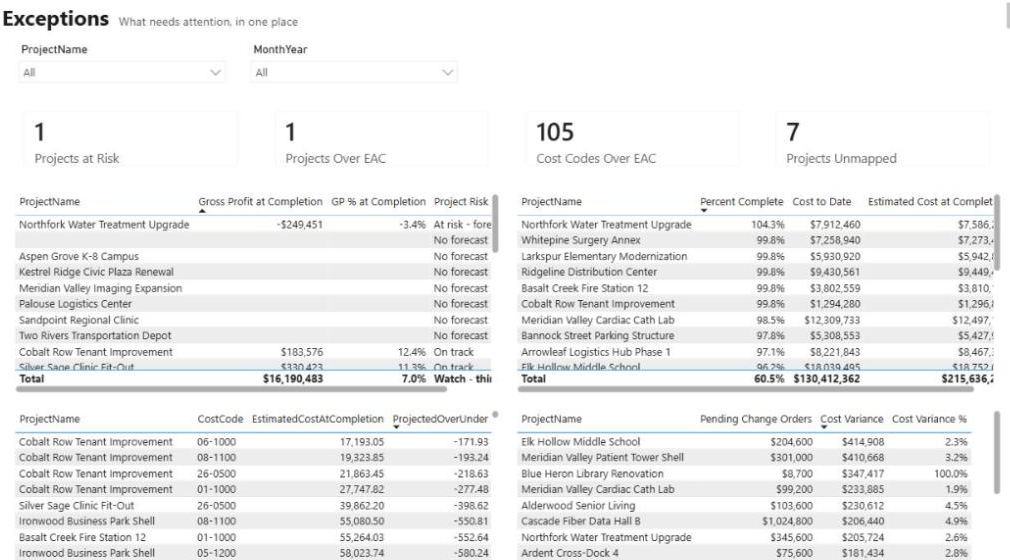
The shared ID makes one more check possible: won deals with no Procore project. A deal marked won weeks ago that still has no linked project is either a setup that stalled or a deal that shouldn't be marked won. Either way, it belongs on an exceptions list, not hidden in a total. That fits our "flag, never drop" rule: unmatched records stay visible until someone fixes them at the source.
For how backlog burn and pipeline turn into a forward view, see the backlog and burn forecast use case.
Implementation checklist
Use this before you build, and again before you switch the flow on.
- One won stage, in named pipelines, agreed as the trigger
- Field map signed off by sales, operations and accounting, with an owner per field
- Project number format agreed and owned by one role
- Custom field for the CRM deal ID created on Procore projects; property for the Procore project ID created on CRM deals
- Required-field check with a clear message to the deal owner
- Lookup-before-create for projects (by deal ID) and companies (stored link, then exact identifier)
- Approval step with a readable summary, warnings, edit option, timeout and escalation
- Integration accounts with least-privilege access, in each system, not tied to one employee
- Every run logged, including skips and failures; failures sent to a named technical owner
- Tested end to end against a Procore sandbox and a CRM test pipeline, including a re-opened deal and a duplicate company
- Reporting crosswalk updated to read the deal ID, with legacy projects still matched by the controller's list
- Baseline captured first: manual setup steps per project and days from won to set up, so the after state can be compared honestly
Choosing the tool
The steps above don't depend on one product. Choose based on who will run it.
- Power Automate fits teams already on Microsoft 365, especially if approvals should happen in Teams or Outlook. See our guide to Power Automate for construction.
- n8n suits self-hosting and more complex branching, and we maintain custom n8n nodes for Procore. See the n8n construction nodes walkthrough.
- Zapier is quick for HubSpot-centered teams and supports a human approval step. Our Zapier and HubSpot sales automation write-up shows HubSpot lookups and an approval loop.
- Code (a small service or a function) makes sense when the logic is heavy or the flow has to sit inside an existing data platform.
Whichever you pick, keep bulk reporting data out of it. Nightly extracts of cost, budgets and commitments belong in a data platform such as Microsoft Fabric. The flow handles the event and the decision. For the Procore side of the API work, our Procore API integration guide covers authentication, rate limits and pagination.
This work sits across two of our capability areas, integrations and workflow automation. The two halves are written up as use cases: CRM to Procore integration for the ongoing link and deal won to project setup for the handoff itself.
Where to go next
- See the reporting side running: the Procore, QuickBooks and HubSpot walkthrough, and the production build at connected financial reporting.
- Work through the matching rules on sample records in the source mapping example.
- Check whether your data is ready to report on with the reporting readiness checklist.
- If you want this built, the Integration Sprint covers a scoped CRM to Procore link at a fixed scope and price, agreed after discovery. Or plan your build and tell us what your handoff looks like today.
Frequently asked questions
Can HubSpot create a project in Procore automatically?
Yes, through an integration that listens for a deal reaching your won stage and calls the Procore API. The tool can be Power Automate, n8n, Zapier or custom code. We recommend a required-field check, a lookup for existing projects and companies, and an approval step before anything is created.
What fields should sync from a CRM deal to a Procore project?
Typically the deal ID, project number, project name, address and customer company, plus a notification to the deal owner. Pipeline stage, probability and sales notes stay in the CRM. The deal amount should not become the Procore contract value; that comes from the executed prime contract.
How do you avoid duplicate companies and projects in Procore?
Search before creating. Projects are matched on the stored CRM deal ID so a deal that is re-opened and won again does not create a second project. Companies are matched on a stored link or an exact identifier first, and name matches are only shown to the approver as suggestions.
Should pipeline be included in backlog?
No. Backlog is signed work not yet earned, from Procore. Pipeline is work you might win, from the CRM. Show weighted pipeline next to backlog so readers see both without one inflating the other.
Does the same approach work for Salesforce?
Yes. The steps are the same; the trigger is usually a record-triggered Flow or platform event on an opportunity reaching Closed Won. We confirm API access, custom fields and your Procore configuration during discovery.
Have you built a CRM to Procore integration?
Our Procore, QuickBooks Online and HubSpot reporting build is in production and links HubSpot deals to Procore projects through a crosswalk. Creating Procore projects from won deals is a pattern we design and build to each client's requirements, and test against a sandbox first.
Next step
Need this connection in your environment?
Scope one integration: the records, direction, timing, and business rules behind the connection.
Prefer email? charley@buildflows.ai
Get the next guide in your inbox
Field Notes: practical guides and new walkthroughs, about once a month.
Field Notes
Practical guides and new walkthroughs on construction data and automation, roughly monthly.
Keep learning
Integrations · October 9, 2026
A Worked Source-Mapping Example: Procore, Accounting and CRM
How to link a Procore project, an accounting job and a CRM deal when they share no ID: match rules in order of trust, a sample crosswalk, old-to-new cost codes, and fixing exceptions at the source.

Integrations · August 18, 2026
How We Joined Procore, QuickBooks and HubSpot in Microsoft Fabric
A build walkthrough of the pipeline that joins Procore projects, QuickBooks jobs and HubSpot deals in Microsoft Fabric, including the crosswalk that refuses to guess and the gate that stops wrong numbers.
Integrations · October 8, 2026
Procore API Integration Guide: Patterns, Crosswalks and Governance
A practical guide to connecting Procore with accounting, scheduling, BI and CRM systems: which pattern to use, how to link projects across systems, and how to keep the numbers trustworthy.